2500_Users_Manual-.pdf - 第177页
Preventive Maintenance Chuck Is Handling Devices Incorrectly The chuck does not work correctly with the devices you are using. Ensure that you are using the correct chuck size for the devices you are processing. Refer to…
1591-1
Preventive
Maintenance
Faulty
Printing
Printing
Is
Too
Light
The
ribbon
is
worn
or
broken,
the
print
head
is
worn,
or
the
print
head
gap
is
too
great.
Replace
ribbon,
or
print
head.
Adjust
the
print
head
gap
(see
page
5-24).
Characters
Too
Close
Together
Labels
are
loaded
incorrectly,
the
rollers
are
dirty,
or
the
motor
or
drive
circuitry
is
not
operating
properly.
Load
the
labels
correctly,
clean
the
rollers,
and
make
sure
the
pinch
rollers
are
engaged
(see
page
2-9).
Check
the
label
advance
motor;
run
motor
diagnostics.
Print
Is
Erratic
or
Slanting
Print
head
gap
is
too
great,
or
the
label
drive
is
slipping.
Check
and
adjust
the
print
head
gap
(see
page
5-24),
or
clean
the
label
rollers.
Dots
in
Characters
Are
Missing
The
cables
may
not
be
properly
connected
or
they
may
be
faulty.
The
print
head
or
handler
controller
board
may
not
be
operating
properly.
The
labeler
power
supply
may
not
be
at
the
correct
voltage
level.
Check
the
power
supply
voltage
switch.
If
problem
persists,
contact
Data
I/O
Support
(phone
numbers
listed
in
the
Preface).
Check
the
LEDs
on
the
handler
controller
board
and
evaluate
the
labeler
operation
by
running
the
print
test.
Check
the
cable
connections.
Swap
cables
and
see
if
different
dots
are
missing.
Replace
the
print
head
(see
page
7-13).
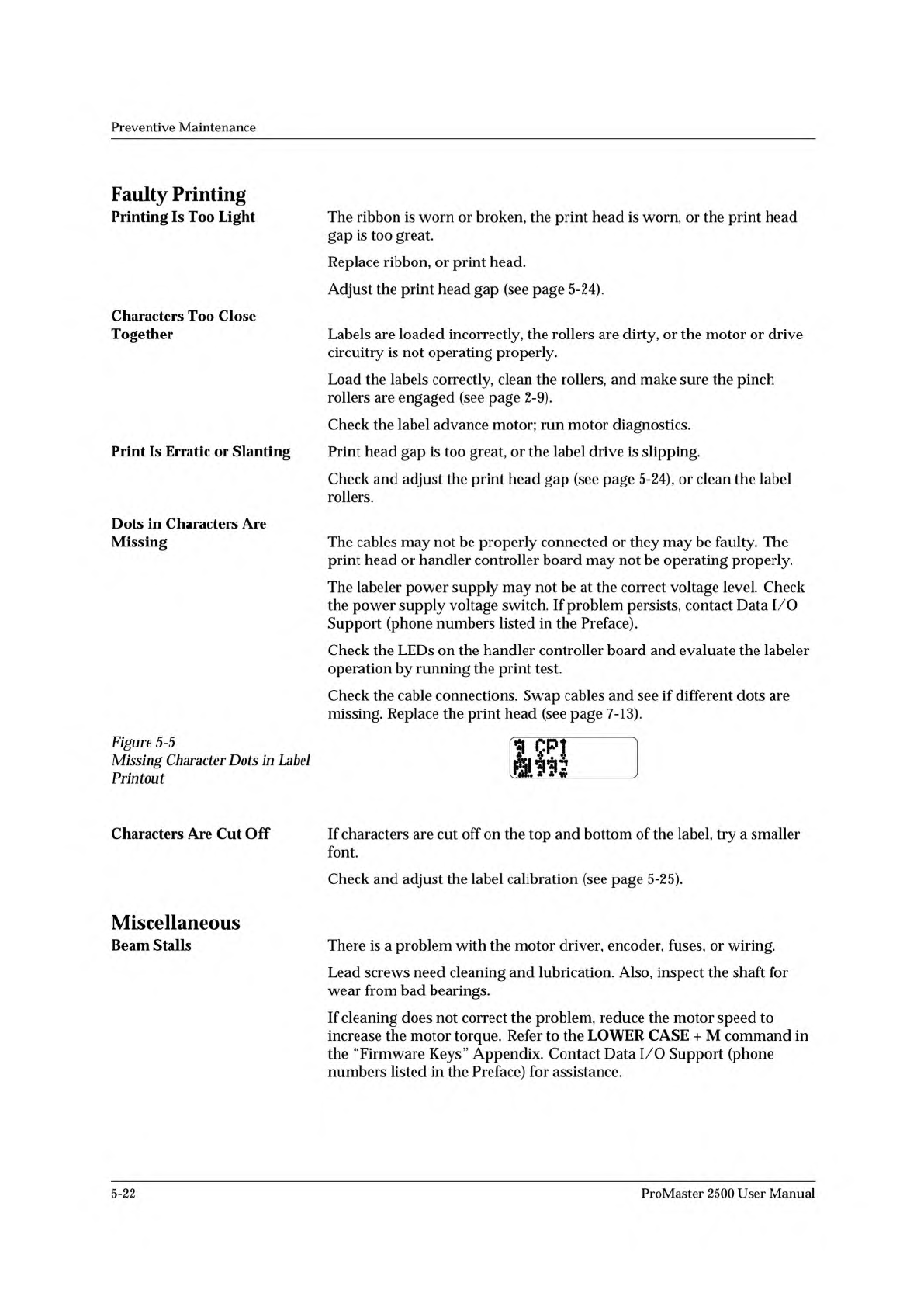
Figure
5-5
Missing
Character
Dots
in
Label
Printout
KI
Characters
Are
Cut
Off
If
characters
are
cut
off
on
the
top
and
bottom
of
the
label,
try
a
smaller
font.
Check
and
adjust
the
label
calibration
(see
page
5-25).
Miscellaneous
Beam
Stalls
There
is
a
problem
with
the
motor
driver,
encoder,
fuses,
or
wiring.
Lead
screws
need
cleaning
and
lubrication.
Also,
inspect
the
shaft
for
wear
from
bad
bearings.
If
cleaning
does
not
correct
the
problem,
reduce
the
motor
speed
to
increase
the
motor
torque.
Refer
to
the
LOWER
CASE
+
M
command
in
the
“Firmware
Keys”
Appendix.
Contact
Data
I/O
Support
(phone
numbers
listed
in
the
Preface)
for
assistance.
5-22
ProMaster
2500
User
Manual
Preventive
Maintenance
Chuck
Is
Handling
Devices
Incorrectly
The
chuck
does
not
work
correctly
with
the
devices
you
are
using.
Ensure
that
you
are
using
the
correct
chuck
size
for
the
devices
you
are
processing.
Refer
to
the
chuck
selection
chart
on
page
4-16.
Replace
the
rubber
chuck
tip.
Confirm
that
high
and
low
air
pressure
gauges
are
set
to
the
correct
levels.
Make
sure
there
are
no
air
leaks.
Continuity
Failures
Try
a
device-related
operation
(program
or
verify)
using
a
device
from
another
manufacturer
to
make
sure
the
problem
is
associated
with
the
hardware
rather
than
the
device
or
device
algorithm.
Carefully
check
the
beam's
alignment
to
the
device
and
the
device's
alignment
to
the
programming
module
to
verify
that
the
chuck
tip
is
centered
on
the
device
(refer
to
the
device
alignment
procedure,
beginning
on
page
4-27).
Run
the
PE's
self
test.
Clean
the
contacts
on
the
programming
module.
CAUTION:
This
procedure
should
be
performed
only
by
a
qualified
service
technician.
The
contacts
may
need
to
be
replaced
by
a
service
technician.
Devices
Are
Not
Being
Picked
Up
Correctly
Carefully
check
the
beam's
alignment
to
the
device
and
the
device's
alignment
to
the
programming
module
to
verify
that
the
chuck
tip
is
centered
on
the
device
(refer
to
the
device
alignment
procedure,
beginning
on
page
4-27).
2500
Is
Not
Operating
and
Nothing
Is
Displayed
The
fuse
is
blown,
there
is
no
power,
or
the
power
supply
is
bad.
Check
the
main
fuse
(see
page
7-2),
AC
power,
power
cord
connection,
and
controller
board
LEDs.
Contact
Data
I/O
Support
(phone
numbers
listed
in
the
Preface)
for
specific
assistance.
Receiving
Tube
Overflows
The
number
of
parts
per
tube
is
incorrect
or
the
“Device
at
output
tube”
optic
is
bad.
Check
optic
diagnostic
tests
12
and
14.
Tube
was
removed
and
reinstalled
with
devices
in
it.
Insert
only
empty
tubes
in
output
tube
holders
while
a
Task
is
running.
The
number
of
parts-per-tube
parameter
on
the
TaskLink
screen
is
incorrect.
Check
the
2500's
display
for
the
number
of
parts
per
tube.
If
it
is
incorrect,
press
STOP
and
LOWER
CASE
+
T
on
the
2500's
keyboard.
Change
the
part
count
on
the
keyboard
if
it
is
incorrect.
Press
ENTER
and
then
START
to
continue
running
the
Task.
ProMaster
2500
User
Manual
5-23
Preventive
Maintenance
Corrective
Adjustments
Changing
Dot
Matrix
Printer
Ribbon
Cassette
Refer
to
the
procedure
on
page
5-57.
Changing
Thermal
Printer
Ribbon
Refer
to
the
procedure
on
page
5-59.
Adjusting
Dot
Matrix
Print
Head
Gap
The
print
head
gap
is
set
at
the
factory
and
will
not
usually
need
to
be
changed.
If
there
are
substantial
changes
in
the
thickness
of
the
label
or
label
backing,
however,
you
may
need
to
make
an
adjustment.
If
the
gap
between
the
platen
and
the
print
head
is
too
wide,
it
may
result
in
slanted
or
fuzzy
printing.
If
the
gap
is
too
narrow,
the
print
ribbon
may
rub
against
the
labels,
smudging
them
and
making
the
background
gray.
CAUTION:
Dangerous
high
voltages
are
present.
Do
not
perform
this
procedure
while
power
is
on
to
the
2500.
This
procedure
should
be
performed
only
by
a
qualified
service
technician.
To
adjust
the
print
head
height,
follow
these
steps:
1.
Turn
off
and
unplug
the
2500.
2.
Remove
the
ribbon
cartridge
and
labels.
3.
Locate
the
two
corner
screws
on
the
main
plate
that
hold
the
plate
in
position.
Loosen
these
screws
so
the
plate
is
free.
4.
Lift
the
main
plate
so
you
can
see
inside
the
2500's
base.
5.
Locate
the
four
hex
screws
on
the
back
side
of
the
print
head
that
hold
it
in
position.
Loosen
the
screws,
but
do
not
remove
them.
6.
When
the
print
head
is
free
to
move,
move
it
as
far
to
the
right
as
possible,
then
adjust
the
gap
between
the
print
head
and
the
underside
of
the
platen
to
approximately
0.018
inches.
7.
Hold
the
print
head
in
this
position
and
tighten
the
four
hex
screws.
5-24
ProMaster
2500
User
Manual