2500_Users_Manual-.pdf - 第183页
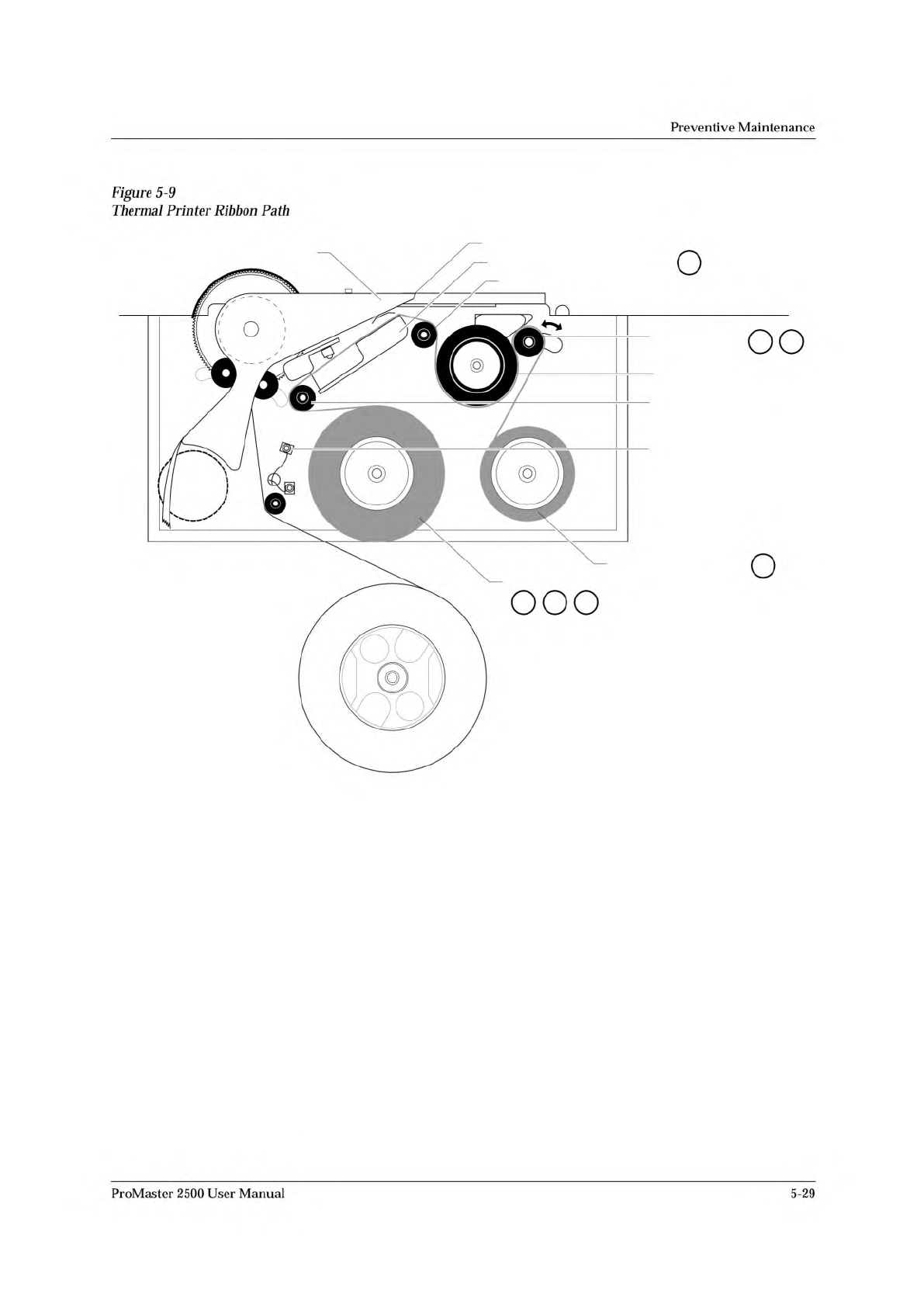
2304-2 PRINT HEAD (Retracted position) RIBBON ALIGNMENT ROLLER 2 RIBBON ALIGNMENT ROLLER 1 RIBBON DETECT OPTIC RIBBON ROLL RIBBON PINCH ROLLER RIBBON DRIVE ROLLER PLATEN RIBBON TAKE-UP ROLL APPLICATION AREA 1 2 3 4 5 6 8…
Preventive
Maintenance
5.
If
necessary,
remove
the
two
screws
that
hold
the
guard
in
place.
Loosen
the
collar
and
remove
the
ribbon
drive
roller
assembly
from
the
printer.
Hold
the
roller
with
one
hand
and
turn
it
with
the
other.
If
more
than
a
small
amount
of
friction
is
felt,
adjust
the
collar
counterclockwise
until
only
a
slight
amount
of
friction
is
felt.
Note:
If
the
ribbon
drive
roller
assembly
has
a
Belleville
washer
rather
than
a
finger
spring
washer
(Part
Number
265-4485-901),
让
should
be
replaced
with
the
finger
spring
washer,
fingers
out,
fb〃owed
by
the
washer,
and
finally
the
collar,
which
allows
for
a
greater
range
of
adjustment.
6.
Install
the
adjusted
ribbon
drive
roller
assembly
by
sliding
the
complete
assembly
onto
the
shaft.
Hold
the
assembly
in
place
with
your
index
finger
on
the
center
of
the
drive
pulley
and
thumb
on
the
ribbon
drive
roller,
and
tighten
the
collar
with
the
assembly
held
in.
You
might
have
to
hold
the
back
side
of
the
clutch
so
the
shaft
does
not
slide
back.
Note:
The
collar
tightens
most
easily
and
securely
when
the
slots
on
the
collar
are
aligned
with
the
slots
on
the
ribbon
drive
roller.
7.
Install
the
guard
and
check
to
make
sure
the
ribbon
drive
roller
is
not
dragging
against
the
guard.
If
the
roller
contacts
the
guard,
shim
the
guard
out
slightly
using
one
or
more
flat
washers.
8.
Check
the
take-up
roller.
It
should
have
only
slight
friction.
Then
adjust
the
clutch
on
the
shaft
on
the
inside
of
the
printer,
if
needed.
9.
To
check
the
adjustment,
run
PRINT
ONLY
mode
and
make
sure
all
of
the
following
are
true:
•
Print
quality
is
good
(crisp,
clear,
legible,
and
properly
aligned).
•
Ribbon
does
not
get
caught
in
the
application
area.
•
Ribbon
takes
up
properly.
•
Ribbon
does
not
move
during
calibration.
5-28
ProMaster
2500
User
Manual
2304-2
PRINT HEAD (Retracted position)
RIBBON ALIGNMENT ROLLER 2
RIBBON ALIGNMENT
ROLLER 1
RIBBON DETECT OPTIC
RIBBON ROLL
RIBBON PINCH
ROLLER
RIBBON DRIVE ROLLER
PLATEN
RIBBON TAKE-UP ROLL
APPLICATION AREA
1 2 3
4
5 6
8
Figure
5-9
Thermal
Printer
Ribbon
Path
Preventive
Maintenance
ProMaster
2500
User
Manual
5-29
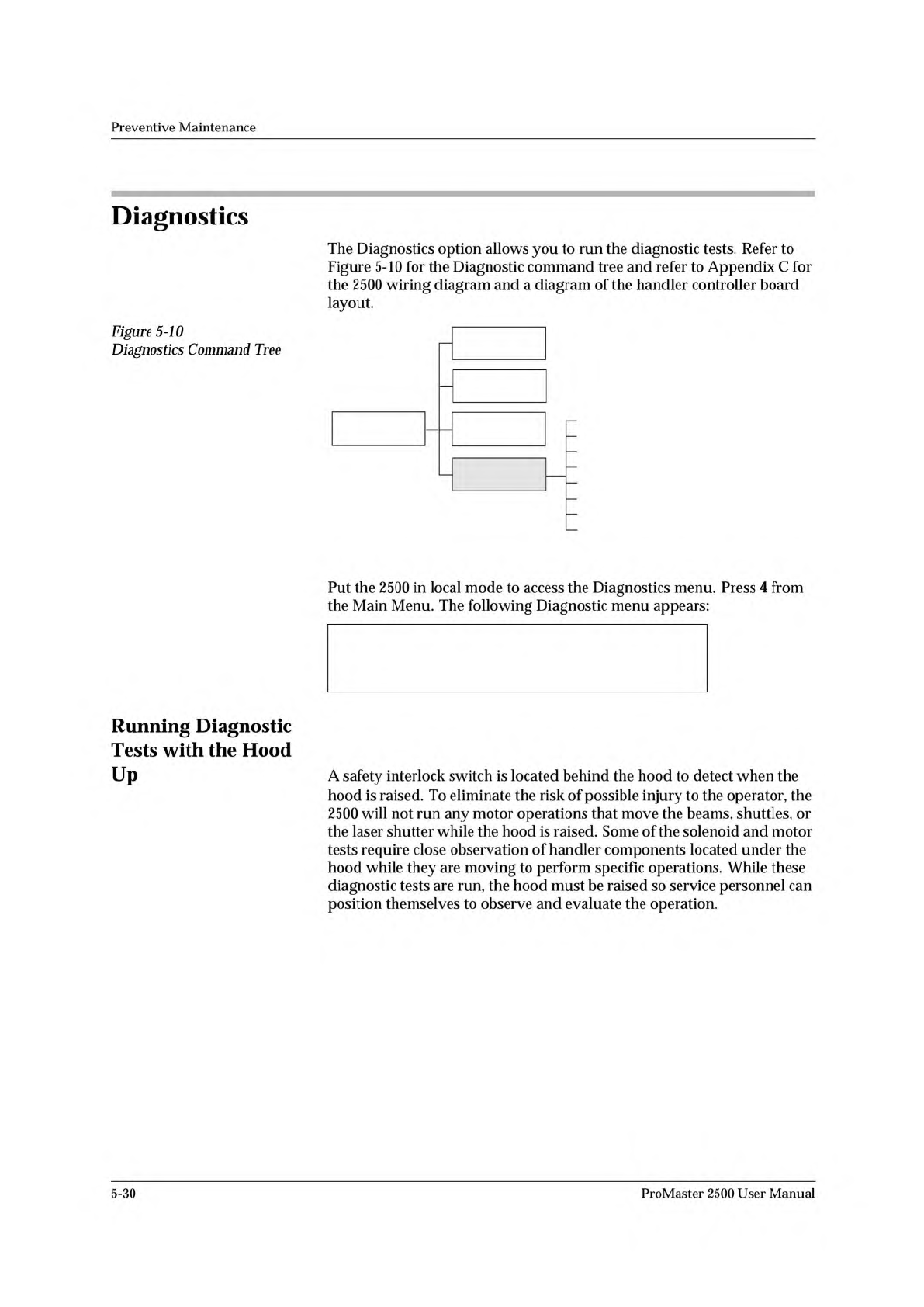
1 - OPTIC TEST 5 - PRINT TEST
2 - SOLENOID TEST 6 - KEY/DISP. TEST
3 - MOTOR TEST 7 - EEPROM TEST
4 - CYCLE PARTS 8 - COMMUNICATIONS
SYSTEM
SETUP
MAIN MENU
FILE
UTILITIES
OPERATIONS
1320-2
Optic Test
Solenoid Test
Motor Test
Cycle Parts
Print Test
Key/Display Test
EEPROM Test
Communications
DIAGNOSTICS
Preventive
Maintenance
Diagnostics
Figure
5-10
Diagnostics
Command
Tree
The
Diagnostics
option
allows
you
to
run
the
diagnostic
tests.
Refer
to
Figure
5-10
for
the
Diagnostic
command
tree
and
refer
to
Appendix
C
for
the
2500
wiring
diagram
and
a
diagram
of
the
handler
controller
board
layout.
Put
the
2500
in
local
mode
to
access
the
Diagnostics
menu.
Press
4
from
the
Main
Menu.
The
following
Diagnostic
menu
appears:
Running
Diagnostic
Tests
with
the
Hood
Up
A
safety
interlock
switch
is
located
behind
the
hood
to
detect
when
the
hood
is
raised.
To
eliminate
the
risk
of
possible
injury
to
the
operator,
the
2500
will
not
run
any
motor
operations
that
move
the
beams,
shuttles,
or
the
laser
shutter
while
the
hood
is
raised.
Some
of
the
solenoid
and
motor
tests
require
close
observation
of
handler
components
located
under
the
hood
while
they
are
moving
to
perform
specific
operations.
While
these
diagnostic
tests
are
run,
the
hood
must
be
raised
so
service
personnel
can
position
themselves
to
observe
and
evaluate
the
operation.
5-30
ProMaster
2500
User
Manual