2500_Users_Manual-.pdf - 第196页
DO Y OU WANT TO LABEL? ↑ ↓ DO YOU WANT T O LABEL? (Y OR N) CYCLE PARTS CUSTOM PLC C 20 PLCC 28 PLCC 32 PLCC 44 PLC C 52 PLCC 68 PLCC 84 MOVE TO SELEC TION THEN PRESS ENTER 1 <----- -- TEMPORARY FILE SELECT POSITION OF…
1942-2
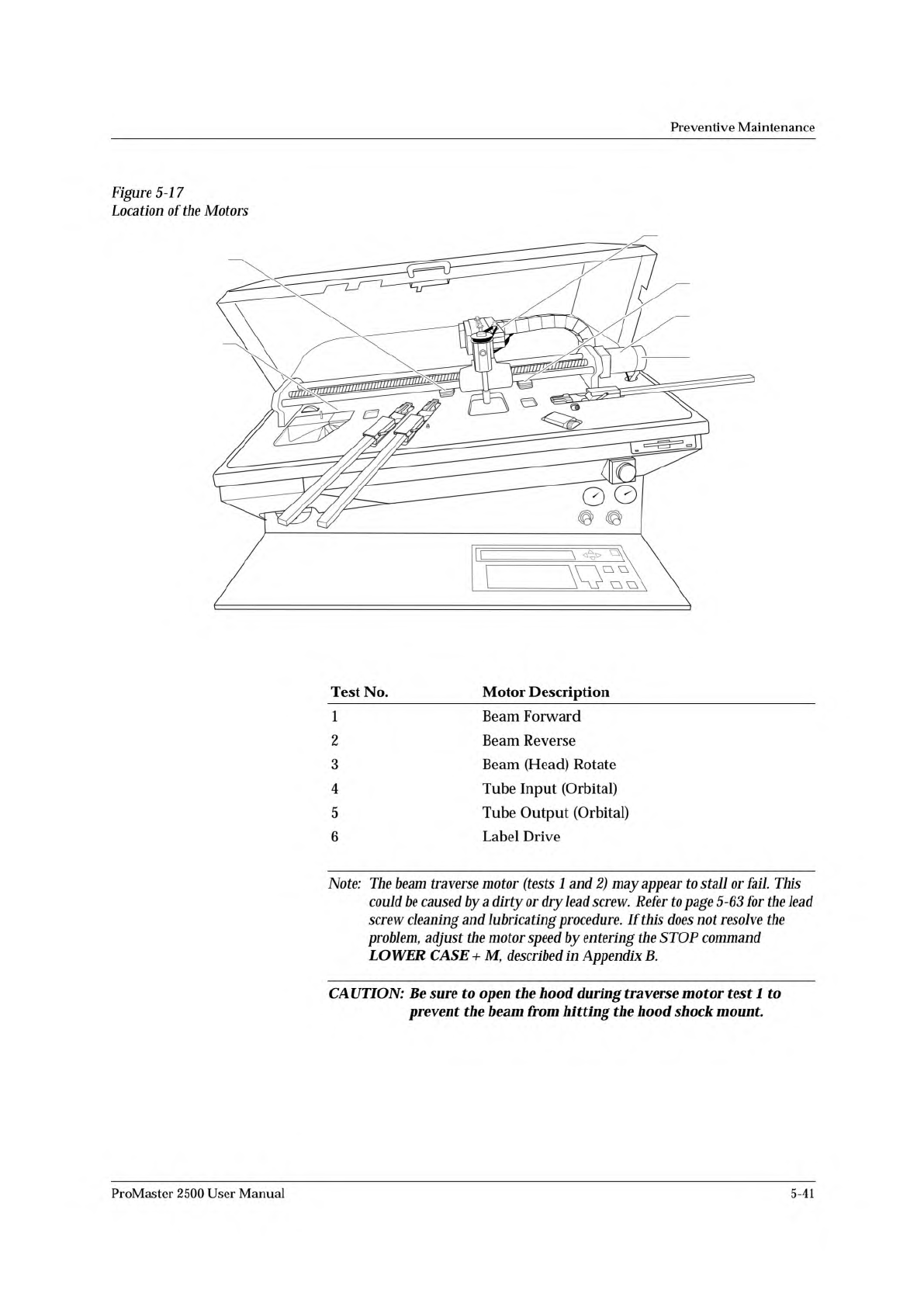
(5) TUBE OUTPUT
(1 + 2) BEAM
TRAVERSE
(6) LABELER
(Hidden)
(4) TUBE INPUT
(3) BEAM ROTATE
MOTOR ENCODER
Figure
5-1
7
Location
of
the
Motors
Preventive
Maintenance
Test
No.
Motor
Description
1
2
3
4
5
6
Beam
Forward
Beam
Reverse
Beam
(Head)
Rotate
Tube
Input
(Orbital)
Tube
Output
(Orbital)
Label
Drive
Note:
The
beam
traverse
motor
(tests
1
and
2)
may
appear
to
stall
or
fail.
This
could
be
caused
by
a
dirty
or
dry
lead
screw.
Refer
to
page
5-63
for
the
lead
screw
cleaning
and
lubricating
procedure.
If
this
does
not
resolve
协
e
problem,
adjust
the
motor
speed
by
entering
STOP
command
LOWER
CASE
+
M,
described
in
Appendix
B.
CAUTION:
Be
sure
to
open
the
hood
during
traverse
motor
test
1
to
prevent
the
beam
from
hitting
the
hood
shock
mount.
ProMaster
2500
User
Manual
5-41
DO YOU WANT TO
LABEL?
↑ ↓
DO YOU WANT TO LABEL? (Y OR N)
CYCLE PARTS
CUSTOM PLCC 20 PLCC 28 PLCC 32
PLCC 44 PLCC 52 PLCC 68 PLCC 84
MOVE TO SELECTION THEN PRESS ENTER
1 <------- TEMPORARY FILE
SELECT POSITION OF PIN 1
AS IT COMES OUT OF THE TUBE.
USE ARROW KEYS THEN PRESS ENTER.
<------- TEMPORARY FILE
SELECT POSITION OF PIN 1
AS IT WILL GO INTO THE TUBE.
1 USE ARROW KEYS THEN PRESS ENTER.
CYCLE PARTS
ENTER NUMBER OF PARTS PER TUBE (13): _
Preventive
Maintenance
Cycle
Parts
This
option
inserts
devices
into
the
programming
module
without
programming
them.
It
differs
from
the
diagnostic
tests
because
it
allows
you
to
assess
the
following
system
operations
under
operating
conditions
without
having
to
program
devices:
•
Beam
movement
•
Vacuum
generator
functionality
•
High
and
low
air
pressure
•
Applying
labels
to
devices
To
select
Cycle
Parts,
press
4
from
the
Diagnostic
menu.
The
2500
displays:
To
Cycle
Only
[f
you
do
not
want
to
label
devices,
press
N
at
the
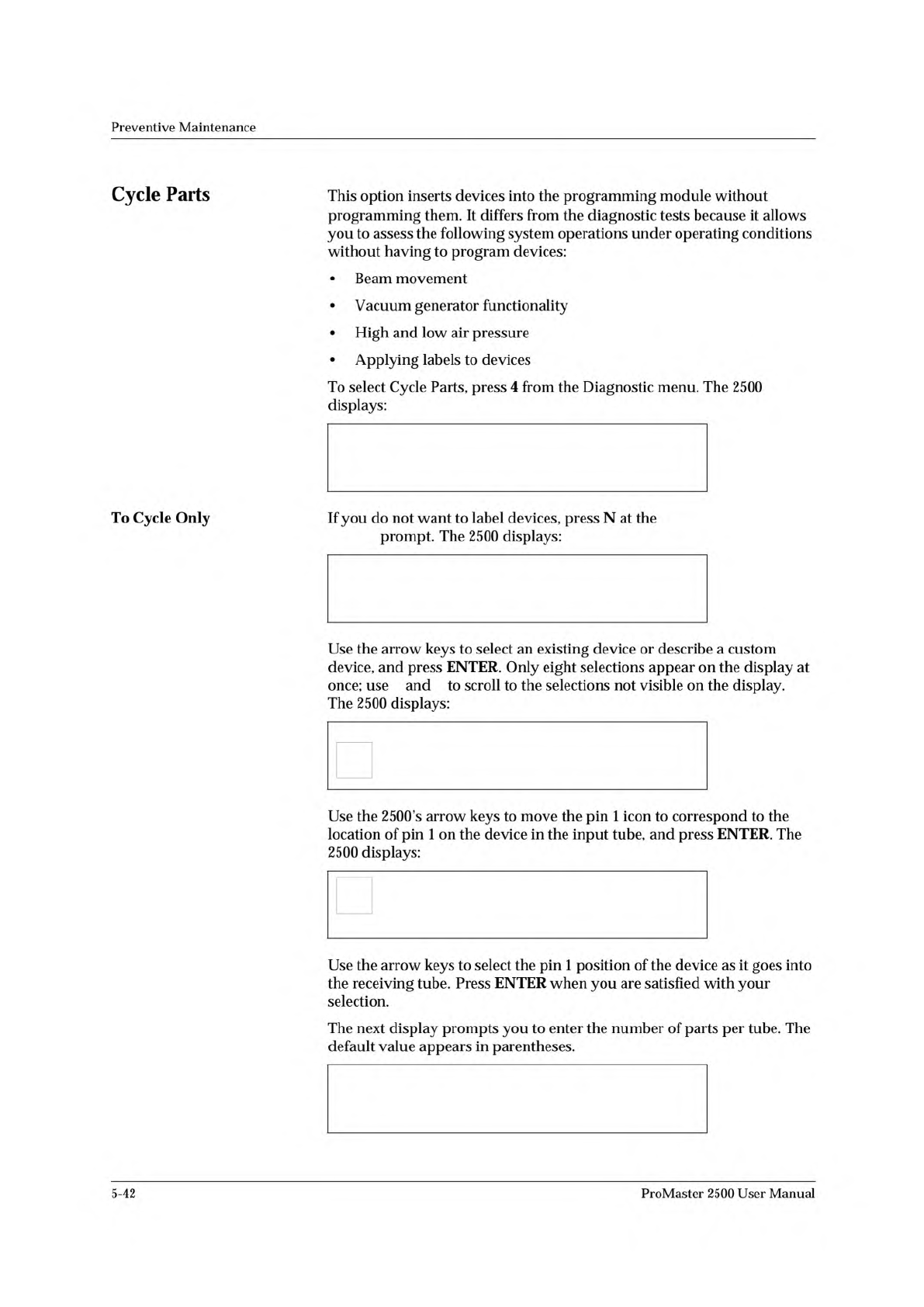
prompt.
The
2500
displays:
Use
the
arrow
keys
to
select
an
existing
device
or
describe
a
custom
device,
and
press
ENTER.
Only
eight
selections
appear
on
the
display
at
once;
use
and
to
scroll
to
the
selections
not
visible
on
the
display.
The
2500
displays:
Use
the
2500's
arrow
keys
to
move
the
pin
1
icon
to
correspond
to
the
location
of
pin
1
on
the
device
in
the
input
tube,
and
press
ENTER.
The
2500
displays:
Use
the
arrow
keys
to
select
the
pin
1
position
of
the
device
as
it
goes
into
the
receiving
tube.
Press
ENTER
when
you
are
satisfied
with
your
selection.
The
next
display
prompts
you
to
enter
the
number
of
parts
per
tube.
The
default
value
appears
in
parentheses.
5-42
ProMaster
2500
User
Manual
DO YOU WANT TO LABEL?
↑ ↓
CYCLE PARTS
PART TYPE: PLCC 20
PART LENGTH: .390
PRESS START TO BEGIN
CYCLE PARTS
COMM: NO INTERFACE PART TYPE: PLCC 20
PARTS PER TUBE: 5 PART LENGTH: .390
PART TOTAL = 0 PROGRAM TARGET: INF
CYCLE & LABEL
TEMPORARY FILE2 FILE3 FILE4
FILE5 FILE6 FILE7 FILE8
ENTER FILE NAME:
PROGRAM/TEST LABEL TEMPORARY FILE
CUSTOM PLCC 20 PLCC 28 PLCC 32
PLCC 44 PLCC 52 PLCC 68 PLCC 84
MOVE TO SELECTION THEN PRESS ENTER
Preventive
Maintenance
To
Label
Devices
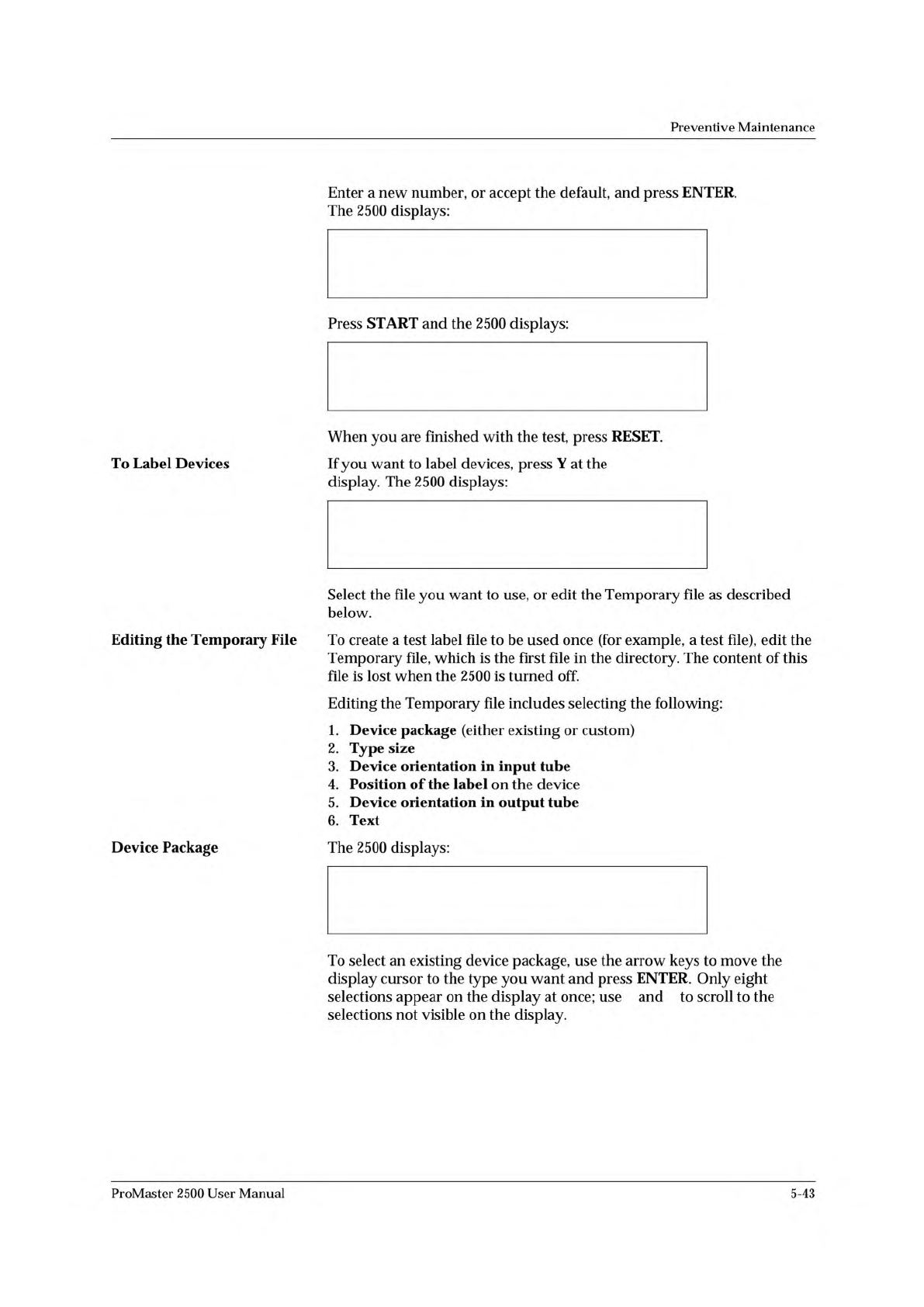
Enter
a
new
number,
or
accept
the
default,
and
press
ENTER.
The
2500
displays:
When
you
are
finished
with
the
test,
press
RESET.
If
you
want
to
label
devices,
press
Y
at
the
display.
The
2500
displays:
Press
START
and
the
2500
displays:
Select
the
file
you
want
to
use,
or
edit
the
Temporary
file
as
described
below.
Editing
the
Temporary
File
To
create
a
test
label
file
to
be
used
once
(for
example,
a
test
file),
edit
the
Temporary
file,
which
is
the
first
file
in
the
directory.
The
content
of
this
file
is
lost
when
the
2500
is
turned
off.
Editing
the
Temporary
file
includes
selecting
the
following:
1.
Device
package
(either
existing
or
custom)
2.
Type
size
3.
Device
orientation
in
input
tube
4.
Position
of
the
label
on
the
device
5.
Device
orientation
in
output
tube
6.
Text
Device
Package
The
2500
displays:
To
select
an
existing
device
package,
use
the
arrow
keys
to
move
the
display
cursor
to
the
type
you
want
and
press
ENTER.
Only
eight
selections
appear
on
the
display
at
once;
use
and
to
scroll
to
the
selections
not
visible
on
the
display.
ProMaster
2500
User
Manual
5-43