2500_Users_Manual-.pdf - 第304页
↑ ↓ ↑ ↓ ↑ ↓ ↑ ↓ Firmware Keys and STOP Commands STOP Commands Use the STOP commands to pause and change parameters from the middle of a Task (job). By using these convenient commands, you can suspend a running Task and c…
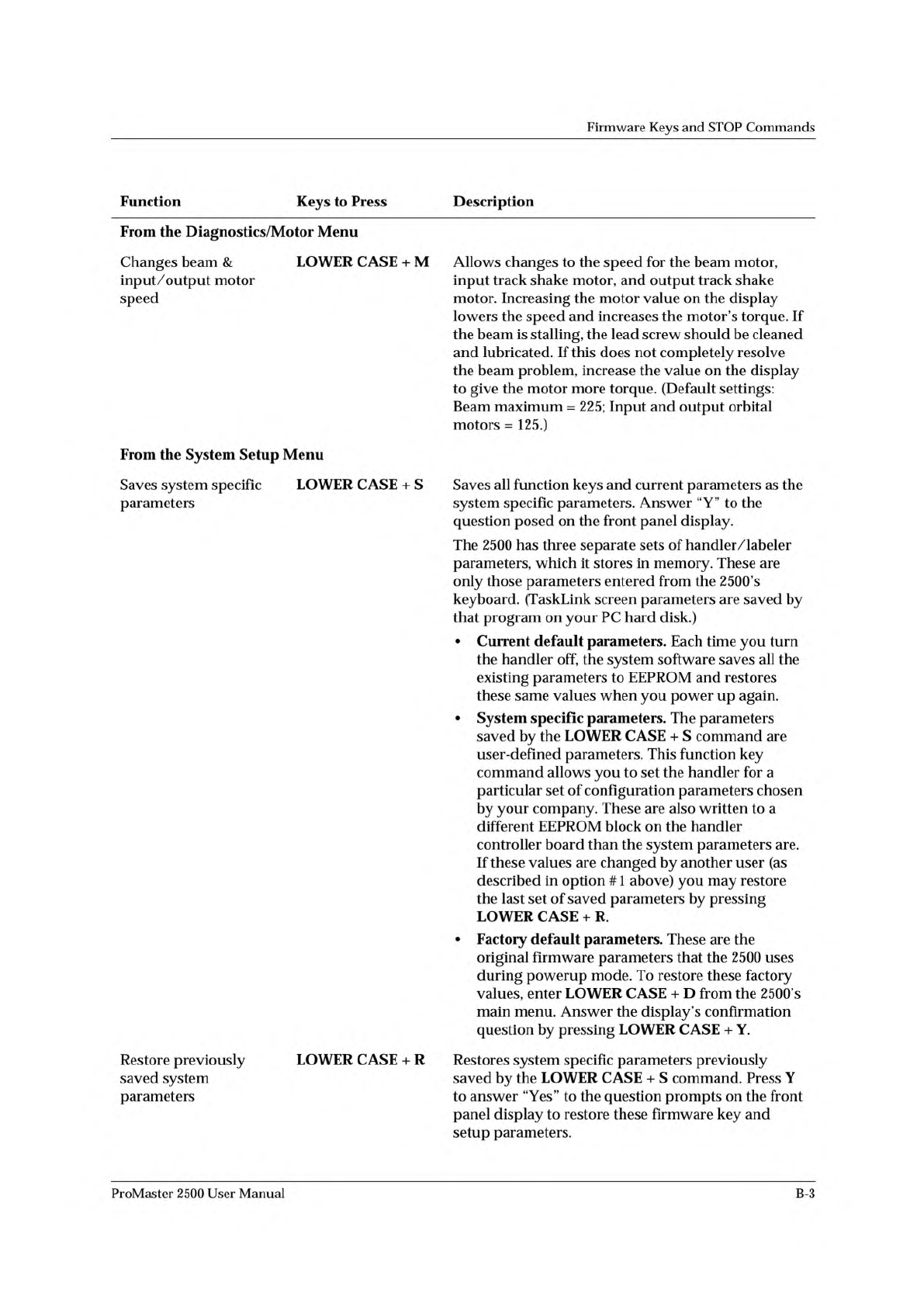
Firmware
Keys
and
STOP
Commands
Function
Keys
to
Press
Description
From
the
Diagnostics/Motor
Menu
Changes
beam
&
input/output
motor
speed
LOWER
CASE
+
M
Allows
changes
to
the
speed
for
the
beam
motor,
input
track
shake
motor,
and
output
track
shake
motor.
Increasing
the
motor
value
on
the
display
lowers
the
speed
and
increases
the
motor's
torque.
If
the
beam
is
stalling,
the
lead
screw
should
be
cleaned
and
lubricated.
If
this
does
not
completely
resolve
the
beam
problem,
increase
the
value
on
the
display
to
give
the
motor
more
torque.
(Default
settings:
Beam
maximum
=
225;
Input
and
output
orbital
motors
=
125.)
From
the
System
Setup
Menu
Saves
system
specific
parameters
LOWER
CASE
+
S
Saves
all
function
keys
and
current
parameters
as
the
system
specific
parameters.
Answer
“Y”
to
the
question
posed
on
the
front
panel
display.
The
2500
has
three
separate
sets
of
handler/labeler
parameters,
which
it
stores
in
memory.
These
are
only
those
parameters
entered
from
the
2500's
keyboard.
(TaskLink
screen
parameters
are
saved
by
that
program
on
your
PC
hard
disk.)
•
Current
default
parameters.
Each
time
you
turn
the
handler
off,
the
system
software
saves
all
the
existing
parameters
to
EEPROM
and
restores
these
same
values
when
you
power
up
again.
•
System
specific
parameters.
The
parameters
saved
by
the
LOWER
CASE
+
S
command
are
user-defined
parameters.
This
function
key
command
allows
you
to
set
the
handler
for
a
particular
set
of
configuration
parameters
chosen
by
your
company.
These
are
also
written
to
a
different
EEPROM
block
on
the
handler
controller
board
than
the
system
parameters
are.
If
these
values
are
changed
by
another
user
(as
described
in
option
#
1
above)
you
may
restore
the
last
set
of
saved
parameters
by
pressing
LOWER
CASE
+
R.
•
Factory
default
parameters.
These
are
the
original
firmware
parameters
that
the
2500
uses
during
powerup
mode.
To
restore
these
factory
values,
enter
LOWER
CASE
+
D
from
the
2500's
main
menu.
Answer
the
display's
confirmation
question
by
pressing
LOWER
CASE
+
Y.
Restore
previously
saved
system
parameters
LOWER
CASE
+
R
Restores
system
specific
parameters
previously
saved
by
the
LOWER
CASE
+
S
command.
Press
Y
to
answer
“Yes”
to
the
question
prompts
on
the
front
panel
display
to
restore
these
firmware
key
and
setup
parameters.
ProMaster
2500
User
Manual
B-3
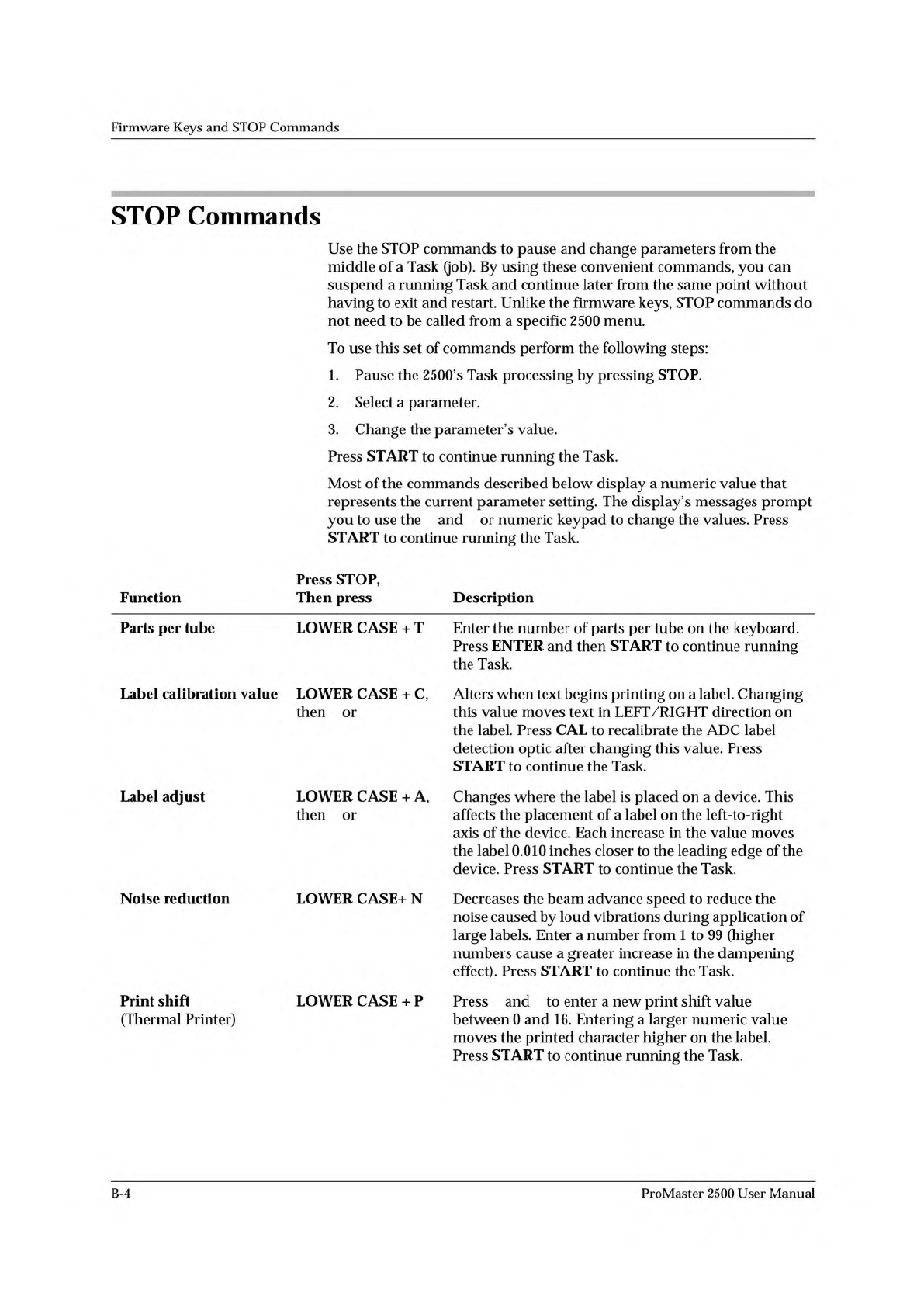
↑ ↓
↑ ↓
↑ ↓
↑ ↓
Firmware
Keys
and
STOP
Commands
STOP
Commands
Use
the
STOP
commands
to
pause
and
change
parameters
from
the
middle
of
a
Task
(job).
By
using
these
convenient
commands,
you
can
suspend
a
running
Task
and
continue
later
from
the
same
point
without
having
to
exit
and
restart.
Unlike
the
firmware
keys,
STOP
commands
do
not
need
to
be
called
from
a
specific
2500
menu.
To
use
this
set
of
commands
perform
the
following
steps:
1.
Pause
the
2500's
Task
processing
by
pressing
STOP.
2.
Select
a
parameter.
3.
Change
the
parameter's
value.
Press
START
to
continue
running
the
Task.
Most
of
the
commands
described
below
display
a
numeric
value
that
represents
the
current
parameter
setting.
The
display's
messages
prompt
you
to
use
the
and
or
numeric
keypad
to
change
the
values.
Press
START
to
continue
running
the
Task.
Function
Press
STOP,
Then
press
Description
Parts
per
tube
LOWER
CASE
+
T
Enter
the
number
of
parts
per
tube
on
the
keyboard.
Press
ENTER
and
then
START
to
continue
running
the
Task.
Label
calibration
value
LOWER
CASE
+
C,
then
or
Alters
when
text
begins
printing
on
a
label.
Changing
this
value
moves
text
in
LEFT/RIGHT
direction
on
the
label.
Press
CAL
to
recalibrate
the
ADC
label
detection
optic
after
changing
this
value.
Press
START
to
continue
the
Task.
Label
adjust
LOWER
CASE
+
A,
then
or
Changes
where
the
label
is
placed
on
a
device.
This
affects
the
placement
of
a
label
on
the
left-to-right
axis
of
the
device.
Each
increase
in
the
value
moves
the
label
0.010
inches
closer
to
the
leading
edge
of
the
device.
Press
START
to
continue
the
Task.
Noise
reduction
LOWER
CASE+
N
Decreases
the
beam
advance
speed
to
reduce
the
noise
caused
by
loud
vibrations
during
application
of
large
labels.
Enter
a
number
from
1
to
99
(higher
numbers
cause
a
greater
increase
in
the
dampening
effect).
Press
START
to
continue
the
Task.
Print
shift
(Thermal
Printer)
LOWER
CASE
+
P
Press
and
to
enter
a
new
print
shift
value
between
0
and
16.
Entering
a
larger
numeric
value
moves
the
printed
character
higher
on
the
label.
Press
START
to
continue
running
the
Task.
B-4
ProMaster
2500
User
Manual
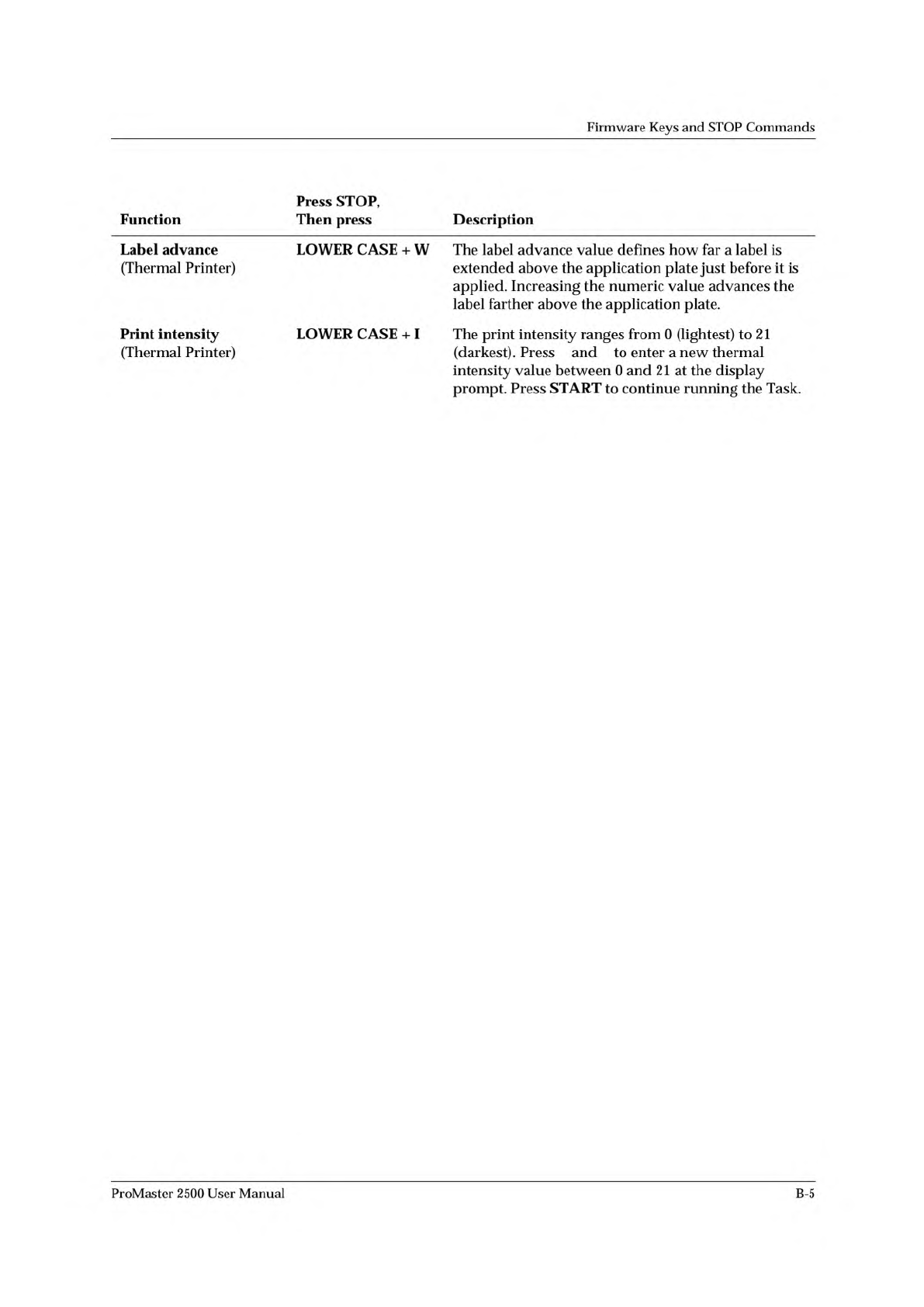
↑ ↓
Firmware
Keys
and
STOP
Commands
Press
STOP,
Function
Then
press
Description
Label
advance
(Thermal
Printer)
LOWER
CASE
+
W
The
label
advance
value
defines
how
far
a
label
is
extended
above
the
application
plate
just
before
it
is
applied.
Increasing
the
numeric
value
advances
the
label
farther
above
the
application
plate.
Print
intensity
(Thermal
Printer)
LOWER
CASE
+
I
The
print
intensity
ranges
from
0
(lightest)
to
21
(darkest).
Press
and
to
enter
a
new
thermal
intensity
value
between
0
and
21
at
the
display
prompt.
Press
START
to
continue
running
the
Task.
ProMaster
2500
User
Manual
B-5