2500_Users_Manual-.pdf - 第415页
↓ ↑ ← → ↓ PROGRAM/TEST LABEL TEMPORARY FILE CUSTOM PLC C 20 PLCC 28 PLCC 32 PLCC 44 PLC C 52 PLCC 68 PLCC 84 MOVE TO SELEC TION THEN PRESS ENTER PROGRAM/TEST LABEL TEMPORARY FILE ENTER PART LE NGTH: _ EXAMPLE: 1.23 4 OR …
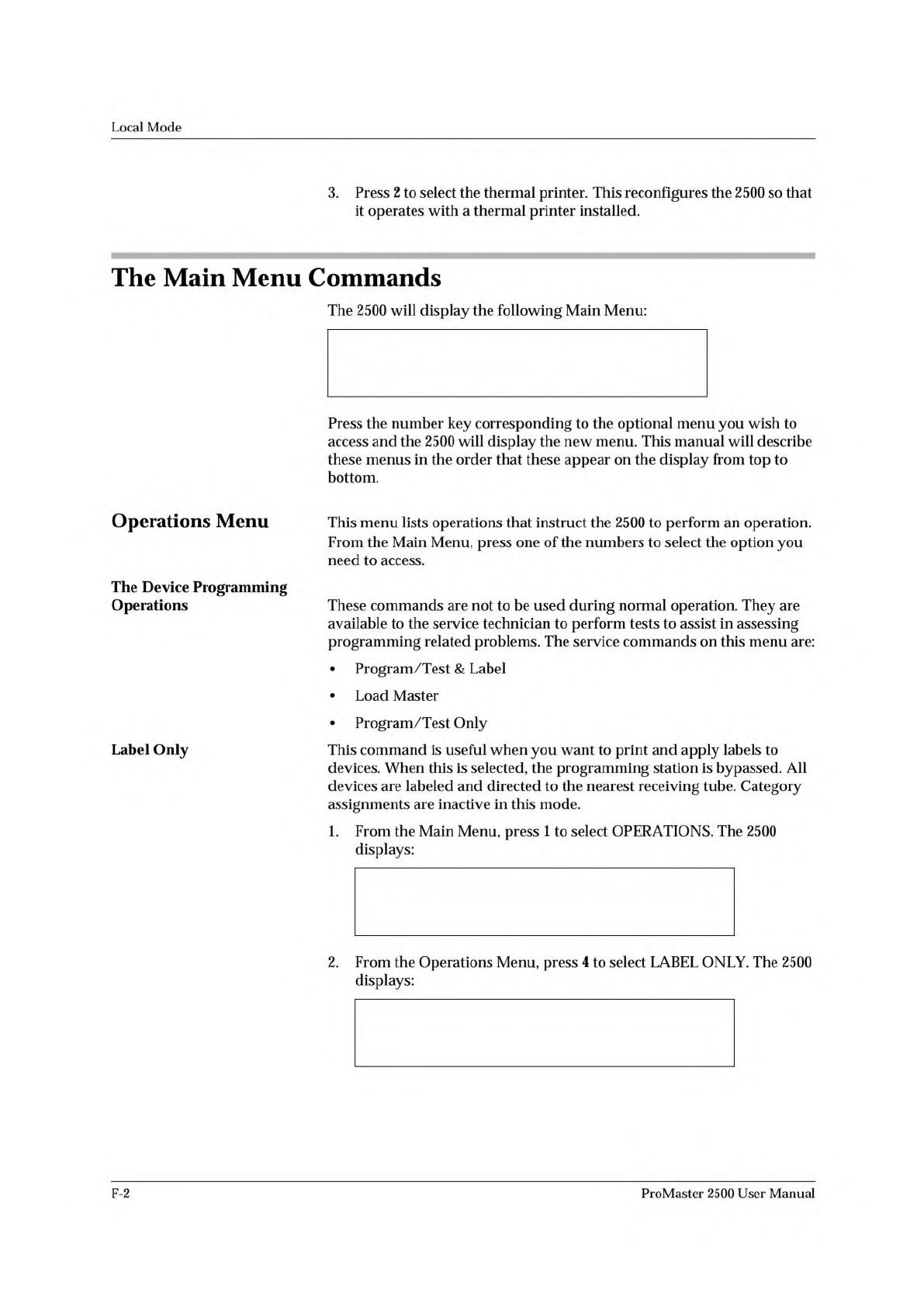
* * PROMASTER 2500 MAIN MENU * *
ENTER THE NUMBER OF THE DESIRED FUNCTION
1 - OPERATIONS 3 - SYSTEM SETUP
2 - FILE UTILITIES 4 - DIAGNOSTICS
* * * OPERATIONS MENU * * *
1 - PROGRAM/TEST & LABEL 4 - LABEL ONLY
2 - LOAD MASTER 5 - PRINT ONLY
3 - PROGRAM/TEST ONLY 6 - PURGE
LABEL ONLY
TEMPORARY FILE1 FILE2 FILE3
FILE4 FILE5 FILE6 FILE7
ENTER FILE NAME:
Local
Mode
3.
Press
2
to
select
the
thermal
printer.
This
reconfigures
the
2500
so
that
it
operates
with
a
thermal
printer
installed.
The
Main
Menu
Commands
The
2500
will
display
the
following
Main
Menu:
Press
the
number
key
corresponding
to
the
optional
menu
you
wish
to
access
and
the
2500
will
display
the
new
menu.
This
manual
will
describe
these
menus
in
the
order
that
these
appear
on
the
display
from
top
to
bottom.
Operations
Menu
This
menu
lists
operations
that
instruct
the
2500
to
perform
an
operation.
From
the
Main
Menu,
press
one
of
the
numbers
to
select
the
option
you
need
to
access.
The
Device
Programming
Operations
These
commands
are
not
to
be
used
during
normal
operation.
They
are
available
to
the
service
technician
to
perform
tests
to
assist
in
assessing
programming
related
problems.
The
service
commands
on
this
menu
are:
•
Program/Test
&
Label
•
Load
Master
•
Program/Test
Only
Label
Only
This
command
is
useful
when
you
want
to
print
and
apply
labels
to
devices.
When
this
is
selected,
the
programming
station
is
bypassed.
All
devices
are
labeled
and
directed
to
the
nearest
receiving
tube.
Category
assignments
are
inactive
in
this
mode.
1.
From
the
Main
Menu,
press
1
to
select
OPERATIONS.
The
2500
displays:
2.
From
the
Operations
Menu,
press
4
to
select
LABEL
ONLY.
The
2500
displays:
F-2
ProMaster
2500
User
Manual
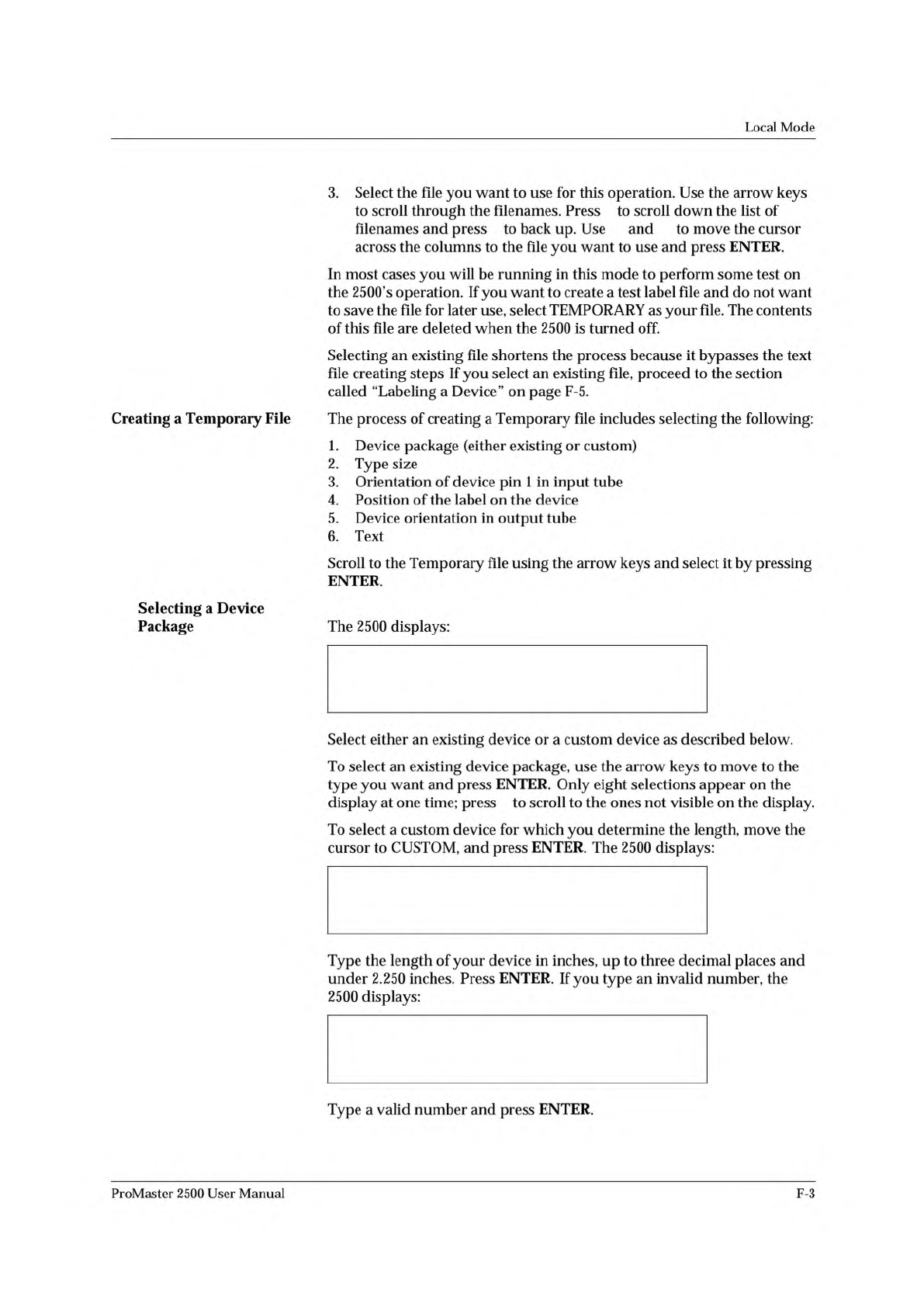
↓
↑ ← →
↓
PROGRAM/TEST LABEL TEMPORARY FILE
CUSTOM PLCC 20 PLCC 28 PLCC 32
PLCC 44 PLCC 52 PLCC 68 PLCC 84
MOVE TO SELECTION THEN PRESS ENTER
PROGRAM/TEST LABEL TEMPORARY FILE
ENTER PART LENGTH: _
EXAMPLE: 1.234 OR .28 OR 1
PROGRAM/TEST LABEL TEMPORARY FILE
ENTER PART LENGTH: _
LENGTH CAN NOT EXCEED 2.250
Local
Mode
3.
Select
the
file
you
want
to
use
for
this
operation.
Use
the
arrow
keys
to
scroll
through
the
filenames.
Press
to
scroll
down
the
list
of
filenames
and
press
to
back
up.
Use
and
to
move
the
cursor
across
the
columns
to
the
file
you
want
to
use
and
press
ENTER.
In
most
cases
you
will
be
running
in
this
mode
to
perform
some
test
on
the
2500's
operation.
If
you
want
to
create
a
test
label
file
and
do
not
want
to
save
the
file
for
later
use,
select
TEMPORARY
as
your
file.
The
contents
of
this
file
are
deleted
when
the
2500
is
turned
off.
Selecting
an
existing
file
shortens
the
process
because
it
bypasses
the
text
file
creating
steps
If
you
select
an
existing
file,
proceed
to
the
section
called
“Labeling
a
Device”
on
page
F-5.
Creating
a
Temporary
File
The
process
of
creating
a
Temporary
file
includes
selecting
the
following:
1.
Device
package
(either
existing
or
custom)
2.
Type
size
3.
Orientation
of
device
pin
1
in
input
tube
4.
Position
of
the
label
on
the
device
5.
Device
orientation
in
output
tube
6.
Text
Scroll
to
the
Temporary
file
using
the
arrow
keys
and
select
it
by
pressing
ENTER.
Selecting
a
Device
Package
The
2500
displays:
Select
either
an
existing
device
or
a
custom
device
as
described
below.
To
select
an
existing
device
package,
use
the
arrow
keys
to
move
to
the
type
you
want
and
press
ENTER.
Only
eight
selections
appear
on
the
display
at
one
time;
press
to
scroll
to
the
ones
not
visible
on
the
display.
To
select
a
custom
device
for
which
you
determine
the
length,
move
the
cursor
to
CUSTOM,
and
press
ENTER.
The
2500
displays:
Type
the
length
of
your
device
in
inches,
up
to
three
decimal
places
and
under
2.250
inches.
Press
ENTER.
If
you
type
an
invalid
number,
the
2500
displays:
Type
a
valid
number
and
press
ENTER.
ProMaster
2500
User
Manual
F-3
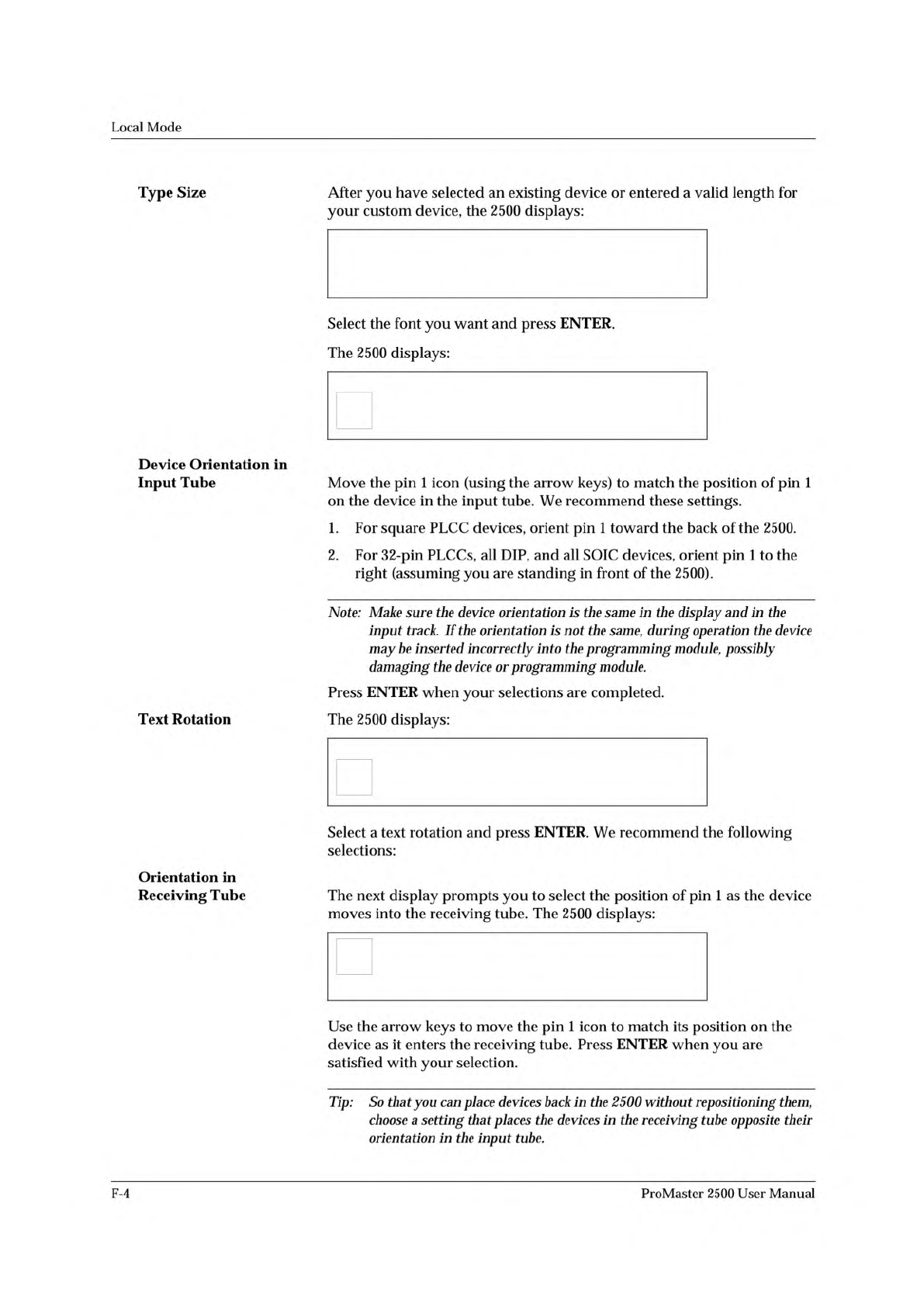
PRINT LABEL TEMPORARY FILE
AUTO-SEL 26 CPI 26 CPI S 20 CPI
16 CPI T 12 CPI T 18 CPI
MOVE TO SELECTION THEN PRESS ENTER
1 <------- TEMPORARY FILE
SELECT POSITION OF PIN 1
AS IT COMES OUT OF THE TUBE.
USE ARROW KEYS THEN PRESS ENTER.
1 TEMPORARY FILE
SELECT POSITION OF PIN 1
TXT IN RELATION TO THE TEXT.
USE ARROW KEYS THEN PRESS ENTER.
<------- TEMPORARY FILE
SELECT POSITION OF PIN 1
AS IT WILL GO INTO THE TUBE.
1 USE ARROW KEYS THEN PRESS ENTER.
Local
Mode
Type
Size
Device
Orientation
in
Input
Tube
Text
Rotation
Orientation
in
Receiving
Tube
After
you
have
selected
an
existing
device
or
entered
a
valid
length
for
your
custom
device,
the
2500
displays:
Select
the
font
you
want
and
press
ENTER.
The
2500
displays:
Move
the
pin
1
icon
(using
the
arrow
keys)
to
match
the
position
of
pin
1
on
the
device
in
the
input
tube.
We
recommend
these
settings.
1.
For
square
PLCC
devices,
orient
pin
1
toward
the
back
of
the
2500.
2.
For
32-pin
PLCCs,
all
DIP,
and
all
SOIC
devices,
orient
pin
1
to
the
right
(assuming
you
are
standing
in
front
of
the
2500).
Note:
Make
sure
the
device
orientation
is
the
same
in
the
display
and
in
the
input
track.
If
the
orientation
is
“ot
the
same,
during
operation
the
device
may
be
inserted
incorrectly
into
the
programming
module,
possibly
damaging
the
device
or
programming
module.
Press
ENTER
when
your
selections
are
completed.
The
2500
displays:
Select
a
text
rotation
and
press
ENTER.
We
recommend
the
following
selections:
The
next
display
prompts
you
to
select
the
position
of
pin
1
as
the
device
moves
into
the
receiving
tube.
The
2500
displays:
Use
the
arrow
keys
to
move
the
pin
1
icon
to
match
its
position
on
the
device
as
it
enters
the
receiving
tube.
Press
ENTER
when
you
are
satisfied
with
your
selection.
Tip:
So
that
you
can
place
devices
back
in
the
2500
without
repositioning
them,
choose
a
setting
that
places
the
devices
加
the
receiving
tube
opposite
their
orientation
in
the
input
tube.
F-4
ProMaster
2500
User
Manual