2500_Users_Manual-.pdf - 第61页
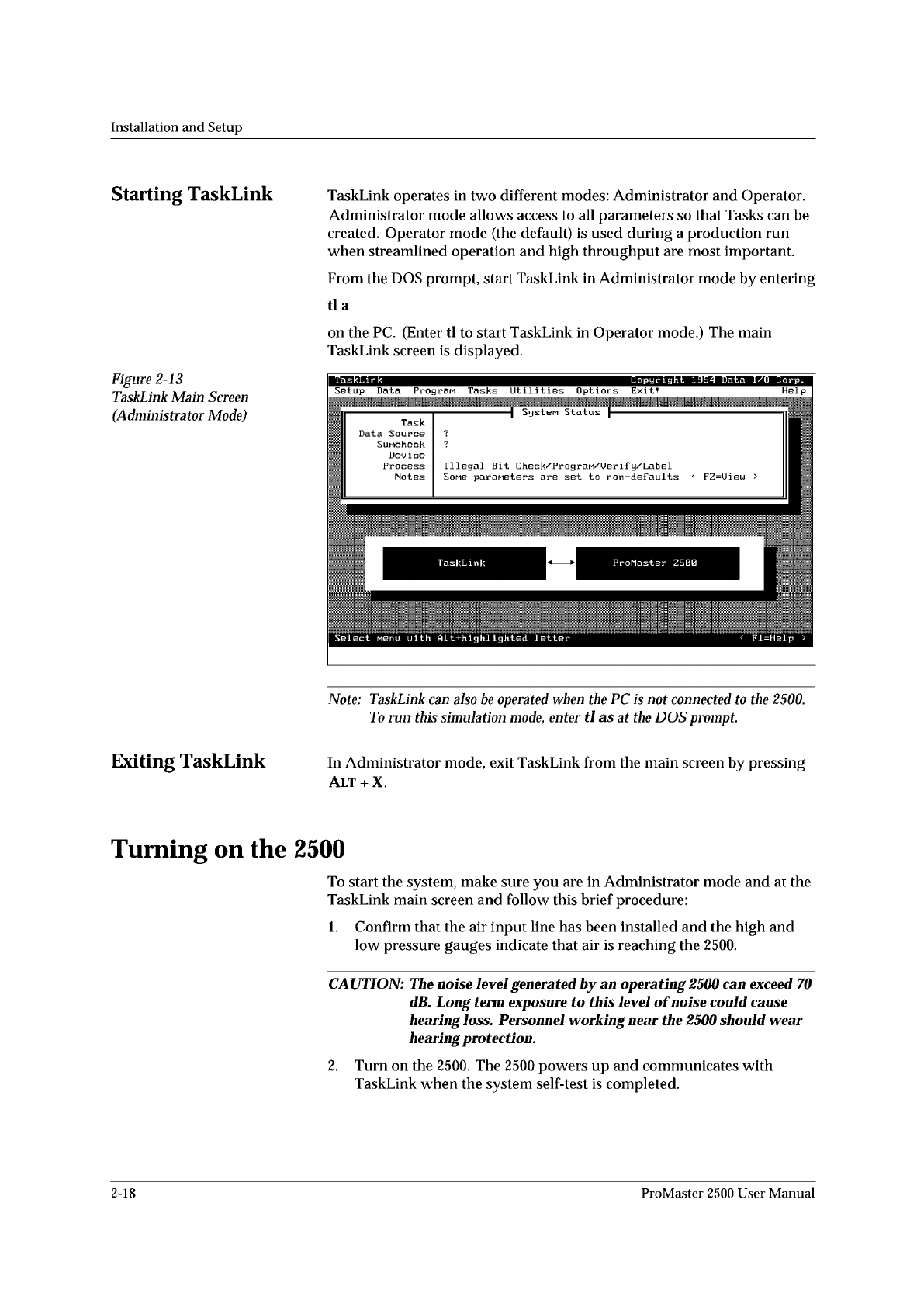
Installation and Setup Starting TaskLink Figure 2-13 TaskLink Main Screen (Administrator Mode) Exiting TaskLink TaskLink operates in two different modes: Administrator and Operator. Administrator mode allows access to al…
↵
Installation
and
Setup
3.
Connect
one
end
of
the
second
serial
cable
to
the
COM2
serial
port
on
the
back
of
your
PC.
TaskLink
uses
COM2
as
the
default
Remote
port.
It
does
not
use
any
other
COM
ports
other
than
1
and
2.
If
you
plan
to
use
a
mouse
with
TaskLink,
it
must
be
a
bus
mouse;
or
you
can
set
a
COM
port
to
3
or
4
and
use
an
interrupt
other
than
IRQ
3
or
4.
4.
Connect
the
other
end
of
this
COM2
cable
to
the
connector
labeled
Remote
RS-232
on
the
back
of
the
2500.
5.
When
you
run
TaskLink,
the
software
configures
the
COM1
and
COM2
ports
on
your
PC
to
match
the
defaults
used
by
TaskLink.
The
system
defaults
for
TaskLink
ports
are:
•
9600
baud
•
8
data
bits
•
No
parity
•
1
stop
bit
Installing
TaskLink
On
the
PC
Install
TaskLink
on
your
PC
by
performing
the
following
steps:
Note:
The
following
instructions
are
for
TaskLink
for
DOS.
If
you
are
using
TaskLink
for
Windows,
refer
to
the
TLFW
Getting
Started
Guide
and
the
online
Help
fbr
installation
and
operation
instructions.
1.
Insert
the
TaskLink
disk
into
the
floppy
disk
drive
on
your
PC.
2.
From
your
hard
disk
prompt,
enter
dnve:install
where
drive
is
the
disk
drive
holding
the
TaskLink
disk.
Your
command
line
might
look
something
like
this:
C:\b:install
3.
Press
.
The
installation
program
will
prompt
you
for
the
information
needed
to
complete
the
installation.
ProMaster
2500
User
Manual
2-17
Installation
and
Setup
Starting
TaskLink
Figure
2-13
TaskLink
Main
Screen
(Administrator
Mode)
Exiting
TaskLink
TaskLink
operates
in
two
different
modes:
Administrator
and
Operator.
Administrator
mode
allows
access
to
all
parameters
so
that
Tasks
can
be
created.
Operator
mode
(the
default)
is
used
during
a
production
run
when
streamlined
operation
and
high
throughput
are
most
important.
From
the
DOS
prompt,
start
TaskLink
in
Administrator
mode
by
entering
tla
on
the
PC.
(Enter
tl
to
start
TaskLink
in
Operator
mode.)
The
main
TaskLink
screen
is
displayed.
Note:
TaskLink
can
also
be
operated
when
the
PC
is
not
connected
to
the
2500.
To
run
this
simulation
mode,
enter
tl
as
at
the
DOS
prompt.
In
Administrator
mode,
exit
TaskLink
from
the
main
screen
by
pressing
Alt
+
X.
Turning
on
the
2500
To
start
the
system,
make
sure
you
are
in
Administrator
mode
and
at
the
TaskLink
main
screen
and
follow
this
brief
procedure:
1.
Confirm
that
the
air
input
line
has
been
installed
and
the
high
and
low
pressure
gauges
indicate
that
air
is
reaching
the
2500.
CA
UTION:
The
noise
level
generated
by
an
operating
2500
can
exceed
70
dB.
Long
term
exposure
to
this
level
of
noise
could
cause
hearing
loss.
Personnel
working
near
the
2500
should
wear
hearing
protection.
2.
Turn
on
the
2500.
The
2500
powers
up
and
communicates
with
TaskLink
when
the
system
self-test
is
completed.
2-18
ProMaster
2500
User
Manual
Contact with programmer established
Attempting to contact programmer...
Contact with handler established.
Attempting to contact handler ...
Installation
and
Setup
Checking
System
Communication
Note:
The
2500
's
power-up
self-
test
takes
approximately
two
minutes
to
complete.
3.
Confirm
that
the
high
air
pressure
gauge
on
the
2500
is
reading
75
PSI
(see
page
2-7).
When
the
adjustment
is
correct,
push
the
adjustment
knob
in
toward
the
back
of
the
handler
to
lock
its
position.
4.
Confirm
that
the
low
air
pressure
gauge
is
reading
25
PSI.
When
the
adjustment
is
correct,
push
the
adjustment
knob
in
toward
the
back
of
the
handler
to
lock
it
in
position.
To
confirm
that
communication
between
TaskLink
and
the
2500's
programming
electronics
has
been
established,
press
Ctrl+
Fl
on
the
PC
keyboard.
Note:
The
2500
's
power-up
self-
test
takes
approximately
two
minutes
to
complete.
During
this
time,
TaskLink
will
not
be
able
to
establish
communication
with
the
2500.
If
they
are
communicating
correctly,
a
green
box
appears
with
the
following
message:
If
there
is
a
problem,
a
red
box
appears
with
the
following
message:
and
the
screen
will
suggest
several
troubleshooting
steps
to
correct
the
problem.
To
confirm
that
communication
between
TaskLink
and
the
Remote
port
on
the
2500
has
been
established,
press
Ctrl
+
F2
on
the
PC
keyboard.
If
correct
communication
is
occurring,
a
green
box
appears
with
the
following
message:
If
there
is
a
problem,
a
red
box
appears
with
this
message:
and
the
screen
will
suggest
several
troubleshooting
actions
to
take.
If
TaskLink
cannot
contact
the
programmer,
check
the
following:
•
Ensure
that
the
two
RS-
232c
cables
are
connected
properly
(COM1
to
Programmer
port,
COM2
to
Remote
port).
•
Ensure
that
your
PC
does
not
assign
two
RS-232C
ports
to
the
same
IRQ.
Your
system
will
not
communicate
with
the
Programmer
Port
if
two
COM
Ports
are
assigned
to
the
same
IRQ.
•
Ensure
that
someone
has
not
changed
TaskLink's
port
settings
from
their
default
values.
If
they
have,
restore
them
to
their
default
settings
and
check
the
port
communication.
•
You
should
be
using
the
RS-232C
cables
supplied
with
the
system.
ProMaster
2500
User
Manual
2-19