2500_Users_Manual-.pdf - 第67页
* * * LABELER SETUP ME NU * * * 1 - LABEL CALIBRATION 4 - SETUP MENU 2 - LABEL PLACEMENT 3 - LABEL ADJUST * * * L ABELER SETUP MENU * * * 1 - LABEL CAL IBRATION 4 - SETUP MENU 2 - LABEL PLA CEMENT 3 - LABEL ADJ UST ENTER…
← ↑ → ↓
PRINT LABEL TEMPORARY FILE
AUTO-SEL 26 CPI 26 CPI S 20 CPI
18 CPI 16 CPI T 12 CPI T
MOVE TO SELECTION THEN PRESS ENTER
TTTT | TEMPORARY FILE
HHHH | COLUMN: 01 ROW: 01
| PRESS STOP WHEN
| EDITING IS COMPLETE
PRINT LABEL FILE NAME: FILE5
PRESS START TO PRINT
A LABEL
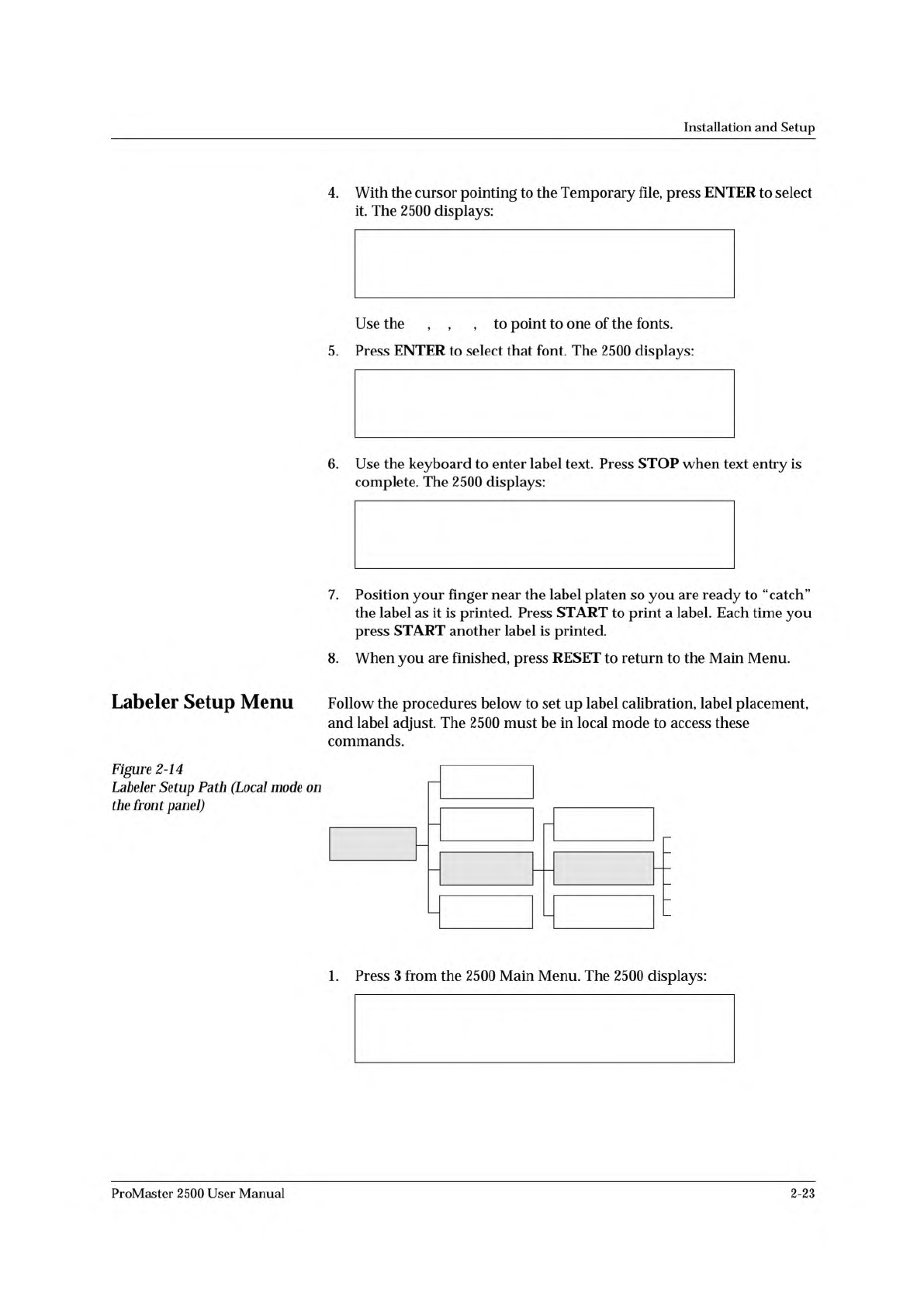
* * * SYSTEM SETUP MENU * * *
1 - GENERAL 4 - MAIN MENU
2 - LABELER
3 - HANDLER
SYSTEM
SETUP
Label Calibration
Label Placement
Label Adjust
Print Mode
Label Type
Setup Menu
DIAGNOSTICS
MAIN MENU
HANDLER
GENERAL
FILE
UTILITIES
OPERATIONS
1343-4
LABELER
Installation
and
Setup
4.
With
the
cursor
pointing
to
the
Temporary
file,
press
ENTER
to
select
it.
The
2500
displays:
Use
the
, ,
,
to
point
to
one
of
the
fonts.
5.
Press
ENTER
to
select
that
font.
The
2500
displays:
6.
Use
the
keyboard
to
enter
label
text.
Press
STOP
when
text
entry
is
complete.
The
2500
displays:
7.
Position
your
finger
near
the
label
platen
so
you
are
ready
to
“catch”
the
label
as
it
is
printed.
Press
START
to
print
a
label.
Each
time
you
press
START
another
label
is
printed.
8.
When
you
are
finished,
press
RESET
to
return
to
the
Main
Menu.
Labeler
Setup
Menu
Follow
the
procedures
below
to
set
up
label
calibration,
label
placement,
and
label
adjust.
The
2500
must
be
in
local
mode
to
access
these
commands.
Figure
2-14
Labeler
Setup
Path
(Local
mode
on
the
front
panel)
1.
Press
3
from
the
2500
Main
Menu.
The
2500
displays:
ProMaster
2500
User
Manual
2-23
* * * LABELER SETUP MENU * * *
1 - LABEL CALIBRATION 4 - SETUP MENU
2 - LABEL PLACEMENT
3 - LABEL ADJUST
* * * LABELER SETUP MENU * * *
1 - LABEL CALIBRATION 4 - SETUP MENU
2 - LABEL PLACEMENT
3 - LABEL ADJUST
ENTER LABEL CALIBRATION VALUE (XX):_
1944-1
NORMAL
HIGHER VALUE
Installation
and
Setup
Label
Calibration
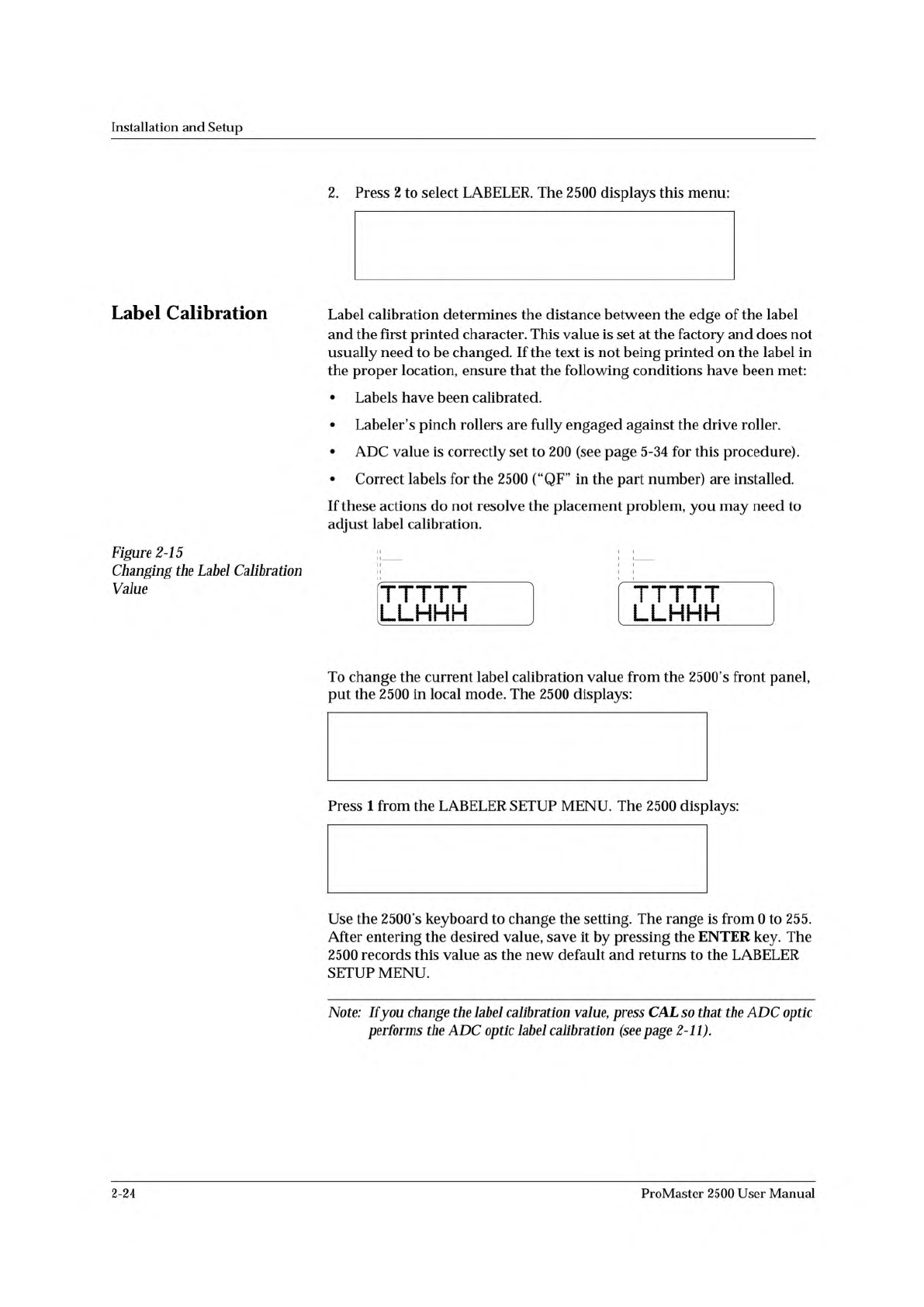
Figure
2-15
Changing
the
Label
Calibration
Value
2.
Press
2
to
select
LABELER.
The
2500
displays
this
menu:
Label
calibration
determines
the
distance
between
the
edge
of
the
label
and
the
first
printed
character.
This
value
is
set
at
the
factory
and
does
not
usually
need
to
be
changed.
If
the
text
is
not
being
printed
on
the
label
in
the
proper
location,
ensure
that
the
following
conditions
have
been
met:
•
Labels
have
been
calibrated.
•
Labeler's
pinch
rollers
are
fully
engaged
against
the
drive
roller.
•
ADC
value
is
correctly
set
to
200
(see
page
5-34
for
this
procedure).
•
Correct
labels
for
the
2500
(“QF”
in
the
part
number)
are
installed.
If
these
actions
do
not
resolve
the
placement
problem,
you
may
need
to
adjust
label
calibration.
LLHHH
To
change
the
current
label
calibration
value
from
the
2500's
front
panel,
put
the
2500
in
local
mode.
The
2500
displays:
Press
1
from
the
LABELER
SETUP
MENU.
The
2500
displays:
Use
the
2500's
keyboard
to
change
the
setting.
The
range
is
from
0
to
255.
After
entering
the
desired
value,
save
it
by
pressing
the
ENTER
key.
The
2500
records
this
value
as
the
new
default
and
returns
to
the
LABELER
SETUP
MENU.
Note:
Ifyou
change
the
label
calibration
value,
press
CAL
so
that
the
ADC
optic
performs
the
ADC
optic
label
calibration
(see
page
2-11).
2-24
ProMaster
2500
User
Manual
PROGRAM/TEST LABEL
ENTER LABEL CALIBRATION VALUE (X):_
* * * LABELER SETUP MENU * * *
1 - LABEL CALIBRATION 4 - SETUP MENU
2 - LABEL PLACEMENT
3 - LABEL ADJUST
ENTER LABEL PLACEMENT VALUE (X):_
ENTER “A” FOR AUTO CENTERING
PLACEMENT = 0
PLACEMENT = A
1363-2
LABELLABEL
Installation
and
Setup
Label
Placement
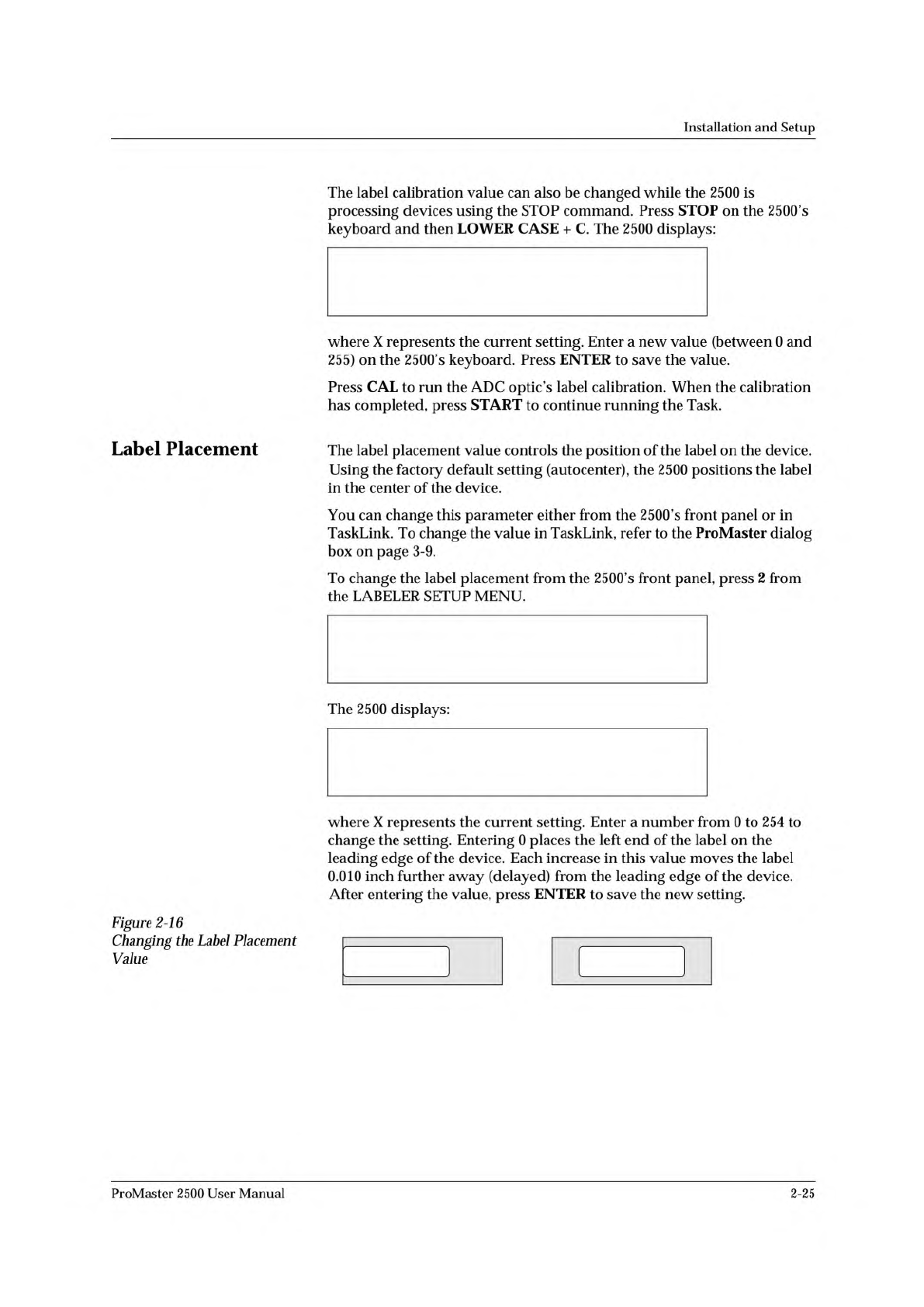
Figure
2-16
Changing
the
Label
Placement
Value
The
label
calibration
value
can
also
be
changed
while
the
2500
is
processing
devices
using
the
STOP
command.
Press
STOP
on
the
2500's
keyboard
and
then
LOWER
CASE
+
C.
The
2500
displays:
where
X
represents
the
current
setting.
Enter
a
new
value
(between
0
and
255)
on
the
2500's
keyboard.
Press
ENTER
to
save
the
value.
Press
CAL
to
run
the
ADC
optic's
label
calibration.
When
the
calibration
has
completed,
press
START
to
continue
running
the
Task.
The
label
placement
value
controls
the
position
of
the
label
on
the
device.
Using
the
factory
default
setting
(autocenter),
the
2500
positions
the
label
in
the
center
of
the
device.
You
can
change
this
parameter
either
from
the
2500's
front
panel
or
in
TaskLink.
To
change
the
value
in
TaskLink,
refer
to
the
ProMaster
dialog
box
on
page
3-9.
To
change
the
label
placement
from
the
2500,s
front
panel,
press
2
from
the
LABELER
SETUP
MENU.
The
2500
displays:
where
X
represents
the
current
setting.
Enter
a
number
from
0
to
254
to
change
the
setting.
Entering
0
places
the
left
end
of
the
label
on
the
leading
edge
of
the
device.
Each
increase
in
this
value
moves
the
label
0.010
inch
further
away
(delayed)
from
the
leading
edge
of
the
device.
After
entering
the
value,
press
ENTER
to
save
the
new
setting.
ProMaster
2500
User
Manual
2-25