2500_Users_Manual-.pdf - 第80页
Device(s) Data Source Data File T ranslati on Format Process(es) < More ... > Han dling/Labeling Parameters... Tasks and Kits Dev ice( s) k Z751ZX PC Disk File |u47b. £93 Data Source ( ) None ( ) Host Download (♦) …
Device(s)
Data Source
Process(es)
Handling/Labeling Parameters...
Tasks
Tasks
and
Kits
Creating
a
Task
for
a
Logic
Device
This
section
describes
how
to
create
a
Task
for
a
logic
device
and
describes
the
necessary
parameters.
The
area
on
the
screen
in
which
you
enter
or
select
each
parameter
is
referred
to
in
this
manual
as
the
parameter
entry
field
or,
simply,
field.
Not
all
of
the
TaskLink
parameter
fields
must
be
changed
from
their
default
values.
You
may
accept
the
default
settings
on
many
fields
while
creating
your
Tasks.
There
are
several
parameters
or
commands
that
all
users
must
define
in
order
to
create
a
functioning
PLD
(or
memory
device)
Task.
These
are
known
as
mandatory
Task
fields
and
are
listed
below:
•
—
Define
device
to
be
programmed.
•
—
Select
the
source
of
data
to
be
programmed
into
the
device.
•
—
Define
the
operations
to
be
performed
on
the
device.
•
—
Define
the
device
orientation
and
label.
The
mandatory
fields
are
shown
in
the
large
bold
letters
in
selected
paragraphs
below.
Parameters
that
are
not
shown
in
large
bold
letters
are
not
required
for
the
Task
to
run
and
process
devices.
Note:
This
manual
is
written
for
users
who
are
using
the
PC
keyboard
to
make
selections
from
the
TaskLink
screens.
The
same
selections
can
加
made
with
a
mouse
by
simply
moving
the
mouse
pointer
over
the
defined
fe/d
and
then
pressing
the
mouse
button.
Adding
a
Task
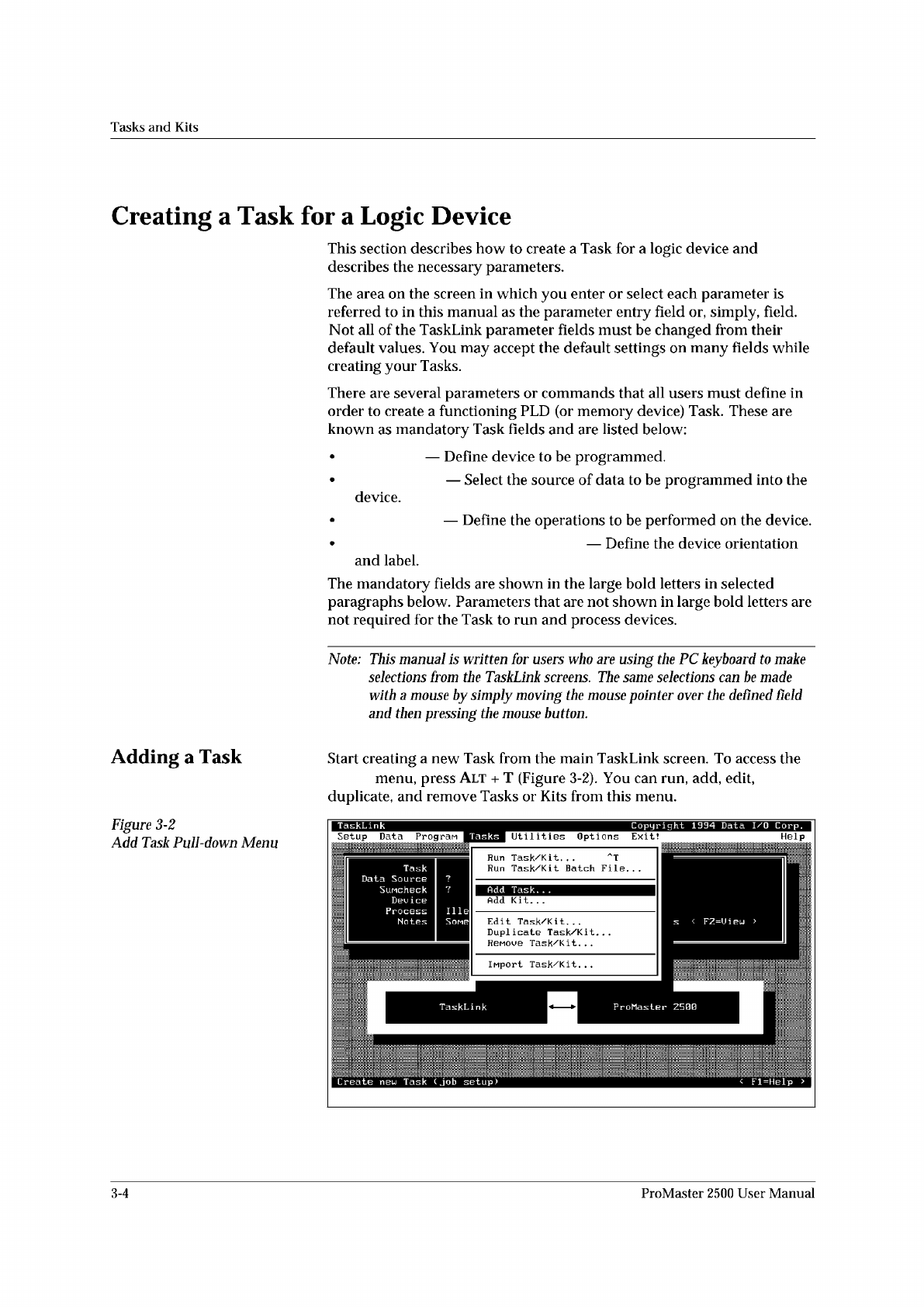
Start
creating
a
new
Task
from
the
main
TaskLink
screen.
To
access
the
menu,
press
Alt
+
T
(Figure
3-2).
You
can
run,
add,
edit,
duplicate,
and
remove
Tasks
or
Kits
from
this
menu.
Figure
3-2
Add
Task
Pull-down
Menu
3-4
ProMaster
2500
User
Manual
Device(s)
Data Source
Data File Translation Format
Process(es)
< More... > Handling/Labeling Parameters...
Tasks
and
Kits
Dev
ice(
s)
k
Z751ZX
PC
Disk
File
|u47b.
£93
Data
Source
( )
None
(
)
Host
Download
(♦)
PC
Disk
File
( )
Terninal/Host
( )
Master
Device
(
)
PrograMMer
Disk
Description
lEPROM
task
using
the
systen
defaults.
Process(
es)
12m
[][][]
Blank
Check
[XJ
[
J
[
J
rx]
r
]
r
i
[>□
rx]
[
i
rx:
rxi
[
i
Illegal
B
it
PrograM
Uerify
Label
PrograMMer
Type
Default
Handler
Type
Default,
Translation
Format
(83)
Intel
MCS-86
Edit
Task
"MEMORY
TASK"
Enter
text
;
Tab
for
next
iteM
<
Fl=Help
Data
Sumcheck
•
Serial
Vector
Test
—
The
2500
applies
test
vectors
to
the
device
inputs
in
parallel.
If
the
PLD
design
requires
certain
input
pins
to
be
applied
before
others,
the
JEDEC
standard
states
that
the
test
vectors
must
be
written
to
enforce
that
particular
order.
When
this
option
has
been
selected,
the
2500
applies
the
vector
inputs
starting
with
device
pin
1
and
continuing
in
numeric
order
to
the
last
input.
This
option
will
not
harm
the
device
and
should
be
used
as
a
troubleshooting
tool
when
a
large
number
of
devices
are
passing
fuse
verify
but
failing
test
vectors.
It
is
not
enabled
by
default.
•
DIP/LCC
vector
translation
—
In
some
instances
the
test
vectors
in
the
JEDEC
file
were
written
for
a
DIP
device
but
will
be
used
to
verify
a
PLCC
part.
When
this
translation
option
is
selected,
the
2500
automatically
translates
the
DIP
test
vectors
during
the
download
into
the
correct
format
to
test
the
PLCC/LCC
part.
This
optional
parameter,
when
selected,
will
check
the
sumcheck
at
the
end
of
the
file
transfer
with
the
sumcheck
entered
in
this
Task
field.
For
additional
information
on
this
parameter,
see
page
3-18.
Creating
a
Task
for
a
Memory
Device
Creating
a
Task
for
a
memory
device
requires
that
you
define
the
same
mandatory
fields
used
in
the
logic
device
Task
(see
page
3-4).
Entering
the
parameters
for
these
mandatory
fields
follows
the
same
procedures
that
you
used
for
the
logic
devices.
The
following
mandatory
parameters
must
be
defined
before
a
Memory
Task
will
run.
•
Define
one
or
more
•
Select
•
Select
and
•
Select
one
or
more
•
Select
and
(Package
type,
Pin
1
Orientation,
Print
Density,
and
Text).
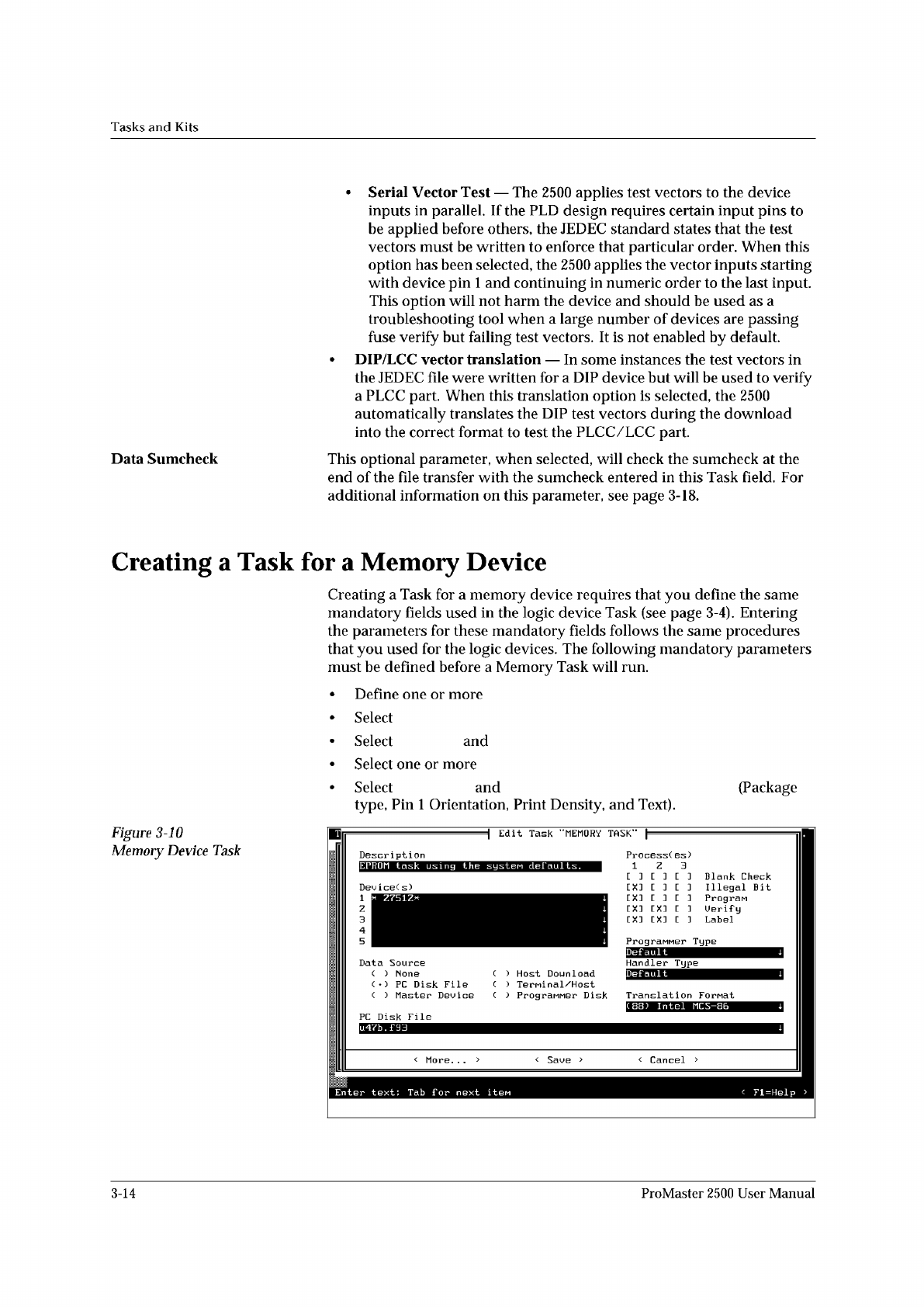
Figure
3-10
Memory
Device
Task
1
z
3
4
5
3-14
ProMaster
2500
User
Manual
Tasks
and
Kits
Description
EPROM
task
using
the
systen
def
emits.
Process(
es)
1
Z
3
r
3
r
3
r
i
x
Z7
Data
S
C
)
(
•
)
( )
Uord
Uidth:
I/O
Offset:
I/O
Begin
:
I/O
Block:
Begin
RAM:
Begin
Device:
Device
Block:
MeMory
Device
Parameters
卜
雷
FFFFFFFF
000000
000000
000000
000000
000000
Automatic
RAM
Fill
( )
None
( )
Default
( )
Specif
ic
[ ]
Odd/Euen
Byte
Swap
PC
Dis
u
47b.
<
OK
Cancel
>
Blank
Check
^=^=n
Bit
Edit
Task
"MEMORY
TASK"
Enter
deciMal
nunber
(
digits
0—9
)
;
Tab
f
or
next
it
巳
m
<
Fl=Help
>
<
MORE.
..
> <
Cancel
>
Selecting
a
Translation
Format
Other
Memory
Parameters
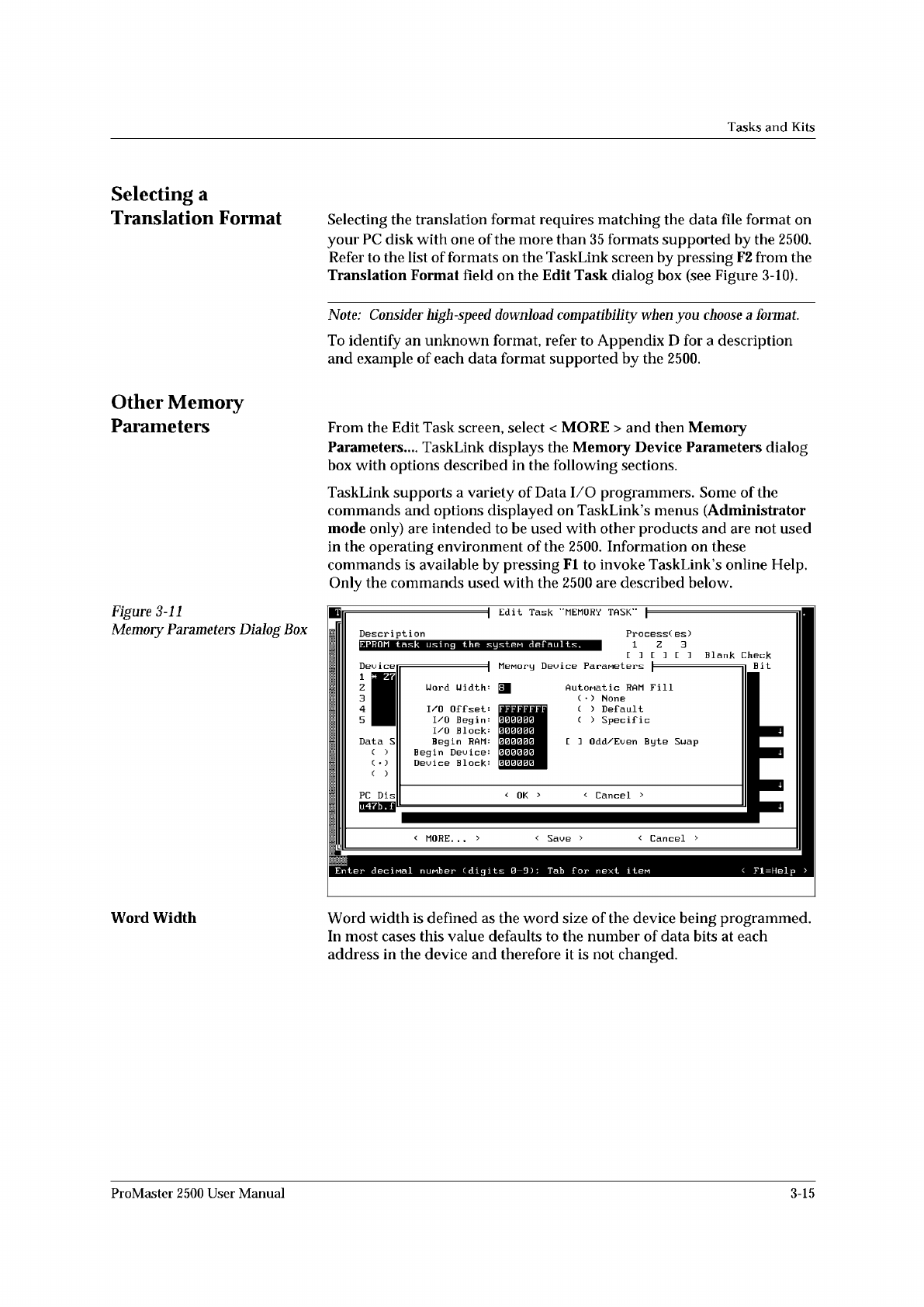
Figure
3-11
Memory
Parameters
Dialog
Box
Selecting
the
translation
format
requires
matching
the
data
file
format
on
your
PC
disk
with
one
of
the
more
than
35
formats
supported
by
the
2500.
Refer
to
the
list
of
formats
on
the
TaskLink
screen
by
pressing
F2
from
the
Translation
Format
field
on
the
Edit
Task
dialog
box
(see
Figure
3-10).
Note:
Consider
high-speed
download
compatibility
when
you
choose
a
format.
To
identify
an
unknown
format,
refer
to
Appendix
D
for
a
description
and
example
of
each
data
format
supported
by
the
2500.
From
the
Edit
Task
screen,
select
<
MORE
>
and
then
Memory
Parameters....
TaskLink
displays
the
Memory
Device
Parameters
dialog
box
with
options
described
in
the
following
sections.
TaskLink
supports
a
variety
of
Data
I/O
programmers.
Some
of
the
commands
and
options
displayed
on
TaskLink's
menus
(Administrator
mode
only)
are
intended
to
be
used
with
other
products
and
are
not
used
in
the
operating
environment
of
the
2500.
Information
on
these
commands
is
available
by
pressing
Fl
to
invoke
TaskLink's
online
Help.
Only
the
commands
used
with
the
2500
are
described
below.
Word
Width
Word
width
is
defined
as
the
word
size
of
the
device
being
programmed.
In
most
cases
this
value
defaults
to
the
number
of
data
bits
at
each
address
in
the
device
and
therefore
it
is
not
changed.
D
1
z
3
4
5
ProMaster
2500
User
Manual
3-15