2500_Users_Manual-.pdf - 第9页
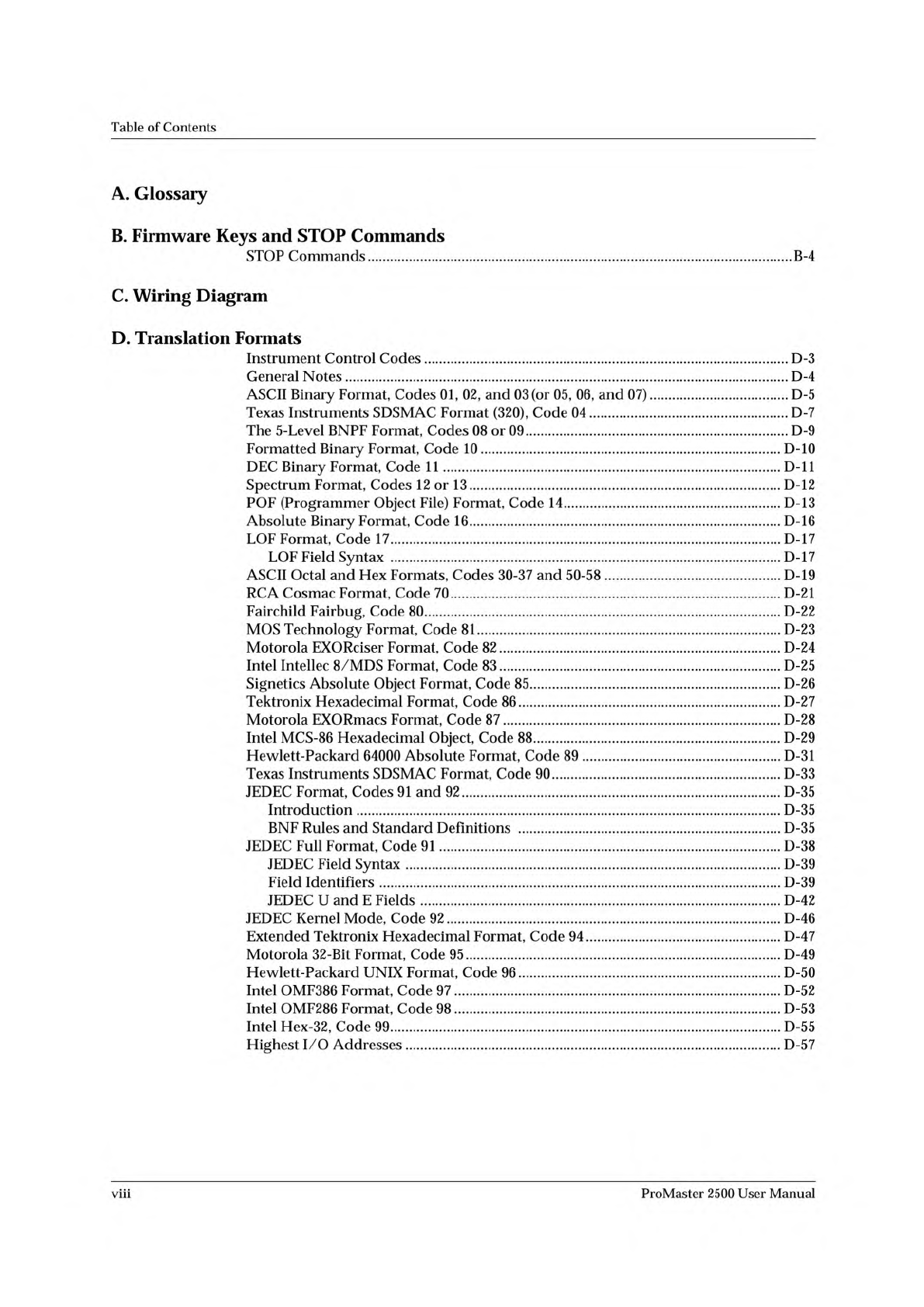
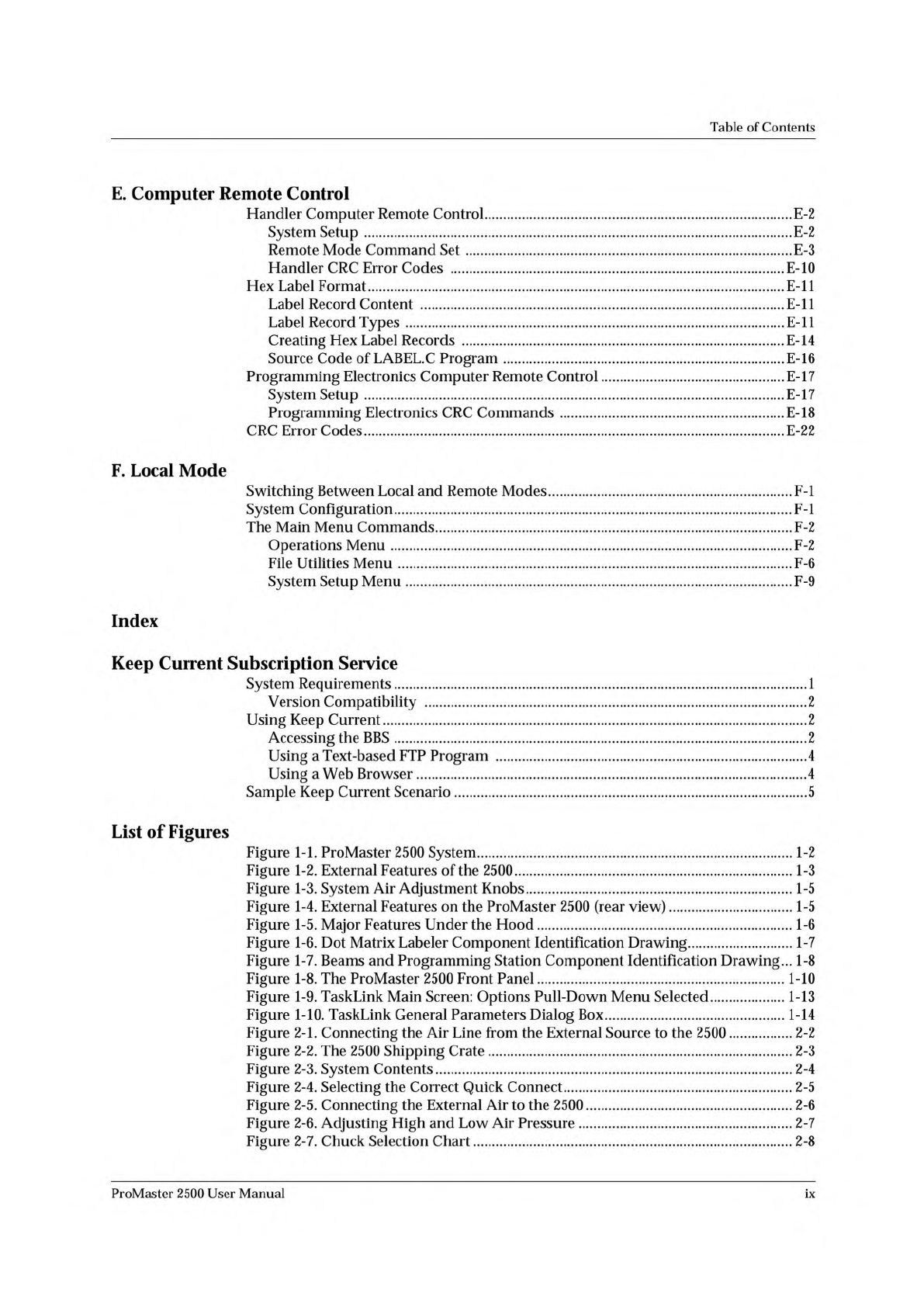
Table of Contents E. Computer Remote Control Handler Computer Remote Control E-2 System Setup E-2 Remote Mode Command Set E-3 Handler CRC Error Codes E-10 Hex Label Format E-ll Label Record Content E-ll Label Record Type…
Table
of
Contents
A.
Glossary
B.
Firmware
Keys
and
STOP
Commands
STOP
Commands
B-4
C.
Wiring
Diagram
D.
Translation
Formats
Instrument
Control
Codes
D-3
General
Notes
D-4
ASCII
Binary
Format,
Codes
01, 02,
and
03
(or
05,
06,
and
07)
D-5
Texas
Instruments
SDSMAC
Format
(320),
Code
04
D-7
The
5-Level
BNPF
Format,
Codes
08
or
09
D-9
Formatted
Binary
Format,
Code
10
D-10
DEC
Binary
Format,
Code
11
D-ll
Spectrum
Format,
Codes
12
or
13
D-12
POF
(Programmer
Object
File)
Format,
Code
14
D-13
Absolute
Binary
Format,
Code
16
D-16
LOF
Format,
Code
17
D-17
LOF
Field
Syntax
D-17
ASCII
Octal
and
Hex
Formats,
Codes
30-37
and
50-58
D-19
RCA
Cosmac
Format,
Code
70
D-21
Fairchild
Fairbug,
Code
80
D-22
MOS
Technology
Format,
Code
81
D-23
Motorola
EXORciser
Format,
Code
82
D-24
Intel
Intellec
8/MDS
Format,
Code
83
D-25
Signetics
Absolute
Object
Format,
Code
85
D-26
Tektronix
Hexadecimal
Format,
Code
86
D-27
Motorola
EXORmacs
Format,
Code
87
D-28
Intel
MCS-86
Hexadecimal
Object,
Code
88
D-29
Hewlett-Packard
64000
Absolute
Format,
Code
89
D-31
Texas
Instruments
SDSMAC
Format,
Code
90
D-33
JEDEC
Format,
Codes
91
and
92
D-35
Introduction
D-35
BNF
Rules
and
Standard
Definitions
D-35
JEDEC
Full
Format,
Code
91
D-38
JEDEC
Field
Syntax
D-39
Field
Identifiers
D-39
JEDEC
U
and
E
Fields
D-42
JEDEC
Kernel
Mode,
Code
92
D-46
Extended
Tektronix
Hexadecimal
Format,
Code
94
D-47
Motorola
32-Bit
Format,
Code
95
D-49
Hewlett-Packard
UNIX
Format,
Code
96
D-50
Intel
OMF386
Format,
Code
97
D-52
Intel
OMF286
Format,
Code
98
D-53
Intel
Hex-32,
Code
99
D-55
Highest
I/O
Addresses
D-57
viii
ProMaster
2500
User
Manual
Table
of
Contents
E.
Computer
Remote
Control
Handler
Computer
Remote
Control
E-2
System
Setup
E-2
Remote
Mode
Command
Set
E-3
Handler
CRC
Error
Codes
E-10
Hex
Label
Format
E-ll
Label
Record
Content
E-ll
Label
Record
Types
E-ll
Creating
Hex
Label
Records
E-14
Source
Code
of
LABEL.C
Program
E-16
Programming
Electronics
Computer
Remote
Control
E-17
System
Setup
E-17
Programming
Electronics
CRC
Commands
E-18
CRC
Error
Codes
E-22
F・
Local
Mode
Switching
Between
Local
and
Remote
Modes
F-l
System
Configuration
F-l
The
Main
Menu
Commands
F-2
Operations
Menu
F-2
File
Utilities
Menu
F-6
System
Setup
Menu
F-9
Index
Keep
Current
Subscription
Service
System
Requirements
1
Version
Compatibility
2
Using
Keep
Current
2
Accessing
the
BBS
2
Using
a
Text-based
FTP
Program
4
Using
a
Web
Browser
4
Sample
Keep
Current
Scenario
5
List
of
Figures
Figure
1-1.
ProMaster
2500
System
1-2
Figure
1-2.
External
Features
of
the
2500
1-3
Figure
1-3.
System
Air
Adjustment
Knobs
1-5
Figure
1-4.
External
Features
on
the
ProMaster
2500
(rear
view)
1-5
Figure
1-5.
Major
Features
Under
the
Hood
1-6
Figure
1-6.
Dot
Matrix
Labeler
Component
Identification
Drawing
1-7
Figure
1-7.
Beams
and
Programming
Station
Component
Identification
Drawing...
1-8
Figure
1-8.
The
ProMaster
2500
Front
Panel
1-10
Figure
1-9.
TaskLink
Main
Screen:
Options
Pull-Down
Menu
Selected
1-13
Figure
1-10.
TaskLink
General
Parameters
Dialog
Box
1-14
Figure
2-1.
Connecting
the
Air
Line
from
the
External
Source
to
the
2500
2-2
Figure
2-2.
The
2500
Shipping
Crate
2-3
Figure
2-3.
System
Contents
2-4
Figure
2-4.
Selecting
the
Correct
Quick
Connect
2-5
Figure
2-5.
Connecting
the
External
Air
to
the
2500
2-6
Figure
2-6.
Adjusting
High
and
Low
Air
Pressure
2-7
Figure
2-7.
Chuck
Selection
Chart
2-8
ProMaster
2500
User
Manual
ix
Table
of
Contents
Figure
2-8.
Adjusting
Plate
Height
2-9
Figure
2-9.
Loading
Labels
in
the
Dot
Matrix
Printer
2-10
Figure
2-10.
Installing
the
Labeler
Ribbon
Cassette
in
the
Dot
Matrix
Printer
2-12
Figure
2-11.
Threading
Labels
in
the
Thermal
Printer
2-14
Figure
2-12.
Threading
a
Ribbon
in
the
Thermal
Printer
2-15
Figure
2-13.
TaskLink
Main
Screen
(Administrator
Mode)
2-18
Figure
2-14.
Labeler
Setup
Path
(Local
mode
on
the
front
panel)
2-23
Figure
2-15.
Changing
the
Label
Calibration
Value
2-24
Figure
2-16.
Changing
the
Label
Placement
Value
2-25
Figure
2-17.
Changing
the
Dot
Split
Value
2-26
Figure
2-18.
Print
Shift
(affects
vertical
position)
2-27
Figure
2-19.
Label
Calibration
(affects
horizontal
position)
2-28
Figure
2-20.
Location
of
Firmware
EPROMs
on
the
Main
Controller
Board
2-31
Figure
3-1.
Overview
of
the
Steps
Involved
in
Creating
Tasks
3-3
Figure
3-2.
Add
Task
Pull-down
Menu
3-4
Figure
3-3.
Add
Task
Dialog
Box
3-5
Figure
3-4.
Edit
Task
Dialog
Box
3-6
Figure
3-5.
Illegal
Bit
Condition
3-8
Figure
3-6.
ProMaster
Dialog
Box
3-9
Figure
3-7.
Selecting
Orientation
of
Device
Pin
1
in
the
Input
Tube
Using
TaskLink
3-10
Figure
3-8.
Recommended
Device
Orientation
in
Input
Device
3-11
Figure
3-9.
Logic
Device
Parameters
3-12
Figure
3-10.
Memory
Device
Task
3-14
Figure
3-11.
Memory
Parameters
Dialog
Box
3-15
Figure
3-12.
Commands
Available
under
Setup
3-19
Figure
3-13.
Log
File
Format
Compared
to
Task
Statistics
Screen
3-19
Figure
3-14.
General
Parameters
Dialog
Box
3-20
Figure
3-15.
Serialization
Parameters
Dialog
Box
3-22
Figure
3-16.
The
Serialization
Process
3-23
Figure
3-17.
Utilities
Pull-down
Menu
3-27
Figure
3-18.
Commands
Available
from
the
Options
Pull-down
Menu
3-28
Figure
3-19.
Selecting
Security
Options
3-29
Figure
3-20.
Password
Screen
for
System
Operators
3-30
Figure
3-21.
Configuring
Operating
Preferences
3-31
Figure
3-22.
Selecting
“Add
Kit”
from
the
Main
Screen
3-32
Figure
3-23.
Kits
are
a
Series
of
Tasks
in
a
Single
Job
3-33
Figure
3-24.
Edit
Kit
Screen
3-34
Figure
3-25.
Naming
the
First
Task
in
the
Kit
3-34
Figure
3-26.
Adding
the
Second
Task
to
the
Kit
3-35
Figure
3-27.
Sample
Message
Presented
to
System
Operator
when
Kit
Is
Run
3-36
Figure
3-28.
Selecting
the
Batch
File
Command
3-38
Figure
4-1.
Overview
of
the
Procedure
for
Starting
a
Task
4-3
Figure
4-2.
TaskLink
Operator
Screen
4-5
Figure
4-3.
Enter
Your
Name
on
the
Security
Screen
4-6
Figure
4-4.
TaskLink
Main
Operator
Screen
4-6
Figure
4-5.
Configuring
Blocks
on
a
Programming
Module
4-8
Figure
4-6.
Configuration
Box
Compartments
4-9
Figure
4-7.
Configuration
Box
Lid
—
Optional
Configurations
for
28-pin
Module..
4-10
Figure
4-8.
Installing
a
Programming
Module
4-12
Figure
4-9.
Adjusting
the
Track
Width
—
Turning
the
knob
clockwise
opens
all
three
track
sections
together
4-13
Figure
4-10.
Final
Track
Adjustment
4-14
ProMaster
2500
User
Manual