2500_Users_Manual-.pdf - 第93页
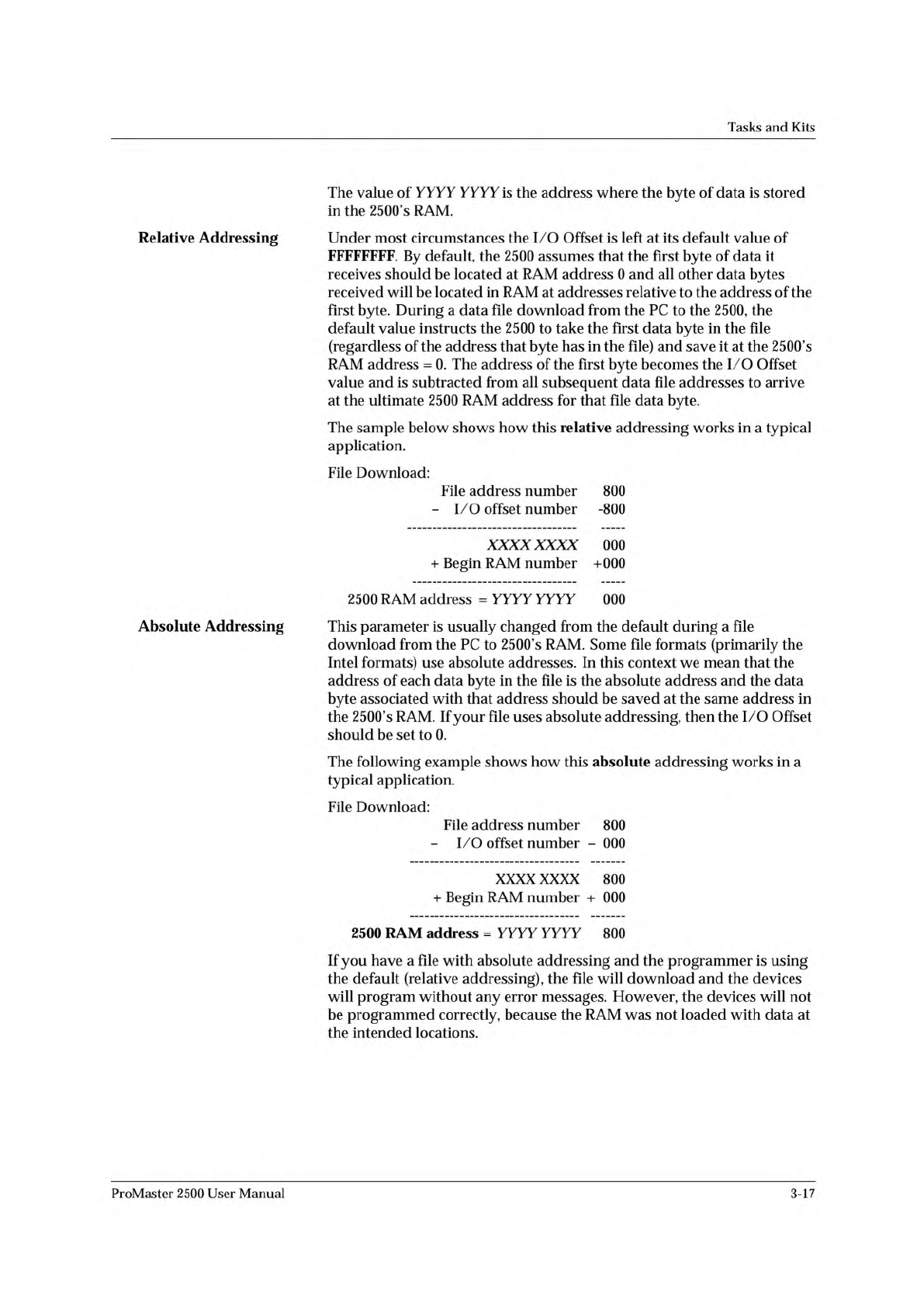
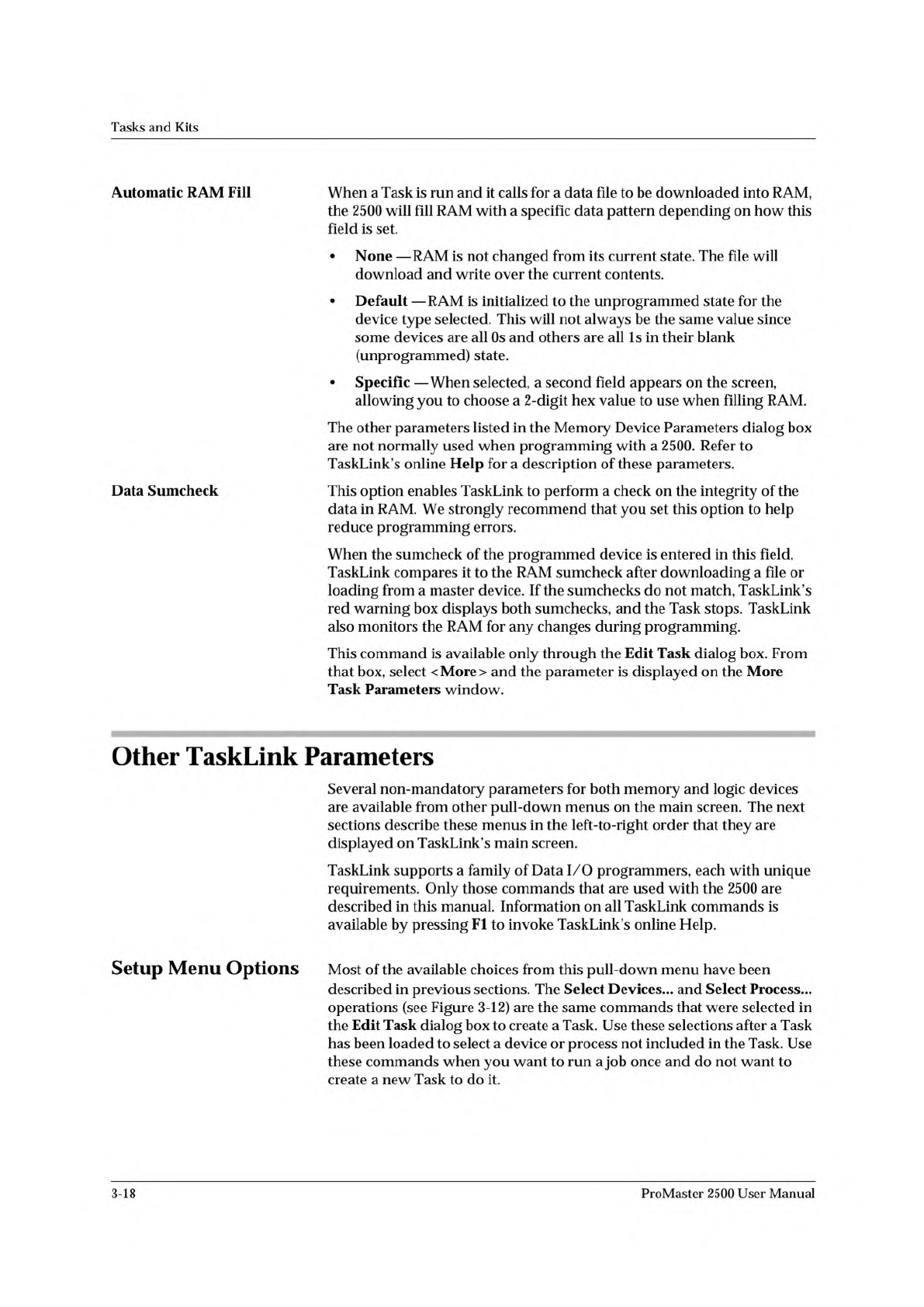
Tasks and Kits Automatic RAM Fill When a Task is run and it calls for a data file to be downloaded into RAM, the 2500 will fill RAM with a specific data pattern depending on how this field is set. • None — RAM is not cha…
Tasks
and
Kits
The
value
of
YYYY YYYY
is
the
address
where
the
byte
of
data
is
stored
in
the
2500's
RAM.
Relative
Addressing
Under
most
circumstances
the
I/O
Offset
is
left
at
its
default
value
of
FFFFFFFF.
By
default,
the
2500
assumes
that
the
first
byte
of
data
it
receives
should
be
located
at
RAM
address
0
and
all
other
data
bytes
received
will
be
located
in
RAM
at
addresses
relative
to
the
address
of
the
first
byte.
During
a
data
file
download
from
the
PC
to
the
2500,
the
default
value
instructs
the
2500
to
take
the
first
data
byte
in
the
file
(regardless
of
the
address
that
byte
has
in
the
file)
and
save
it
at
the
2500's
RAM
address
=
0.
The
address
of
the
first
byte
becomes
the
I/O
Offset
value
and
is
subtracted
from
all
subsequent
data
file
addresses
to
arrive
at
the
ultimate
2500
RAM
address
for
that
file
data
byte.
The
sample
below
shows
how
this
relative
addressing
works
in
a
typical
application.
File
Download:
File
address
number
800
-
I/O
offset
number
-800
XXXXXXXX
000
+
Begin
RAM
number
+000
2500
RAM
address
=
YYYY
YYYY
000
Absolute
Addressing
This
parameter
is
usually
changed
from
the
default
during
a
file
download
from
the
PC
to
2500's
RAM.
Some
file
formats
(primarily
the
Intel
formats)
use
absolute
addresses.
In
this
context
we
mean
that
the
address
of
each
data
byte
in
the
file
is
the
absolute
address
and
the
data
byte
associated
with
that
address
should
be
saved
at
the
same
address
in
the
2500's
RAM.
If
your
file
uses
absolute
addressing,
then
the
I/O
Offset
should
be
set
to
0.
The
following
example
shows
how
this
absolute
addressing
works
in
a
typical
application.
File
Download:
File
address
number
800
-
I/O
offset
number
-
000
XXXX
XXXX
800
+
Begin
RAM
number
+
000
2500
RAM
address
=
YYYY YYYY
800
If
you
have
a
file
with
absolute
addressing
and
the
programmer
is
using
the
default
(relative
addressing),
the
file
will
download
and
the
devices
will
program
without
any
error
messages.
However,
the
devices
will
not
be
programmed
correctly,
because
the
RAM
was
not
loaded
with
data
at
the
intended
locations.
ProMaster
2500
User
Manual
3-17
Tasks
and
Kits
Automatic
RAM
Fill
When
a
Task
is
run
and
it
calls
for
a
data
file
to
be
downloaded
into
RAM,
the
2500
will
fill
RAM
with
a
specific
data
pattern
depending
on
how
this
field
is
set.
•
None
—
RAM
is
not
changed
from
its
current
state.
The
file
will
download
and
write
over
the
current
contents.
•
Default
—
RAM
is
initialized
to
the
unprogrammed
state
for
the
device
type
selected.
This
will
not
always
be
the
same
value
since
some
devices
are
all
Os
and
others
are
all
Is
in
their
blank
(unprogrammed)
state.
•
Specific
—
When
selected,
a
second
field
appears
on
the
screen,
allowing
you
to
choose
a
2-digit
hex
value
to
use
when
filling
RAM.
The
other
parameters
listed
in
the
Memory
Device
Parameters
dialog
box
are
not
normally
used
when
programming
with
a
2500.
Refer
to
TaskLink
s
online
Help
for
a
description
of
these
parameters.
Data
Sumcheck
This
option
enables
TaskLink
to
perform
a
check
on
the
integrity
of
the
data
in
RAM.
We
strongly
recommend
that
you
set
this
option
to
help
reduce
programming
errors.
When
the
sumcheck
of
the
programmed
device
is
entered
in
this
field,
TaskLink
compares
it
to
the
RAM
sumcheck
after
downloading
a
file
or
loading
from
a
master
device.
If
the
sumchecks
do
not
match,
TaskLink's
red
warning
box
displays
both
sumchecks,
and
the
Task
stops.
TaskLink
also
monitors
the
RAM
for
any
changes
during
programming.
This
command
is
available
only
through
the
Edit
Task
dialog
box.
From
that
box,
select
<
More
>
and
the
parameter
is
displayed
on
the
More
Task
Parameters
window.
Other
TaskLink
Parameters
Several
non-mandatory
parameters
for
both
memory
and
logic
devices
are
available
from
other
pull-down
menus
on
the
main
screen.
The
next
sections
describe
these
menus
in
the
left-to-right
order
that
they
are
displayed
on
TaskLink's
main
screen.
TaskLink
supports
a
family
of
Data
I/O
programmers,
each
with
unique
requirements.
Only
those
commands
that
are
used
with
the
2500
are
described
in
this
manual.
Information
on
all
TaskLink
commands
is
available
by
pressing
Fl
to
invoke
TaskLink's
online
Help.
Setup
Menu
Options
Most
of
the
available
choices
from
this
pull-down
menu
have
been
described
in
previous
sections.
The
Select
Devices...
and
Select
Process...
operations
(see
Figure
3-12)
are
the
same
commands
that
were
selected
in
the
Edit
Task
dialog
box
to
create
a
Task.
Use
these
selections
after
a
Task
has
been
loaded
to
select
a
device
or
process
not
included
in
the
Task.
Use
these
commands
when
you
want
to
run
a
job
once
and
do
not
want
to
create
a
new
Task
to
do
it.
3-18
ProMaster
2500
User
Manual
Tasks
and
Kits
Set
Preferences...
Figure
3-21
Configuring
Operating
Preferences
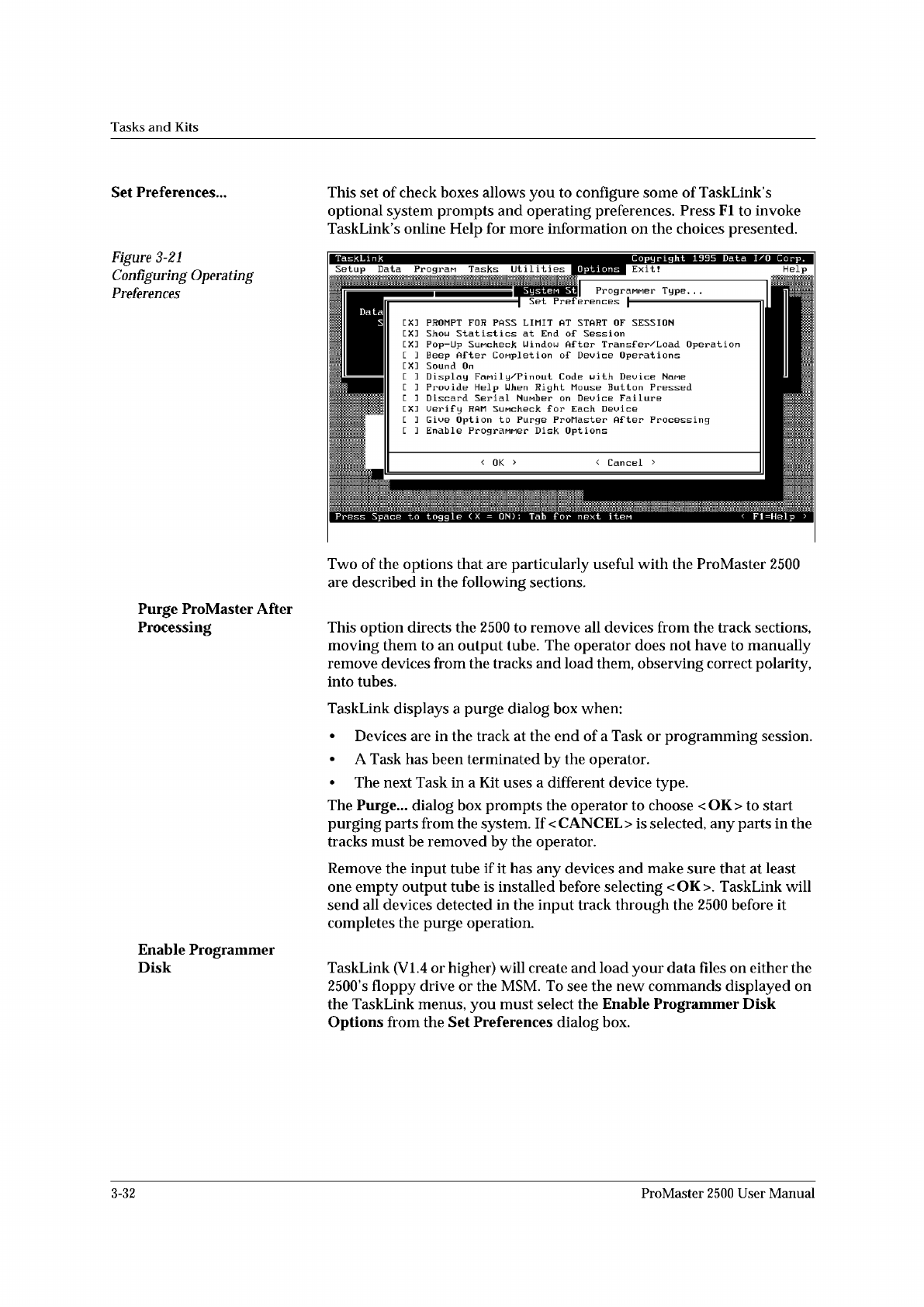
This
set
of
check
boxes
allows
you
to
configure
some
of
TaskLink
s
optional
system
prompts
and
operating
preferences.
Press
Fl
to
invoke
TaskLink
s
online
Help
for
more
information
on
the
choices
presented.
Programer
Type.
.
.
Set
Preferences
<
Cancel
>
<
OK
>
Systen
St
Data
S
PROMPT
FOR
PASS
LIMIT
AT
START
OF
SESSION
Shou
Statistics
at
End
of
Session
Pop-Up
SuMcheck
Uindou
After
Transf
er/Load
Operation
Beep
After
Completion
of
Device
Operations
Sound
On
Display
Fanil
y/P
in
out
Code
with
Device
Name
Provide
Help
Uhen
Right
Mouse
Button
Pressed
Discard
Serial
Number
on
Device
Failure
Uerif
y
RAM
SuMcheck
for
Each
Device
Give
Option
to
Purge
ProMaster
After
Processing
Enable
PrograMMer
Disk
Options
EX:
EX:
EX:
LXJ
E
]
[ ]
EX:
[ ]
L
J
j
覆
Press
Space
to
toggle
(
X
=
ON)
:
Tab
f
or
next
iten
I
TaskLink
Copyright
1995
Data
I/O
Corp.
II
Setup
Data
Progran
Tasks
Utilities
0
P
t
i
o
n
w
Help
Two
of
the
options
that
are
particularly
useful
with
the
ProMaster
2500
are
described
in
the
following
sections.
Purge
ProMaster
After
Processing
This
option
directs
the
2500
to
remove
all
devices
from
the
track
sections,
moving
them
to
an
output
tube.
The
operator
does
not
have
to
manually
remove
devices
from
the
tracks
and
load
them,
observing
correct
polarity,
into
tubes.
TaskLink
displays
a
purge
dialog
box
when:
•
Devices
are
in
the
track
at
the
end
of
a
Task
or
programming
session.
•
A
Task
has
been
terminated
by
the
operator.
•
The
next
Task
in
a
Kit
uses
a
different
device
type.
The
Purge...
dialog
box
prompts
the
operator
to
choose
<OK>
to
start
purging
parts
from
the
system.
If
<
CANCEL
>
is
selected,
any
parts
in
the
tracks
must
be
removed
by
the
operator.
Remove
the
input
tube
if
it
has
any
devices
and
make
sure
that
at
least
one
empty
output
tube
is
installed
before
selecting
<OK>.
TaskLink
will
send
all
devices
detected
in
the
input
track
through
the
2500
before
it
completes
the
purge
operation.
Enable
Programmer
Disk
TaskLink
(VI.
4
or
higher)
will
create
and
load
your
data
files
on
either
the
2500,s
floppy
drive
or
the
MSM.
To
see
the
new
commands
displayed
on
the
TaskLink
menus,
you
must
select
the
Enable
Programmer
Disk
Options
from
the
Set
Preferences
dialog
box.
3-32
ProMaster
2500
User
Manual