00193875-01.pdf - 第39页
SIPLACE Software Guide Version 101.xx 3 Graphical user interface Issue 05/03 EN 3.3 User interface - views and menus 39 Control mode... 3 The control mode determin es how the station is supplied with the necessar y place…
3 Graphical user interface SIPLACE Software Guide Version 101.xx
3.3 User interface - views and menus Issue 05/03 EN
38
Example of initial password allocation 3
3
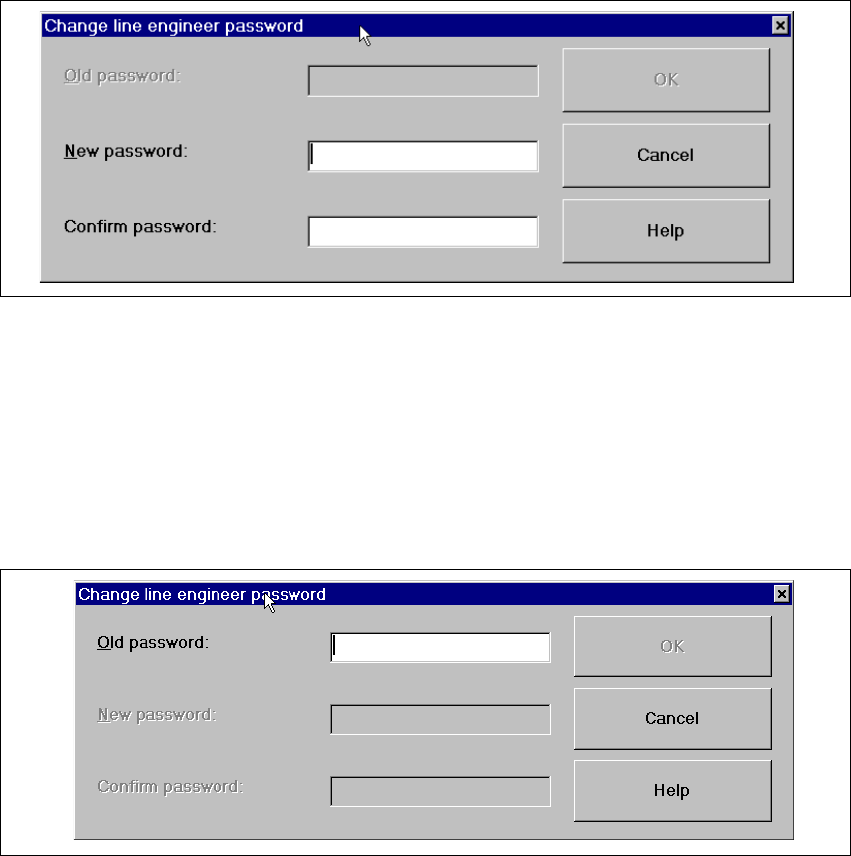
Fig. 3.3 - 6 "Change line engineer password - initial allocation" dialog box
Æ Click the "New password" text box and enter the required password.
Æ Click the "Confirm password" text box and re-enter the password.
Æ Click the OK button to confirm the password.
Example for the modification of an existing password 3
3
Fig. 3.3 - 7 "Change line engineer password - change an existing password" dialog box
Æ Click the "Old password" text box and enter the current password.
The other two text boxes now become active.
Æ Click the "New password" text box and enter the new password.
Æ Click the "Confirm password" text box and enter the new password for a second time.
Æ Click the OK button to confirm the password.
Æ Click OK to close the "Access level" dialog box.
SIPLACE Software Guide Version 101.xx 3 Graphical user interface
Issue 05/03 EN 3.3 User interface - views and menus
39
Control mode... 3
The control mode determines how the station is supplied with the necessary placement data. 3
Æ Click the Control mode... menu item.
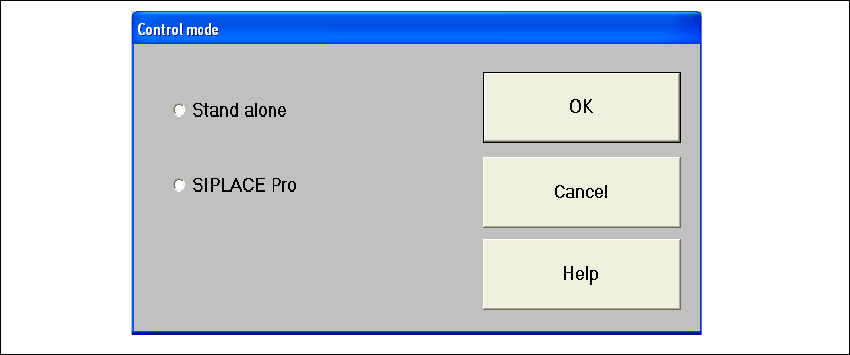
The "Control mode" dialog box is displayed.
3
Fig. 3.3 - 8 "Control mode" dialog box
Control modes: 3
Stand Alone (for test purposes only)
This mode allows you to load a panel (placement program) for test and service purposes from the
station computer using the "New panel..." menu item.
The necessary data must be located on the station computer’s hard disk. The machine runs with-
out a higher-level computer (programming system). 3
3
SIPLACE Pro
Establishes the connection to the SIPLACE C Pro programming system. 3
3
Æ Activate the radio button for the required control mode.
Æ Click OK to make your settings active.
3 Graphical user interface SIPLACE Software Guide Version 101.xx
3.3 User interface - views and menus Issue 05/03 EN
40
New panel... 3
In "Stand alone" mode, you can load the data for a selected panel from the station computer’s hard
disk. 3
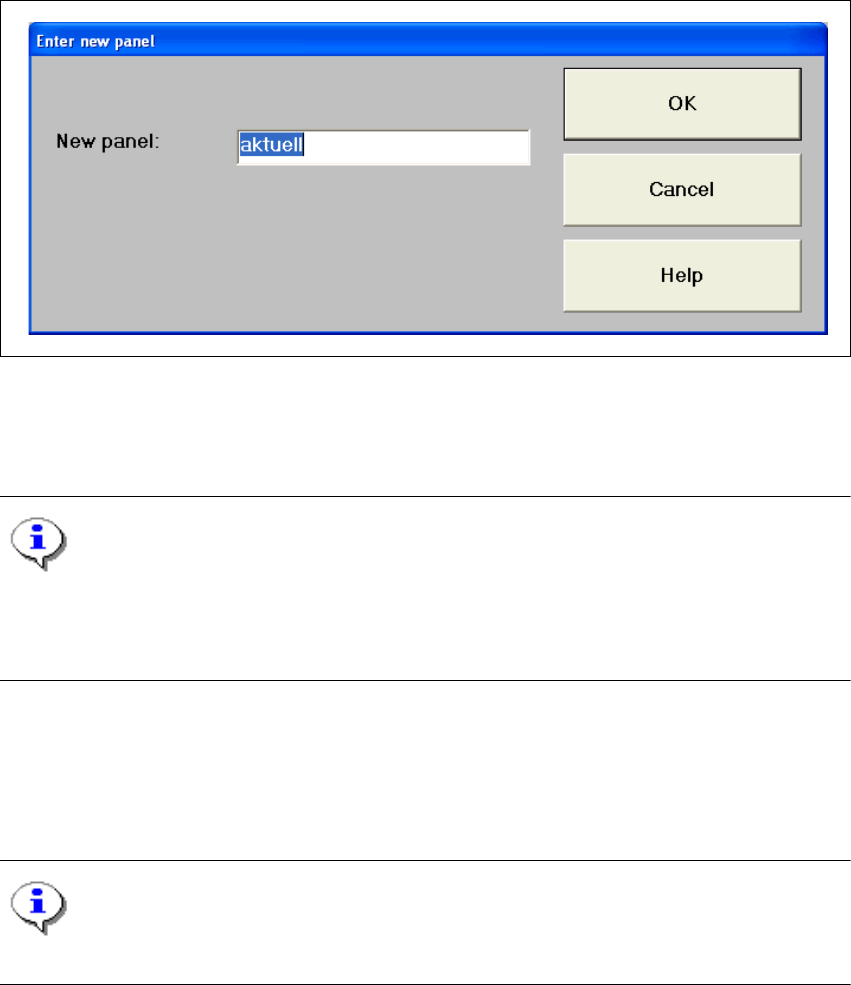
Æ Click the New panel... menu item. The following dialog appears:
3
Fig. 3.3 - 9 "Enter new panel" dialog box
Æ Now enter the name of the required panel in the displayed text box and click OK to confirm.
The panel data is now loaded.
NOTE
The data, including the fiducial and component package form data, of the last panel successfully
specified by SIPLACE C Pro, is now saved on the station computer’s hard disk under the panel
name "AKTUELL" and can be loaded by entering this name. 3
Software... 3
This menu item is used to activate the test commands (test functions) for checking a variety of
machine components. 3
NOTE
This menu item can only be called from the "Service" access level. 3