SiplaceX4_en.pdf - 第650页
1 - 80 S tudent Guide SIPLACE X 13 MTC 2 Edition 09/2005 80 ➠ choose your target drive , on which your wish to inst all the program. ➠ Click button "Next ". ➠ Choose the program Drive Monitor and Simovert . ➠ C…
1 - 80
Student Guide SIPLACE X
13 MTC 2 Edition 09/2005
80
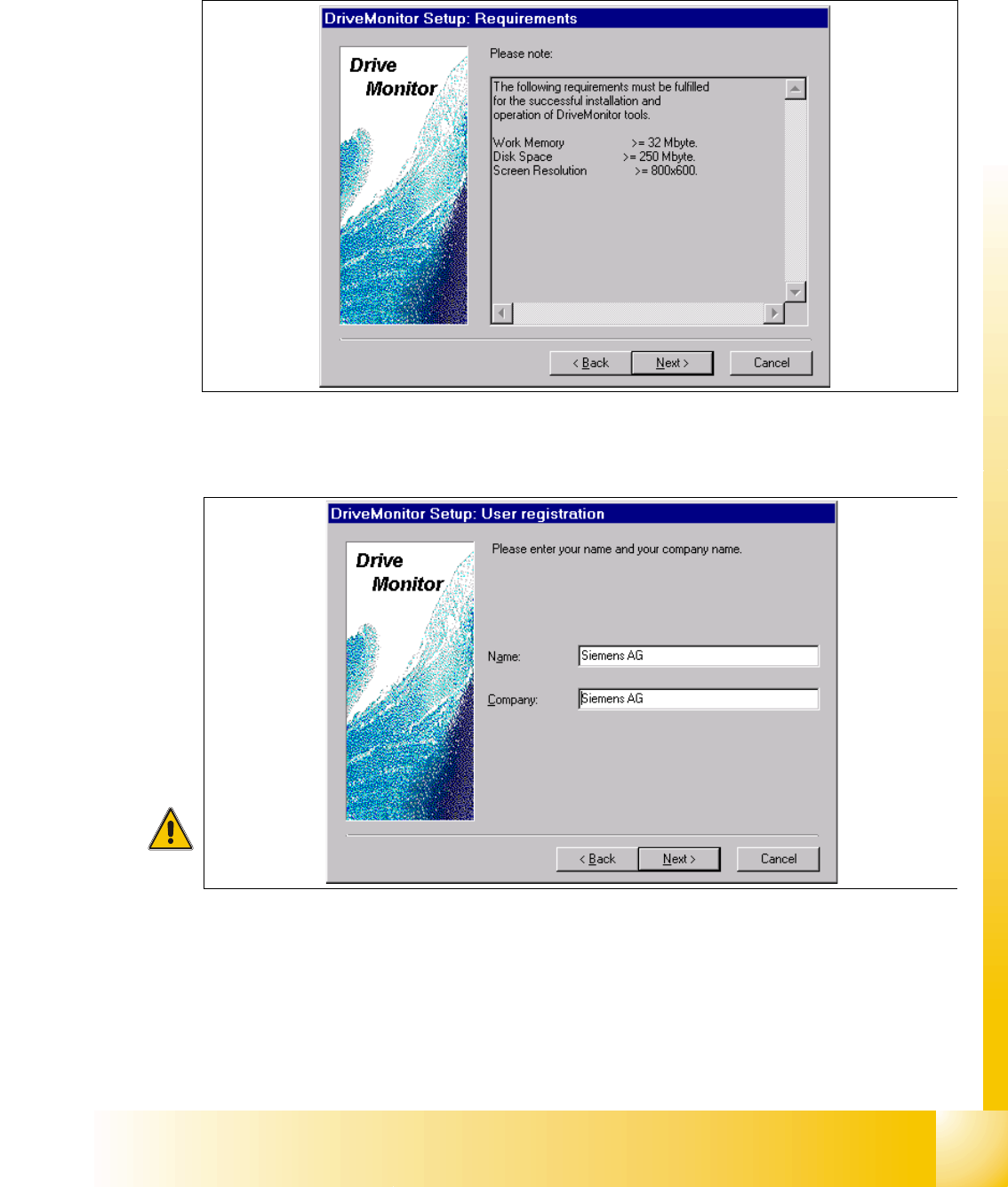
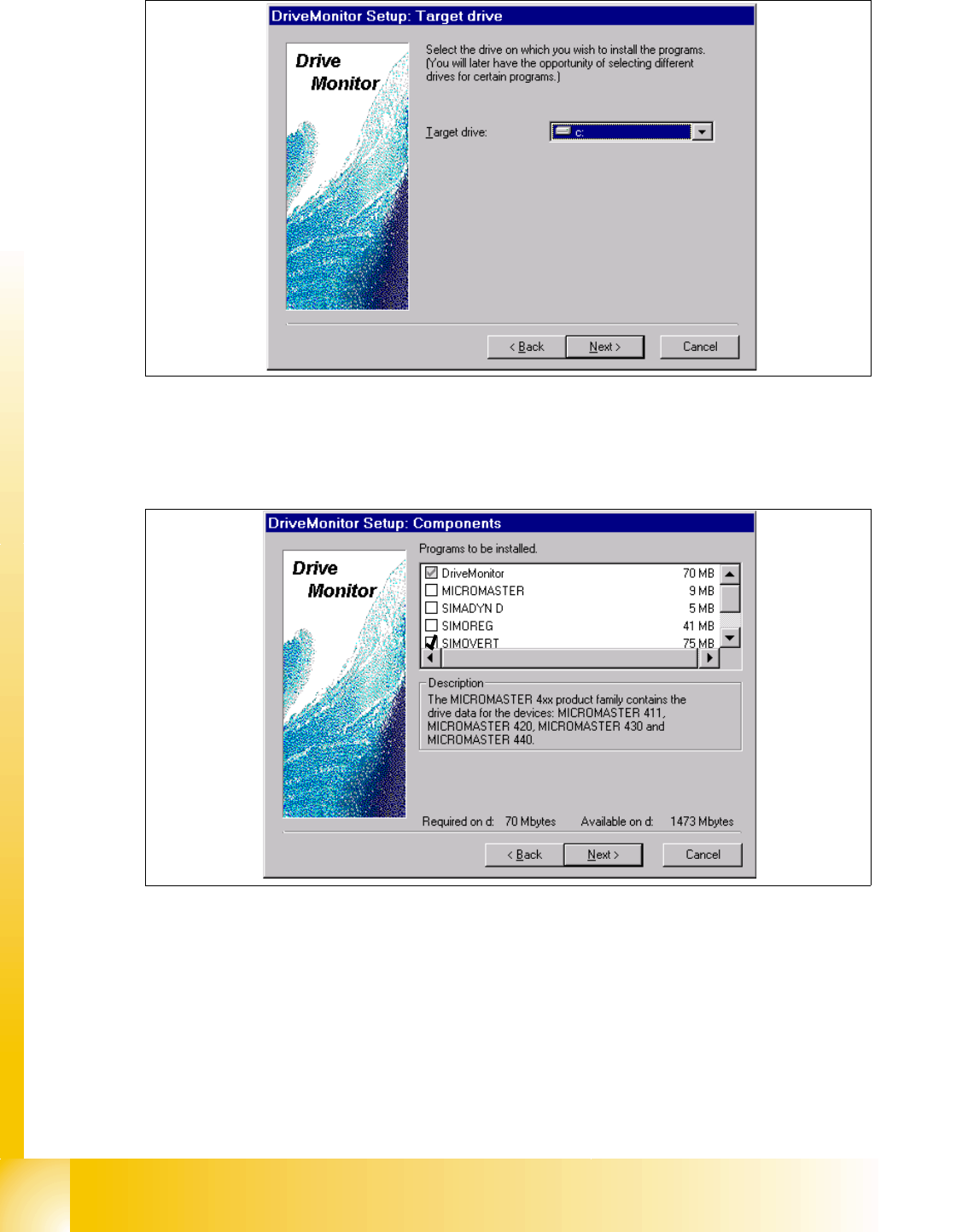
➠ choose your target drive, on which your wish to install the program.
➠ Click button "Next".
➠ Choose the program Drive Monitor and Simovert.
➠ Clicken the button "Next".
➠ Software installation will be started.
➠ Shutdown the computer and start again.
1 - 81
Student Guide SIPLACE X
Edition 09/2005 13 MTC 2
81
Start Drive Monitor 13
➠ Connect the cabel (serial interface) between the Masterdrives and Servicenotebook.
Note:
During the installation, the software create an ikon on the desktop.
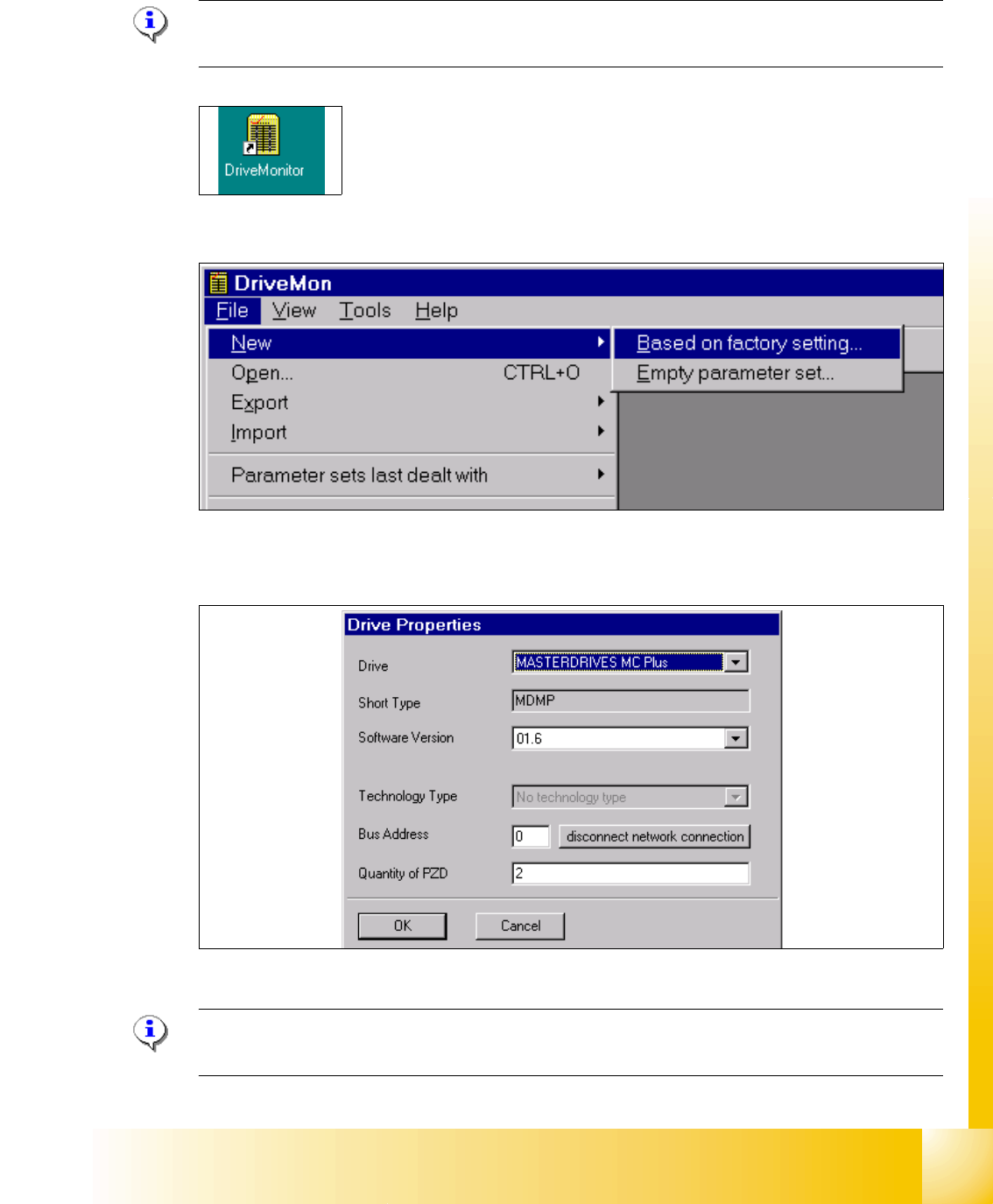
➠ Double click Ikon "Drive Monitor"
➠ Create a new file based on factory settings, standardconfig.dnl (see picture above), this include
the parameter see picture below.
➠ Choose the drive "Masterdrive MC Plus" and the software for MTC2 it is 1.6.
Note:
Software for the MTC 1 is 1.5!