SIPLACE S-23 HM User Manual - 第17页
17 ● Check that the z axe s of all placem ent and glue applicati on heads are in their top en d position . ● Check whet her there are still comp onents on the placement h eads. ● Move all ga ntries into the standby posi …
16
● When the prompt appears on screen, press one of the white Start buttons
on the input/output side or on the left or right operating panel.
The placement system is ready for use again as soon as the reference
point run has ended.
Switching off the SIPLACE line
ATTENTION
Before you switch off the line make sure of the following:
– All placement and glueing operations must have been completed at the
stations.
– The z axes of all placement and glueing heads have to be in their top end
positions.
– No placement head should still be carrying components.
– All gantries must have moved to their waiting positions.
– The station computers are shut down safely.
Switching off the line computer
CAUTION
Never switch off the line computer simply by switching off the main switch.
Always shut down the operating system properly. If you fail to do so, you
may end up with considerable loss of data or corrupted programs.
● Position the mouse pointer at the top or bottom right-hand edge of the
screen. The pointer will become a cross.
● Hold the left-hand mouse button down. The main menu will appear.
● Still holding the mouse button down, move the pointer onto Shutdown
then release it. The following dialog box now appears on the screen.
● Click on Yes. The dialog box closes and the program is shut down. This
takes about one minute. The following box now appears:
● Switch off the UPS and the monitor.
Switching off the stations
When an automatic placement system is in use, NEVER just power it
off at the main switch (apart from in an emergency).
The station computer runs under the WINDOWS NT operating system.
You must shut down the operating system correctly before switching off
the station. The procedure for switching off the station is as follows:
● End all placement and gluing operations.
Really shut down ?
Yes No
Safe to power off
Press any key to reboot

17
● Check that the z axes of all placement and glue application heads are in
their top end position.
● Check whether there are still components on the placement heads.
● Move all gantries into the standby position.
● Click on the ’Shut down computer’ option in the ’Operation’ menu.
This will end all the processes running on the station computer. A prompt
will then appear on screen, telling you that you can safely switch off the
computer.
● You can now switch off the placement system at the main switch.
PLEASE NOTE:
If you switch off the placement system while it is in use without first cor-
rectly shutting down the station computer, the computer might not start
again the next time you start up the line.
18
Operator Guidance
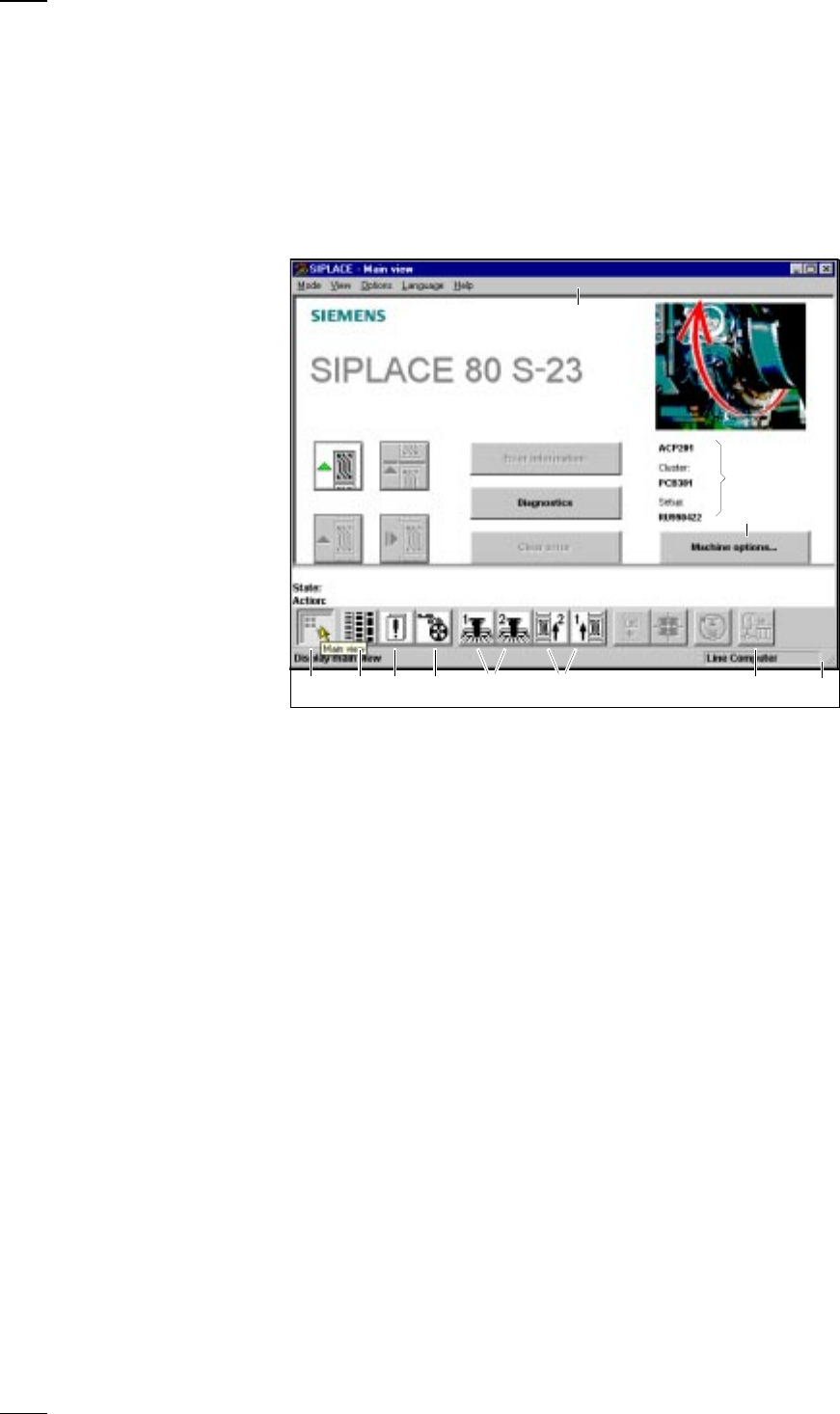
’‘SIPLACE S-23 HM - Main view’ menu (user level: ’operator’)
You can control the operation of the machine from the main view.
↑ UM 3.3 All of the menus and options accessible to the operator can be accessed
from the main view. Menus to which the operator has no access and
options which have not been activated are grayed out. You can jump
directly back to the main view at any time from a menu. If you have
changed any settings, a query box will be displayed asking you to save or
discard the changes.
a
-
f
Buttons for machine control
a
Process
s
Stop processing
d
Continue processing
f
Abort processing
g
Error information
If an error has occured, you can obtain more details concerning the error
in this submenu.
h
Diagnostics
If an error occurs while a board is being processed, you can start this
diagnostics program in order to analyze and correct the error.
j
Clear error
Click on this button and the error message will be removed from the
screen. For reference purposes the error will continue to be held in the
errors list.
k
This displays the file name of the job, the cluster that was loaded and the
set-up.
l
-
H
Buttons and icons for calling menus for machine control
l
Machine options
;
Display main view
A
Display setup and component verification with barcode
S
Display errors
D
PCB feeders
F
SF gantries 1 and 2
G SF PCB transport 1 and SF PCB transport 2 (you cannot access the SF
PCB transport 2 menu unless the twin conveyor option has been
installed.)
H GEM status, placement program and terminal service (option)
J Display of the machine‘s operating mode: line computer, GEM host,
stand-alone
; ASD F G H
a
df
g
h
j
s
l
K
J
k