SIPLACE S-23 HM User Manual - 第20页
20 ’Setup’ menu For a given clus ter and a giv en setup you can u se this menu to display the setup for each location. Loc: Location n umber T rack: Track number of the co rrespond ing componen t feeder Div: Feeder divis…
19
K
Menu line with pull-down menus
Via these pull-down menus you also have access to all of those functions
and options which you require for machine control.
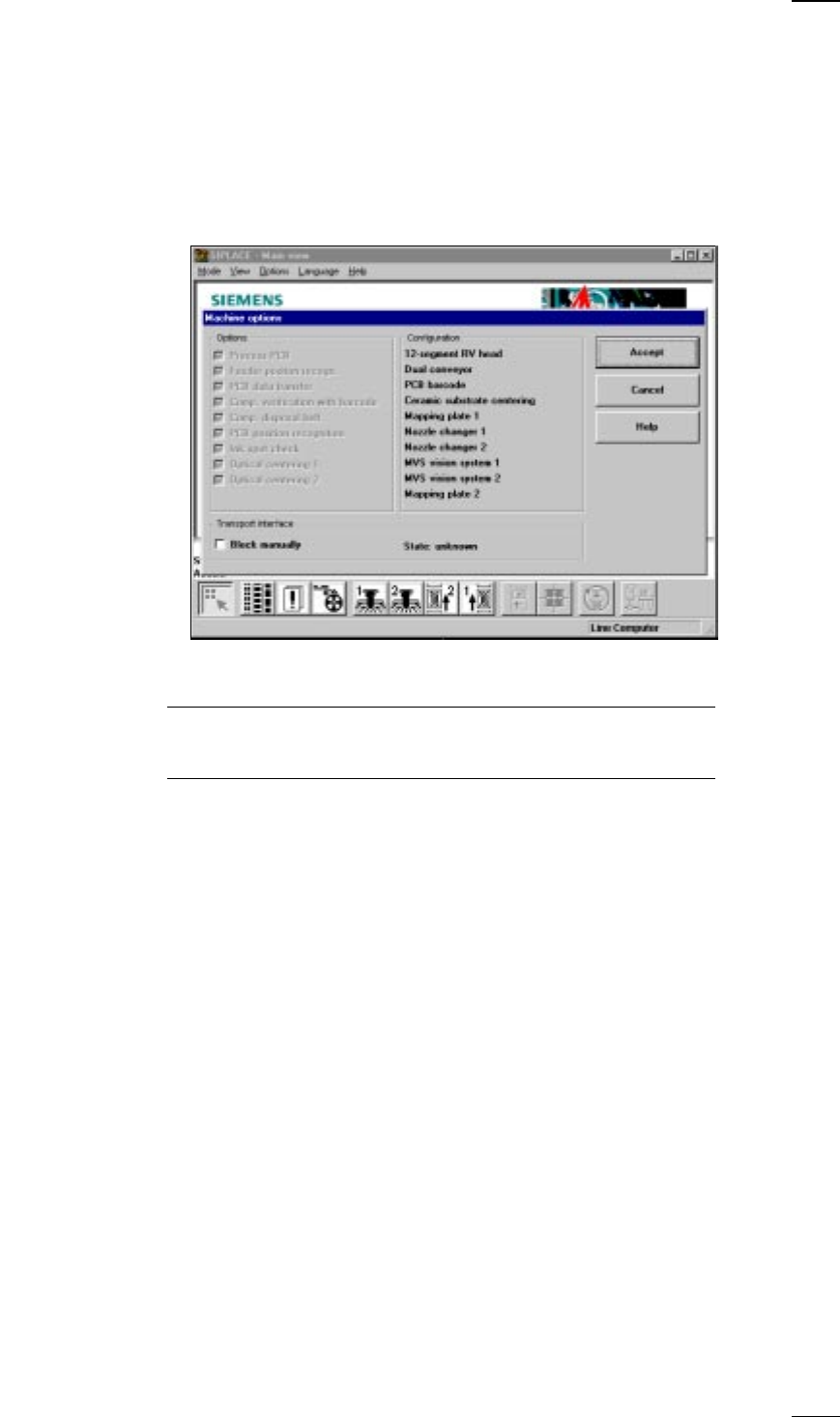
’Machine options’ menu
● Click on the Machine options button in the main view. The Machine
options control box opens, displaying the options installed and the config-
uration of the machine. Activated options are marked with a cross in the
corresponding check boxes.
● Press Cancel to leave the menu without saving changes and press Accept
to save the changes.
You should however note that for certain options you will need line engi-
neer access authorization as these options can only be activated or deac-
tivated by persons with that authorization.
↑ UM 3
↑ UM 4
↑ UM 11
20
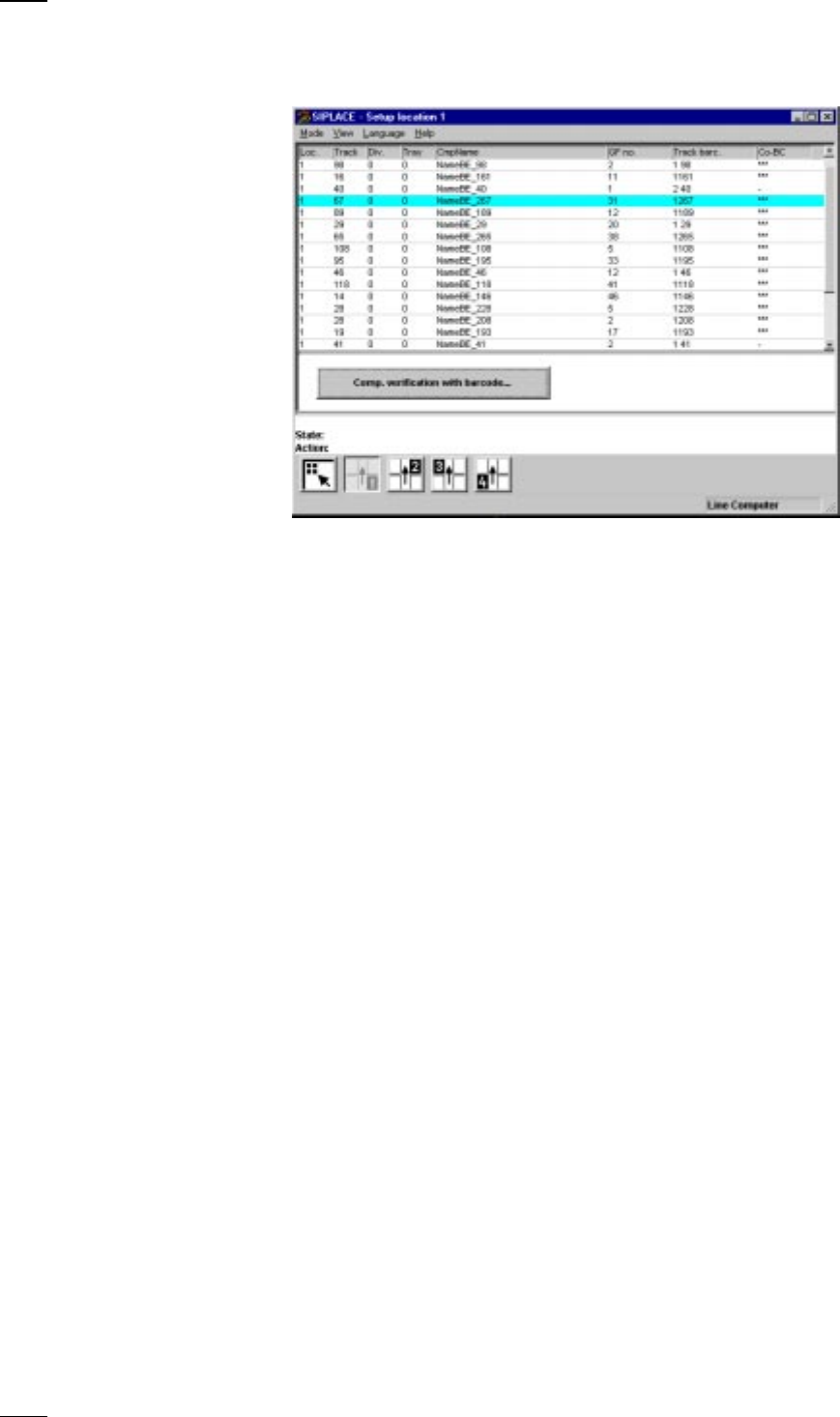
’Setup’ menu
For a given cluster and a given setup you can use this menu to display the
setup for each location.
Loc: Location number
Track: Track number of the corresponding component feeder
Div: Feeder division assigned to the component
Tray: Displays the component‘s tray number (1 - 28) in the wafflepack changer
(on the 80F placement system only)
CmpName: Name of the component
GF no.: Package form number of the component
Track barcode: Track barcode of the component
CO-BC: Component barcode
If a component barcode has been specified, *** will be found in this col-
umn and it will be possible to access the Component verification with bar-
code menu. If a minus sign appears in the column, this means that no
barcode has been allocated to the component. The 'Component verifica-
tion with barcode' button cannot be used.
↑ UM 4.1
21
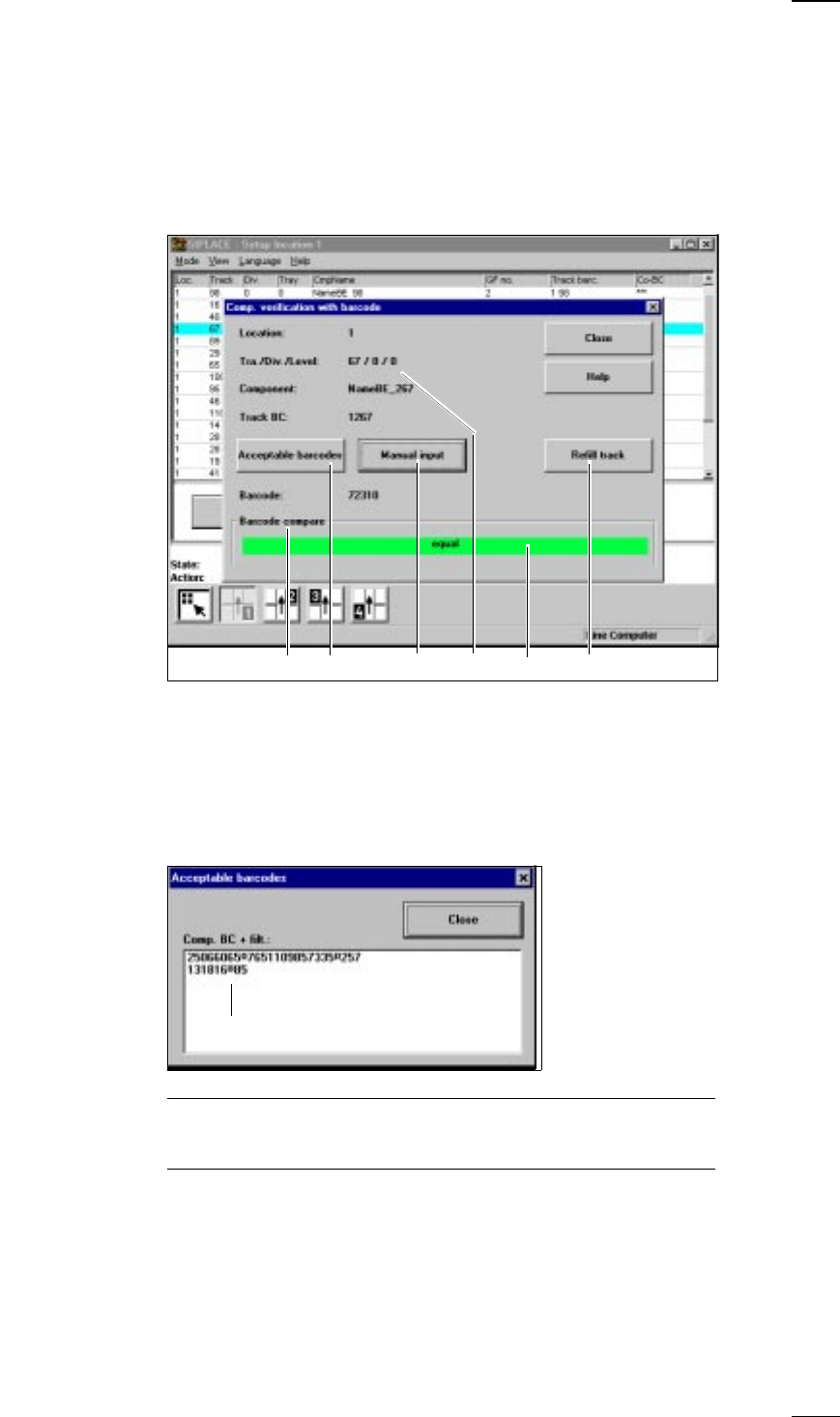
Component verification with barcode’ menu
The Component verification with barcode menu cannot be accessed
↑ UM 4.1.2 unless you have configured the Component verification with barcode
option in the machine options and a track barcode has been defined for
the component.
The barcode can be
– read off from the reel with the barcode pen or
– entered manually via the Manual input button.
a
The data for the selected track are displayed here.
s
Manual input
You can enter the barcode manually. The barcode you have entered is
compared with the configured data and the result shown in the Barcode
compare window. The result displayed is either ’same’ or ’different’
h
.
d
Acceptable barcodes
When you click on this button a display box will be displayed which con-
tains a list of (currently) 6 acceptable barcodes.
NOTE
If one position in the barcode is an asterisk (*), this position will not be
included in the barcode comparison.
f
Compare barcode
The result of the barcode comparison is either same or different
h
.
g Set track full
If the barcode read in is the same as the barcode stipulated and if the
track is empty, click on the Set track full button or use the component bar-
code reader to read the RET barcode on the barcode strip.
adfs g
h
Filter location