SIPLACE S-23 HM User Manual - 第23页
23 Feeders’ menu The Feeder s menu ha s four submen us for queryin g or check ing the status ↑ UM 4.3 of all feede r modules : – Displaying e mpty trac ks and setting them fu ll – Omit compo nents. (This m enu can only b…
22
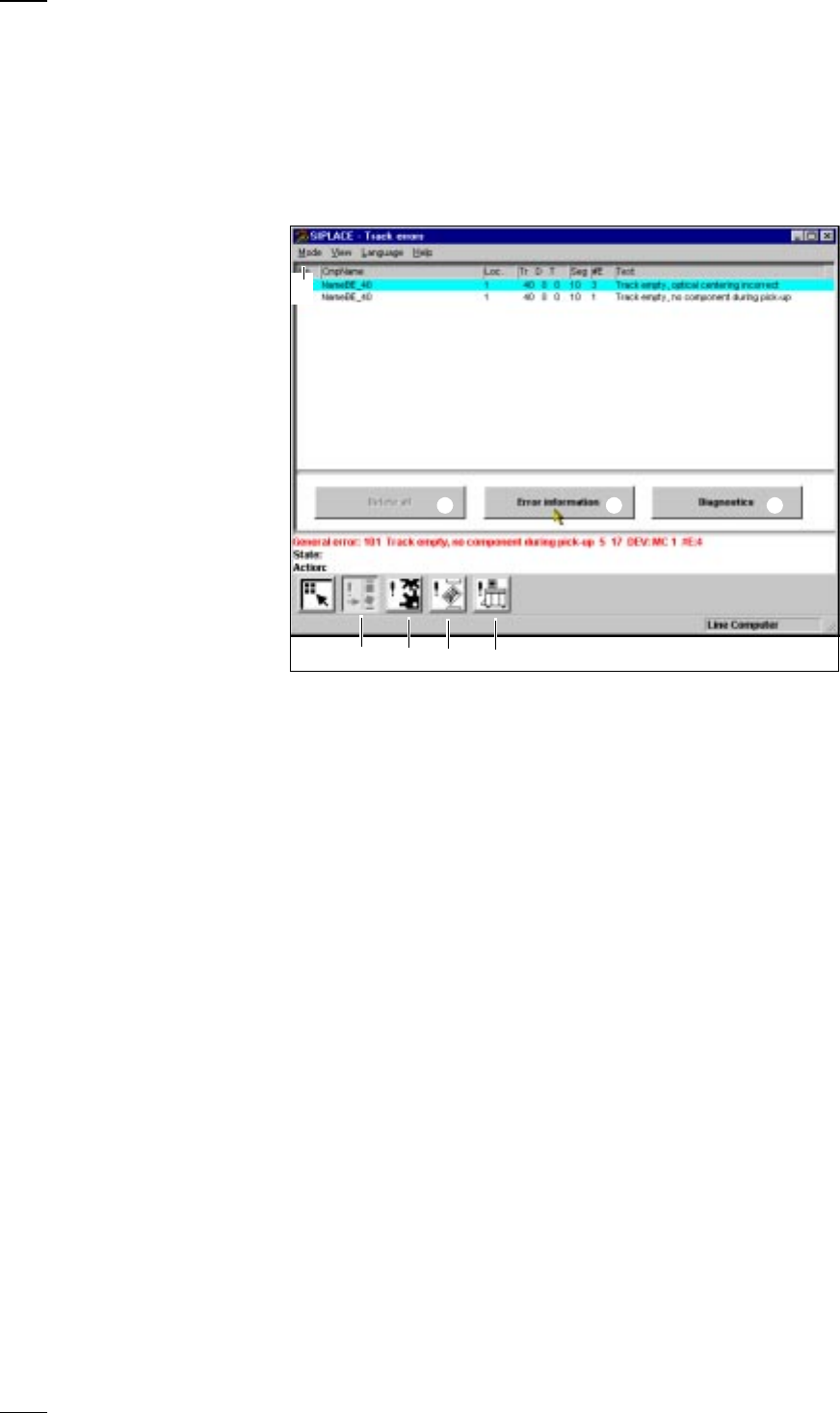
’Display errors’ menu
From the Error handling menu you can access the lists corresponding to
↑ UM 4.2 the following error types:
– Track errors
– Machine errors
– Transport errors
– General errors
The top line will always show the last error to occur.
a
Button for accessing the track errors menu
s
Button for accessing the machine errors menu
d
Button for accessing the transport errors menu
f
Button for accessing the general errors menu
g
List of errors with title bar
Key to the abbreviations in the title bar:
No.: Error number
CmpName: Name of the component
Loc.: Component location
Tr/D/T: Track / division / tray
Seg: Number of the segment which was used for placing the component
#E: Error counter - The error counter shows how often this error has already
occured.
Text: Explanatory text
The following abbreviations may also be encountered with other
error types:
DEV.: The originator of the error message, e.g. gantry 1, etc.
Transp.: Conveyor belt affected:
1 = Standard conveyor
2 = 2nd conveyor when the twin conveyor option has been installed
Info 1 or 2: Information of relevance to Siemens only.
h
Diagnostics
Select one particular error line in the list and click on Diagnostics. The
diagnostics program will be started.
j
Error information
Additional information concerning the marked errors is displayed by the
information and help system.
k Delete all
Click on this button to delete all the errors of the same type. If a track is
empty, it must be filled before deleting.
g
hjk
a
s
d
f
23
Feeders’ menu
The Feeders menu has four submenus for querying or checking the status
↑ UM 4.3 of all feeder modules:
– Displaying empty tracks and setting them full
– Omit components. (This menu can only be accessed from the ’Line engi-
neer’ operator control level or higher).
– Displaying magazines and changing inventory levels
– Displaying and vibrating linear feeders
With the 80F placement machine there is an additional submenu, Func-
tions with the wafflepack changer.
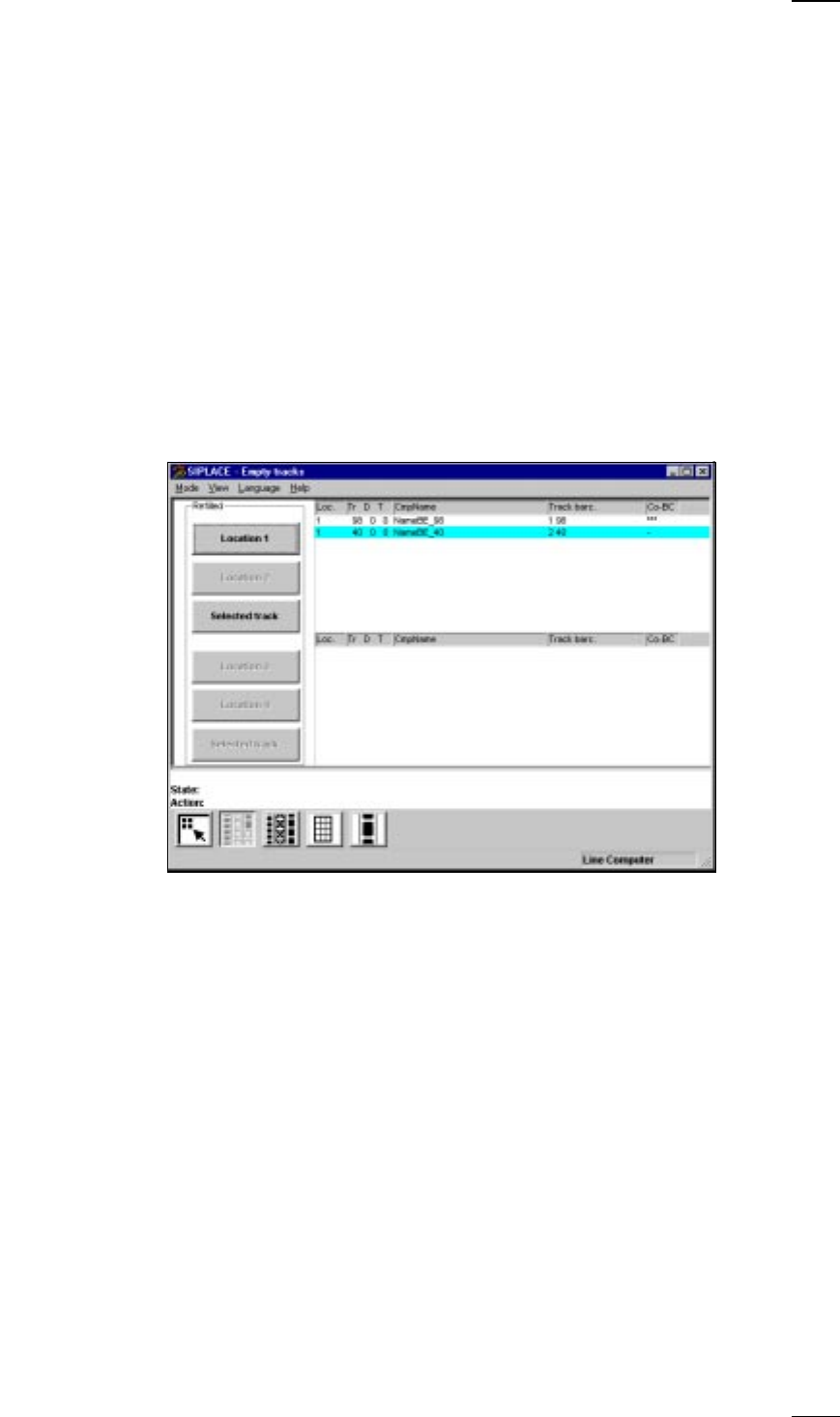
’Display and refill empty tracks’ menu
The empty tracks of feeder modules are displayed in this menu. After fill-
ing, you can set the tracks to full.
↑ UM 4.3.1 Depending on the option which has been activated, the following sub-
menus will be called:
’Display empty tracks without component verification’
● When you click on the button for location 1, 2, 3 or 4, the entire location
which you selected will be set to full.
● When you select a particular feeder module in the list section and then
click on the Selected track button, the individual track will be set to full.
24
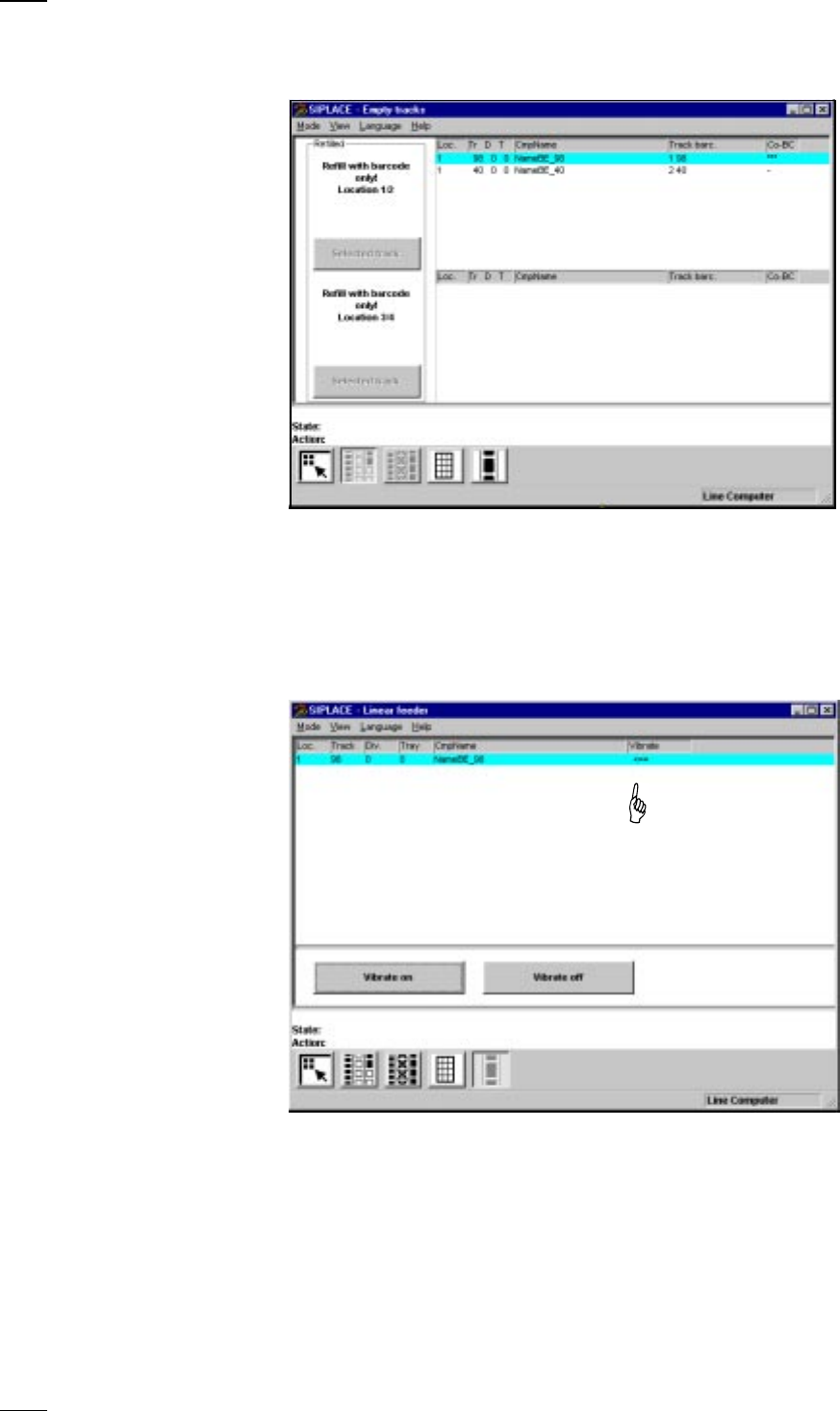
’Display empty tracks with component verification’
↑ UM 4.3.1 If the Component verification with barcode option has been configured
and activated, the following menu will appear:
Within this menu, locations 1 to 4 or individual tracks which have been
given a barcode
cannot
be set to full. Apart from displaying the empty
tracks, this menu also allows to individually set to full those empty tracks
which have not been provided with a barcode. Tracks which do not have a
component barcode are indicated by a dash in the CO-BC column. The
Selected track button is activated here.
’Display linear feeder and vibrate’ menu
When you have filled a linear feeder, you can use this menu to select it
and turn vibration on.
● Select the linear feeder from the list.
● Click on the Vibrate on button. The arrow in the Vibrate column shows that
the module is being vibrated.
● You can stop vibration by clicking on the Vibrate off button.
↑ UM 4.3.3