IT Feeder Manual-SM320(English V2.0)Ver1 - 第22页
Samsung Intelligent Feeder System Figur e 1-10. FIS m ain wind ow menu co nfigurat ion 1.4.3.1. S plice reel Used when the remaining reel quantity on the feeder is small or when other reels containing identical parts are…
IT Feeder System
1-9
Table 1-3. FIS Menu
Menu Description
Setup System Sets the environment parameter of the FIS
Shortage warning Sets the environment parameter for the part shortage
warning
System Status Indicates the state of the feeder scanner
Connect Database Reconnects the database when it is disconnected
About Feeder Info. Server Indicates the information on the FIS (version and
copyright)
Exit Hides the FIS application
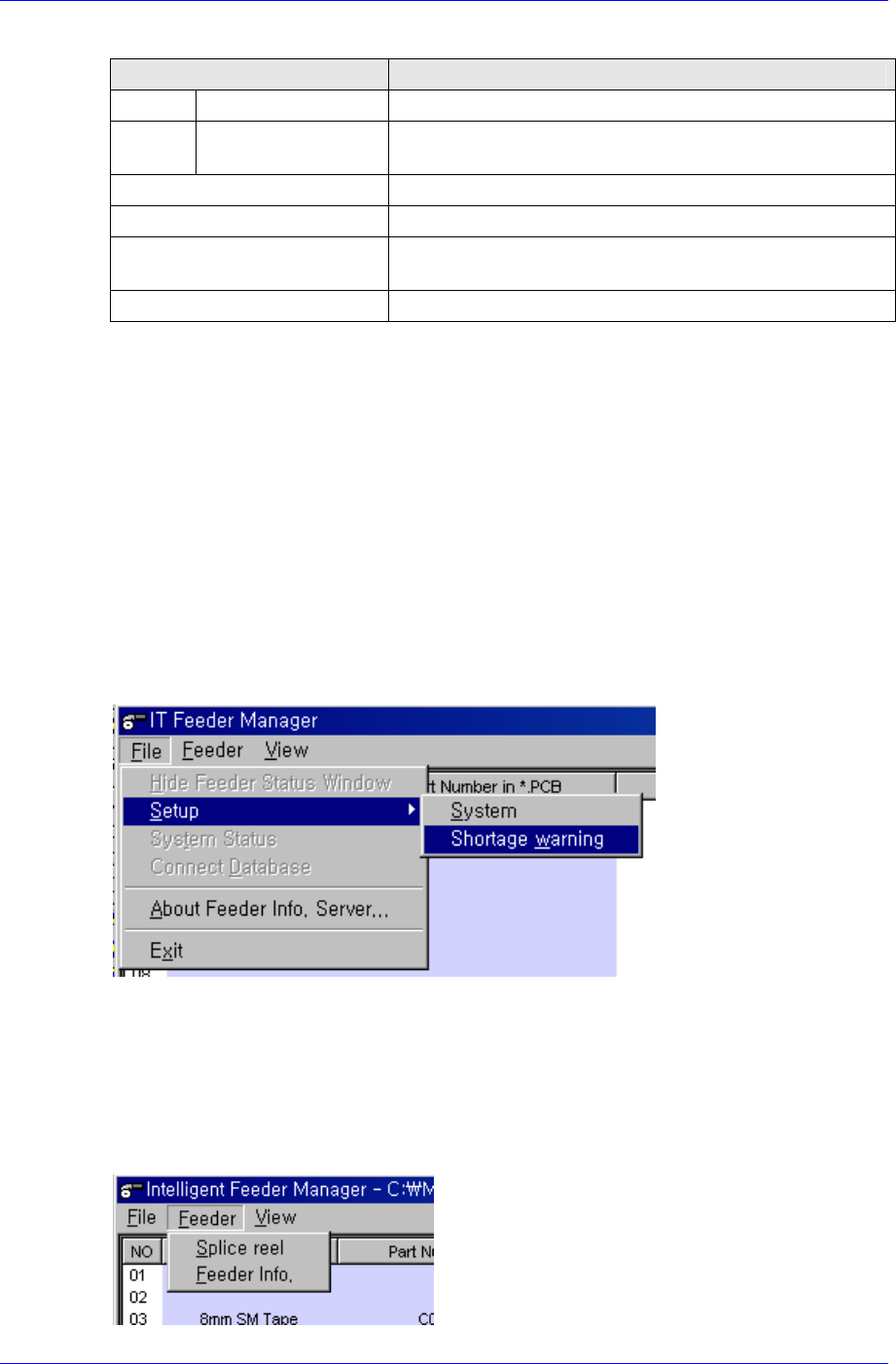
Another method of menu selection is to select the menu directly in the FIS main window.
Unlike in the case of the MMI, under normal circumstances the FIS executes all functions
while the background is hidden. In the event of a feeder mounting error or the remaining
part warning occurs or the barcode is read, only the corresponding dialog box is displayed
and the Main window of the FIS is not displayed on the screen.
In order to select the FIS menu, the main window must be displayed on the screen. The
FIS main window can be displayed on the screen in two ways:
First, place the mouse cursor on the FIS icon in the System Tray in Figure. 1-6 and
double click the mouse left button.
Second, click the first button from the right of the FIS toolbar menu of the Mark5 MMI
toolbar in Figure. 1-3 and the FIS main window is displayed on the screen. Figure. 1-9
demonstrates the menu configuration of the FIS main window. This menu configuration is
identical to the menu configuration in the System Tray in Figure. 1-8.
Figure 1-9. FIS main window menu configuration
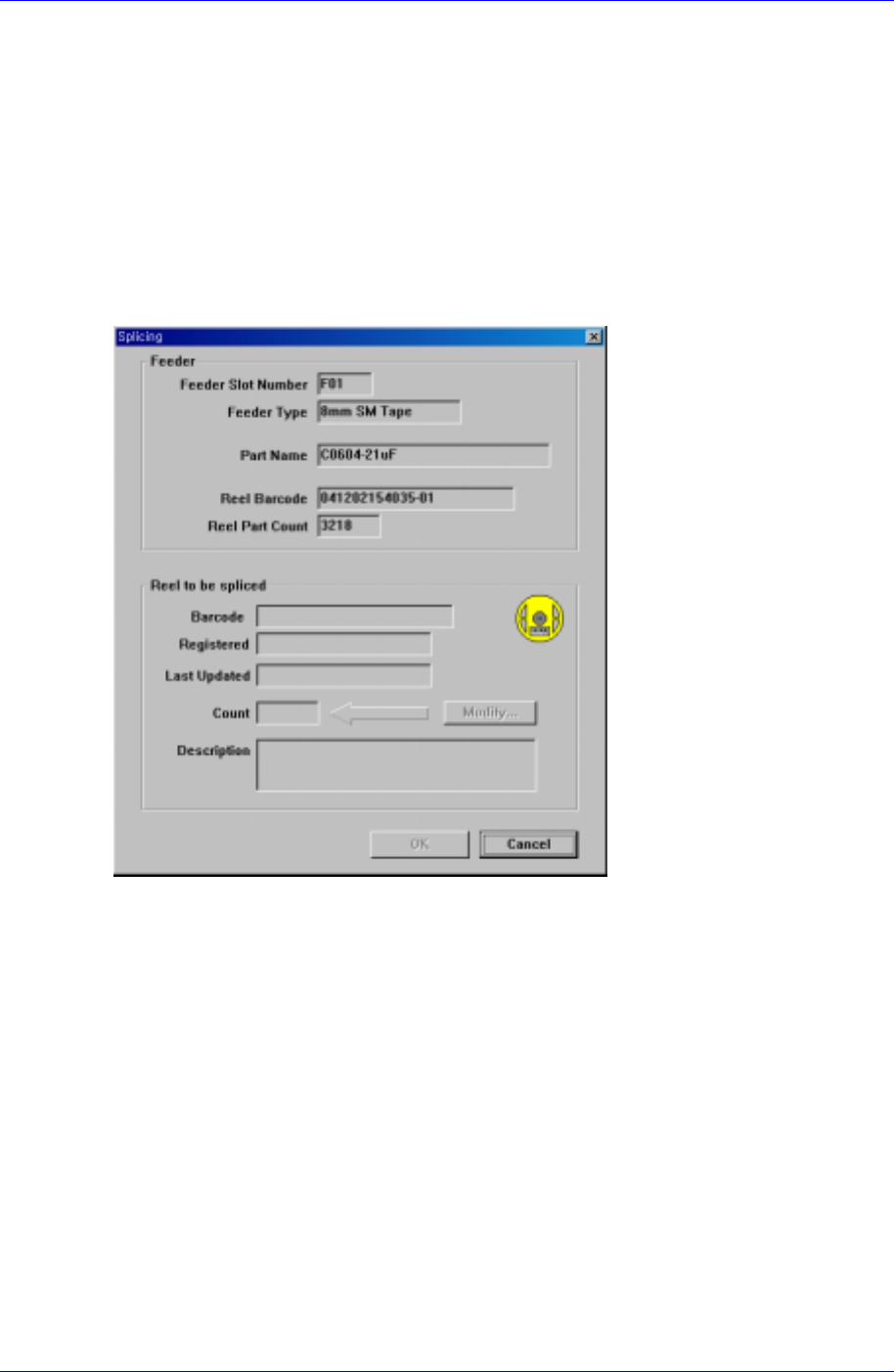
1.4.3. Structure of the Feeder Menu
Used when connecting the reel or when searching the feeder information. Figure. 1-10
demonstrates the menu configuration.
Samsung Intelligent Feeder System
Figure 1-10. FIS main window menu configuration
1.4.3.1. Splice reel
Used when the remaining reel quantity on the feeder is small or when other reels
containing identical parts are continuously used.
Select the <Splice reel> by clicking <Splice reel> in the <Feeder> menu or by right
clicking the mouse.
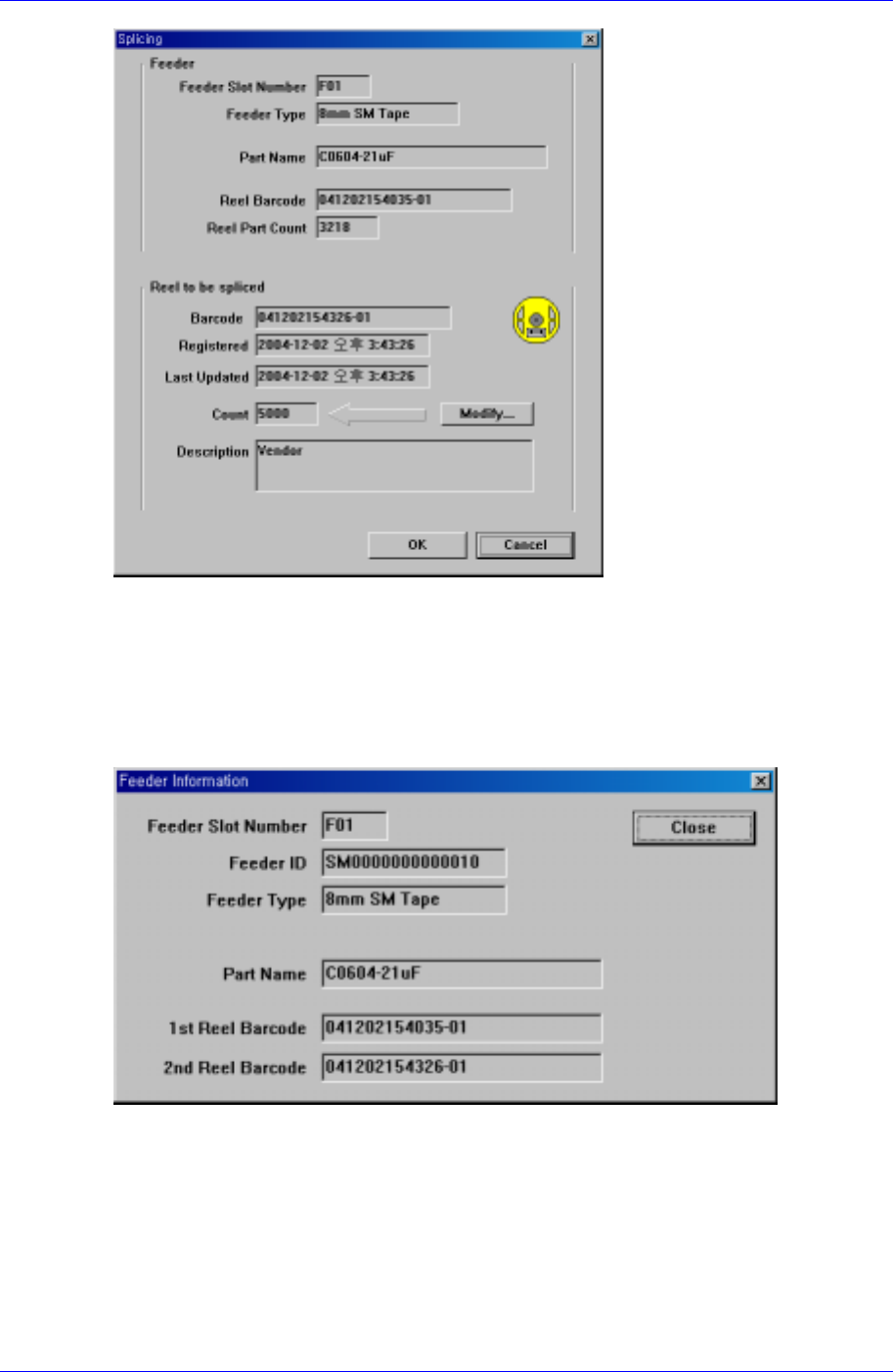
Figure. 1-11 shows the feeder when the contents of the feeder to be spliced are normal.
Figure. 1-12 indicates the feeder when the reel (2nd Reel Code) is input through a
barcode.
Figure 1-11. Screen configuration for Feeder→Splicing selection
1-10
IT Feeder System
1-11
Figure 1-12. Screen configuration after splicing is completed
1.4.3.2. Feeder Info
The selected feeder information can be checked. After selecting the feeder to be checked,
select <Feeder Info> in <Feeder>. Then the feeder information can be checked as shown
in the following figure.
Figure 1-13. Feeder information screen configuration
1.4.4. Structure of the View Menu
This is the menu from which error status and remaining quantity warning message are
displayed. Figure. 1-14 shows the menu configuration.