IT Feeder Manual-SM320(English V2.0)Ver1 - 第37页
IT Feeder System 1-25 - ② : The feeder installed in the slot that is not assigned by the PCB Program ①② Figur e 1-27. Indication of Mism atch Error occure nce ③ The procedure to restore the Mismatch Error is as follows. …
Samsung Intelligent Feeder System
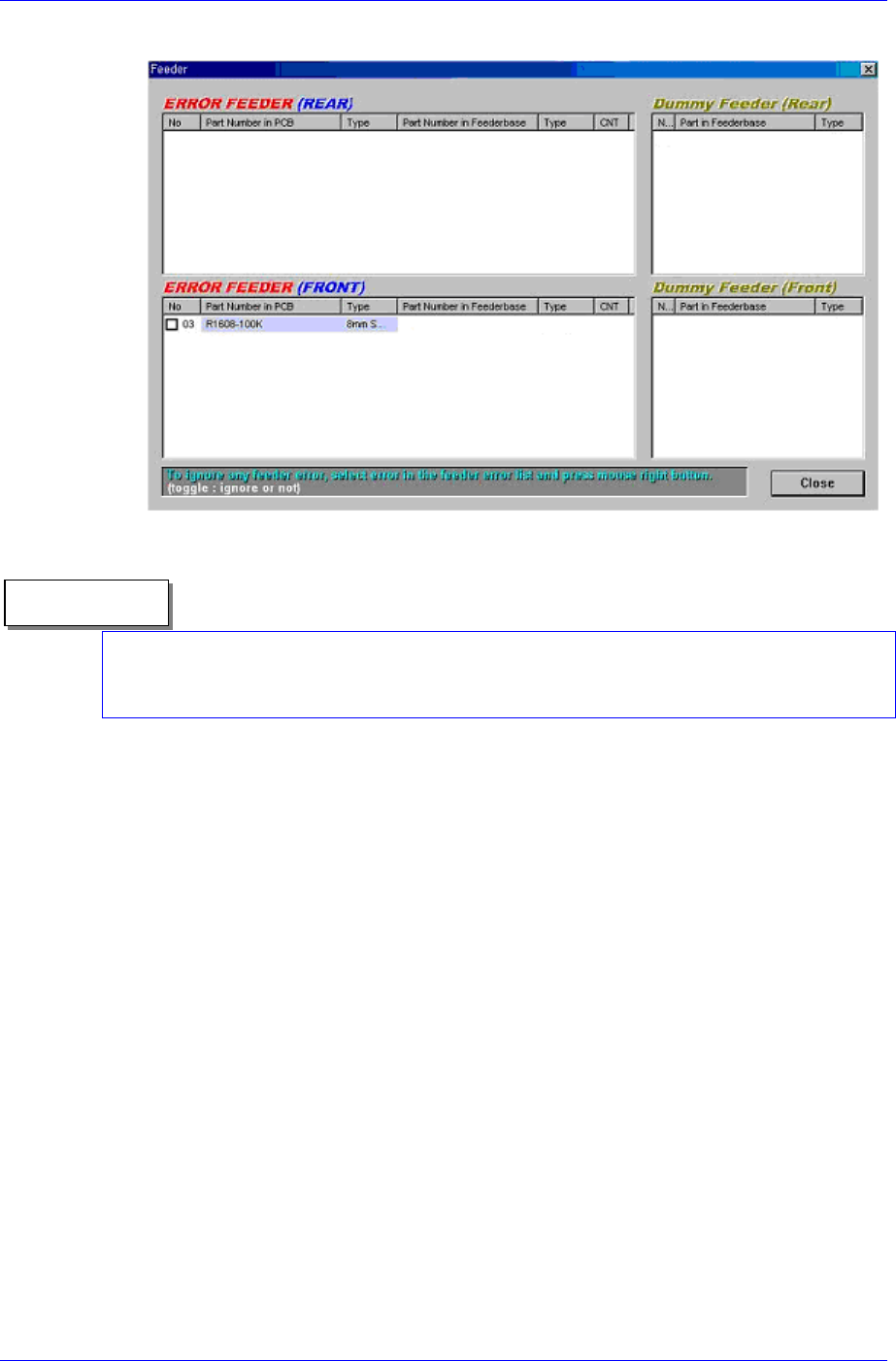
In the Mismatch Error Dialog box the error occurred slot is indicated.
Figure 1-26. Mismatch Error Screen
Reference
Disable of Mismatch
In the Mismatch Error dialog box in Fig. 1-26, select and check the Empty Feeder Error
occurred slot. For the check marked slot, the error is ignored and does not occur.
The procedure to restore the Empty Error is as follows.
If an Empty Feeder exists, locate it in the error list.
Locate the feeder having an identical part name from the dummy list.
If there is one, move the feeder in the dummy list to the corresponding empty slot
for installation.
Confirm that the corresponding Empty Error is cleared.
Confirm that the feeder in the dummy list is removed.
Confirm that no Feeder Error occurred.
Mismatch Feeder Error
The Mismatch Feeder Error occurs when the feeder having information different from
that of the PCB program is installed in the feeder slot assigned by the PCB Program.
When the feeder type is different
When a part with different part name is placed
The Mismatch Feeder Error occurs as follows.
① The red icon in the SM320 MMI screen and the red lamp of the machine are
flickering.
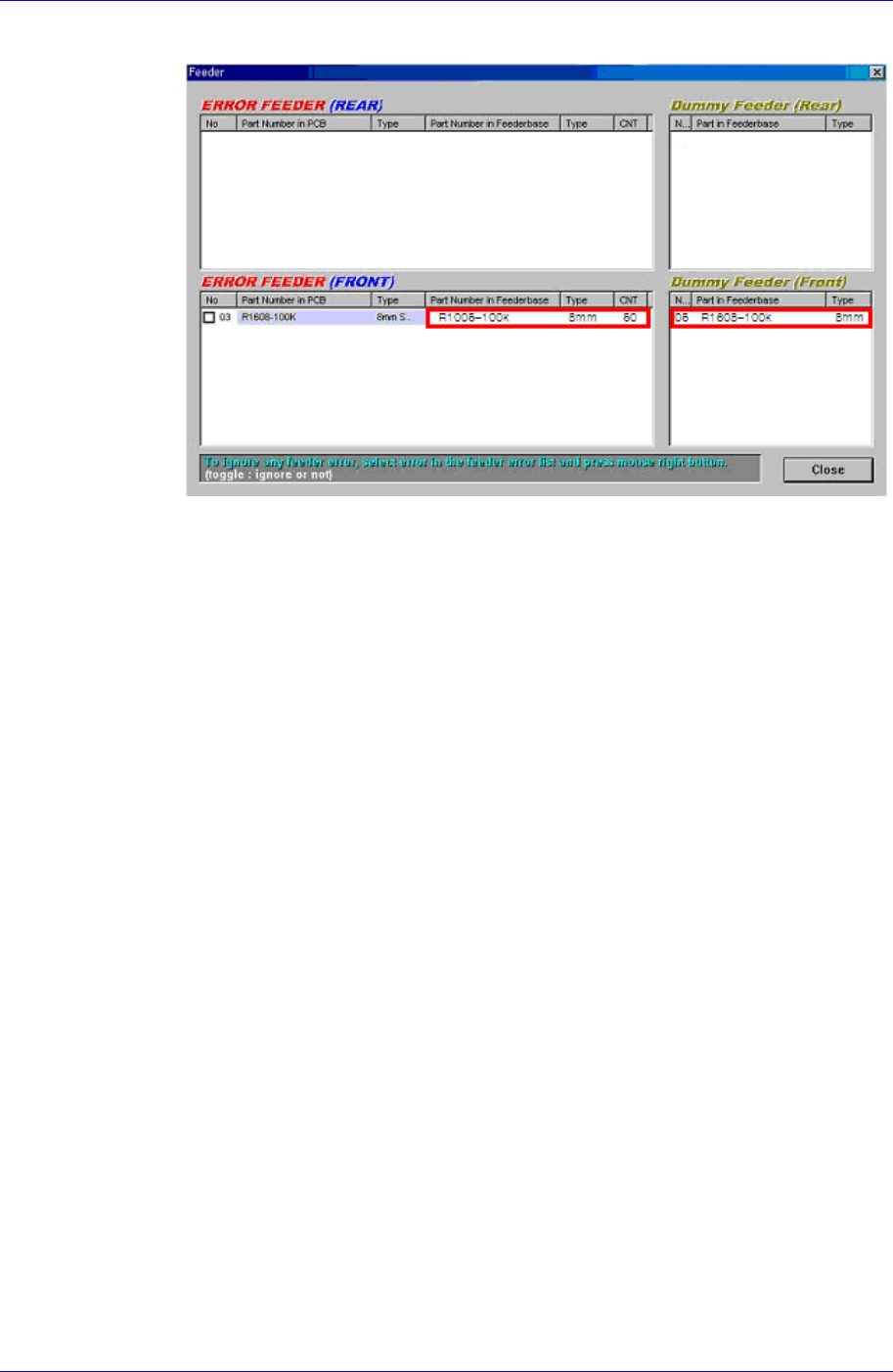
② The Mismatch Error dialog box in Figure. 1-28 shows the error occurred slot.
-①: The information on the part installed in the current feeder
1-24
IT Feeder System
1-25
-②: The feeder installed in the slot that is not assigned by the PCB Program
①②
Figure 1-27. Indication of Mismatch Error occurence
③ The procedure to restore the Mismatch Error is as follows.
Locate the feeder in which the error has occurred from the error list.
Move the feeder to the slot that does not use the mismatch error feeder and
install the feeder in it.
Confirm that the moved feeder is added to the dummy list.
Check if a feeder whose type and part name is identical to those of the feeder
in the slot where an error has occurred exists in the dummy list.
If it exists, move the feeder to the corresponding empty error slot and install
the feeder in the slot.
If it does not exist, install a new feeder.
1.4.10. Splicing Part Reel
Used in case the shortage warning occurs or when splicing reels is necessary.
Select the slot where the reels are to be spliced in the IT Feeder Manager screen.
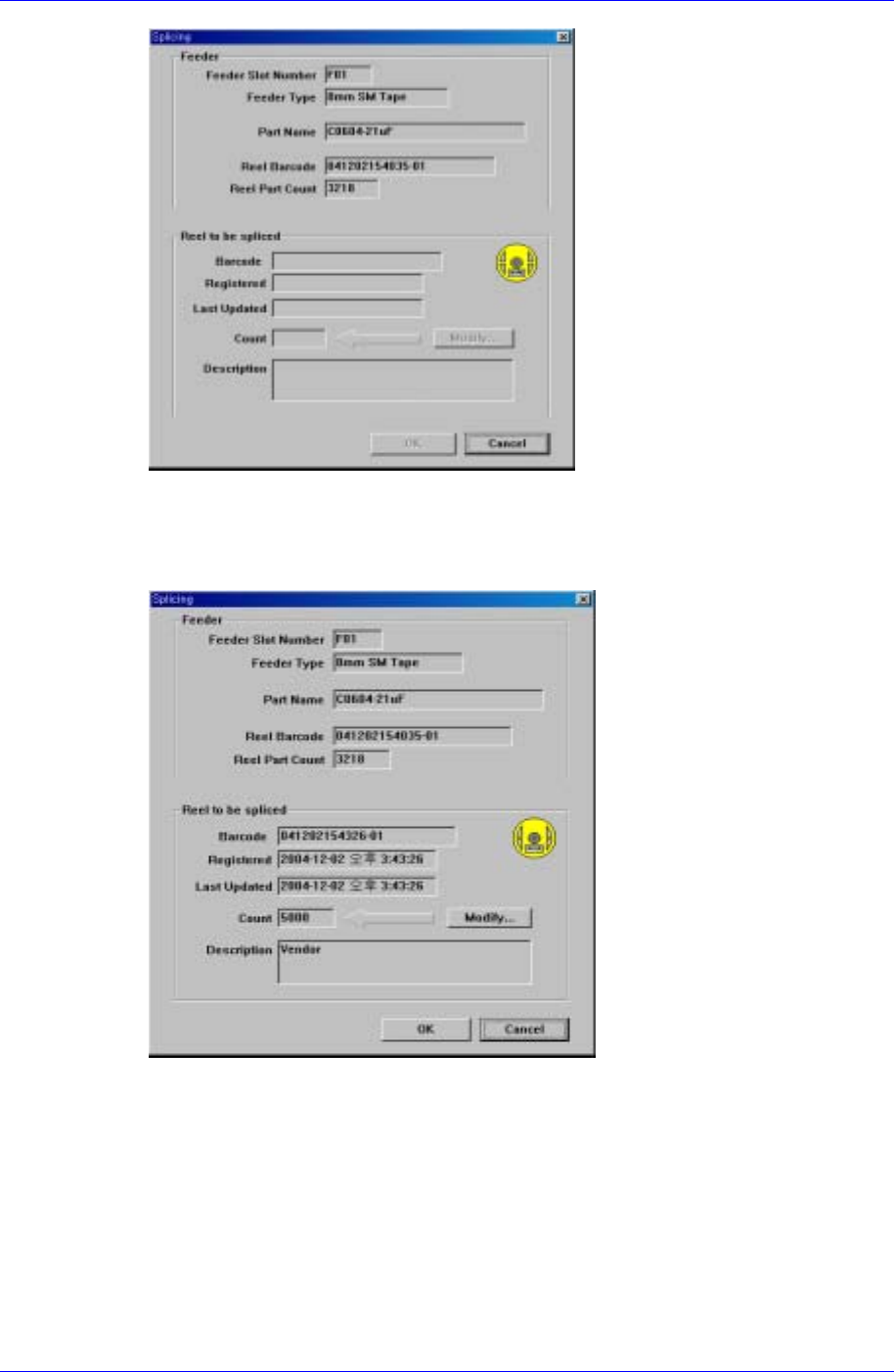
Select the splicing function (Feeder-> Splicing) in the menu. Then the Splicing dialog
box is created as shown in Figure. 1-28, which displays the information of the feeder
slot currently selected.
Samsung Intelligent Feeder System
Figure 1-28. Splicing dialog box
Splice the new part reel and read the part reel barcode with the barcode reader. If the
barcode is input successfully, two types of part reel information are displayed in the
screen as shown in Figure. 1-29.
Figure 1-29. Splicing completed screen
< Click the <OK> button to complete the splicing. Then the part reel count applied to
the IT Feeder Manager is indicated.
1-26