IT Feeder Manual-SM320(English V2.0)Ver1 - 第50页
Samsung Intelligent Feeder System Figur e 2-8. Part Reel Management dialog box <Query Condition> option button Three search conditions are available; PartName, ReelCode, ReelAll and Bom File. PartName search Wh…
Part Station
2-9
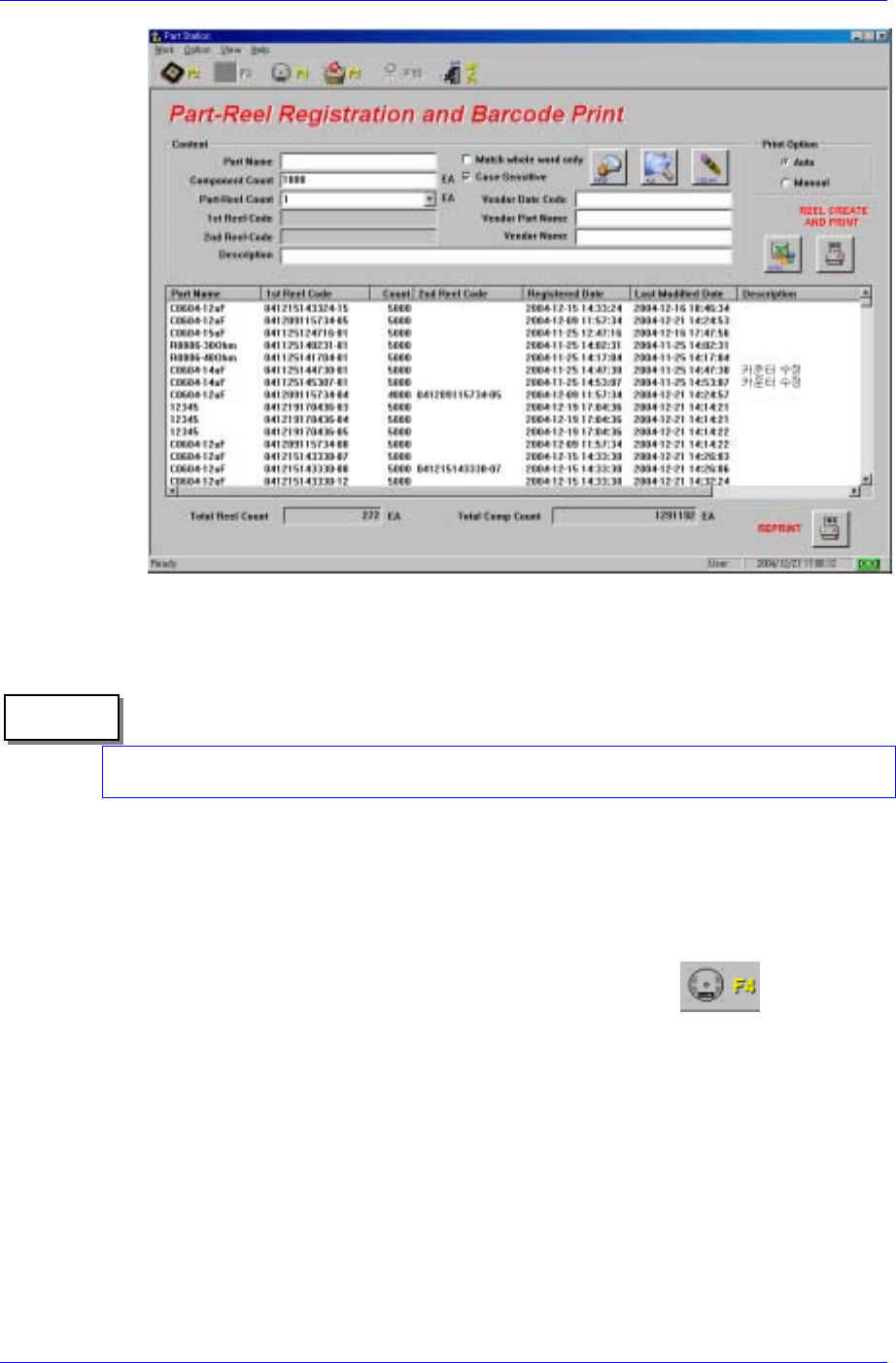
Figure 2-7.Part Reel Registration screen
Memo
When reprinting the barcode, ensure that more than two identical barcodes do not exist. If
an identical barcode is attached to a different part reel, a system error may occur.
2.3.3. Part Reel Management [F4]
Part Reel Management allows the user to search registered Reel data with various
conditions or to modify it.
Select Part Reel Management from the Main menu or select the
button on the
tool bar. Or press Alt+W on the keyboard, then select the M key or press the [F4] key.
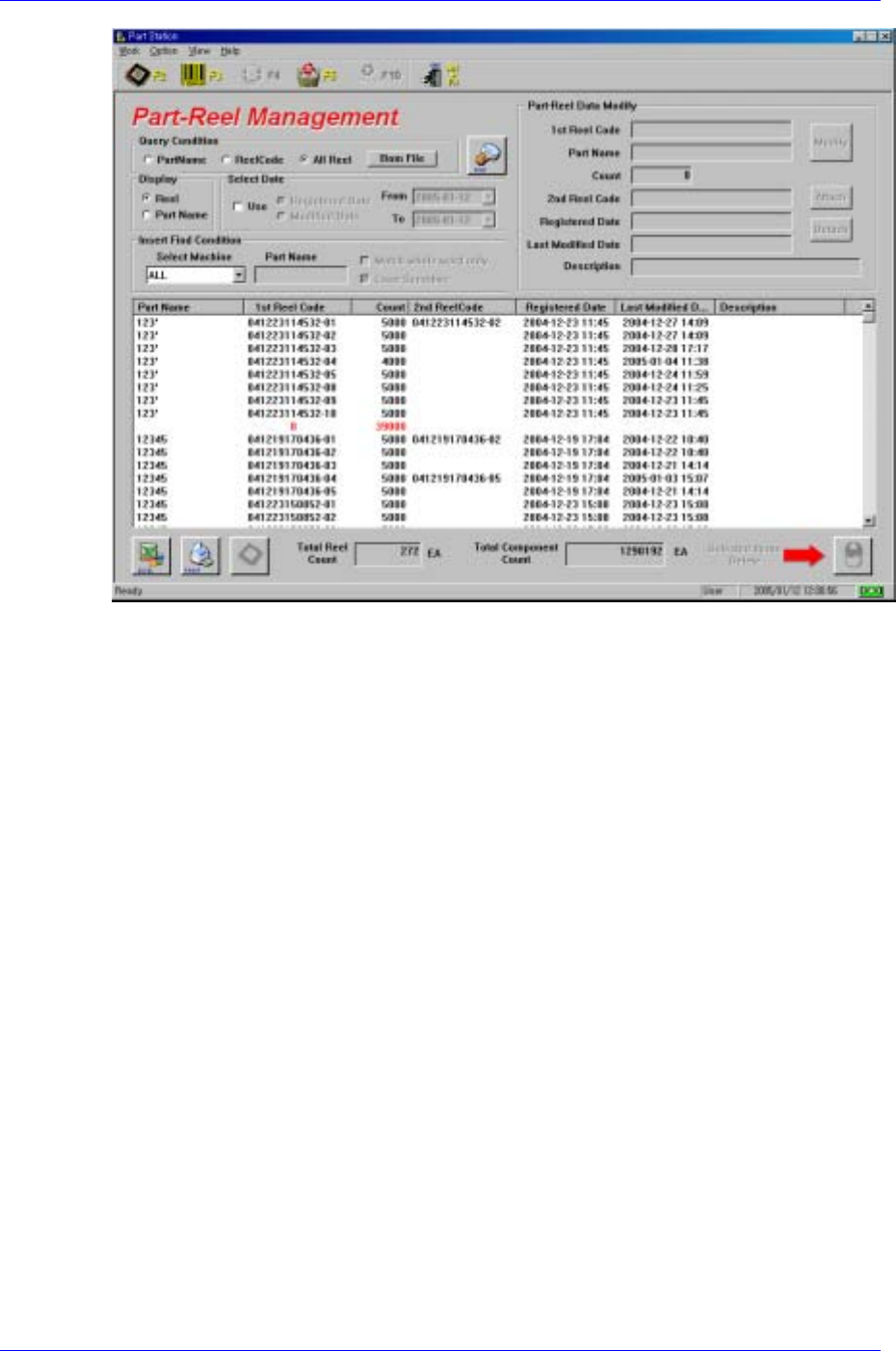
As can be seen in Figure. 2-8, the screen consists of the top window, list box, and the
bottom window that shows search result. In the top window, there are edit boxes to
register a Part Reel.
Samsung Intelligent Feeder System
Figure 2-8. Part Reel Management dialog box
<Query Condition> option button
Three search conditions are available; PartName, ReelCode, ReelAll and Bom File.
PartName search
When PartName is selected, the <PartName> edit box underneath is activated.
Enter the PartName here and press the Find button, then search result is
displayed in the list box in the middle.
ReelCode search
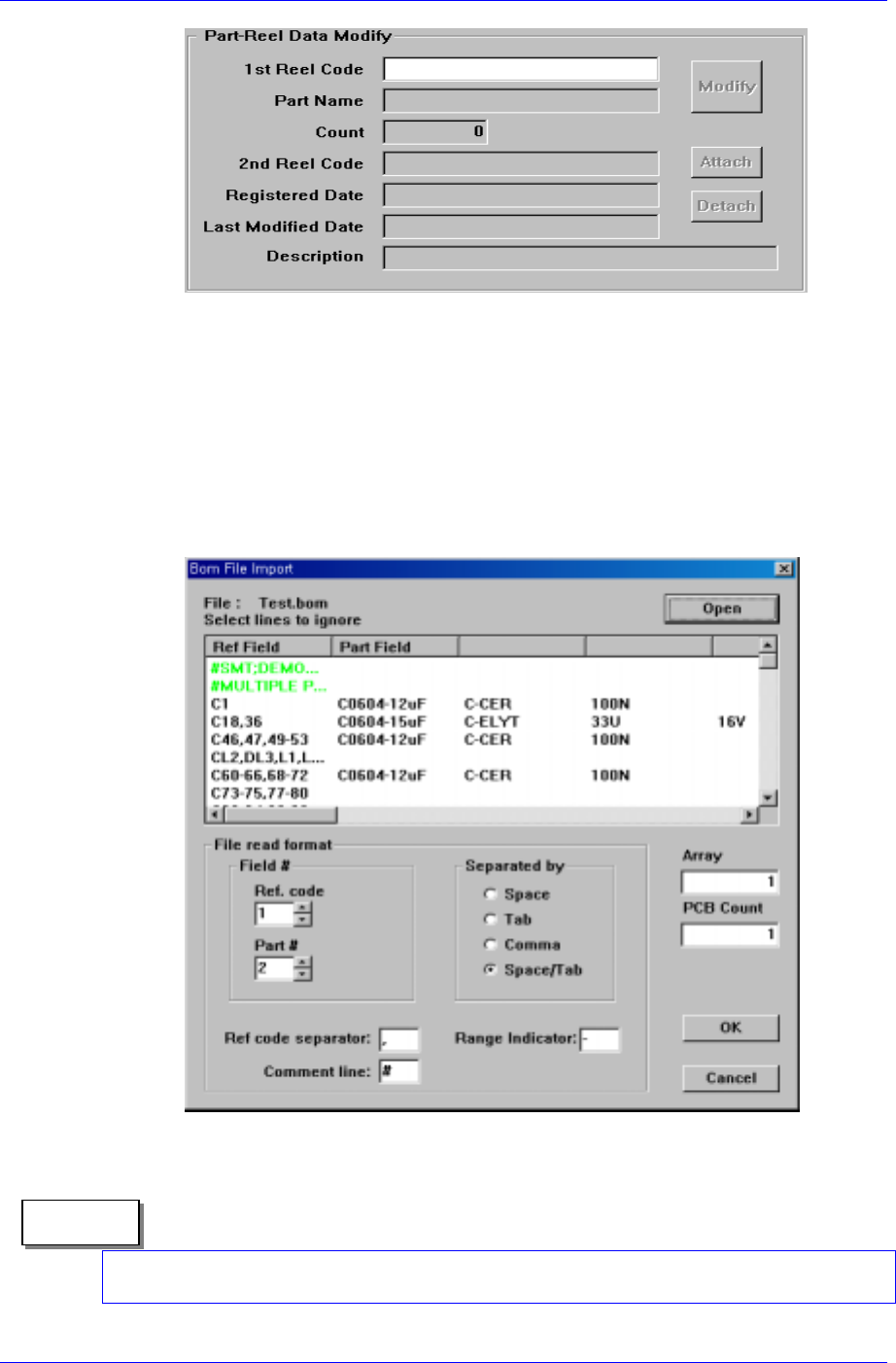
When searching by ReelCode, the <ReelCode> edit box in the Part-Reel Data
Modify group on the top left of the screen is activated as shown in the figure
below (Figure. 2-9), and the cursor is ready for input. At this time, the barcode
(ReelCode) attached on the Reel is read by the bar code scanner (Reader), the
ReelCode is displayed in the <ReelCode> edit box and the data on the respective
reel is displayed automatically. It is automatically displayed in the list box below
also. When searching is completed normally and the result is displayed, the
<Count> and <Description> edit boxes are activated automatically and are ready
for modification. Modifying the data and pressing the <Modify> button updates
the reel data with the modified data. At this time, the ReelCode should not be
modified.
2-10
Part Station
2-11
Figure 2-9.Part Reel Data Query and Modify window
ReelAll searching
Searches all registered reel data.
Bom File searching
When inquiring with the Bom File, the Bom File Import window (see Figure. 2-
10) appears on the screen. Then open it to check its contents. If the required
number of arrays and PCBs is designated, the required quantity of the
corresponding parts and the number of parts short are indicated in the list box in
order for the operator to prepare for work in advance.
Figure 2-10. Par Reel Data Query and Modify dialog box
If No Part is indicated on the screen, it indicates that the corresponding part name has
been registered in the machine. In this case the part name must be registered newly.
Memo