IT Feeder Manual-SM320(English V2.0)Ver1 - 第52页
Samsung Intelligent Feeder System <Display> group <Reel> button Indicates all searched real codes in the list and their subtotal. <PartName> button The searched real code indicates the num…
Part Station
2-11
Figure 2-9.Part Reel Data Query and Modify window
ReelAll searching
Searches all registered reel data.
Bom File searching
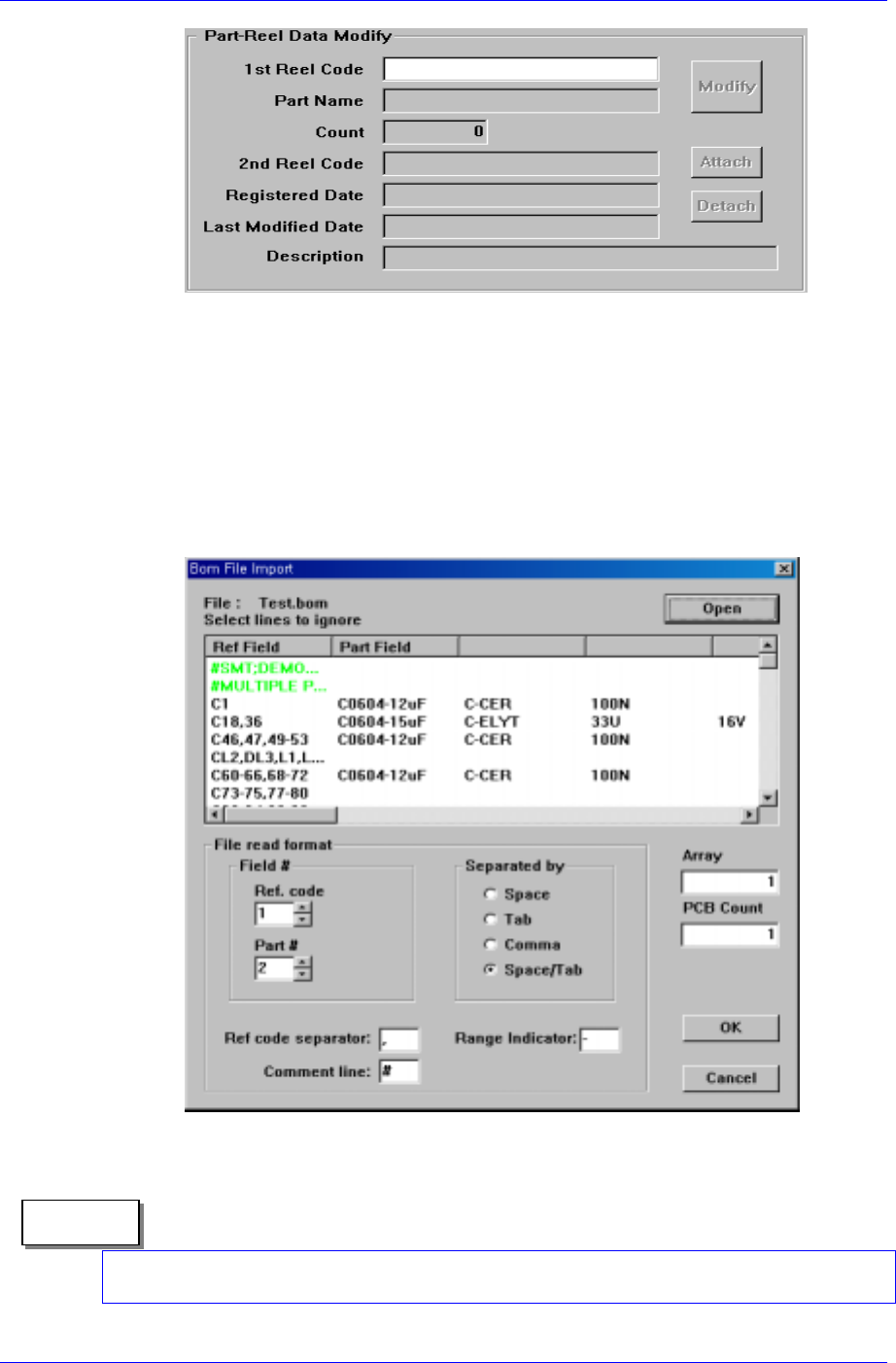
When inquiring with the Bom File, the Bom File Import window (see Figure. 2-
10) appears on the screen. Then open it to check its contents. If the required
number of arrays and PCBs is designated, the required quantity of the
corresponding parts and the number of parts short are indicated in the list box in
order for the operator to prepare for work in advance.
Figure 2-10. Par Reel Data Query and Modify dialog box
If No Part is indicated on the screen, it indicates that the corresponding part name has
been registered in the machine. In this case the part name must be registered newly.
Memo

Samsung Intelligent Feeder System
<Display> group
<Reel> button
Indicates all searched real codes in the list and their subtotal.
<PartName> button
The searched real code indicates the number of reels by part and the number of
parts contained therein.
<Select Date> group
After selecting Query conditions, it is possible to add more conditions under those,
such as registration date or last update date.
<Use> check button
Selects whether to include searching by date as a searching condition. When this
button is checked, the <Registered Date> button, <Modified Date> button,
<From> combo box, and <To> combo box are activated for selection, and
searching by date in incorporated in the search.
<Registered Date> button
Sets the searching condition to registration date.
<Modified Date> button
Sets the searching condition to the last modification date.
<From> combo box
Specifies the date to start searching.
<To> combo box
Specifies the date to end searching.
<Insert Find Condition> group
<Selected Machine> combo box
Use this to search the current PartReel in addition to the previously selected
conditions. When ALL is selected, all PartReels are searched regardless of
equipment.
<PartName> edit box
Enter the PartName of the Reel to search. If the user does not know the exact
name, the extended search function can be used.
<Find> button
Finds the reels registered with selected conditions and displays them in the list box.
<Part Reel Data Modify> group
Displays the Reels selected in the list box. All input items are for reading only.
However, if the Query Condition is by ReelCode, then the ReelCode item is ready for
input. Reading the Reelcode with the bar code displays the respective reel data and
displays it in the list box below.
When searching by ReelCode, the Number of remaining parts and Description are
ready for modification. Modifying the data and then pressing the Modify button
updates the respective reel code data.
Selecting in the list box displays the data on the selected reel only and modification is
not possible.
Result displaying list box
2-12

Part Station
2-13
Selecting the PartReel registration data to search in the Find Condition input
window and pressing the Find button displays the registration data of the
searched PartReel in the list box.
In the list box, the items are displayed in the order of PartName, ReelCode,
Number of component(Count), Registered Date, Last Modified Date of the reel,
and Description.
<Total Reel Count> edit box
Displays the number of searched reels in the list box.
<Total Comp Count> edit box
Displays the total number of searched parts in the list box. This can be utilized to
check the number of parts in stock currently.
<Selected Item All Delete>button
The Delete button is used to delete the reel data selected in the list box. This button
can be used in the SuperUser mode and not in the regular mode. When the mode is
changed to SuperUser mode, it is activated automatically for modification. Select the
reel to delete in the list box and press the button to delete.
To delete a reel, it should not be on the Feeder. If a reel on the feeder is selected, an
error message appears and it is not deleted. It is possible to delete it if the reel is
uninstalled from the respective feeder in FeederStation first.
<Import New Part> button
This button is enabled when the searched part imported during the Bom File import is
not registered.
Pressing this button will indicate the parts that are not registered in the list among
those imported from the Bom File. The parts can be registered collectively by
selecting them as shown in the following figure.