IT Feeder Manual-SM320(English V2.0)Ver1 - 第54页
Samsung Intelligent Feeder System Select All : S elect all parts. UnSelect All : Cancel all parts. Inverse : Reverse the selected part. Description : Enter additional description. Import : Register the selected…

Part Station
2-13
Selecting the PartReel registration data to search in the Find Condition input
window and pressing the Find button displays the registration data of the
searched PartReel in the list box.
In the list box, the items are displayed in the order of PartName, ReelCode,
Number of component(Count), Registered Date, Last Modified Date of the reel,
and Description.
<Total Reel Count> edit box
Displays the number of searched reels in the list box.
<Total Comp Count> edit box
Displays the total number of searched parts in the list box. This can be utilized to
check the number of parts in stock currently.
<Selected Item All Delete>button
The Delete button is used to delete the reel data selected in the list box. This button
can be used in the SuperUser mode and not in the regular mode. When the mode is
changed to SuperUser mode, it is activated automatically for modification. Select the
reel to delete in the list box and press the button to delete.
To delete a reel, it should not be on the Feeder. If a reel on the feeder is selected, an
error message appears and it is not deleted. It is possible to delete it if the reel is
uninstalled from the respective feeder in FeederStation first.
<Import New Part> button
This button is enabled when the searched part imported during the Bom File import is
not registered.
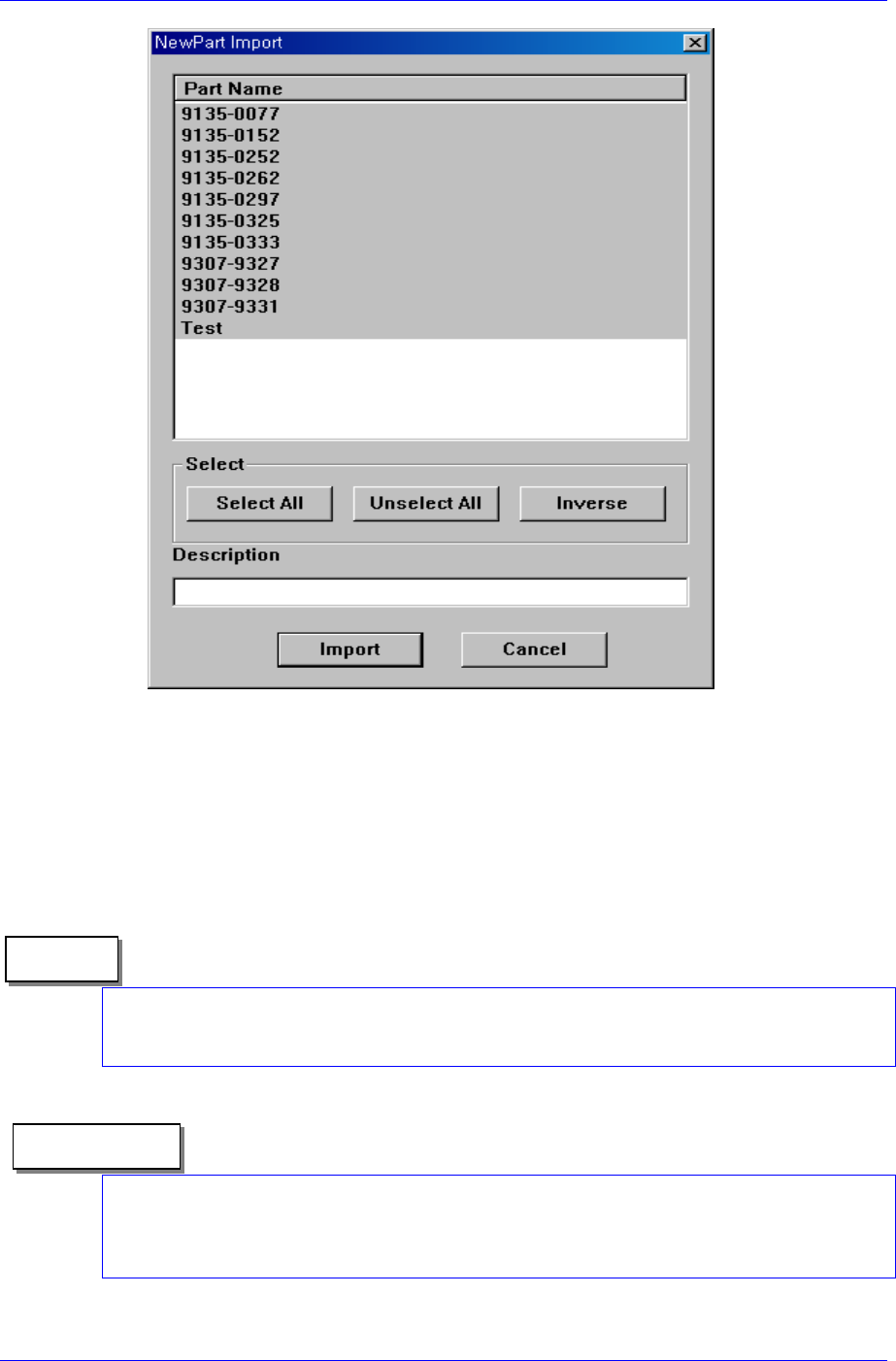
Pressing this button will indicate the parts that are not registered in the list among
those imported from the Bom File. The parts can be registered collectively by
selecting them as shown in the following figure.
Samsung Intelligent Feeder System
Select All : Select all parts.
UnSelect All : Cancel all parts.
Inverse : Reverse the selected part.
Description : Enter additional description.
Import : Register the selected part.
Cancel : Cancel the performed work.
Memo
When deleting a Reel, it is sent to the recycle bin first. The reel sent to the recycle bin can
be restored if desired. However, if it is searched before restoring it, a message saying it is
not found in the Database appears. It is because once data is deleted, it is not controlled.
Reference
The user mode consists of Regular mode and Management mode. The Management mode
allows the user to change various configuration and data. Regular users can delete data
according to a certain procedure, however for some special cases, only the management
mode allows deleting.
2-14
Part Station
2-15
2.3.4. Waste Part Reel [F5]
Waste PartReel deletes registered Reel data or restores the deleted Reel.
Select Waste Part Reel from the Main menu or press the
button on the tool bar.
Or press Alt+W on the keyboard, then select W or press the [F5] key.
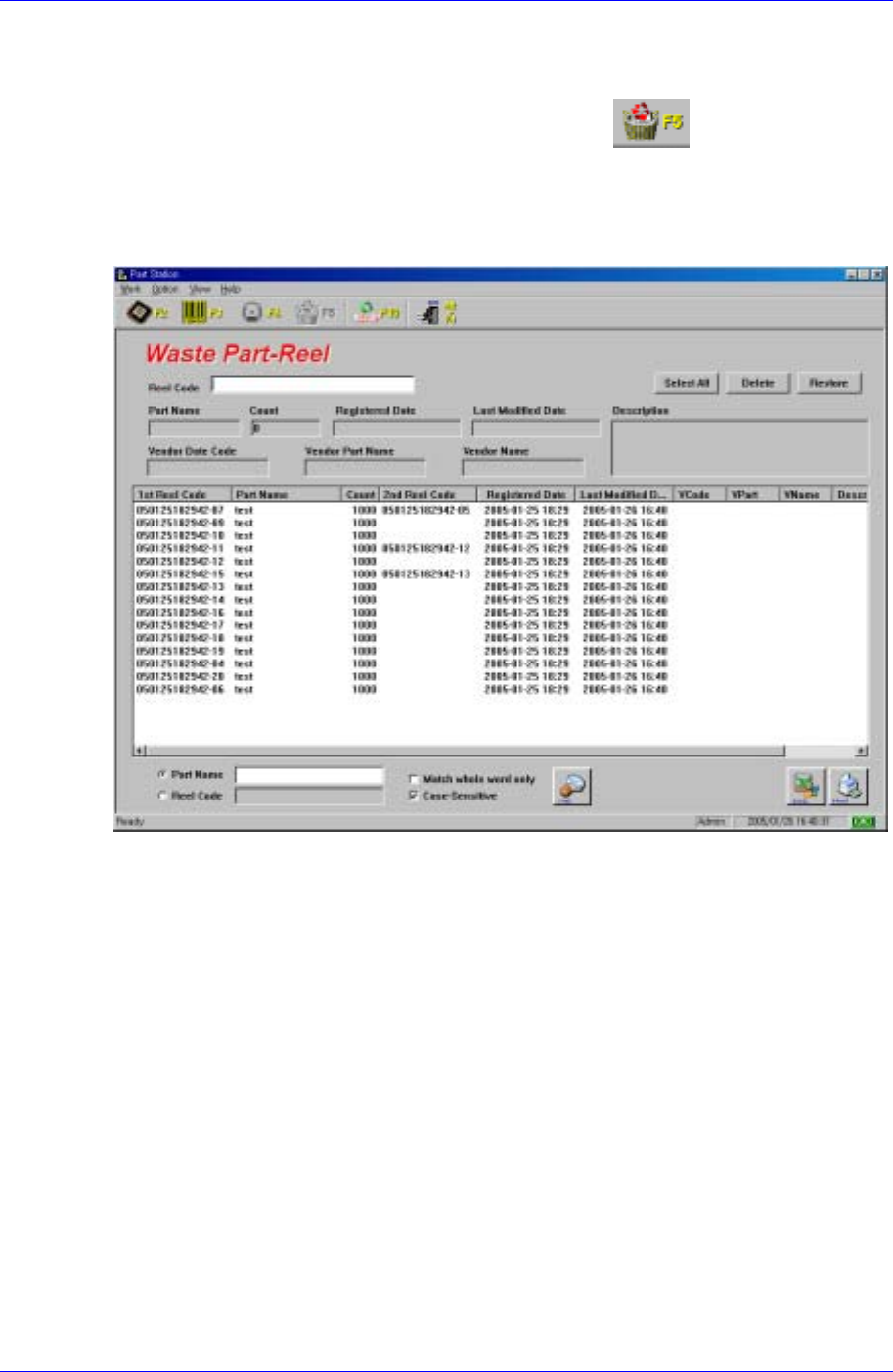
As can be seen in Figure 2-11, the screen consists of the input window at the top to enter
the ReedCode to delete, recycle bin control for restoring, and the list box that displays the
selected Part Reels.
Figure 2-11.Waste Part Reel screen
<Reel Code> edit box
When a Part Reel to delete is read with a bar code scanner, it is entered in the input
window automatically, the data on the reel is displayed in the PartName, Count,
Registered Date, Last Modified Date, Vendor Date Code, Vendor Part Name, Vendor
Name, and Description edit boxes, and the content is added in the <result display> list
box. When the reels to be deleted are read by the bar code scanner continuously, the
data is added in the list box in the order of reading.
<Select All> button
Selects all items in the list box. Use it to delete all reel data in the list box. When this
button is pressed, all items in the list box are selected.
<Delete>button
Deletes the contents selected from the following list box permanently.
<Restore>button
Used when restoring the deleted reel again.