IT Feeder Manual-SM320(English V2.0)Ver1 - 第56页
Samsung Intelligent Feeder System Reference It is deleted from the DB on reading the barcode and saved in the W aste Part-Reel. <Find> button Enter the name of the part for inquiry or reel code in the Part Name…
Part Station
2-15
2.3.4. Waste Part Reel [F5]
Waste PartReel deletes registered Reel data or restores the deleted Reel.
Select Waste Part Reel from the Main menu or press the
button on the tool bar.
Or press Alt+W on the keyboard, then select W or press the [F5] key.
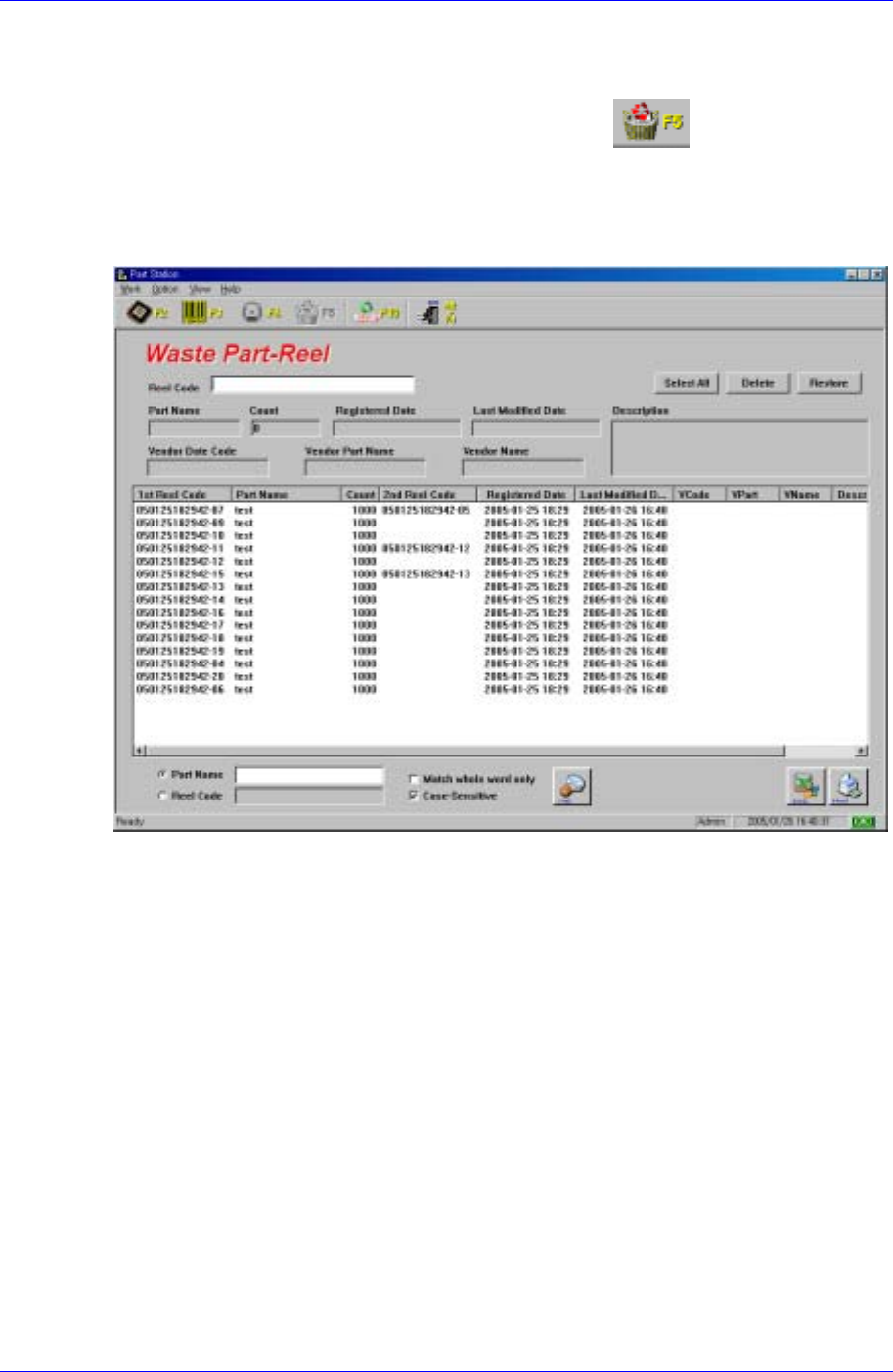
As can be seen in Figure 2-11, the screen consists of the input window at the top to enter
the ReedCode to delete, recycle bin control for restoring, and the list box that displays the
selected Part Reels.
Figure 2-11.Waste Part Reel screen
<Reel Code> edit box
When a Part Reel to delete is read with a bar code scanner, it is entered in the input
window automatically, the data on the reel is displayed in the PartName, Count,
Registered Date, Last Modified Date, Vendor Date Code, Vendor Part Name, Vendor
Name, and Description edit boxes, and the content is added in the <result display> list
box. When the reels to be deleted are read by the bar code scanner continuously, the
data is added in the list box in the order of reading.
<Select All> button
Selects all items in the list box. Use it to delete all reel data in the list box. When this
button is pressed, all items in the list box are selected.
<Delete>button
Deletes the contents selected from the following list box permanently.
<Restore>button
Used when restoring the deleted reel again.
Samsung Intelligent Feeder System
Reference
It is deleted from the DB on reading the barcode and saved in the Waste Part-Reel.
<Find> button
Enter the name of the part for inquiry or reel code in the Part Name or Reel Code and
press the Find button or Enter key. Then inquiry will be made for only the parts that
meet that condition. When inquiring about all parts, press the Find button or Enter
key without entering anything in the Part Name Input Window.
Match whole word only : Perform search by comparing the full name when
checking.
Case-Sensitive : Perform search by dividing the big and small letter when
checking.
2.3.5. Exit[Alt + F4]
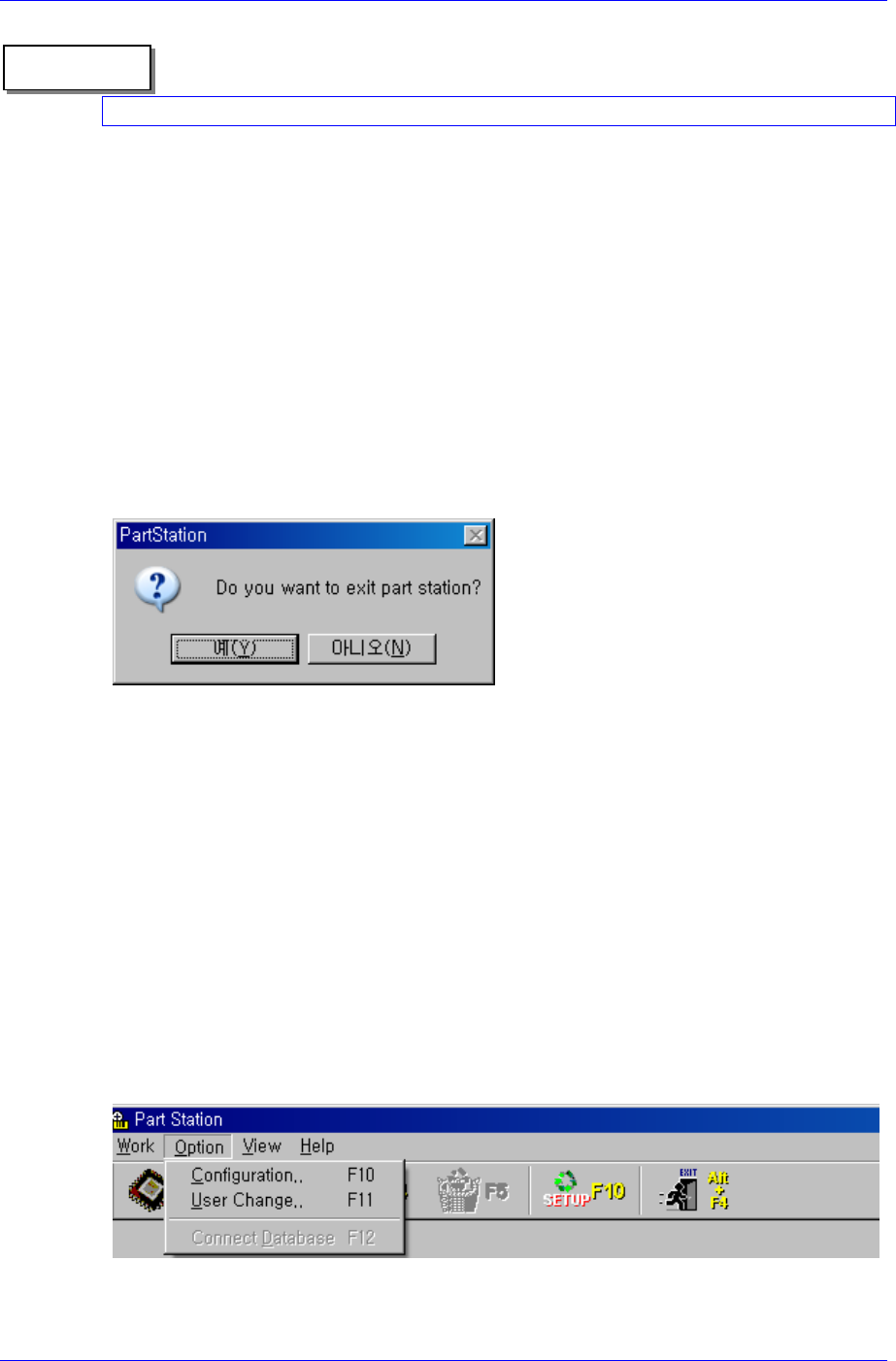
Ends the Part Station program.
Figure 2-12. Part Station Program Exit screen
2.4. Option menu
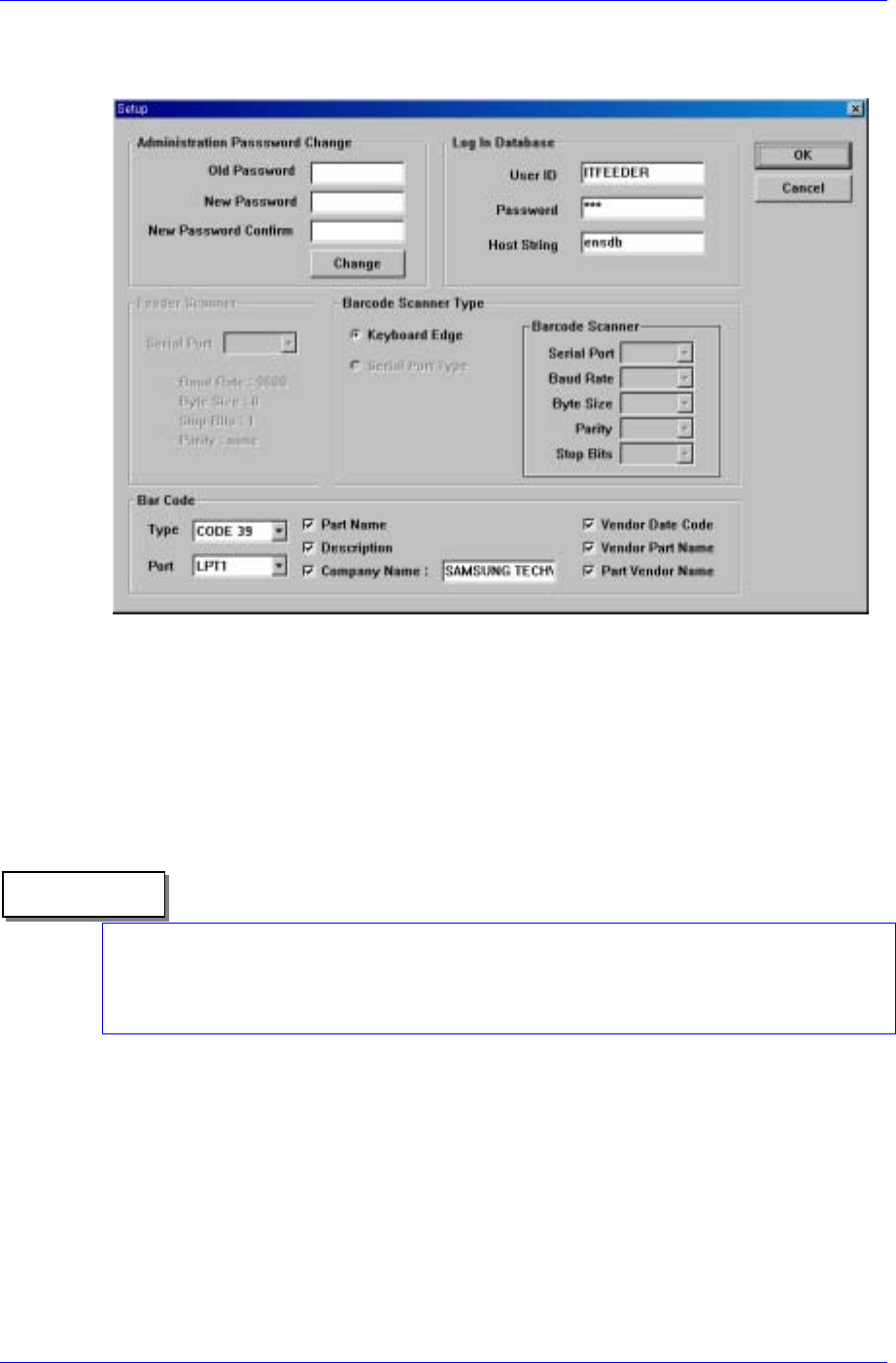
When the Option menu is selected on the Main menu bar, the following 2 submenus
appear.
Configuration
Sets basic configuration for PartStation.
User Change
Changes the user mode of PartStation. The user mode consists of regular mode and
management mode.
Connect Database
Reconnects the DB when connection with the DB is disconnected.
Figure 2-13. Option screen
2-16
Part Station
2-17
2.4.1. Configuration [F10]
When Configuration is selected from the Option menu, the following screen appears.
Figure 2-14.Configuration screen
The configuration screen consists of 7 areas.
Administration Password change: Changes the password for the management mode.
The 3 edit boxes underneath are codified so that the letters entered are not visible.
<Old Password> edit box: Enter the previous password.
<New Password > edit box: Enter the new password.
<New Password Confirm> edit box: Enter the new password to confirm.
<Change> button is used for changing to a new password.
Reference
A password can be composed of a maximum 7 characters including Alphabets, Korean
characters and number keys. Special keys cannot be used. If setup is performed without
pressing any key, the password cannot be changed afterward.
Log In Database
<User ID> edit box: Enter the user ID to access the Oracle Database.
<Password> edit box: Enter the password to access the Oracle Database.
<Host String> edit box: Enter the host string to access the Oracle Database.
Feeder Scanner
The set up screen for the Feeder RF-ID scanner, it is not used in PartStation. It is used
in FeederStation.
Barcode Scanner Type