IT Feeder Manual-SM320(English V2.0)Ver1 - 第57页
Part S tation 2-17 2.4.1. Configuration [F10] When Configuration is selected from the Op tion menu, the following screen appears. Figur e 2-14. Configuration scr een The configuration screen consists of 7 areas. Administ…
Samsung Intelligent Feeder System
Reference
It is deleted from the DB on reading the barcode and saved in the Waste Part-Reel.
<Find> button
Enter the name of the part for inquiry or reel code in the Part Name or Reel Code and
press the Find button or Enter key. Then inquiry will be made for only the parts that
meet that condition. When inquiring about all parts, press the Find button or Enter
key without entering anything in the Part Name Input Window.
Match whole word only : Perform search by comparing the full name when
checking.
Case-Sensitive : Perform search by dividing the big and small letter when
checking.
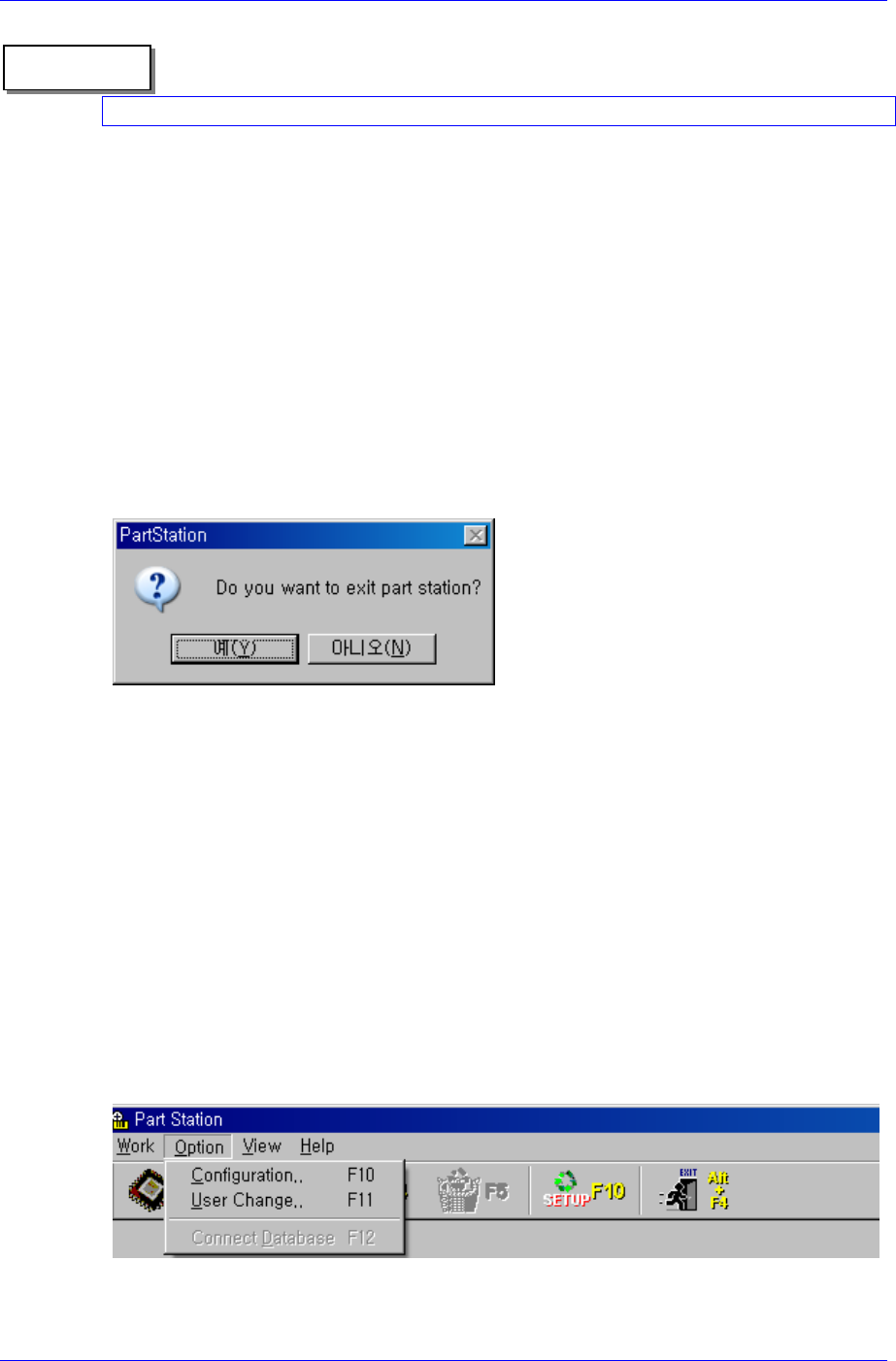
2.3.5. Exit[Alt + F4]
Ends the Part Station program.
Figure 2-12. Part Station Program Exit screen
2.4. Option menu
When the Option menu is selected on the Main menu bar, the following 2 submenus
appear.
Configuration
Sets basic configuration for PartStation.
User Change
Changes the user mode of PartStation. The user mode consists of regular mode and
management mode.
Connect Database
Reconnects the DB when connection with the DB is disconnected.
Figure 2-13. Option screen
2-16
Part Station
2-17
2.4.1. Configuration [F10]
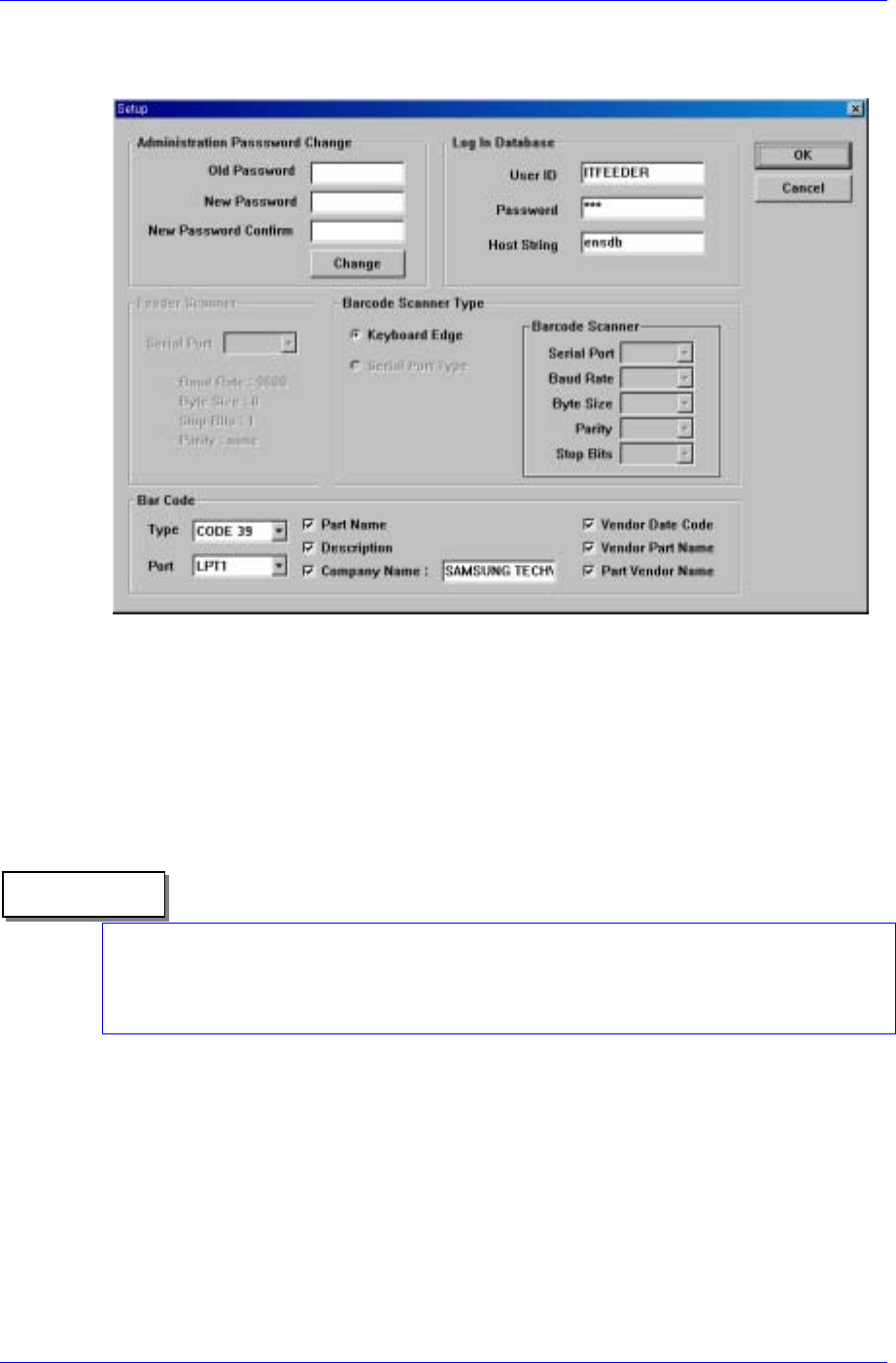
When Configuration is selected from the Option menu, the following screen appears.
Figure 2-14.Configuration screen
The configuration screen consists of 7 areas.
Administration Password change: Changes the password for the management mode.
The 3 edit boxes underneath are codified so that the letters entered are not visible.
<Old Password> edit box: Enter the previous password.
<New Password > edit box: Enter the new password.
<New Password Confirm> edit box: Enter the new password to confirm.
<Change> button is used for changing to a new password.
Reference
A password can be composed of a maximum 7 characters including Alphabets, Korean
characters and number keys. Special keys cannot be used. If setup is performed without
pressing any key, the password cannot be changed afterward.
Log In Database
<User ID> edit box: Enter the user ID to access the Oracle Database.
<Password> edit box: Enter the password to access the Oracle Database.
<Host String> edit box: Enter the host string to access the Oracle Database.
Feeder Scanner
The set up screen for the Feeder RF-ID scanner, it is not used in PartStation. It is used
in FeederStation.
Barcode Scanner Type
Samsung Intelligent Feeder System
There are two types of barcode scanners; keyboard type and serial type. KeyBoard
Edge type is supported by PartStation.
If help is needed to specify Serial Parameter when setting up the Serial Port type,
please consult with Samsung Techwin.
It is programmed to support only the keyboard edge type supplied by us.
Bar Code
Sets the barcode printer type, port, and the contents to be output when printing the
barcode.
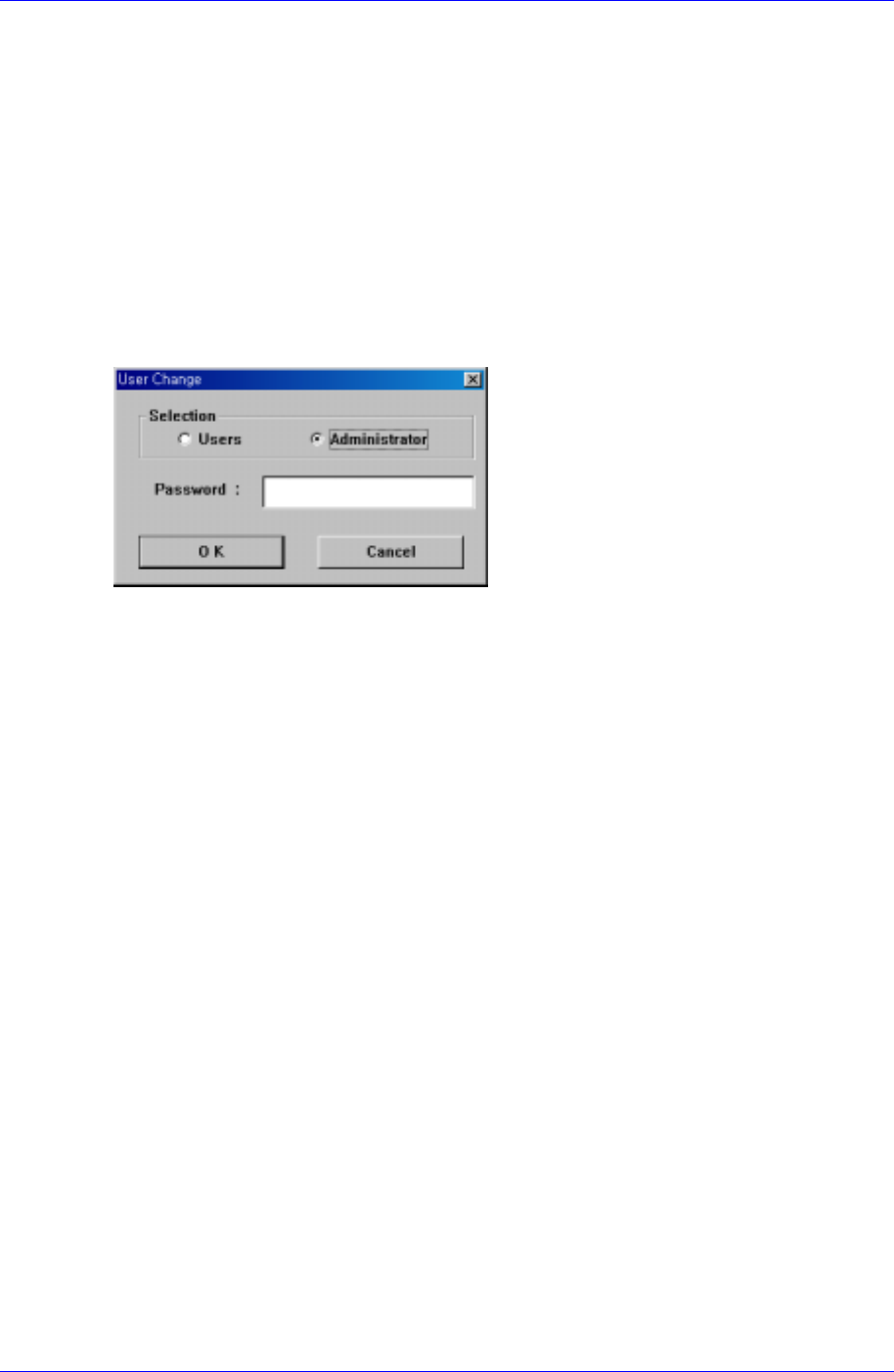
2.4.2. User Change [F11]
Selecting User Change in the Option menu will display the following screen.
Figure 2-15. Configuration screen
Users
Perform Part Station in the general user mode.
In the general user mode, the part/reel cannot be deleted (it is possible in the case of
waste part-reel), and the setup cannot be performed.
Administrator
Perform Part Station in the administrator mode.
In the administrator mode, the part/reel can be deleted and setup can be performed.
2.4.3. Connect Database [F12]
Retry connection to the Oracle Database when it is disconnected.
2-18