IT Feeder Manual-SM320(English V2.0)Ver1 - 第61页
Part S tation 2-21 Part Name: Enters the part name. (This step must be done.) Description: Enters a brief description concerning the part. <OK> Button: Registers the part/description entered. <Cancel>…
Samsung Intelligent Feeder System
2.6. Help menu
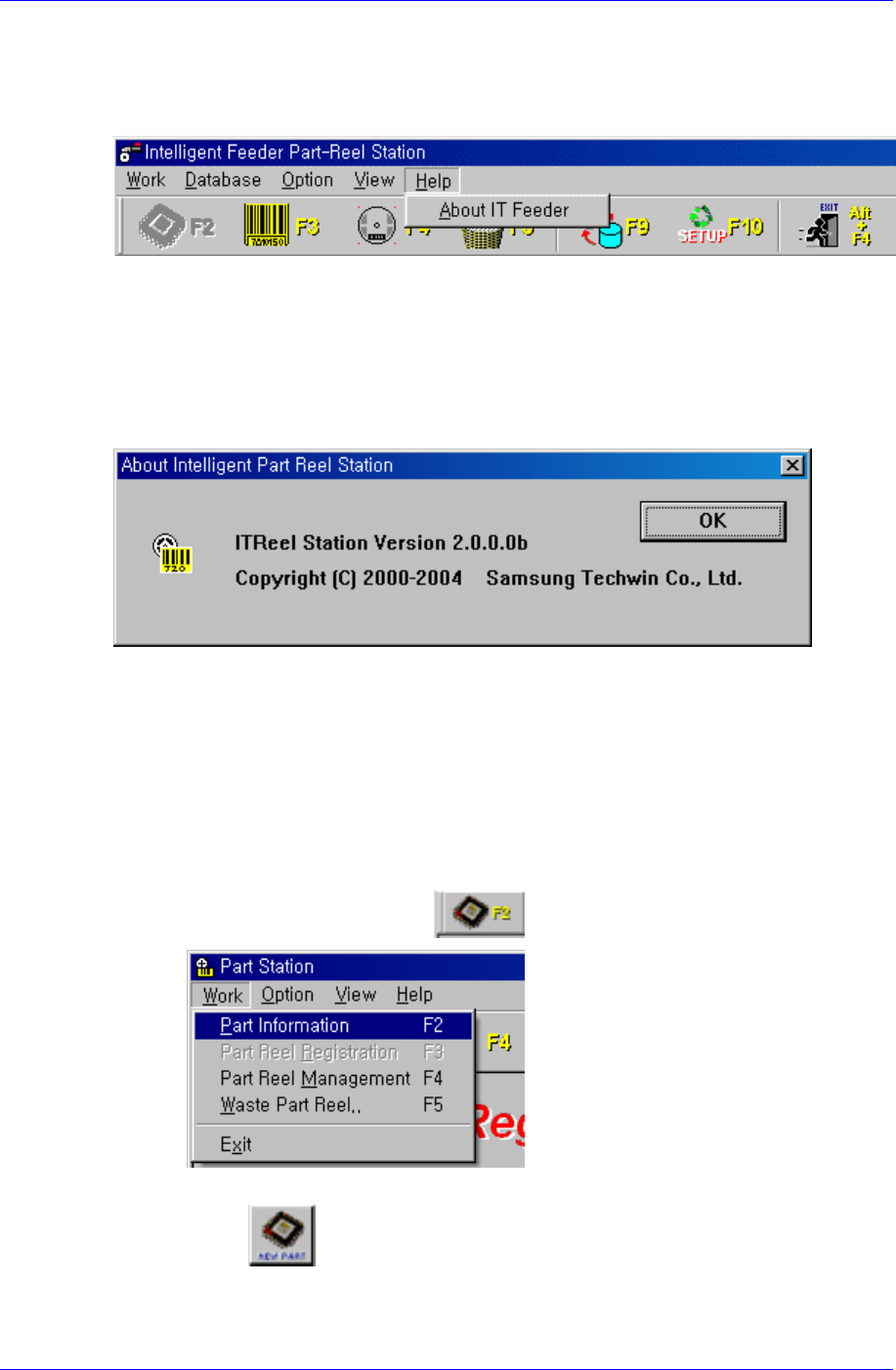
When the Help menu is selected on the Main menu bar, the following submenu appears.
Figure 2-19.Help submenu
2.6.1. About IT Feeder
When the About…button is selected, the following window appears. The window
displays PartStation Version information and tells that Samsung Techwin has the
copyright.
Figure 2-20. About IT Feeder window
2.7. Function Description
2.7.1. Part Registration / Deletion
1. Individual registration: Register the parts individually.
① As shown in the following figure, select the Part Information (F2) sub–menu in
the Work menu or click the
button in the tool bar.
② If the (New Part) button is pressed, the following screen is displayed.
2-20
Part Station
2-21
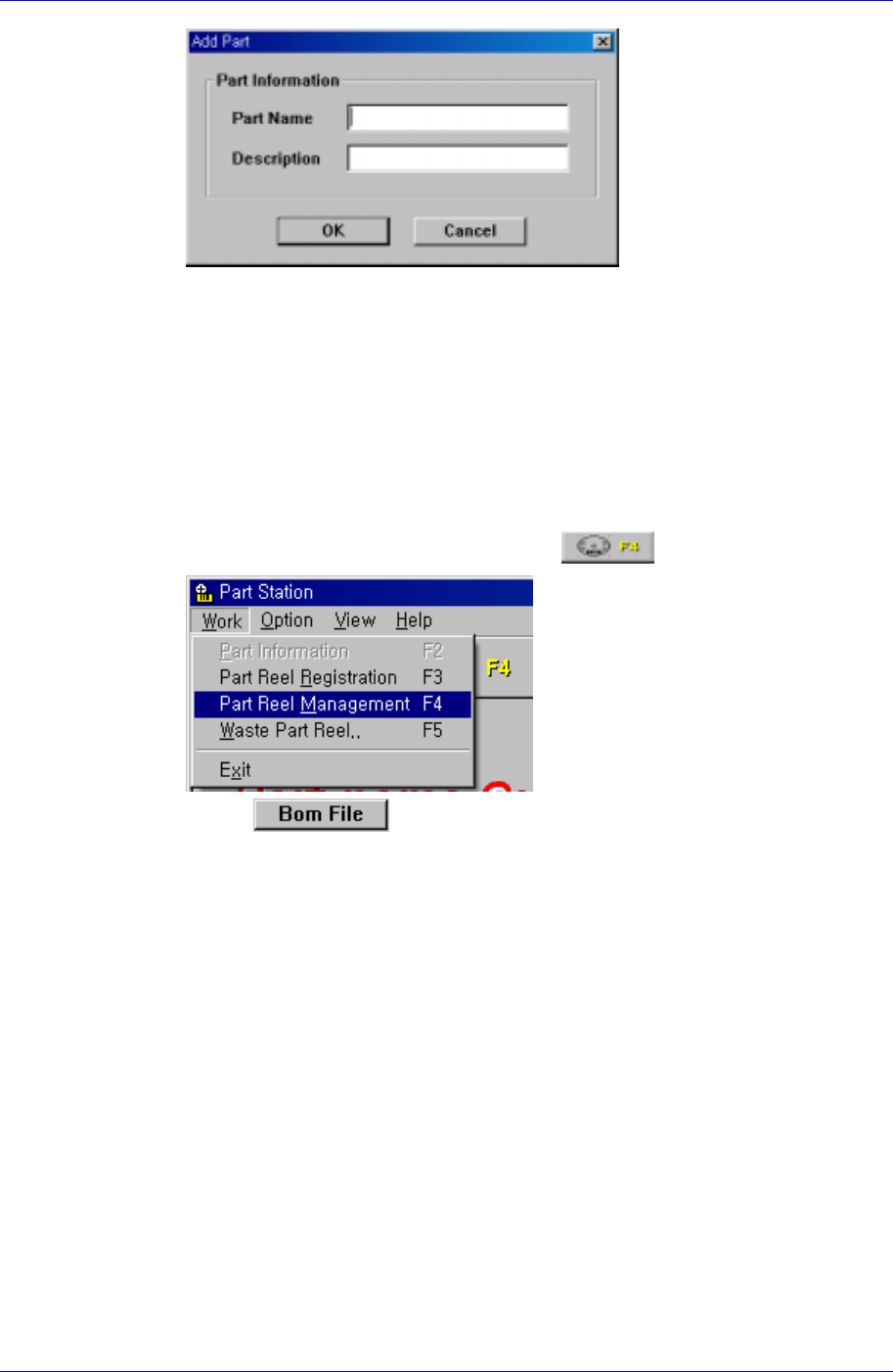
Part Name: Enters the part name. (This step must be done.)
Description: Enters a brief description concerning the part.
<OK> Button: Registers the part/description entered.
<Cancel> Button: Deletes the registration.
※ The registration date is entered as of the present time automatically.
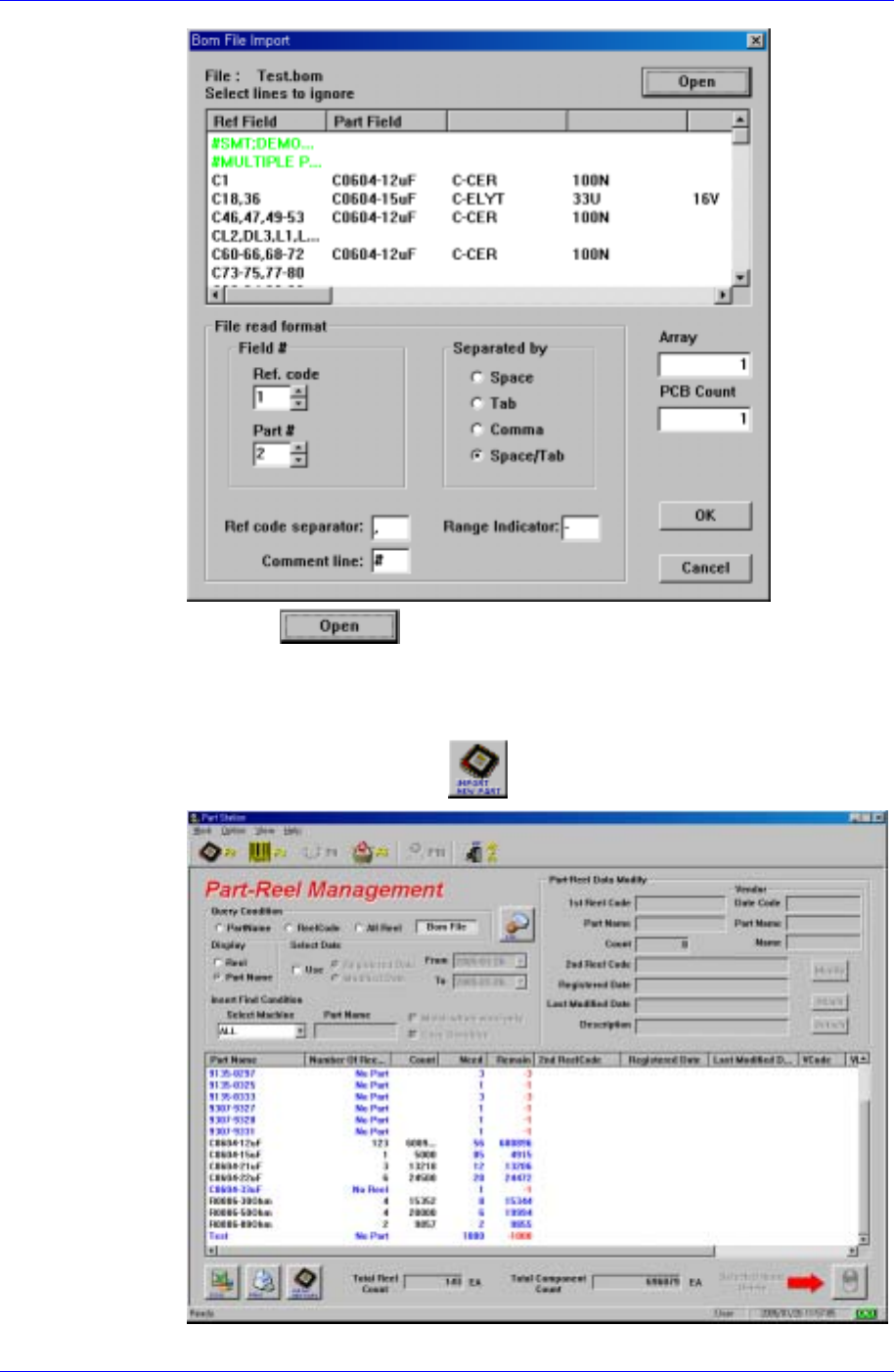
2. Bom File Import registration: Registers several types of parts using the Bom File.
① As shown in the following figure, select the Part Reel Management (F4)
submenu from the Work menu or click the
button of the tool bar.
② If the
button of Query Condition is pressed, the following
screen is displayed.
Samsung Intelligent Feeder System
③ Press the
button to import the Bom File and set the file format.
Then click the <OK> button.
④ If the searched part does not exist in the DB as shown in the following figure,
‘No Part’ is indicated and the
button is enabled.
2-22