IT Feeder Manual-SM320(English V2.0)Ver1 - 第63页
Part S tation 2-23 ⑤ If the button is pressed, the New Part Import screen is displayed as shown below . Select All : S elects all parts. UnSelect All : Cancels all parts. Inverse : Reverse the selected part. De…
Samsung Intelligent Feeder System
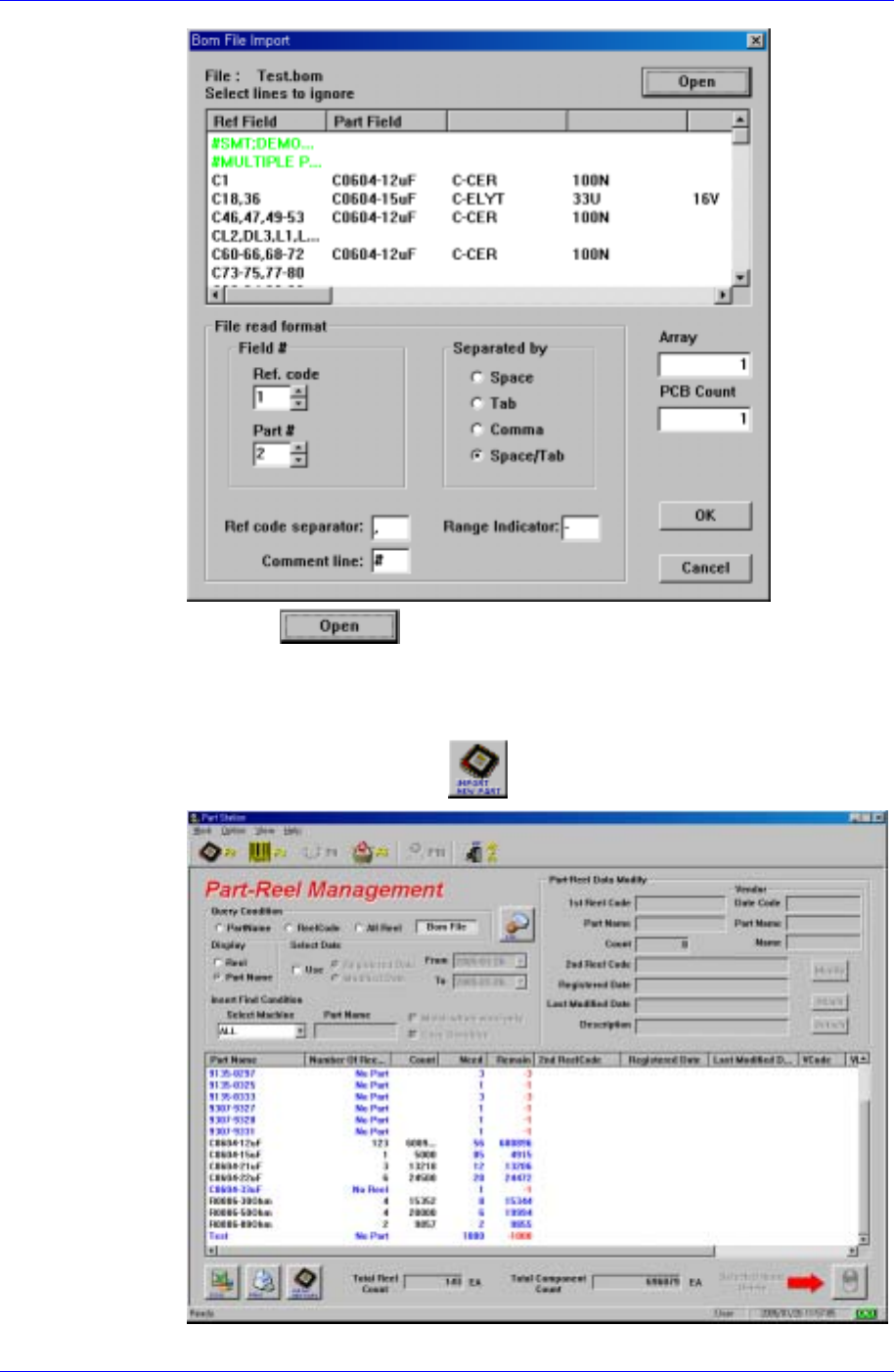
③ Press the
button to import the Bom File and set the file format.
Then click the <OK> button.
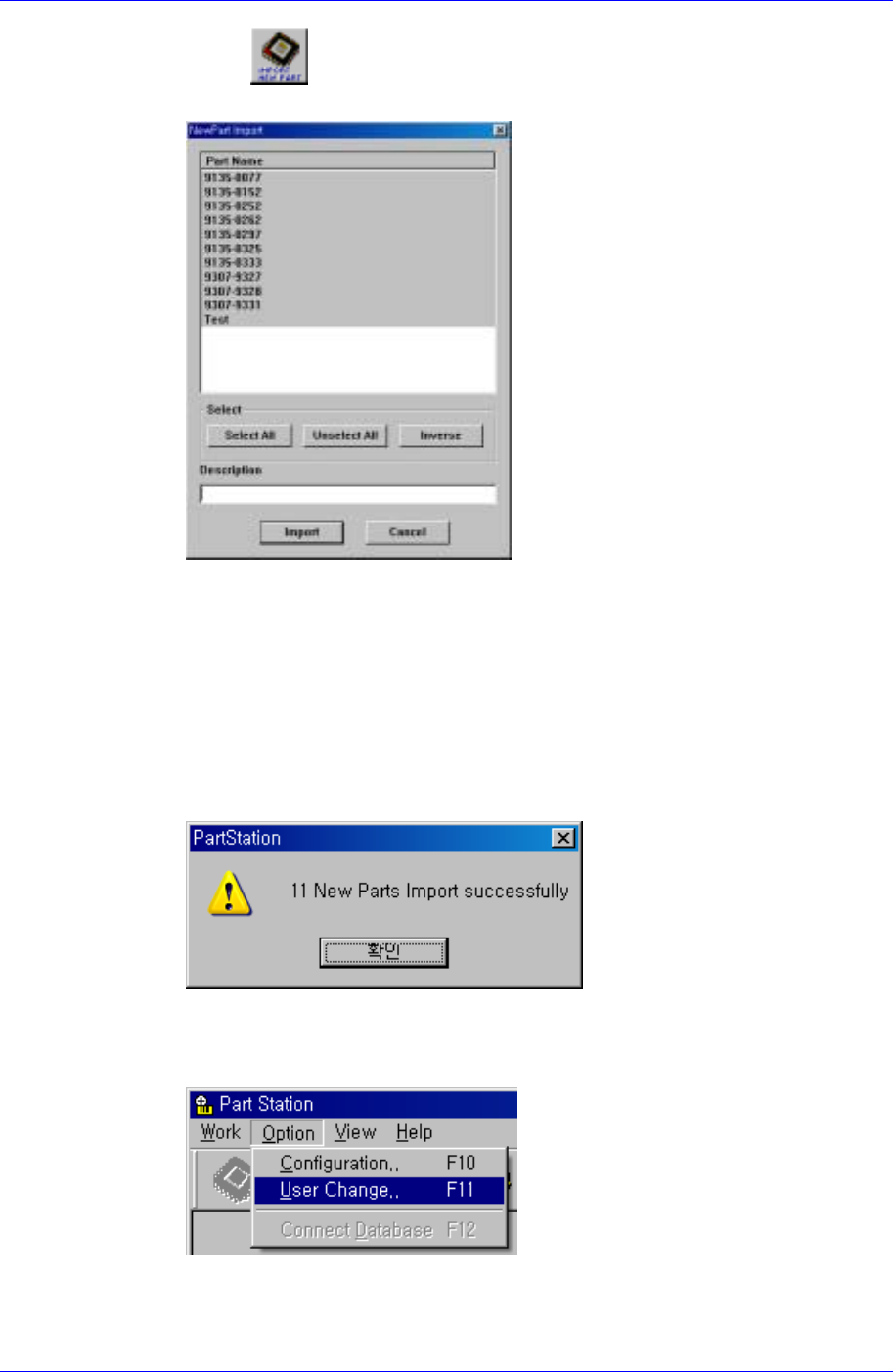
④ If the searched part does not exist in the DB as shown in the following figure,
‘No Part’ is indicated and the
button is enabled.
2-22
Part Station
2-23
⑤ If the button is pressed, the New Part Import screen is displayed as
shown below.
Select All : Selects all parts.
UnSelect All : Cancels all parts.
Inverse : Reverse the selected part.
Description : Enters additional description.
Import : Register the selected part.
Cancel : Cancel the performed work.
⑥ If the <Import> button is clicked, the following dialog box is displayed and the
part is registered.
3. Part deletion
① After executing the Part Information (F2) submenu, select the Option menu as
shown in the following figure and choose the Users Change (F11) submenu.
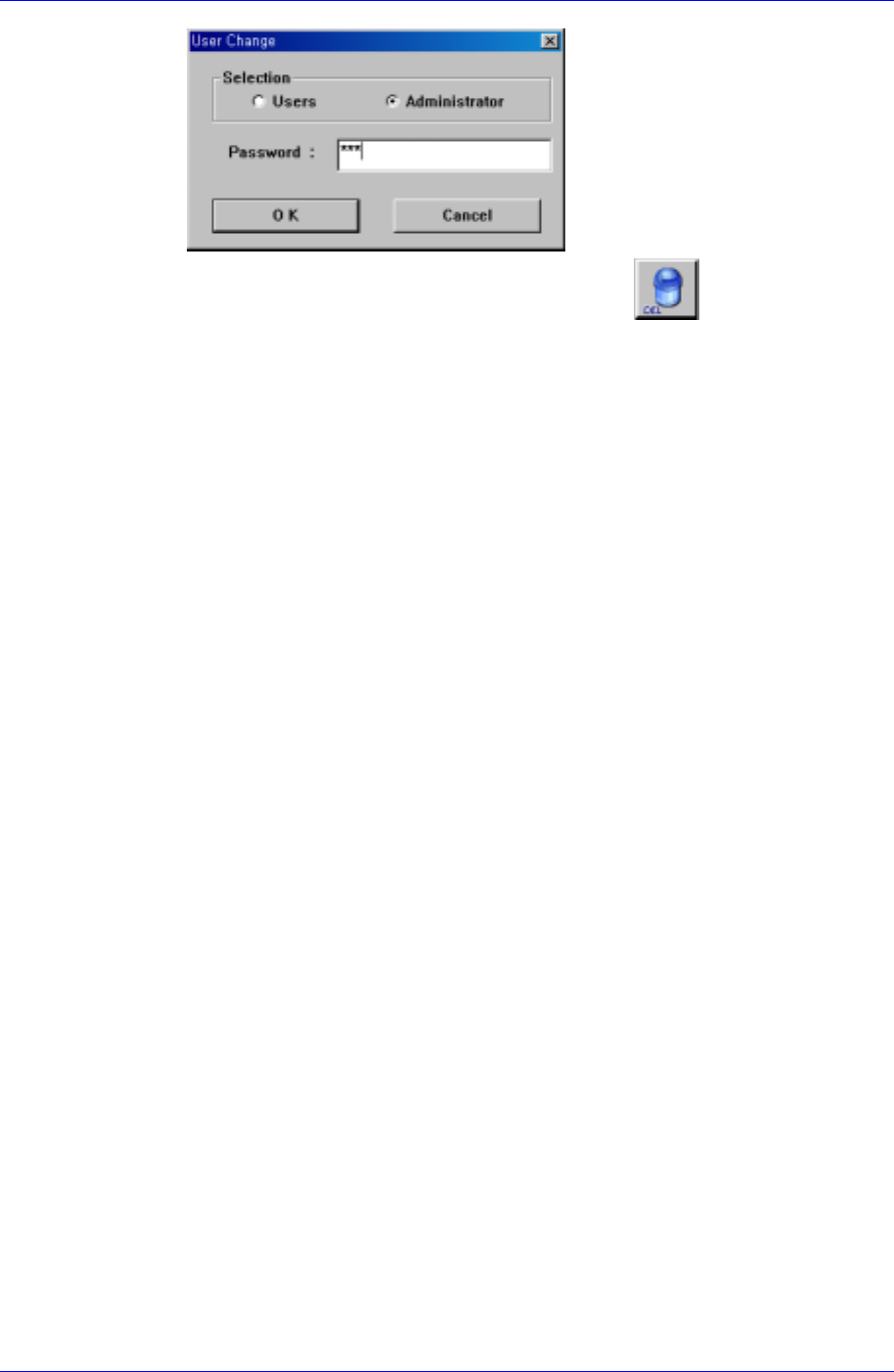
② The following figure appears. Select the Administrator and enter the Password.
Samsung Intelligent Feeder System
③ Select the part to be deleted and delete it using the
button.
2-24