IT Feeder Manual-SM320(English V2.0)Ver1 - 第64页
Samsung Intelligent Feeder System ③ Select the part to be dele ted and delete it using the button. 2-24
Part Station
2-23
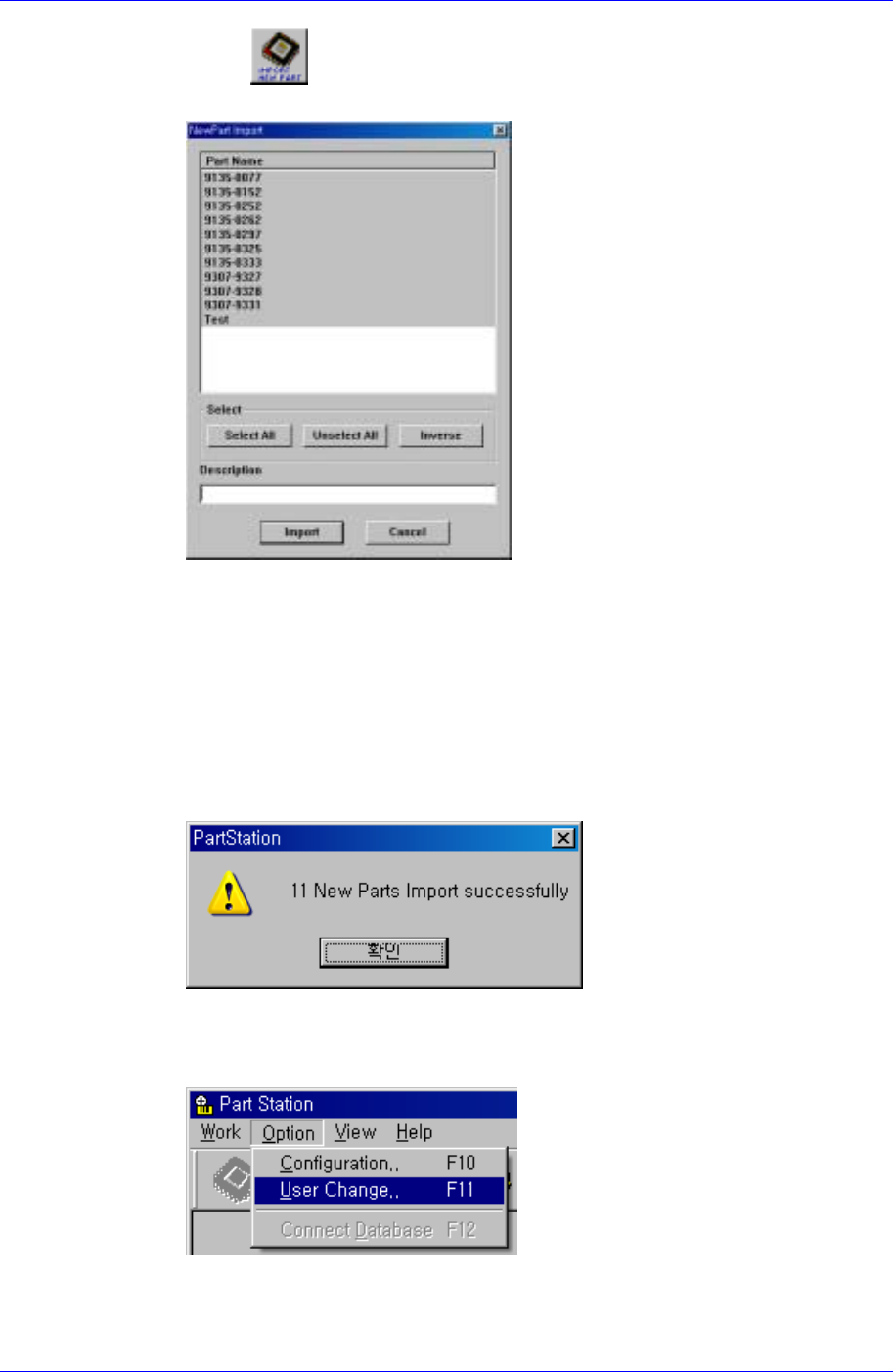
⑤ If the button is pressed, the New Part Import screen is displayed as
shown below.
Select All : Selects all parts.
UnSelect All : Cancels all parts.
Inverse : Reverse the selected part.
Description : Enters additional description.
Import : Register the selected part.
Cancel : Cancel the performed work.
⑥ If the <Import> button is clicked, the following dialog box is displayed and the
part is registered.
3. Part deletion
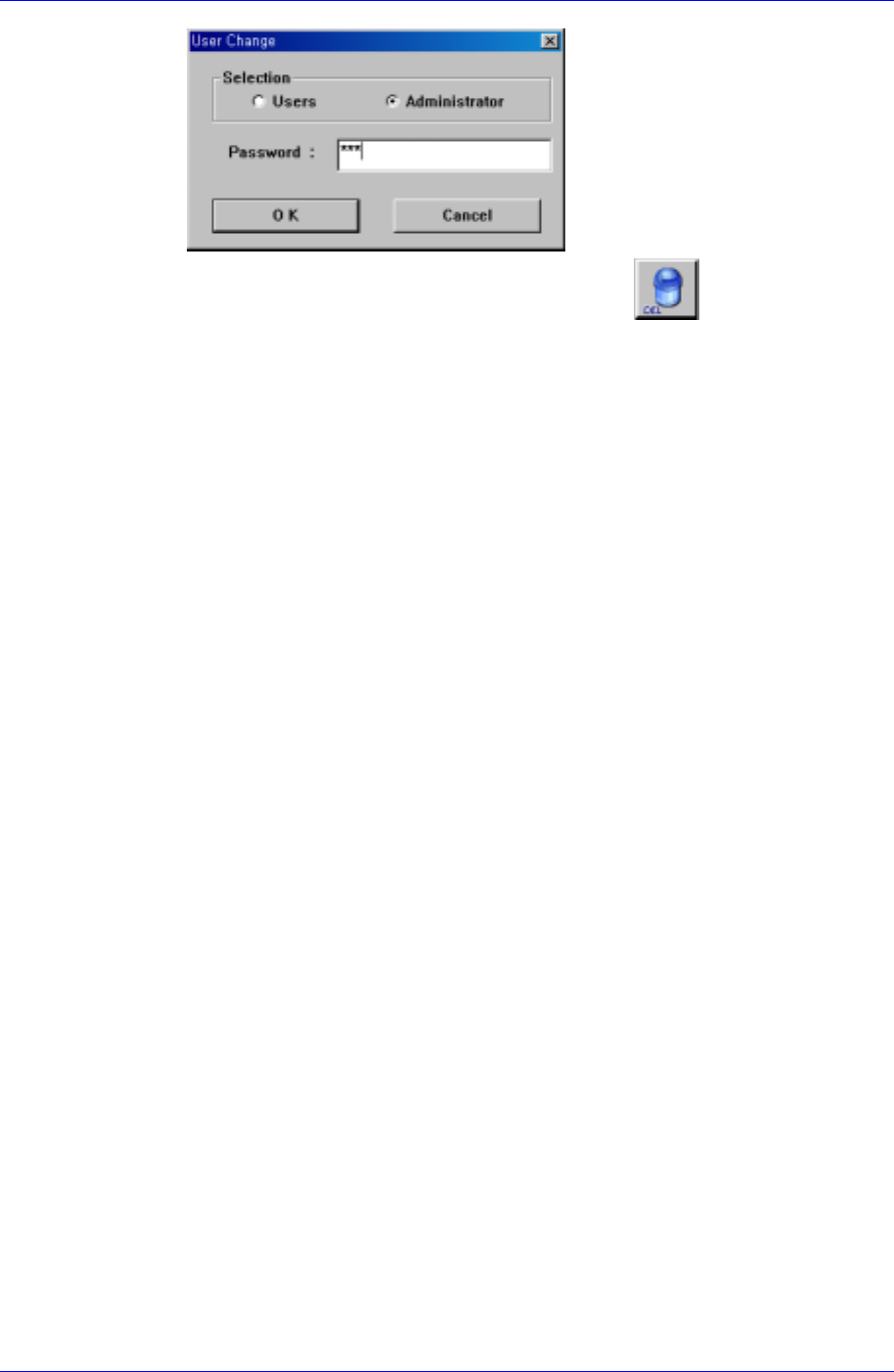
① After executing the Part Information (F2) submenu, select the Option menu as
shown in the following figure and choose the Users Change (F11) submenu.
② The following figure appears. Select the Administrator and enter the Password.
Samsung Intelligent Feeder System
③ Select the part to be deleted and delete it using the
button.
2-24
Part Station
2-25
Only the administrator can delete parts. The administrator password is "SCP" when
installing the first Part Station. It can be changed using the Configuration (F10) [Option-
>Configuration (F10)] from the menu or the tool bar, . (The password of the
supervisor is “pass8424”.)
Reference
When the reel is registered for the corresponding part, the part cannot be deleted. The part
can be deleted only after the registered reel code is deleted.
2.7.2. Reel Code Registration and Barcode Issue
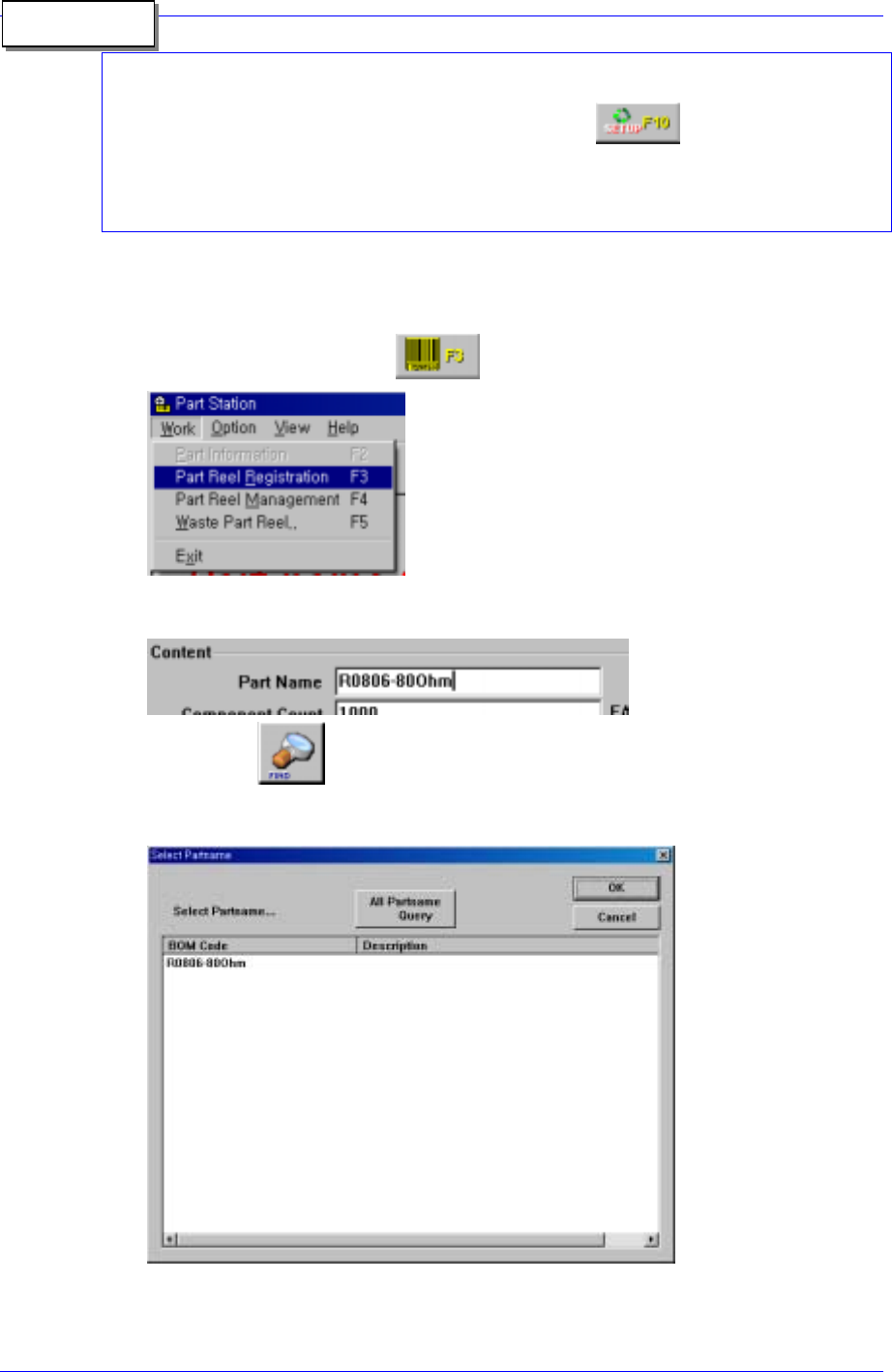
1. As shown in the following figure, select the Part Reel Registration (F3) submenu in
the Work menu or click the
button of the tool bar.
2. As indicated in the following figure, enter the part name of the reel that is to be
registered in the <Part Name> edit box.
3. Using the
button, search the corresponding part name and then the
following dialog box appears. Select the corresponding part and click the <OK>
button.
<All Part Name Query > button: Shows all parts.
4. Enter the information (part quantity, reel quantity, manufacturer and description) on