IT Feeder Manual-SM320(English V2.0)Ver1 - 第85页
Feeder S t ation 3.4. Config menu When the Config. Menu is selected on the Main menu bar , the following submenus appear . Figur e 3-19. Confi g menu su bmenus Consists of menus indicating whether to displa y the tool ba…
Samsung Intelligent Feeder System
Match whole word only : Perform search by comparing the full name when
checking.
Case-Sensitive : Perform search by dividing the big and small letter when
checking.
Excel button
Used when saving the inquired list as an Excel (csv) file.
Print button
Used when printing the inquired list.
3.3.6. Docking [F7]
Figure 3-17. Docking screen
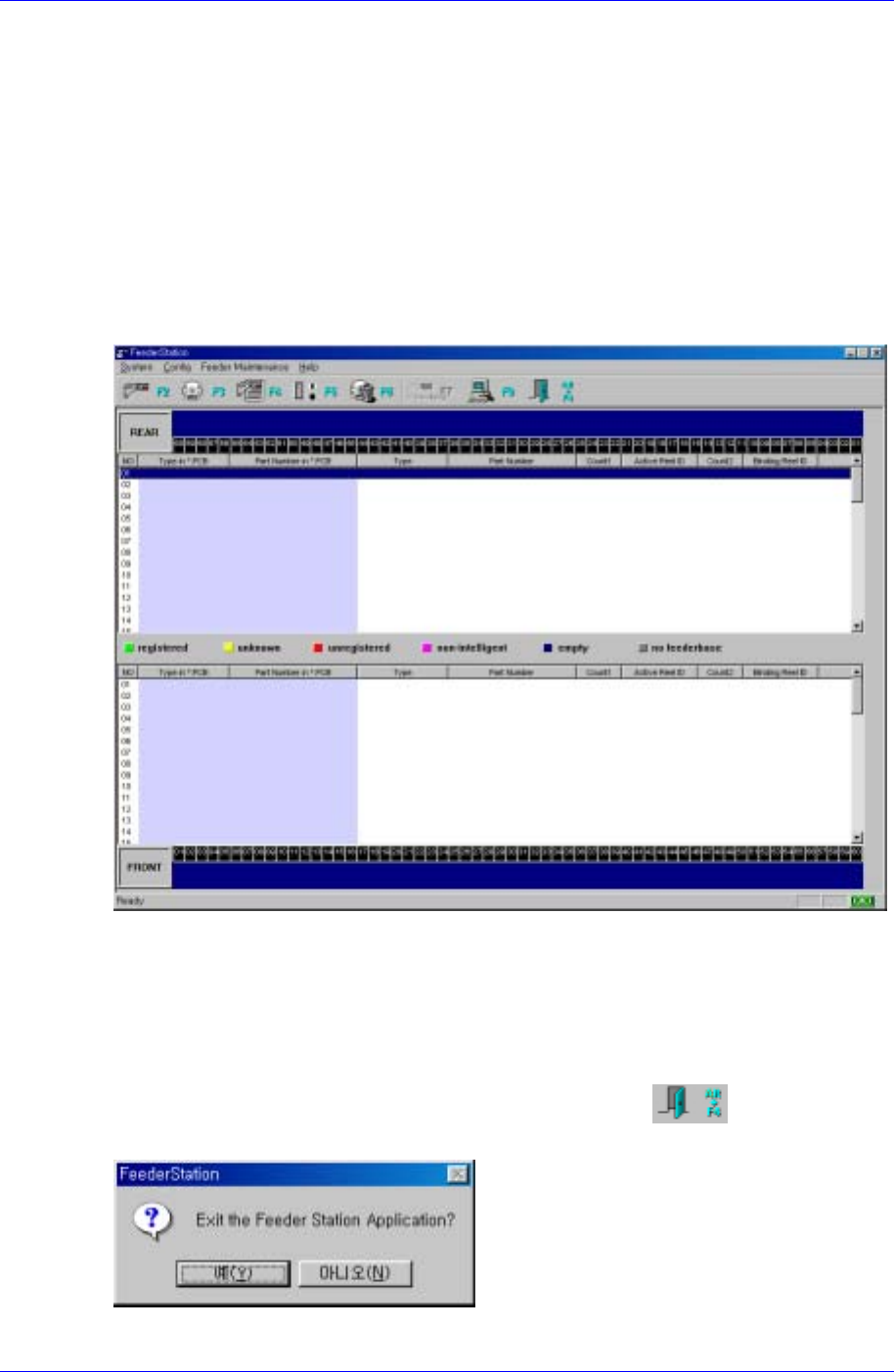
3.3.7. Exit[Alt+F4]
Ends the Feeder Station program.
Select the System Exit button from the Main menu, press the
button on the tool
bar, or press the [Alt + F4] key on the keyboard.
Figure 3-18. Program end screen
3-14
Feeder Station
3.4. Config menu
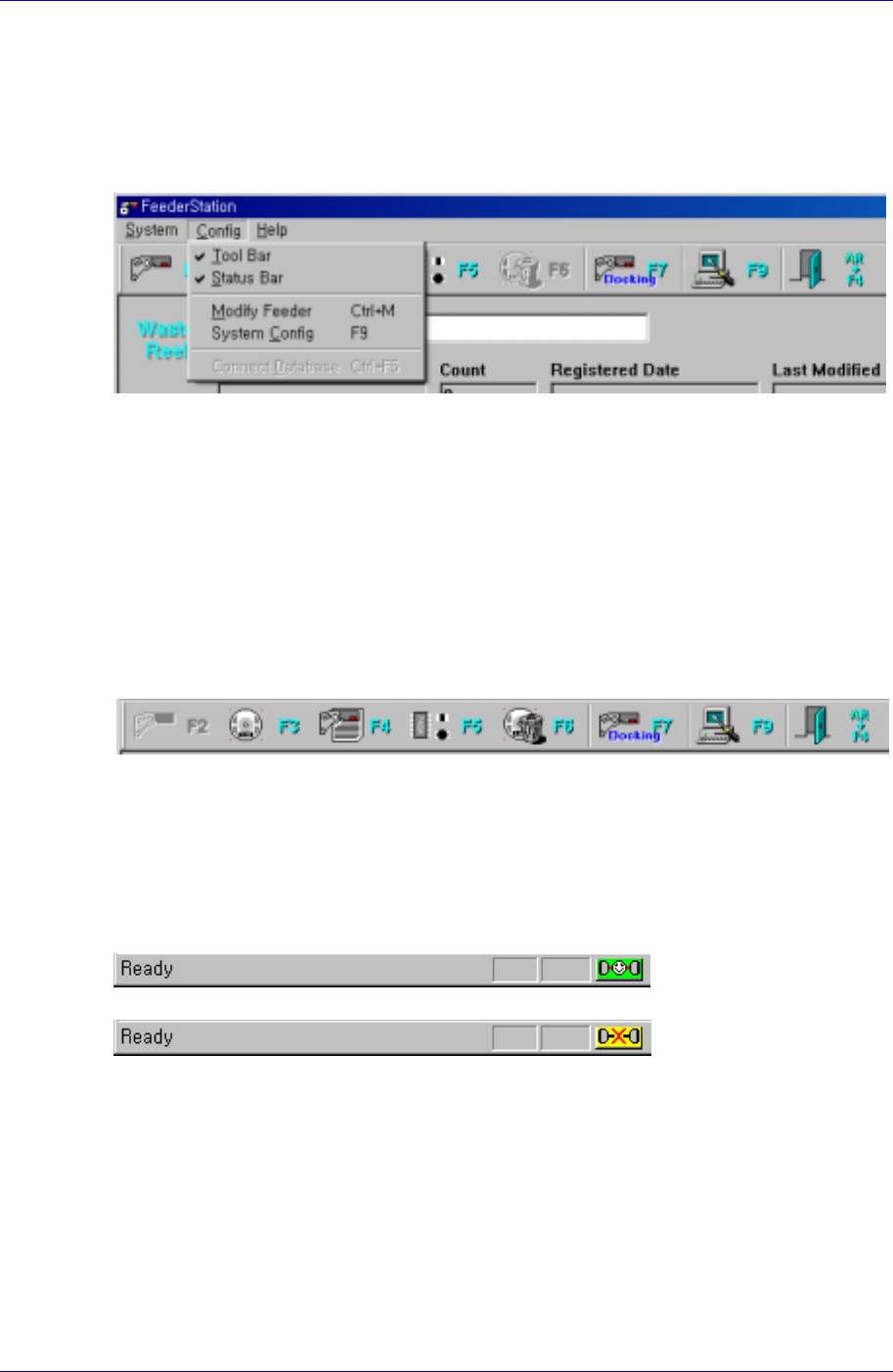
When the Config. Menu is selected on the Main menu bar, the following submenus
appear.
Figure 3-19. Config menu submenus
Consists of menus indicating whether to display the tool bar or the status bar, Modify
Feeder, and System Config menus.
3.4.1. Tool Bar
The user can display or hide the tool bar by changing the Tool bar to On/Off in Config. of
the Main menu.
It also provides a brief description of the menu. When the mouse pointer is located on a
button on the tool bar, a brief tool tip appears in a small box. And a description of the
menu appears in the status bar below.
Figure 3-20. ToolBar screen
3.4.2. Status Bar
The user can display or hide the status bar by changing the Status bar to On/Off in Config.
of the Main menu.
When connecting with the database, the status is displayed as follows
When the connection with the database is disconnected, the status is displayed as follows.
3.4.3. Modify Feeder[Ctrl+M]
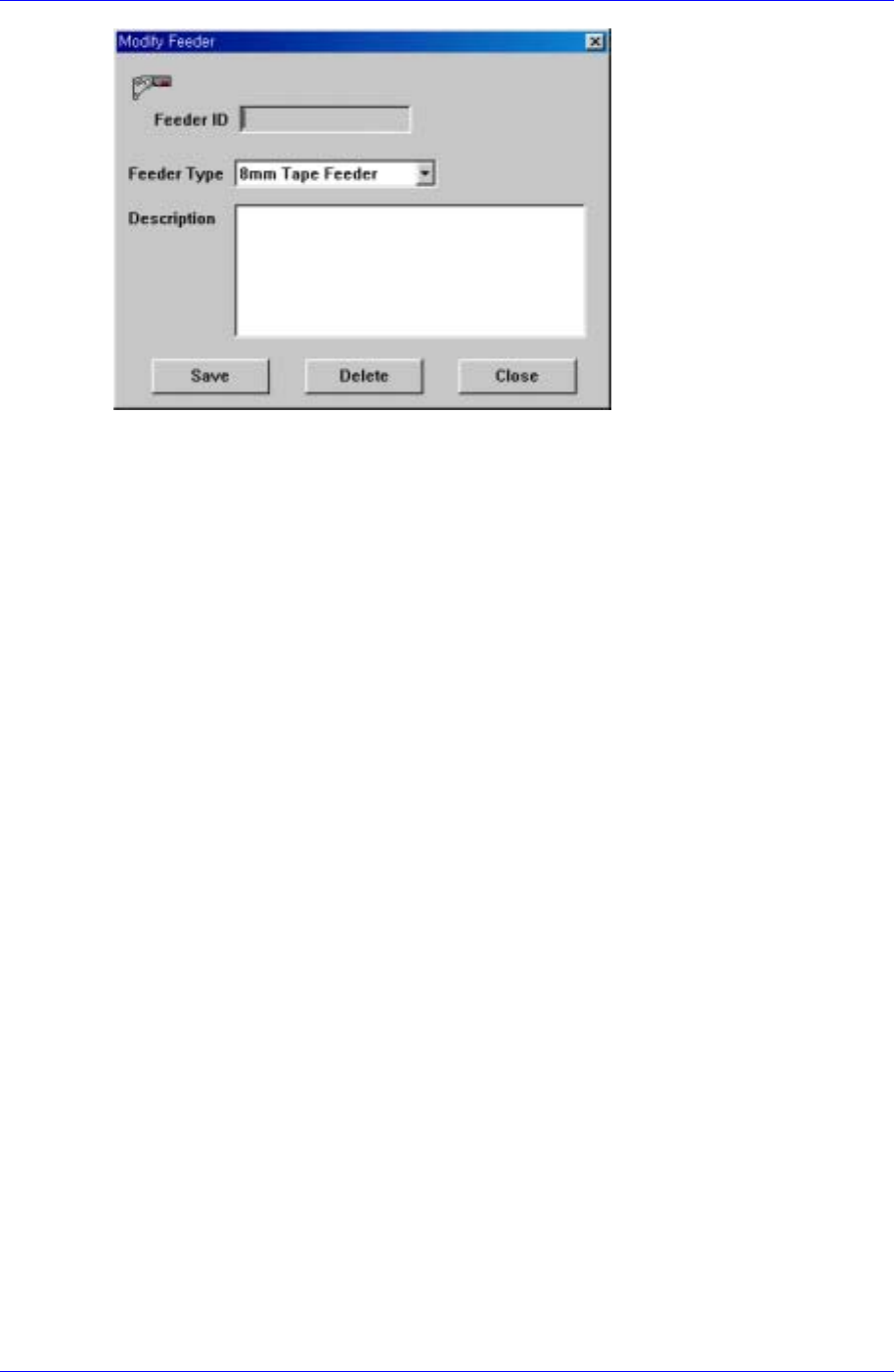
The screen to modify the Feeder information. To execute it, select the Modify Feeder
menu from Config. of the Main menu or press the [Ctrl + M] key on the keyboard.
3-15
Samsung Intelligent Feeder System
Figure 3-21. Feeder information modification screen
Description of the screen
Feeder ID
Reads in the Feeder ID with the RF-ID Reader.
Feeder Type
Selects the Feeder type of the selected Feeder.
Description
Enters a brief description on the Feeder.
Save
Saves the modified information in the DB.
Delete
Deletes a Feeder from the DB.
Close
Closes the screen and ends modification.
3-16