IT Feeder Manual-SM320(English V2.0)Ver1 - 第89页
Feeder S t ation 2. If the button at the bottom right is pressed, the following figure is displayed. Set the employee number of the operator , product name, line and equipment where the feeder will be installed and the f…
Samsung Intelligent Feeder System
please consult with Samsung Techwin.
It is programmed to support only the keyboard edge type supplied by us.
3.4.5. Connect Database [Ctrl+F5]
When the connection with the Oracle Database is disconnected, attempt connection once
again.
3.5. Help menu
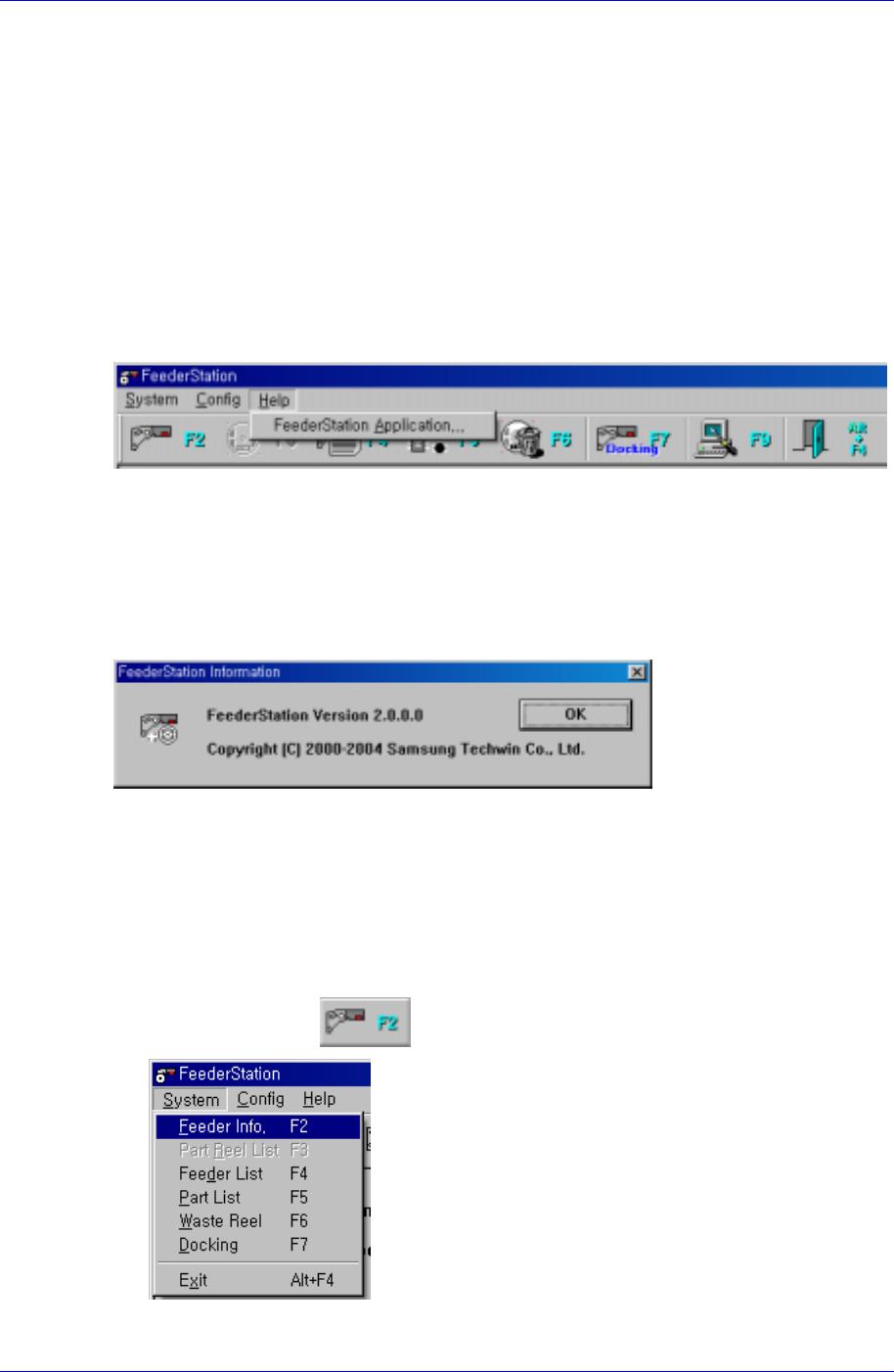
When the Help menu is selected on the Main menu bar, the following submenu appears.
Figure 3-23. Submenu screen
3.5.1. Feeder Station Application…
When the Feeder Station Application… menu is selected, the following screen appears.
The screen displays the Feeder Station Version information and tells that Samsung
Techwin has the copyright.
Figure 3-24. Feeder Station Information screen
3.6. Function Description
3.6.1. Registration of Reel to Feeder
1. As shown in the following figure, select the Feeder Info (F2) submenu in the System
menu or click the
button.
3-18
Feeder Station
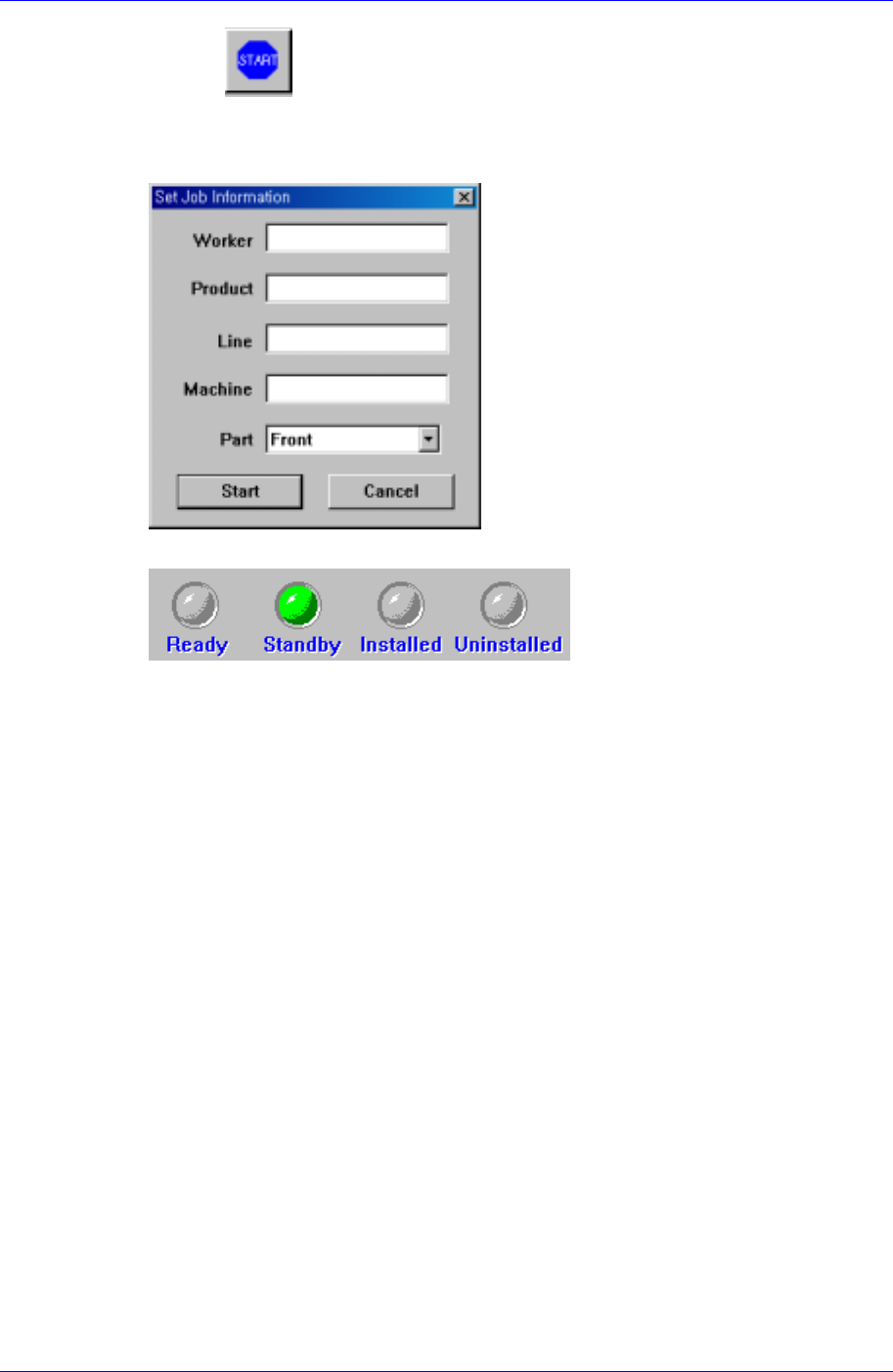
2. If the button at the bottom right is pressed, the following figure is
displayed. Set the employee number of the operator, product name, line and
equipment where the feeder will be installed and the front/rear side, and click the
<Start> button. The feeder is now ready to be installed
3. Then the status of the feeder changes from Ready state to Standby state.
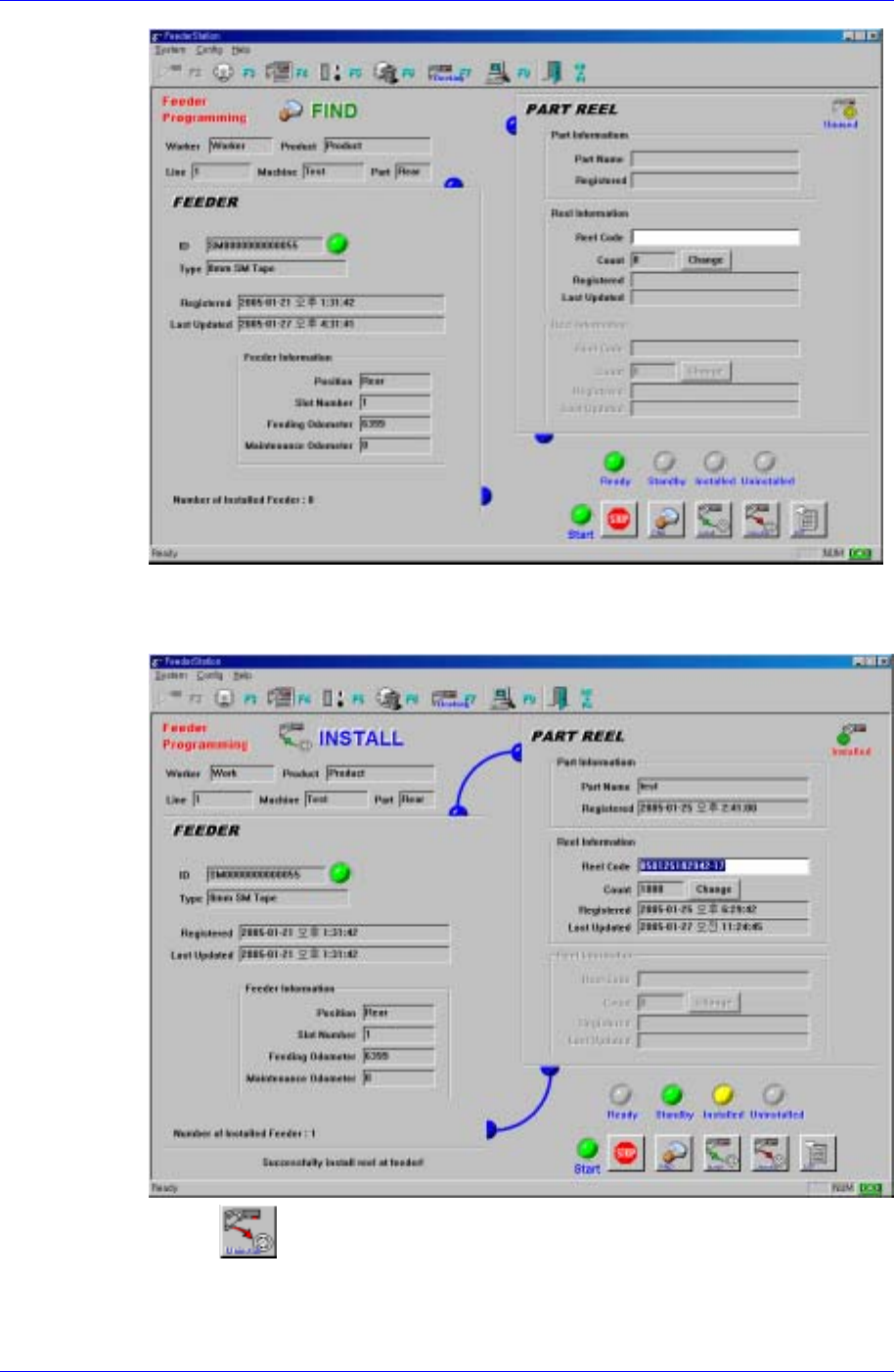
4. If the feeder to be registered is installed in the feeder base, it is shown as indicated
in the following figure. And the feeder information becomes available.
3-19
Samsung Intelligent Feeder System
5. Next, enter the reel to be registered using the keyboard or barcode reader. Then it is
indicated that the feeder and the reel are connected as described in the following
figure.
6. If the
button is pressed to uninstall the reel, the reel is removed from the
feeder.
3-20