IT Feeder Manual-SM320(English V2.0)Ver1 - 第90页
Samsung Intelligent Feeder System 5. Next, enter the reel to be registered using the keyboard or barcode reader . Then it is indicated that the feeder and the reel are connected as described in the following figure. 6. I…
Feeder Station
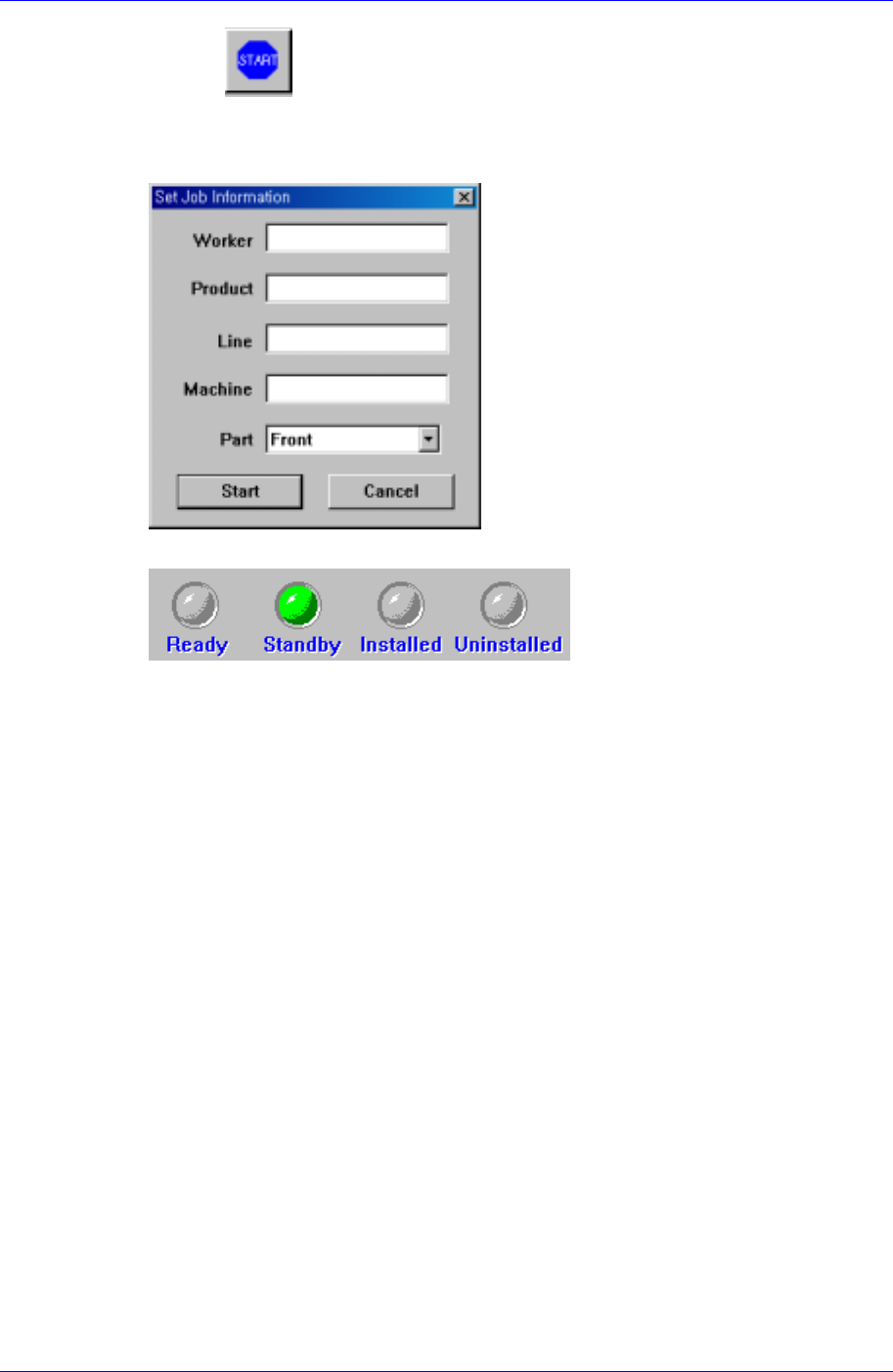
2. If the button at the bottom right is pressed, the following figure is
displayed. Set the employee number of the operator, product name, line and
equipment where the feeder will be installed and the front/rear side, and click the
<Start> button. The feeder is now ready to be installed
3. Then the status of the feeder changes from Ready state to Standby state.
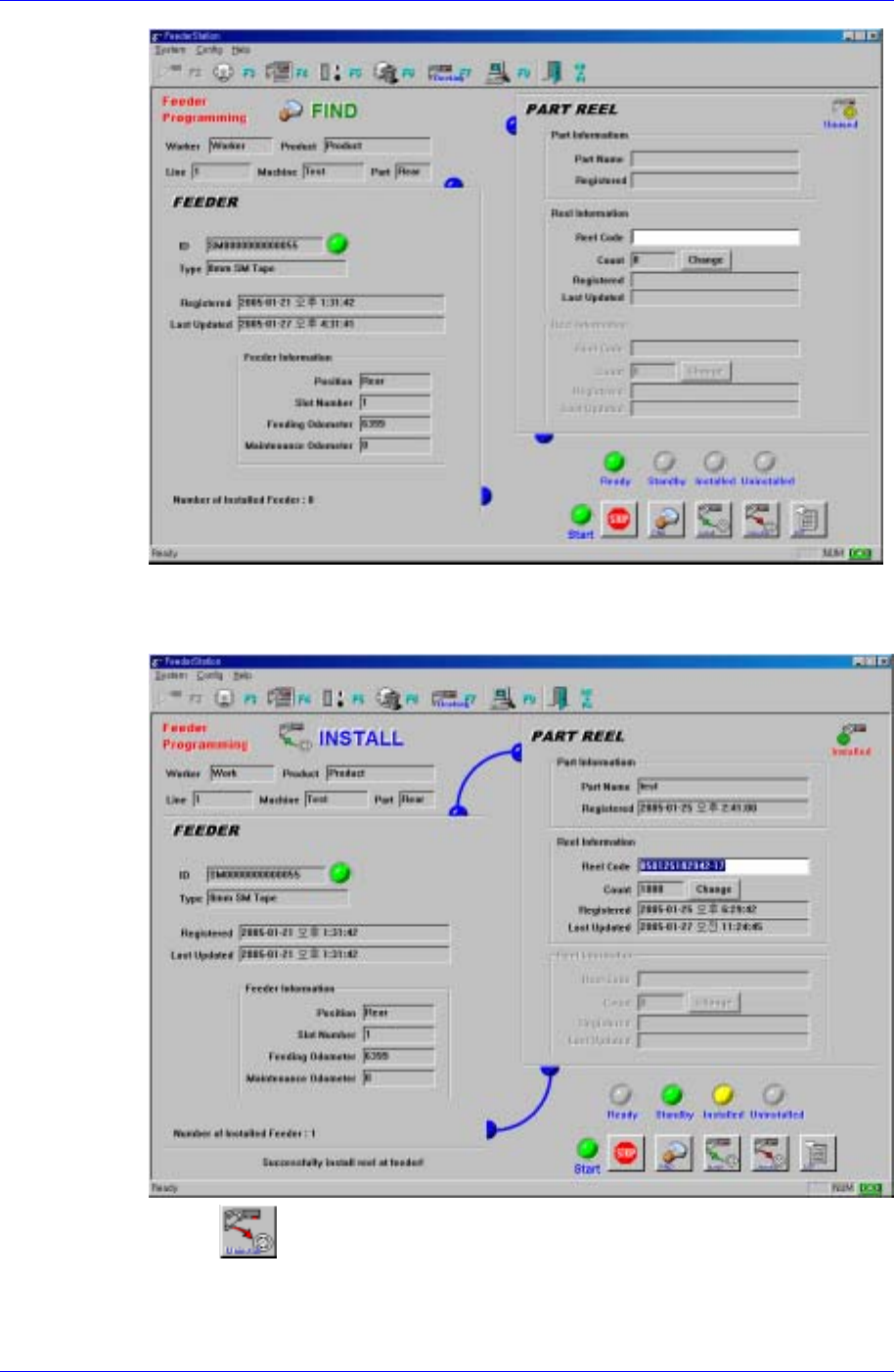
4. If the feeder to be registered is installed in the feeder base, it is shown as indicated
in the following figure. And the feeder information becomes available.
3-19
Samsung Intelligent Feeder System
5. Next, enter the reel to be registered using the keyboard or barcode reader. Then it is
indicated that the feeder and the reel are connected as described in the following
figure.
6. If the
button is pressed to uninstall the reel, the reel is removed from the
feeder.
3-20
Feeder Station
Reference
When inputting a new reel in the installed feeder, enter a reel code in the <Reel Code>
edit box or enter the reel code using the barcode reader..
3.6.2. Splicing /Undo Splicing
1. Enter the 1st reel to be spliced in the Find mode of the Feeder Info (F2) screen using
the keyboard or barcode reader.
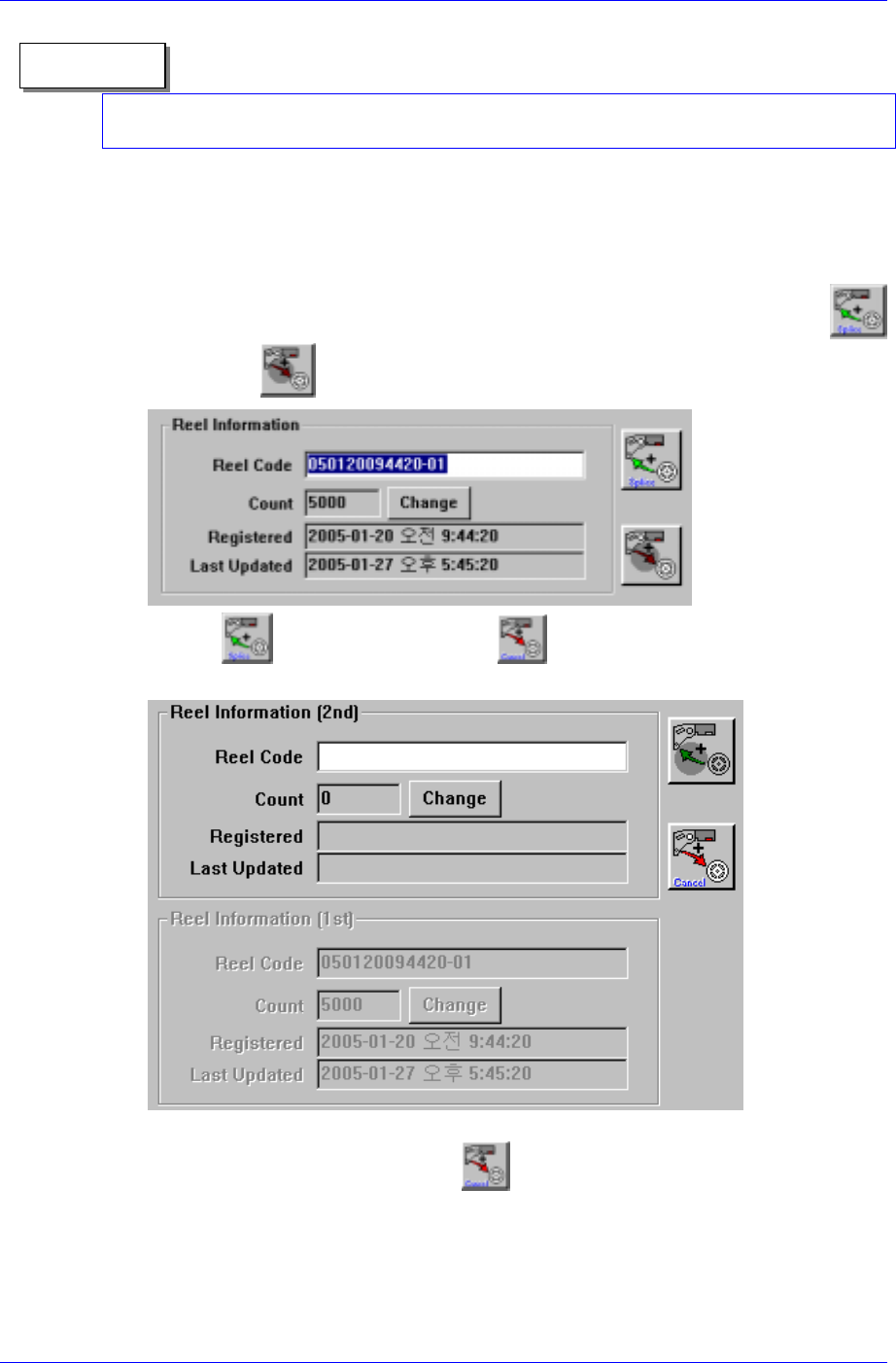
2. The input information is displayed as shown in the following figure and the
button and
button are displayed.
3. If the
button is pressed, the button is enabled as shown in the
following figure and the 1st reel moves down.
4. Once the 2nd reel to be spliced is entered, the splicing is finished. At this time the
splicing can be canceled using the
button.
3-21