EUS0153210_YFact_Standard_E.pdf - 第130页
3-10 3 Board Editor ● Line Data view tree icons ClickingtheLineDataiconatthetopofthetreeviewshowsvariousiconsrepresentingdataitems.Whenyouclickeach data item icon, the corresponding data currently o…
3-9
3
Board Editor
Solder-print inspection toolbar (option)
Thistoolbarisavailablewhenthemachinehasthesolder-printinspectionfunction(option).
For detailed information on this toolbar, see the separate “User's Manual for Using Options”.
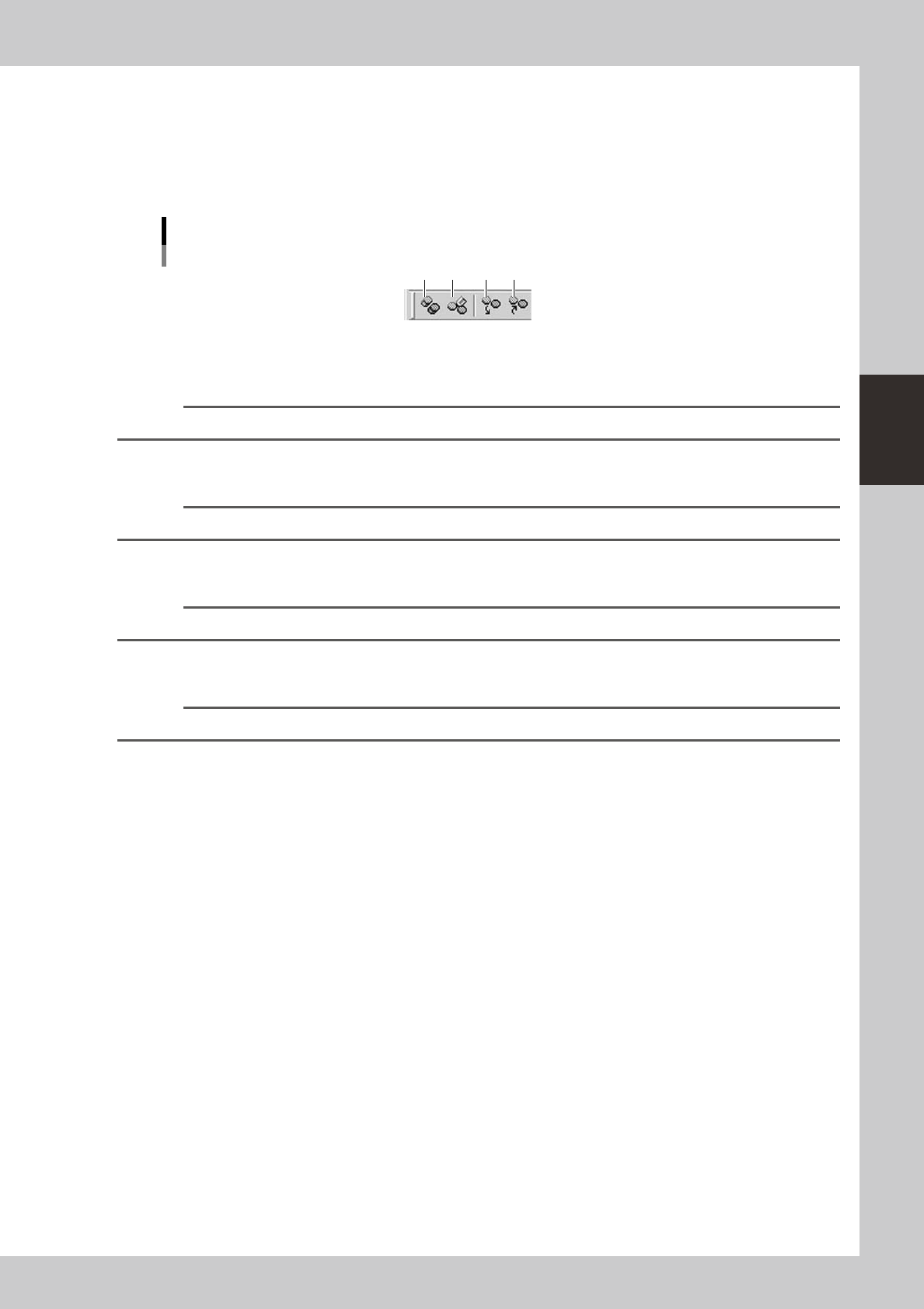
Database toolbar
Use this toolbar when using the database function.
1 2
3
4
Database toolbar
64310-S0-00
1. [Overview Database] button
Shows the database list dialog box.
Reference
This button has the same function as the "Database Support" – "Overview Database" command in the Tool menu.
2. [Database Edit] button
Click this button to edit the database.
Reference
This button has the same function as the "Database Support" – "Database Edit" command in the Tool menu.
3. [Set from Database] button
Copies the contents of the database into the board data.
Reference
This button has the same function as the "Database Support" – "Set from Database" command in the Tool menu.
4. [Copy Back to Database] button
Copies the board data setting into the database.
Reference
This button has the same function as the "Database Support" – "Copy Back to Database" command in the Tool menu.
3-10
3
Board Editor
●
Line Data view tree icons
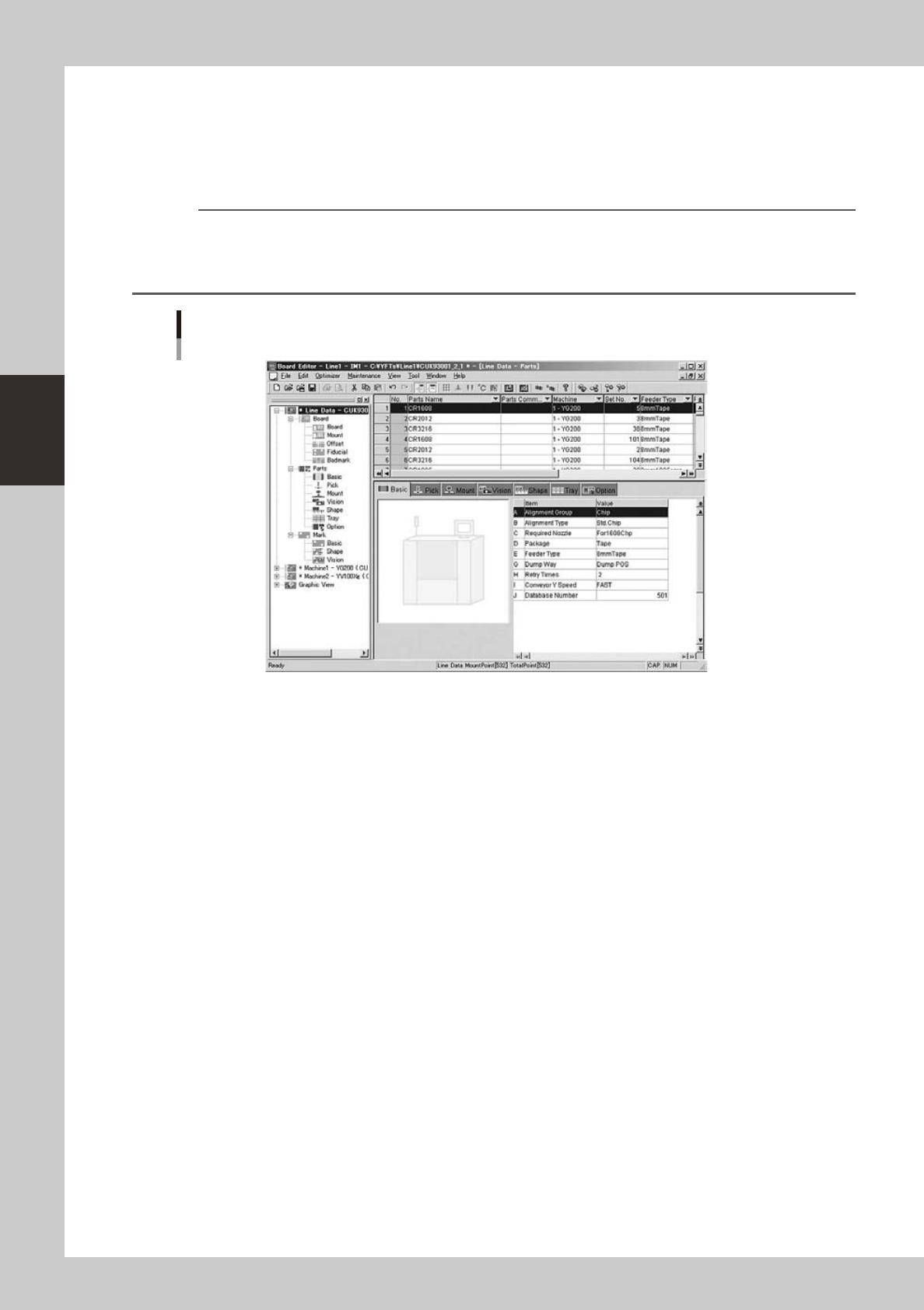
ClickingtheLineDataiconatthetopofthetreeviewshowsvariousiconsrepresentingdataitems.Whenyouclickeach
data item icon, the corresponding data currently opened by all the machines registered in the line is displayed in the
main view, allowing you to edit the data for all the machines while viewing it in the same list. Parameter settings that
differ between the machines are shown in red.
n
NOTE
The "Machine" column on the parts information screen shows the machines that use each parts data (component
data) item. To make it easier to edit parts data according to each machine, you can sort the list by clicking on the
"Machine" column header or filter the list by using the filter drop-down button (small down-arrow button).
When the machine specified here is changed, the change is reflected in the mount information of that machine.
Line Data view
64312-S0-00
●
Machine icon
Representsthemachinesregisteredinthecurrentlyopenedline.
●
Graphic view icon
Clicking this icon displays a graphic view of the currently opened board data.
For details on the Graphic View, see section 3, “Graphic View”, in this chapter.
●
Status bar
Displays the operation status of Factory Tools, status, as well as the status of an item selected by the mouse cursor and a
description of the menu functions. Selecting the “Status Bar” command from the View menu shows or hides the status
bar.
3-11
3
Board Editor
2.2 Board data window
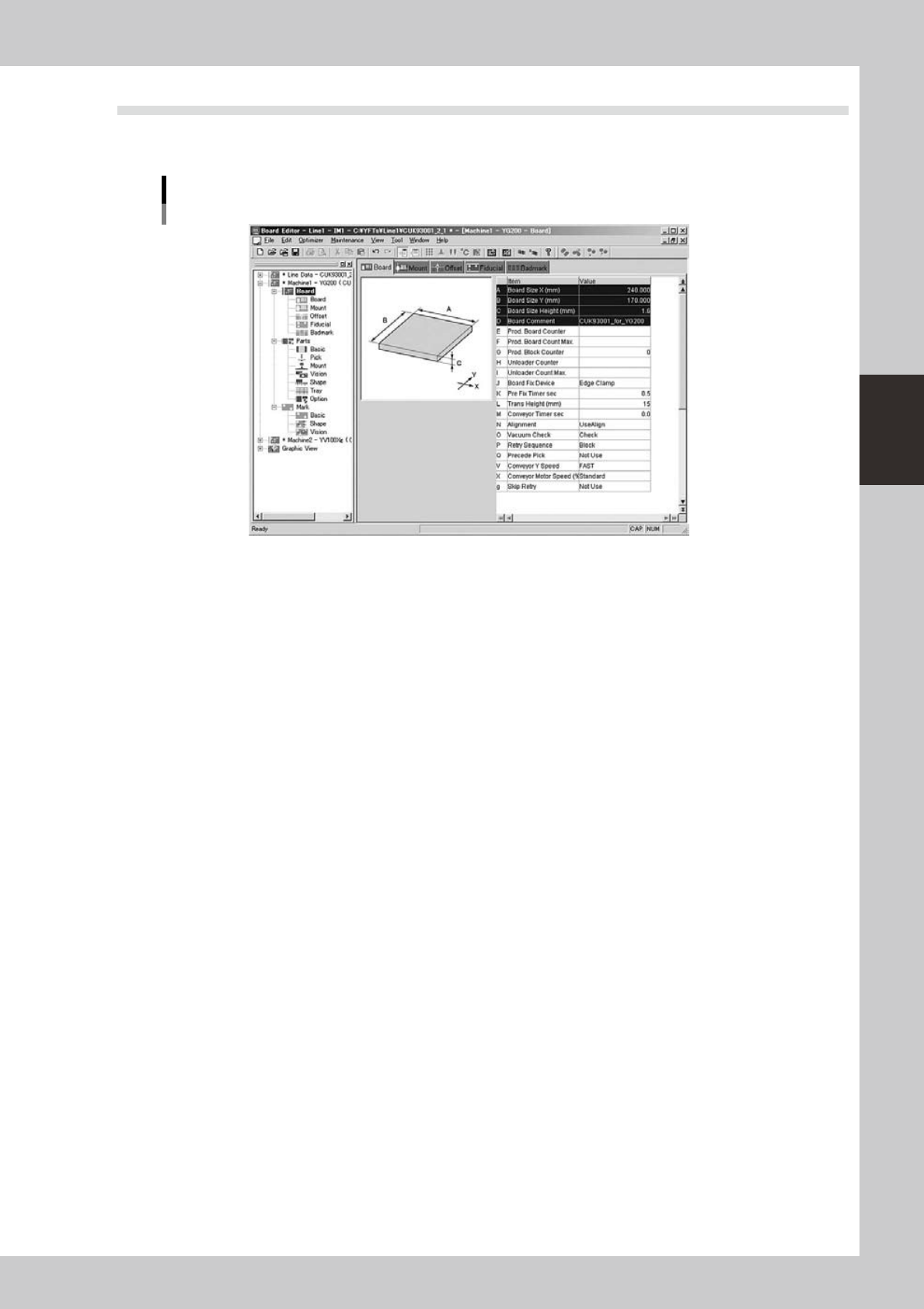
A board data window appears when board data is opened. One Board window shows the contents of one
board data.
Board data window
64313-S0-00