EUS0153210_YFact_Standard_E.pdf - 第139页
3-19 3 Board Editor ● Hiding the detail view The detail view can be hidden as needed. Select the “Detail View” command from the View menu while the detail view is open. The detail view closes and the main view extends to…
3-18
3
Board Editor
2.4 Manipulating the detail view
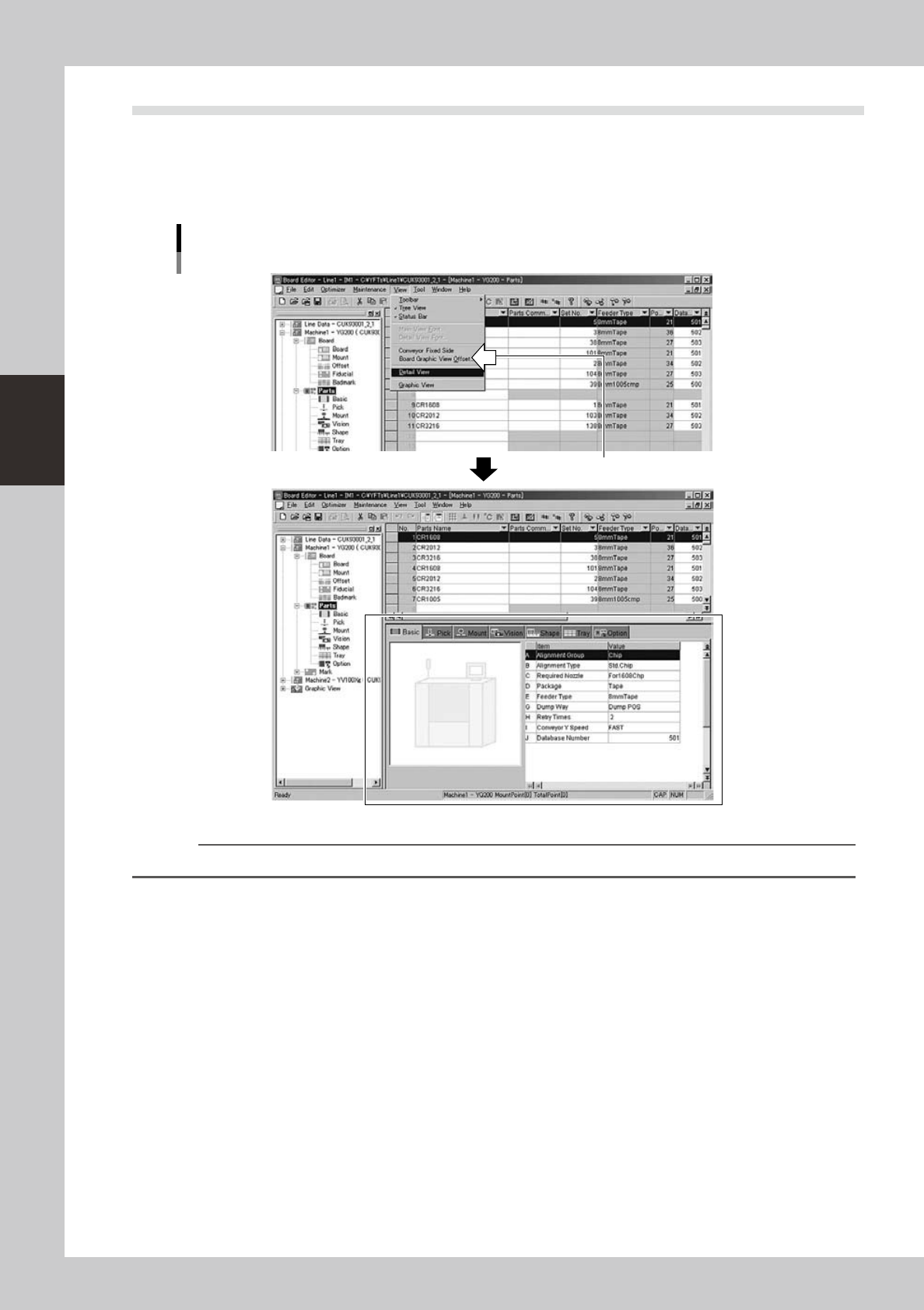
The parts information and mark information detail views can be displayed or hidden as needed.
●
Displaying the detail view
The detail view can be displayed while the main view is open.
Select the “Detail View” command from the View menu or click the item icon in the tree view.
Displaying the detail view
A check mark appears when selected.
64323-S0-00
Reference
Clicking the "Toggle Detail View" button on the toolbar displays or hides the detail view.
3-19
3
Board Editor
●
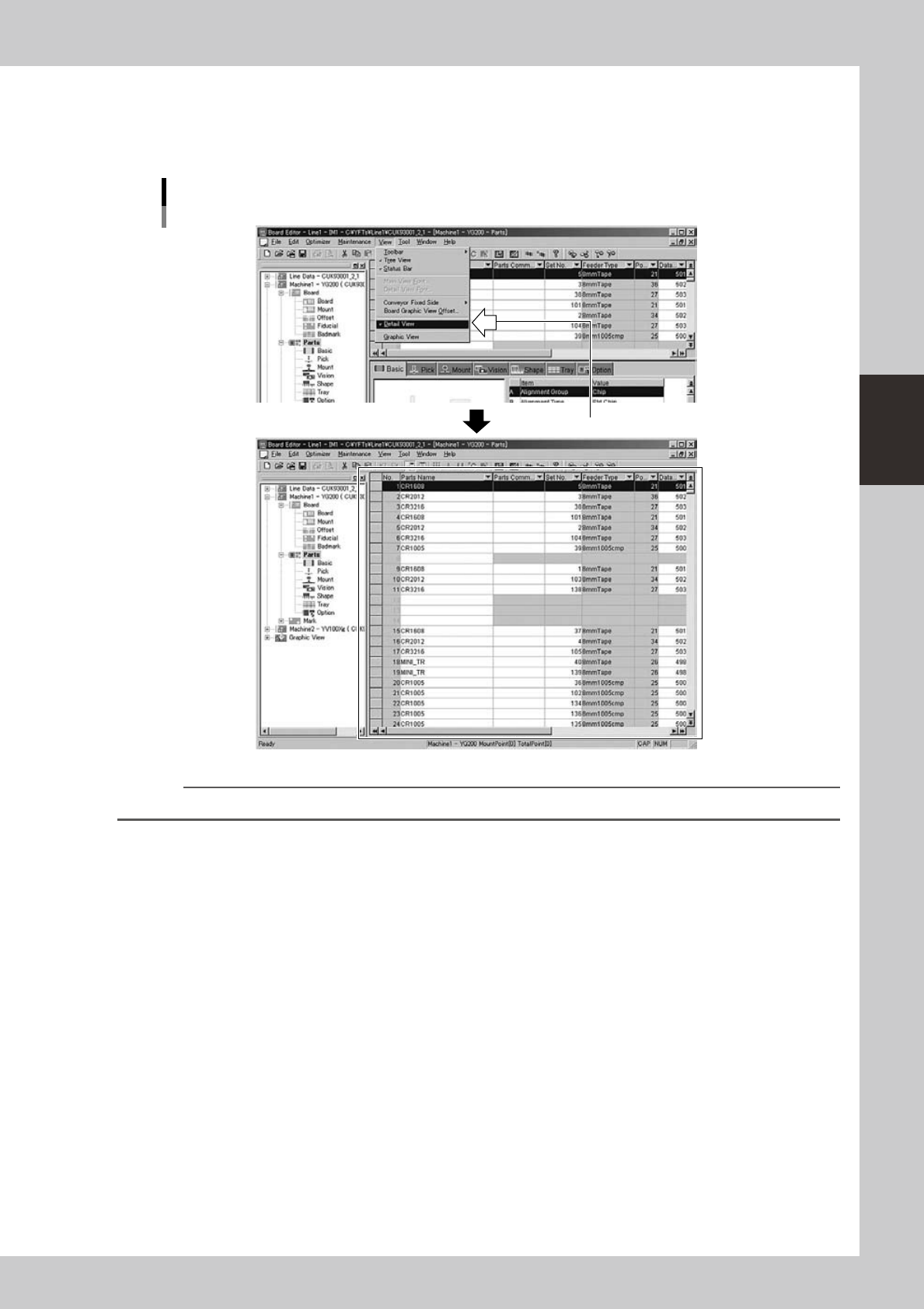
Hiding the detail view
The detail view can be hidden as needed.
Select the “Detail View” command from the View menu while the detail view is open. The detail view closes and the
main view extends to the bottom of the Board Editor window.
Hiding the detail view
A check mark disappears when selected.
64324 -S0-00
Reference
Clicking the "Toggle Detail View" button on the toolbar displays or hides the detail view.
3-20
3
Board Editor
2.5 Working with multiple windows
The Board Editor displays each information item (board, parts and mark information) of the selected board data
in its own window in the main view. For instance, board information can be displayed in one window while
mark information is edited in another window.
●
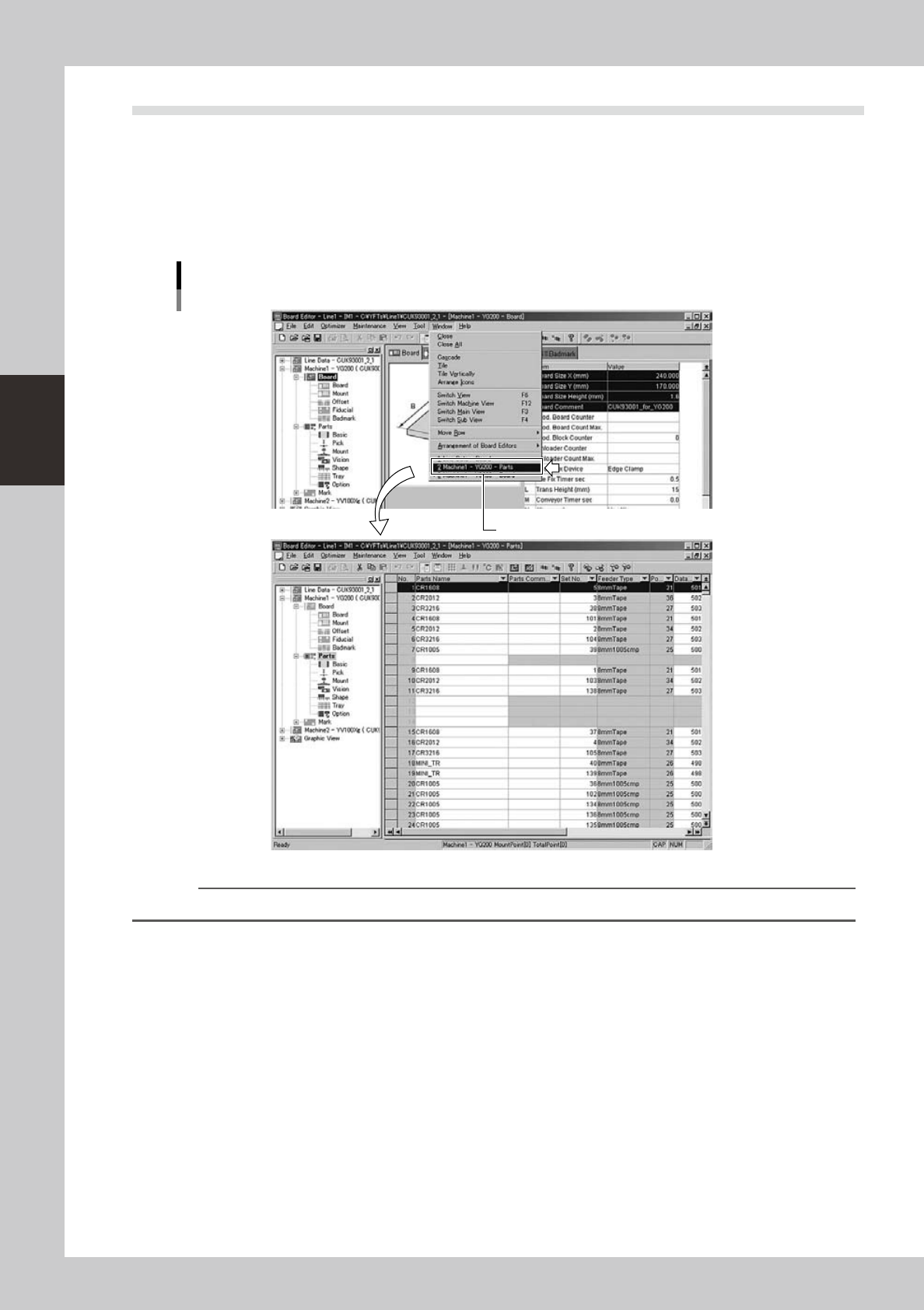
Switching the window
Whenyouhaveopenedtwoormorewindowsinthemainview,thesewindowscanbeswitchedbyselectingfromthelist
ontheWindowpull-downmenu.Theselectedwindowisbroughttothefrontofthemainview.
Select the window you want to display.
Switching the window
64325-S0-00
Reference
Windows can also be switched by clicking the item icon in the tree view.