EUS0153210_YFact_Standard_E.pdf - 第16页
1-2 1 Installation of Factory T ools 2. When the "Software license agreement" dialog box appears, carefully read the Softwa re license agreement. Tick the radio button for the "I accept the terms in the li…
1-1
1
Installation of Factory Tools
1. Installation of Factory Tools
This section describes on new installation and upgrade of the Factory Tools and installation of additional
function.
1.1 New installation of Factory Tools
The following explains the method for installing the Factory Tools to your PC for the first time.
c
CAUTION
Before installing the Factory Tools for the first time, be sure to install the hardware key. Refer to the “2. Installation of
hardware key” in this chapter for how to install the hardware key.
1
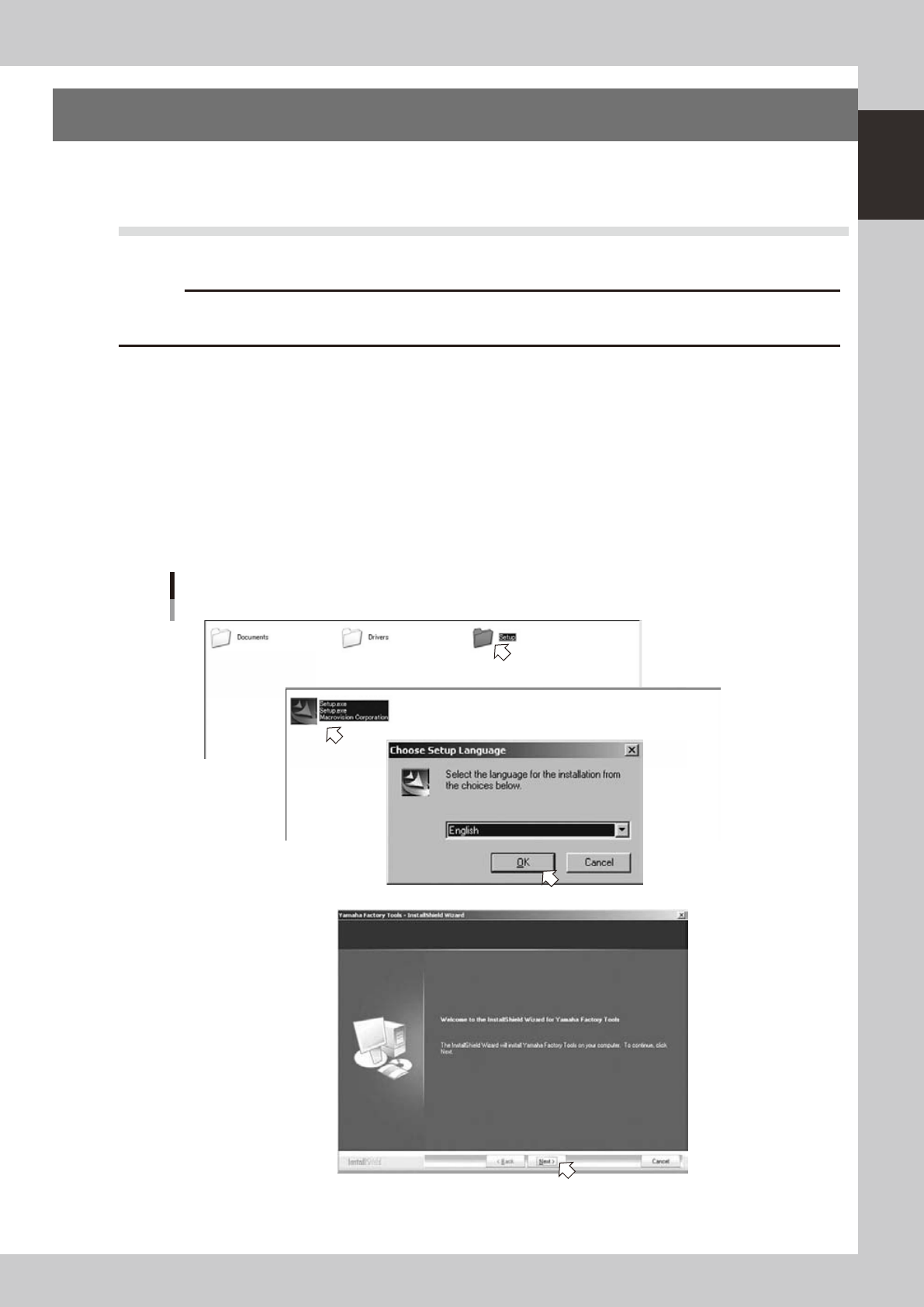
Start the installer.
1. Set the CD-ROM to the PC.
2. Double-click the "My Computer" icon of the PC and select the CD-ROM drive.
3. Open the "Setup" folder and double-click the "Setup.exe".
4. When the "Select language" dialog box is indicated, select a language and click the [OK] button.
The “InstallShield Wizard” will start.
2
Install the Factory Tools.
1. Click the [Next] button in the InstallShield Wizard.
Setup application
Step1
Step1
64100-S0-00
1-2
1
Installation of Factory Tools
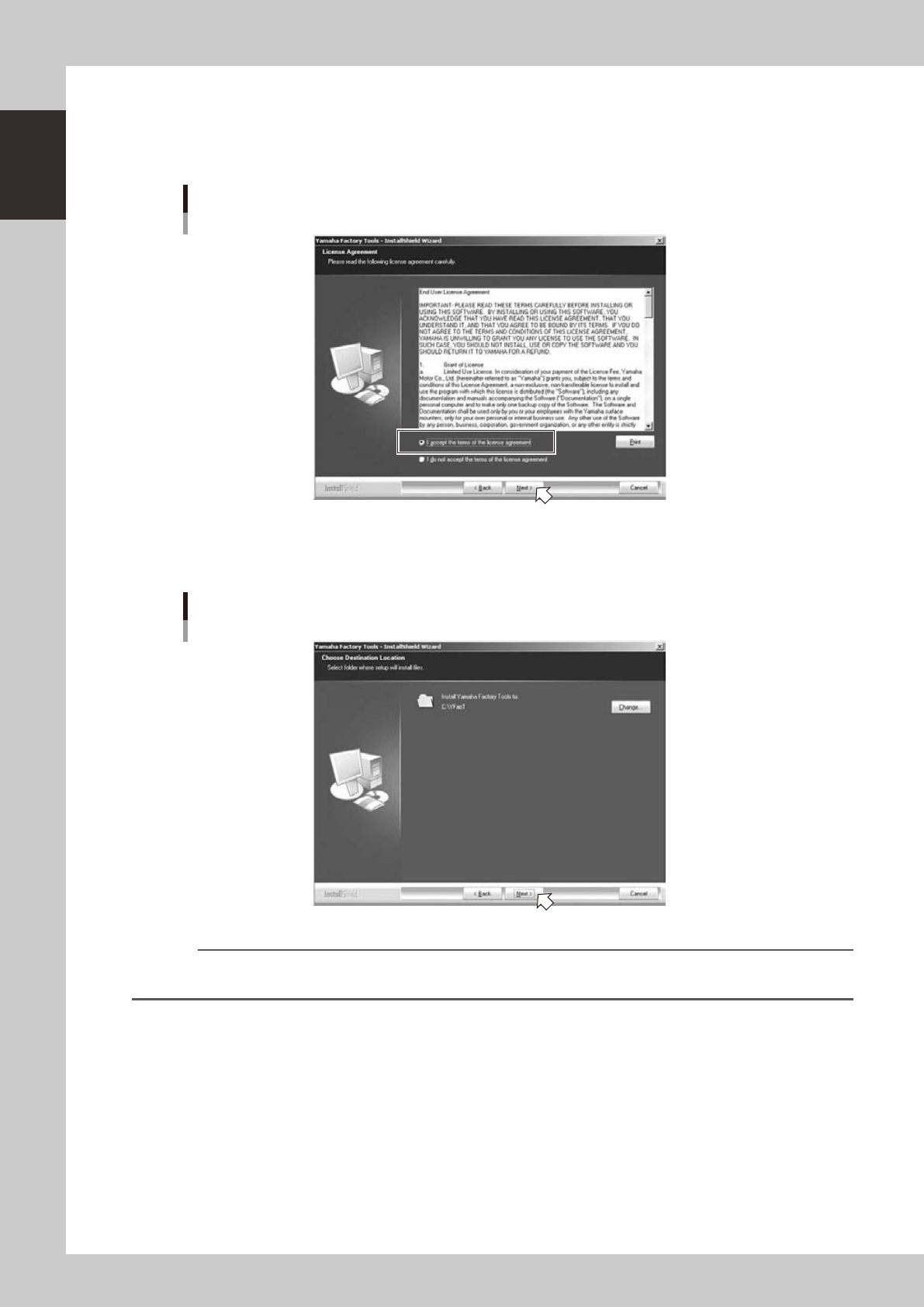
2. When the "Software license agreement" dialog box appears, carefully read the Software license
agreement.
Tick the radio button for the "I accept the terms in the license agreement" and click the [Next]
button.
“Software license agreement” dialog box
64101-S0-00
3. When the "Select installation destination" dialog box is shown, check the installation destination and
click the [Next] button.
“Select installation destination” dialog box
64102-S0-00
Reference
When you want to change the installation location of the Factory Tools, click the [Change] button.
When the “Select directory” dialog box appears, select a destination directory.
1-3
1
Installation of Factory Tools
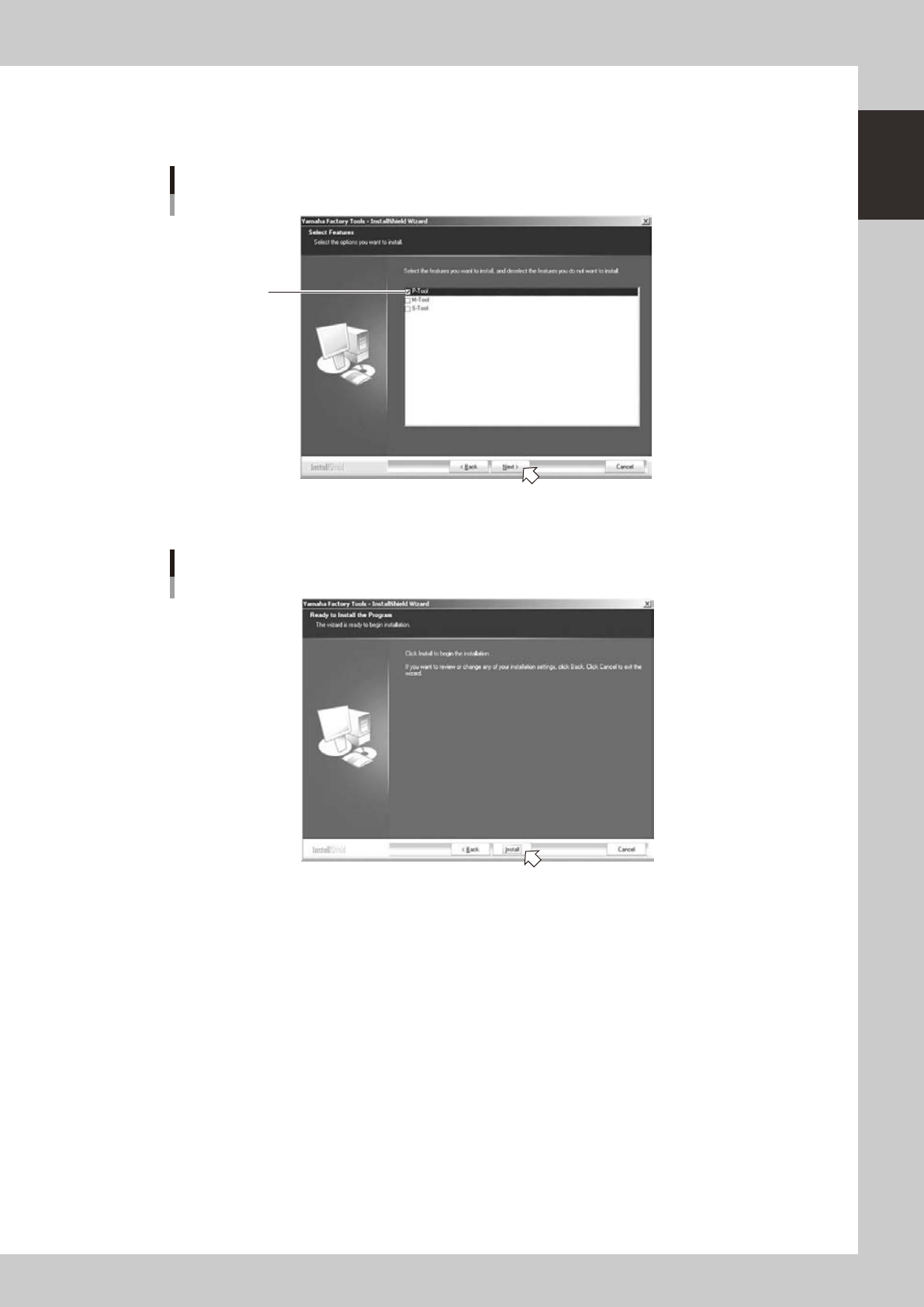
4. When the "Select installation function" dialog box appears, tick the check box for a function to install.
When you want to install all the functions, click the [Select all] button.
Click the [Next] button when the selection is completed.
“Select installation function” dialog box
Tick a check box
for a desired function
64103-S0-00
5. When the "Ready to install" dialog box appears, click the [Install] button. Installation will start.
“Ready to install” dialog box
64104-S0-00