EUS0153210_YFact_Standard_E.pdf - 第164页
3-44 3 Board Editor 19. [Unselect Rectangle] button Allows unselecting objects in the graphic view by dragging to draw a rectangle. n NOTE Y ou can select the above commands from the context menu (right-click menu) that …
3-43
3
Board Editor
2.
Magnification drop-down list
Thegraphicviewcanbeexpandedorreducedasneeded.Selectthedesiredmagnificationfromthe“Zoom”drop-down
list. In this case, the top right corner of the Board is used as the reference point
3. [Deselect All] button
Cancels the selection of all objects in the graphic view. (Each object in the graphic view can be selected when the
[Select]buttonispressed.)
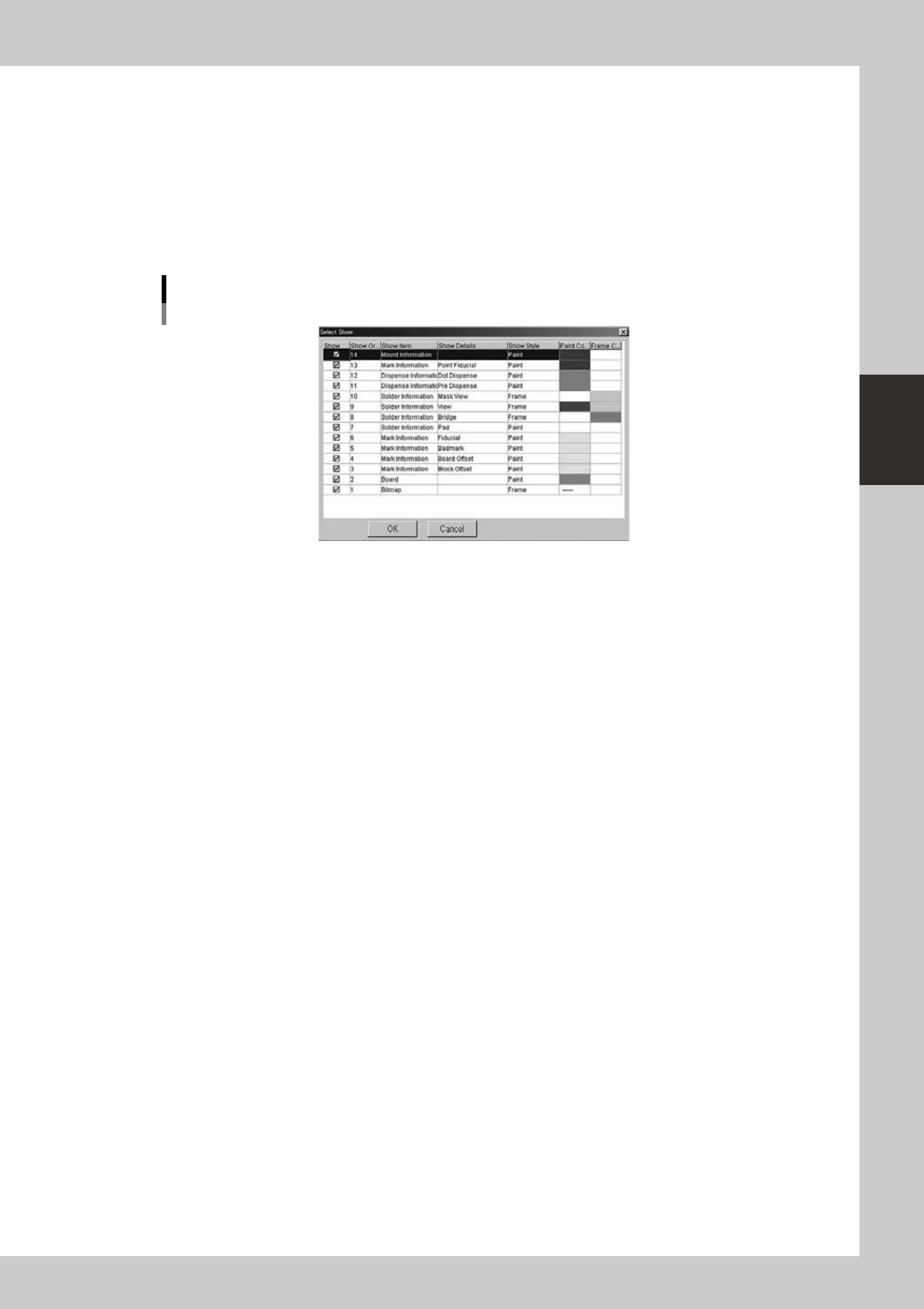
4. [Edit Display Color] button
Opens the dialog box shown below for editing the display colors.
Dialog box for editing display colors
64352-S0-00
5. Data item drop-down list
From this drop down list, select the data item you want to check and edit in the graphic view.
6. [Grid View] button
Displays grid lines in the graphic view.
7. [Skip Show/Hide] button
Shows or hides the objects set to “skip” in the mount information.
8. [Skip] button
Set the selected objects to “skip”.
9. [Skip Off] button
Cancels the “skip” setting for the selected objects.
10. [Delete Selected Items] button
Deletes the selected objects.
11. [Create New Mount Info] button
Creates new mount information.
12. [Change Mount Position] button
Changes the mount position.
13. [Select Machine] button
Selects the machine for displaying the graphic view.
14. [Zoom In] button
Enlarges the graphic view.
15. [Zoom Out] button
Reducesthegraphicview.
16. [Move] button
Moves the graphic view in the direction you drag.
17. [Select] button
Allows selecting each object in the graphic view. Selected objects are shown in a different color.
18. [Select Rectangle] button
Allows selecting objects in the graphic view by dragging to draw a rectangle.
3-44
3
Board Editor
19. [Unselect Rectangle] button
Allows unselecting objects in the graphic view by dragging to draw a rectangle.
n
NOTE
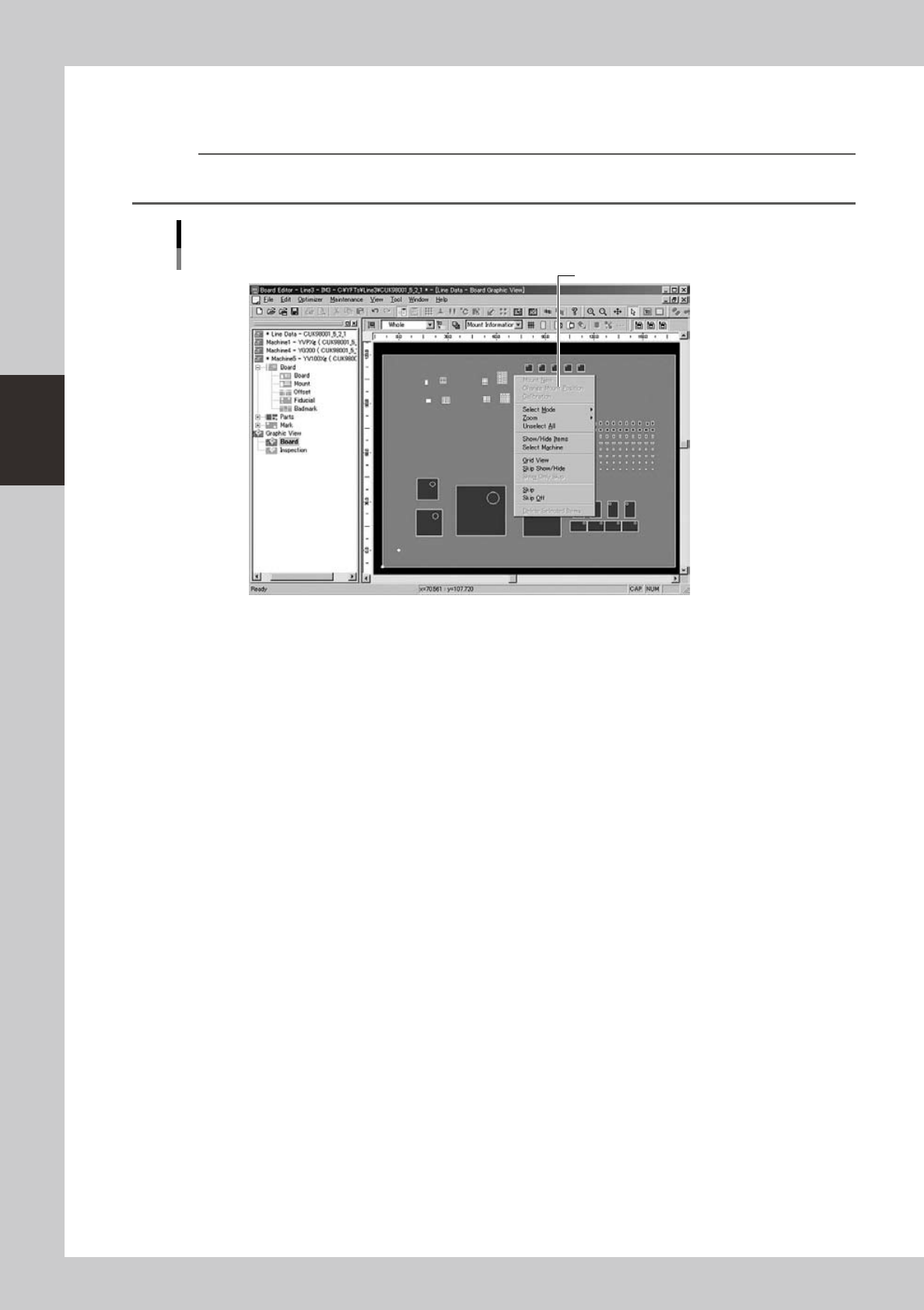
You can select the above commands from the context menu (right-click menu) that appears when the right mouse
button is pressed at any position in the main view.
Graphic view example
Context menu
Select the command from the menu.
64353-S0-00
3-45
3
Board Editor
3.3 Editing the graphic view
3.3.1 Crating new mount information
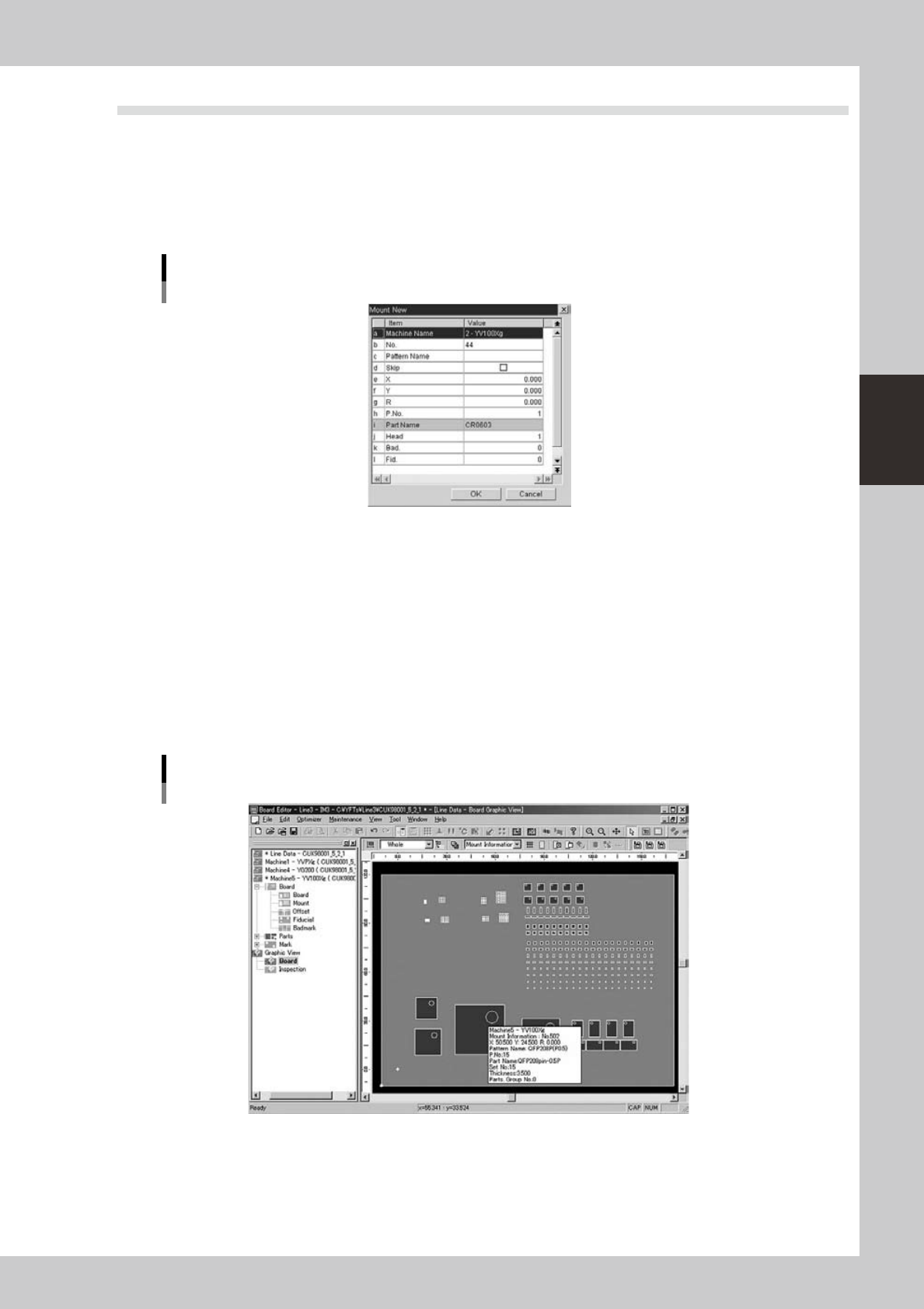
The graphic view allows you to create new mount information.
Todothis,clickthe[CreateNewMountInfo]buttonorselect“MountNew”fromthecontextmenuthat
appears by clicking the right mouse button.
Enterthenecessaryparametersandclickthe[OK]button.
Dialog box for creating new mount information
64354-S0-00
3.3.2 Changing the mount positions
Component mount positions can be changed on the graphic view.
1
Select the component whose mount position should be changed.
1. Using the [Move] button, [Select] button and [Zoom] button, find the component whose mount
position you want to change.
When you rest the cursor over the component, a screen tip appears showing the component No.,
mount position, component name, etc.
2. When you find the target component, click to select it. The color of the selected component
changes.
Selecting the component while referring to the screen tip
64355-S0-00