EUS0153210_YFact_Standard_E.pdf - 第190页
4-15 4 Feeder Viewer 9. [Show feeder layout by Board] button Displays (or hides) the feeder set positions in different colors according to board data used with each machine, by retrieving them from the board data in the …
4-14
4
Feeder Viewer
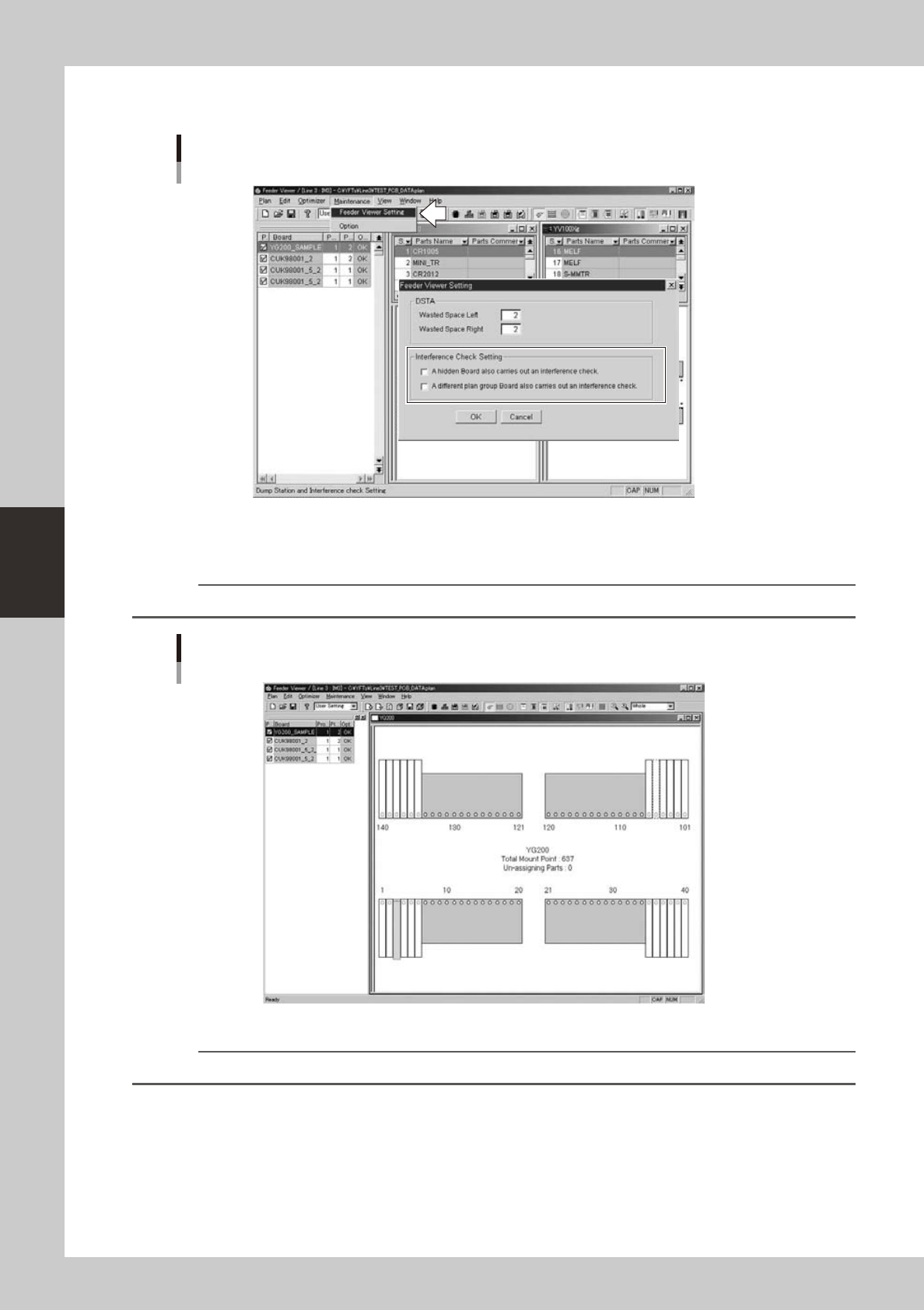
You can set conditions to perform a feeder interference check, by selecting “Feeder Viewer Setting” from the
Maintenancemenu.Markthecheckboxesasneededinthedialogboxthatappearsandclickthe[OK]button.
Setting for feeder interference check
64421--S0-00
8. [Show feeder interference] button
Displays (or hides) the feeders in red that might cause interference.
Reference
This button has the same function as the "Interfere Status" command in the View menu.
Feeder interference check screen
Feeder setup layout
64422-S0-00
n
NOTE
The feeders where no head can reach are also shown in red.
4-15
4
Feeder Viewer
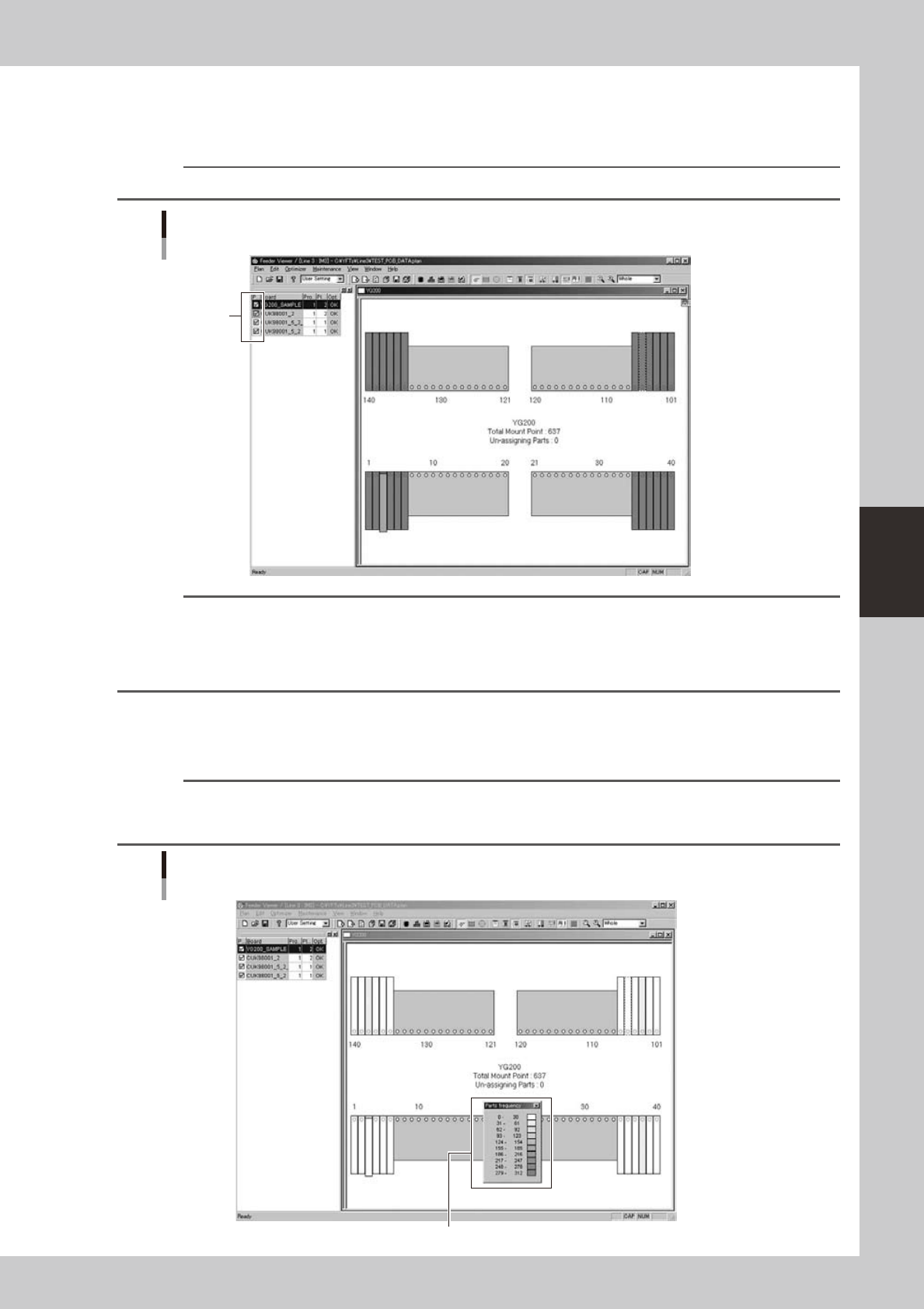
9. [Show feeder layout by Board] button
Displays (or hides) the feeder set positions in different colors according to board data used with each machine, by
retrieving them from the board data in the production board list in the left pane.
You can easily check the feeder set positions for each board data.
Reference
This button has the same function as the "Board" command in the View menu.
Feeder color display for each PCB data
Feeder setup layout
Display color
64423-S0-00
Reference
Display color assigned to each board data is indicated in the leftmost column of the production board list. When the
feeders with the same parts are to be installed in the same positions on the feeder plate by different board data,
those feeders are shown in black.
If a check box in the leftmost column is cleared, the feeders used by that board data are not displayed on the feeder
plate layout.
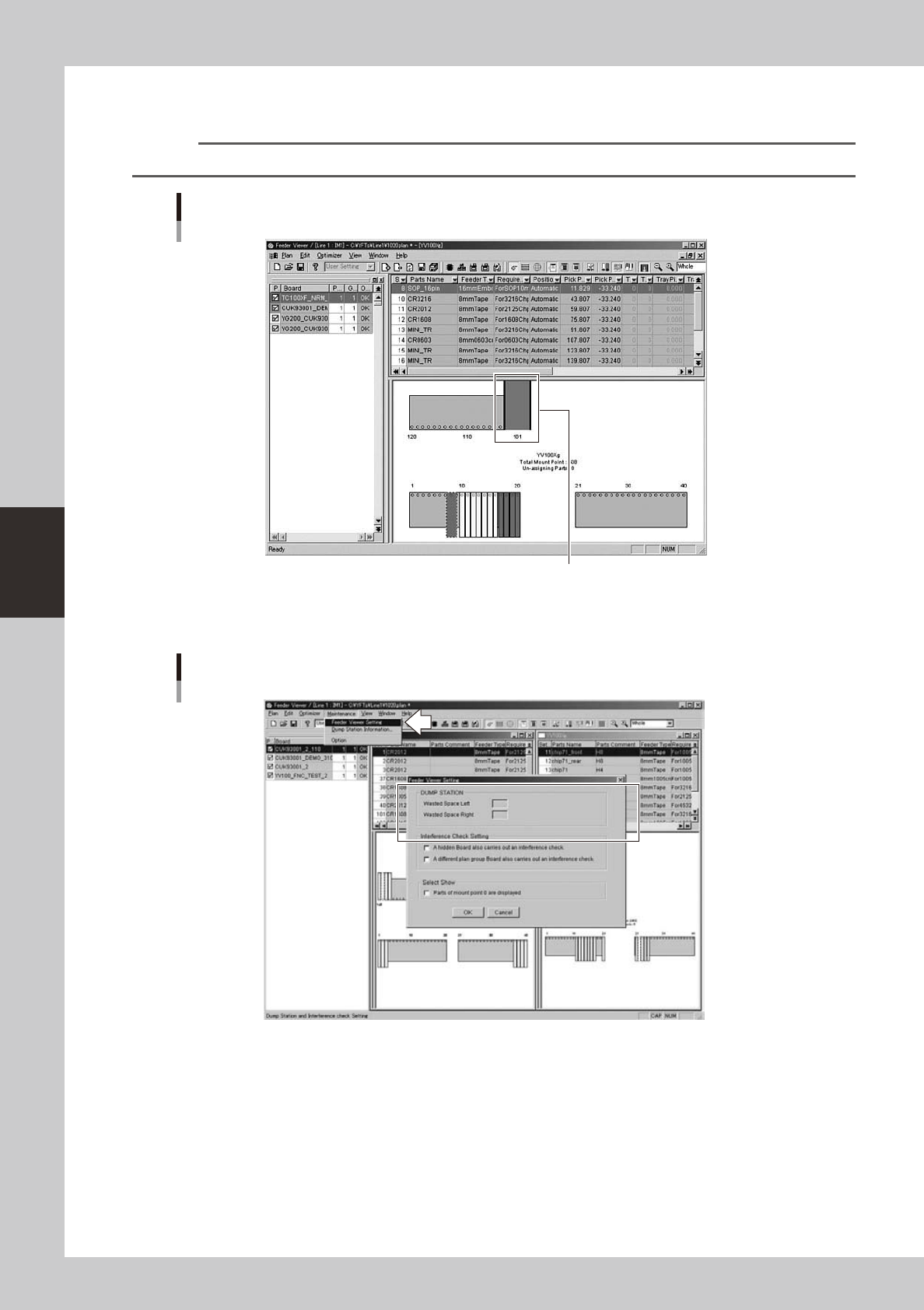
10. [Show parts usage amount] button
Displays (or hides) a “color bar graph” showing the number of parts used with each board data, by retrieving it from the
board data in the production board list in the left pane. You can check how frequently parts will be used from the feeders
on each machine.
Reference
This button has the same function as the "Parts amount" command in the View menu.
Selecting the "Parts frequency" command from the View menu displays or hides the "color bar graph" that shows the
number of parts used with each board data.
Parts usage frequency display screen
Bar graph showing how frequently parts will be used
64424-S0-00
4-16
4
Feeder Viewer
11. [Show dump station] button
Displays (or hides) the dump station position display when the machine is equipped with a dump station (option).
Reference
This button has the same function as the "Dump Station" command in the View menu.
Dump station display
Dump station
64425-S0-00
Whenyouselectthe“FeederViewerSetting”fromtheMaintenancemenu,the“FeederViewerSetting”dialogbox
appears. You can specify the space (number of feeder set positions) occupied by the dump station.
"Feeder Viewer Setting" command and dialog box
64426--S0-00
12, 13.
[Zoom Out], [Zoon In] buttons, 14. Magnification drop-down list
Use these buttons to zoom in or out the feeder setup layout.
Selectthedesiredmagnificationfromthedrop-downlist.