EUS0153210_YFact_Standard_E.pdf - 第198页
4-23 4 Feeder Viewer 3.2 Adding or deleting board data On the plan information screen currently being edited, you can add or delete board data. 3.2.1 Adding board data 1 Select “ Add Board” from the Edit menu. The "…
4-22
4
Feeder Viewer
3.
Editing the data on the plan information screen
You can edit the board data on the plan information screen.
3.1 Switching the production lines
You can switch the currently selected production line to another line while the Feeder View is still in
operation. Note that you must first close the currently selected line.
1
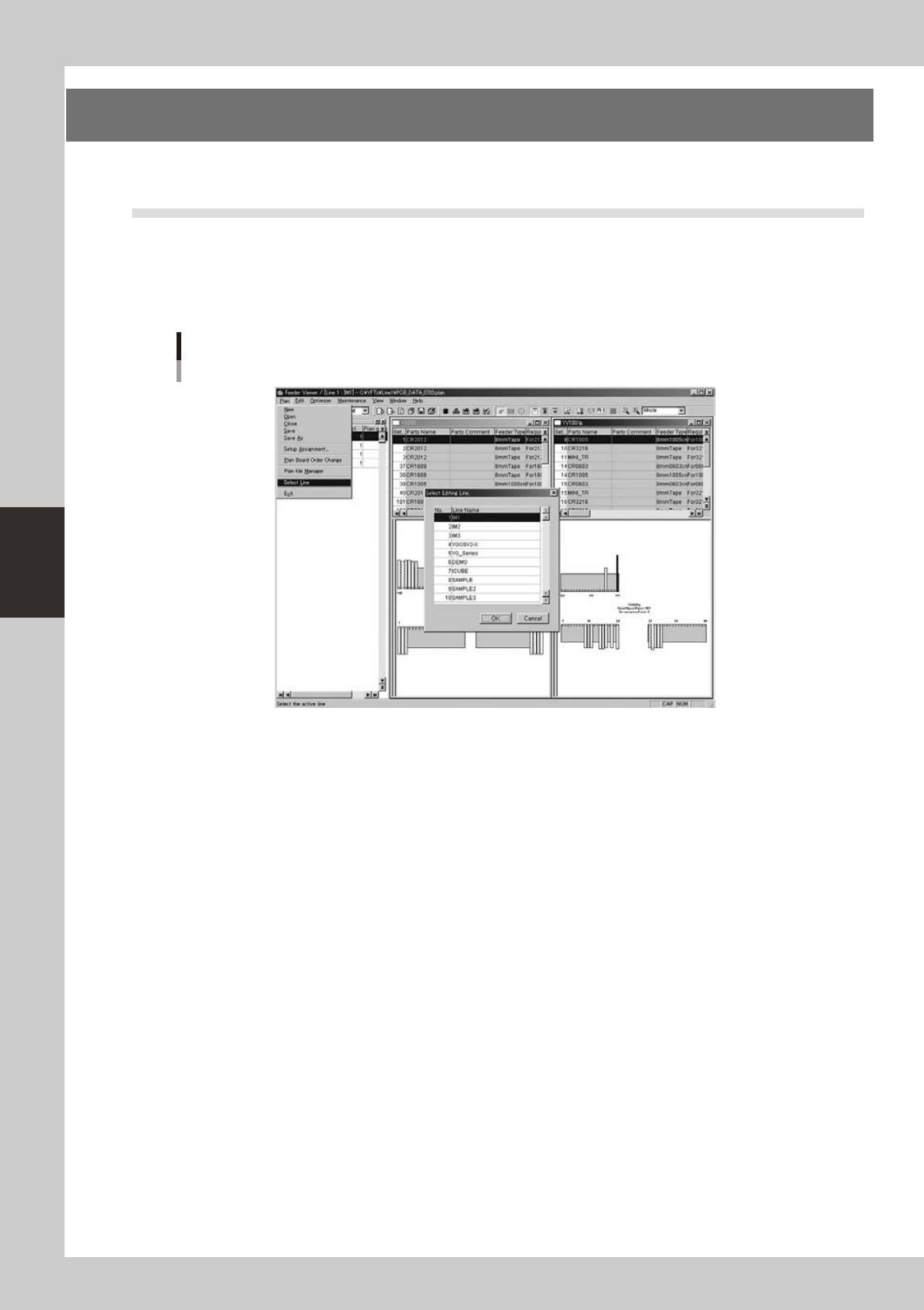
Select “Select Line” from the Plan menu.
The "Select Editing Line" dialog box appears.
Feeder Viewer initial screen
Selecting the "Select Line" command
64435-S0-00
2
Select the line.
Select the line to which you want to switch, and click the [OK] button.
3
The Feeder Viewer for the selected line starts up.
4-23
4
Feeder Viewer
3.2 Adding or deleting board data
On the plan information screen currently being edited, you can add or delete board data.
3.2.1 Adding board data
1
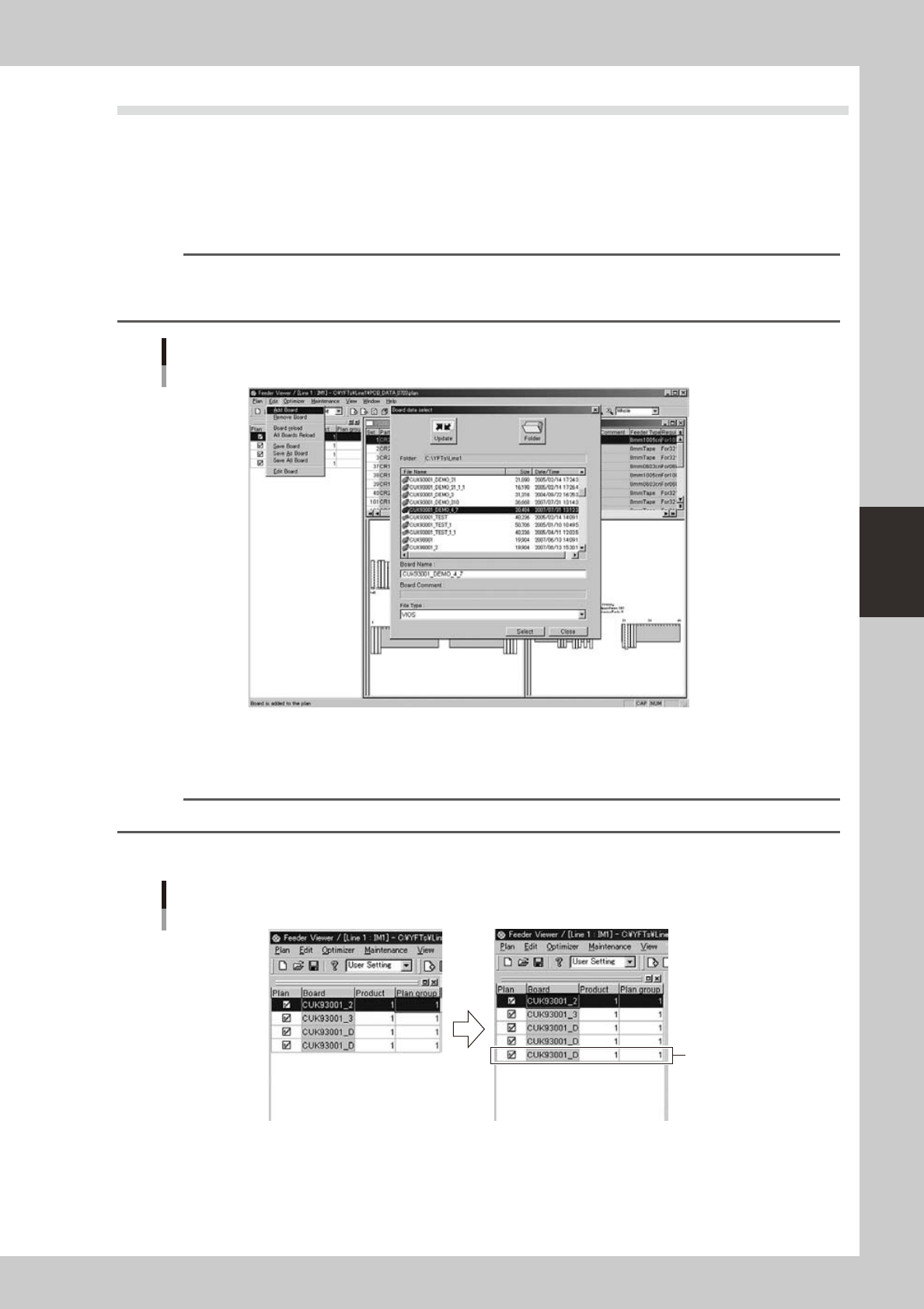
Select “Add Board” from the Edit menu.
The "Board data select" dialog box appears.
Reference
Clicking the [Add Board] button on the toolbar performs the same operation.
The "Add Board" command can also be selected from the context menu (right-click menu) that appears when the
right mouse button is clicked at any point in the production board list pane.
Plan information screen
Adding Board data
64436-S0-00
2
Select the board data you want to add.
Select the board from the File Name list box and click the [Select] button.
Reference
You can select two or more items of board data while using the [Ctrl] key or [Shift] key.
3
Check that the selected board data was added to the production board list.
Production board list
Adding board data
Added board data
64437-S0-00
4-24
4
Feeder Viewer
3.2.2 Deleting board data
1
Select the board data you want to delete.
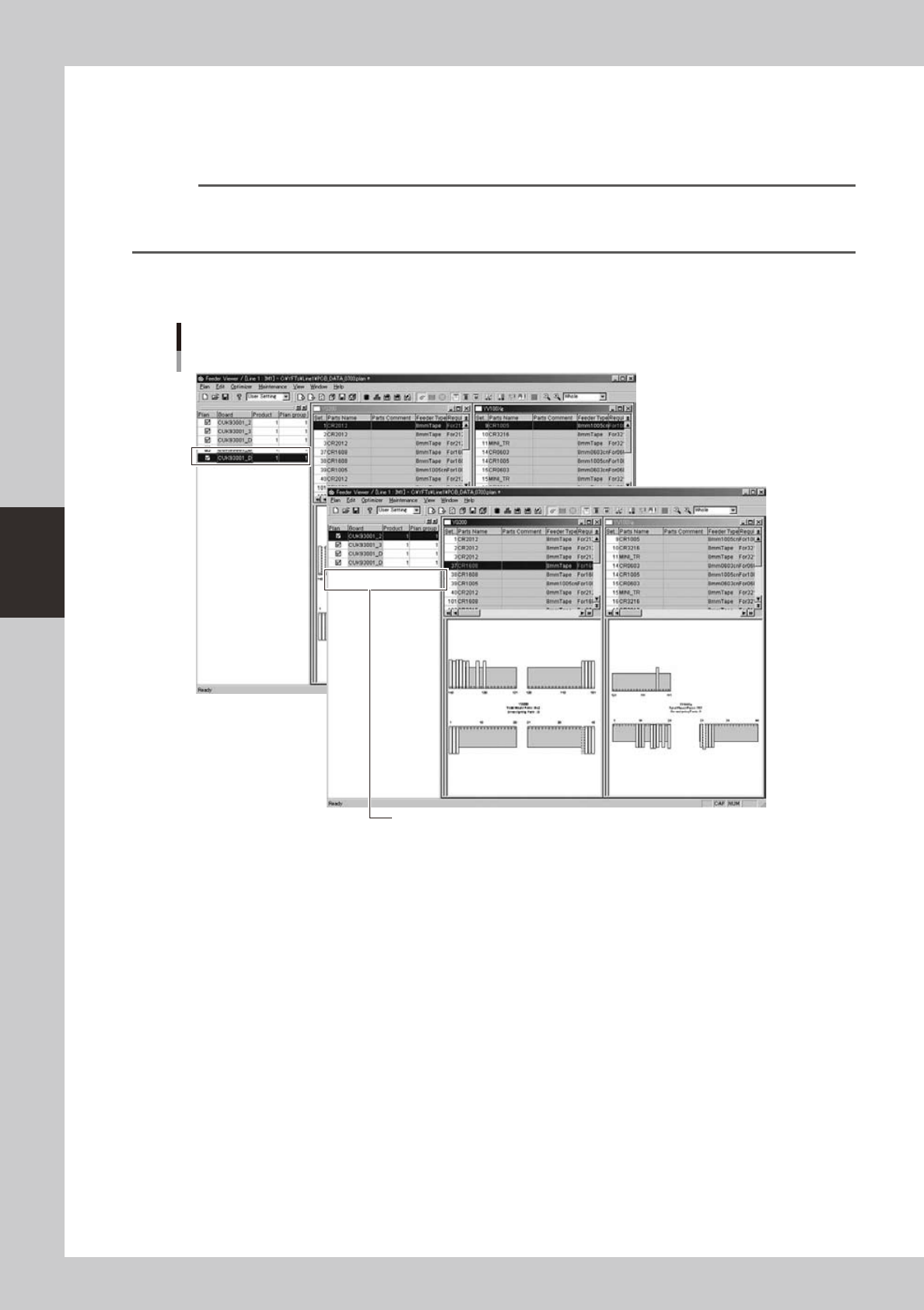
From the production board list in the left pane, select the board name you want to delete.
Reference
Clicking the [Remove Board] button on the toolbar performs the same operation.
The "Remove Board" command can also be selected from the context menu (right-click menu) that appears when
the right mouse button is clicked at any point in the production board list pane.
2
Select “Remove Board” from the Edit menu.
The selected board data is deleted from the production board list.
Plan information screen
Selecting the "Remove Board" command
Board data was deleted.
64438-S0-00