EUS0153210_YFact_Standard_E.pdf - 第199页
4-24 4 Feeder Viewer 3.2.2 Deleting board data 1 Select the board data you w ant to delete. From the production board lis t in the left pane, select the board name you want to delete. Reference Clicking the [Remove Board…
4-23
4
Feeder Viewer
3.2 Adding or deleting board data
On the plan information screen currently being edited, you can add or delete board data.
3.2.1 Adding board data
1
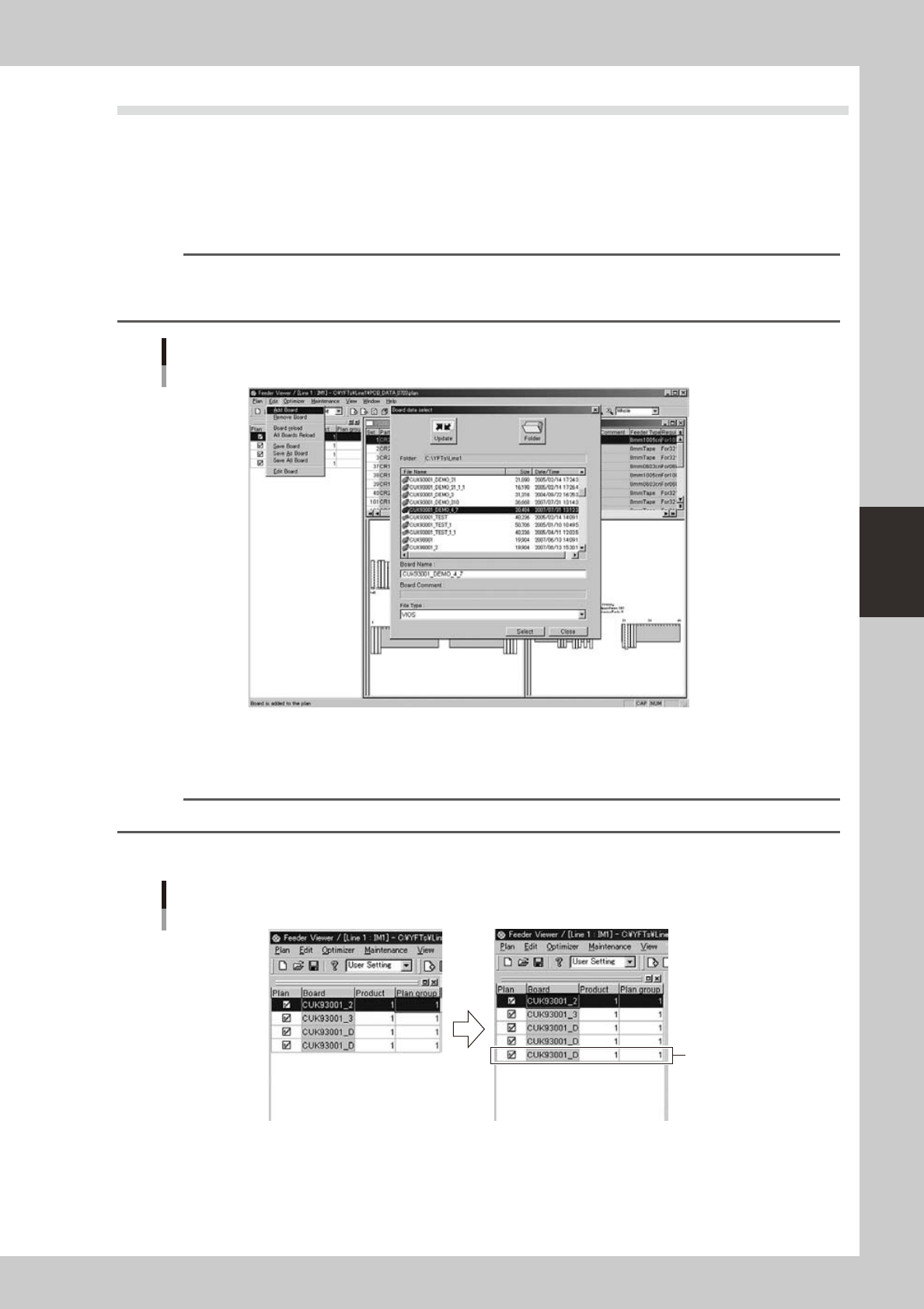
Select “Add Board” from the Edit menu.
The "Board data select" dialog box appears.
Reference
Clicking the [Add Board] button on the toolbar performs the same operation.
The "Add Board" command can also be selected from the context menu (right-click menu) that appears when the
right mouse button is clicked at any point in the production board list pane.
Plan information screen
Adding Board data
64436-S0-00
2
Select the board data you want to add.
Select the board from the File Name list box and click the [Select] button.
Reference
You can select two or more items of board data while using the [Ctrl] key or [Shift] key.
3
Check that the selected board data was added to the production board list.
Production board list
Adding board data
Added board data
64437-S0-00
4-24
4
Feeder Viewer
3.2.2 Deleting board data
1
Select the board data you want to delete.
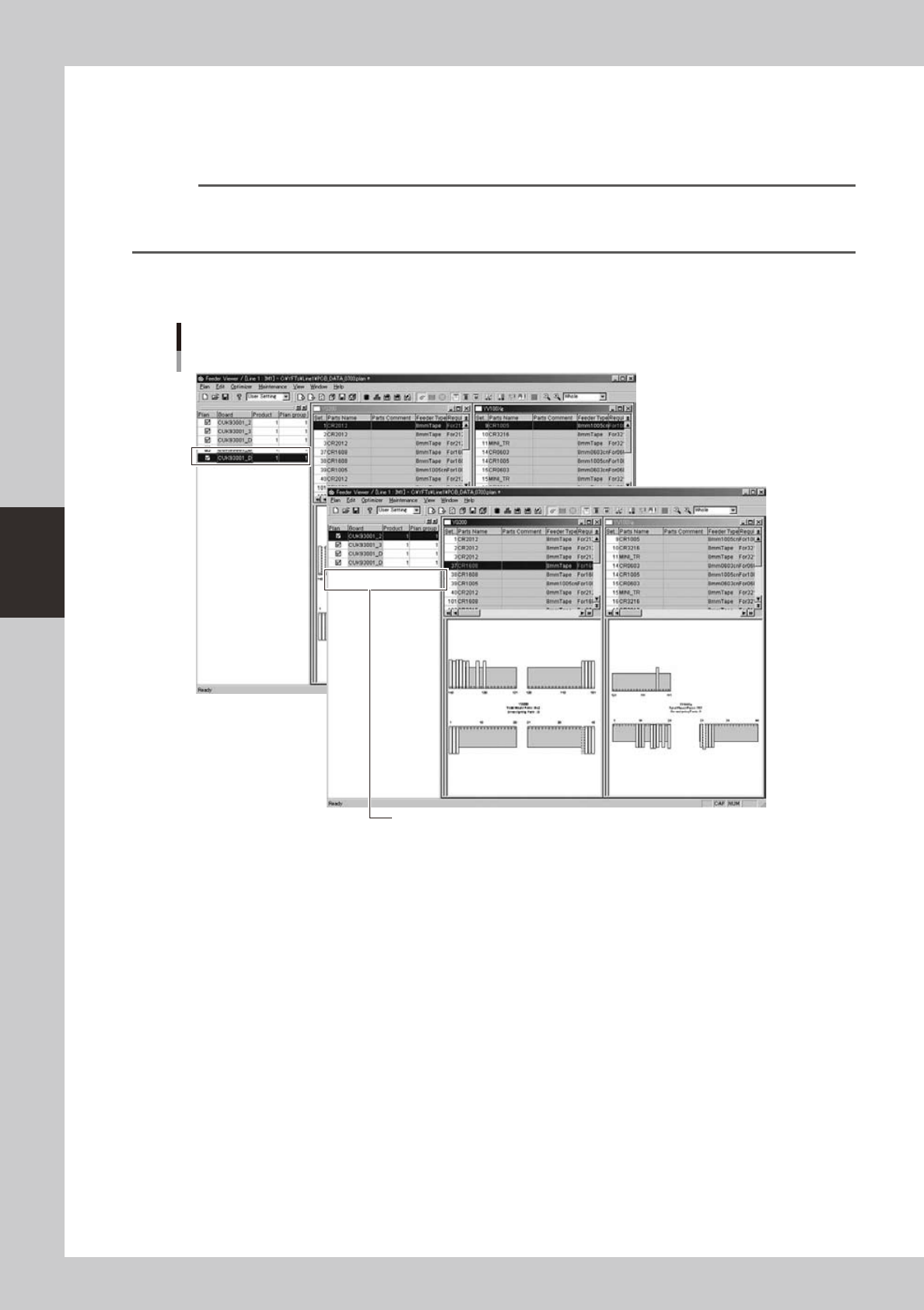
From the production board list in the left pane, select the board name you want to delete.
Reference
Clicking the [Remove Board] button on the toolbar performs the same operation.
The "Remove Board" command can also be selected from the context menu (right-click menu) that appears when
the right mouse button is clicked at any point in the production board list pane.
2
Select “Remove Board” from the Edit menu.
The selected board data is deleted from the production board list.
Plan information screen
Selecting the "Remove Board" command
Board data was deleted.
64438-S0-00
4-25
4
Feeder Viewer
3.3 Changing the order of board data
You can change the order in which board data is displayed on the production board list, or sort board data by
production count (number of boards to produce) or group number. By rearranging the order of board data, you
can easily check how many types of board data can be set up in common or check if the setup is correct.
1
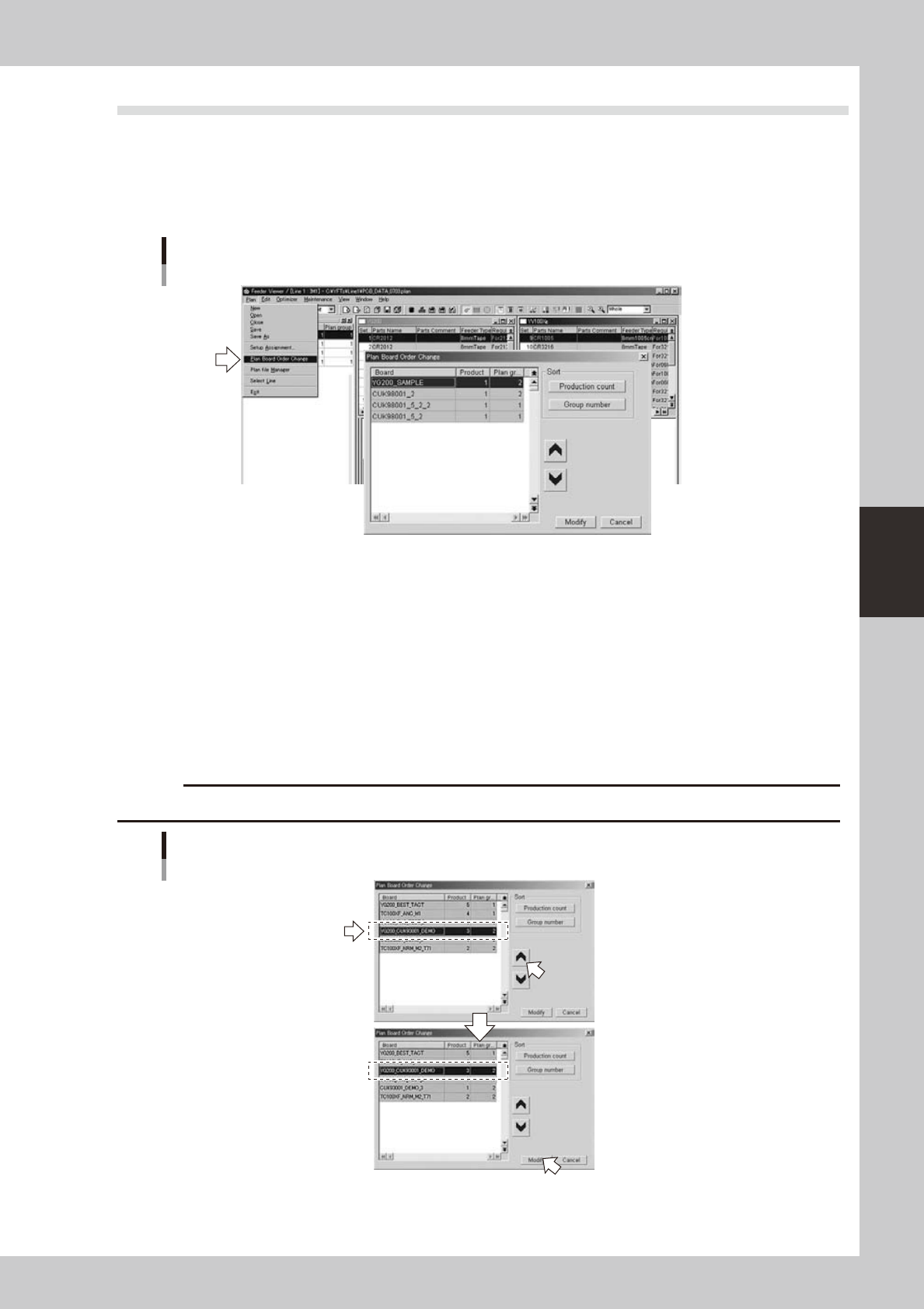
Select “Plan Board Order Change” from the Plan menu.
The "Plan Board Order Change" dialog box appears.
"Plan Board Order Change" dialog box
64439-S0-00
There are three methods for changing the order: "Changing the order of any board", "Sorting by
production count" and "Sorting by group number". The procedure for each method differs from step 2
onwards.
●
To change the order of any board:
2
Select board data whose order you want to change and click the up or down arrow
button.
The selected board data moves up or down one row each time the button is clicked.
3
After moving to the desired row, click the [Modify] button.
The order of board data on the production board list appears and matches the changes as you made.
c
CAUTION
Two or more board data cannot be moved at the same time. Select and move one board data at a time.
Changing the order of board data
Changing the order of desired board data
64440-S0-00