EUS0153210_YFact_Standard_E.pdf - 第234页
5-7 5 Rank T able Editor 2. Usage Start"BINTableEditor"from"YAMAHAIT-System"intheStartmenu. Reference If you're using Y .FacT P-T ool, start "BIN T able Editor" from "Y A…
5-6
5
Rank Table Editor
●
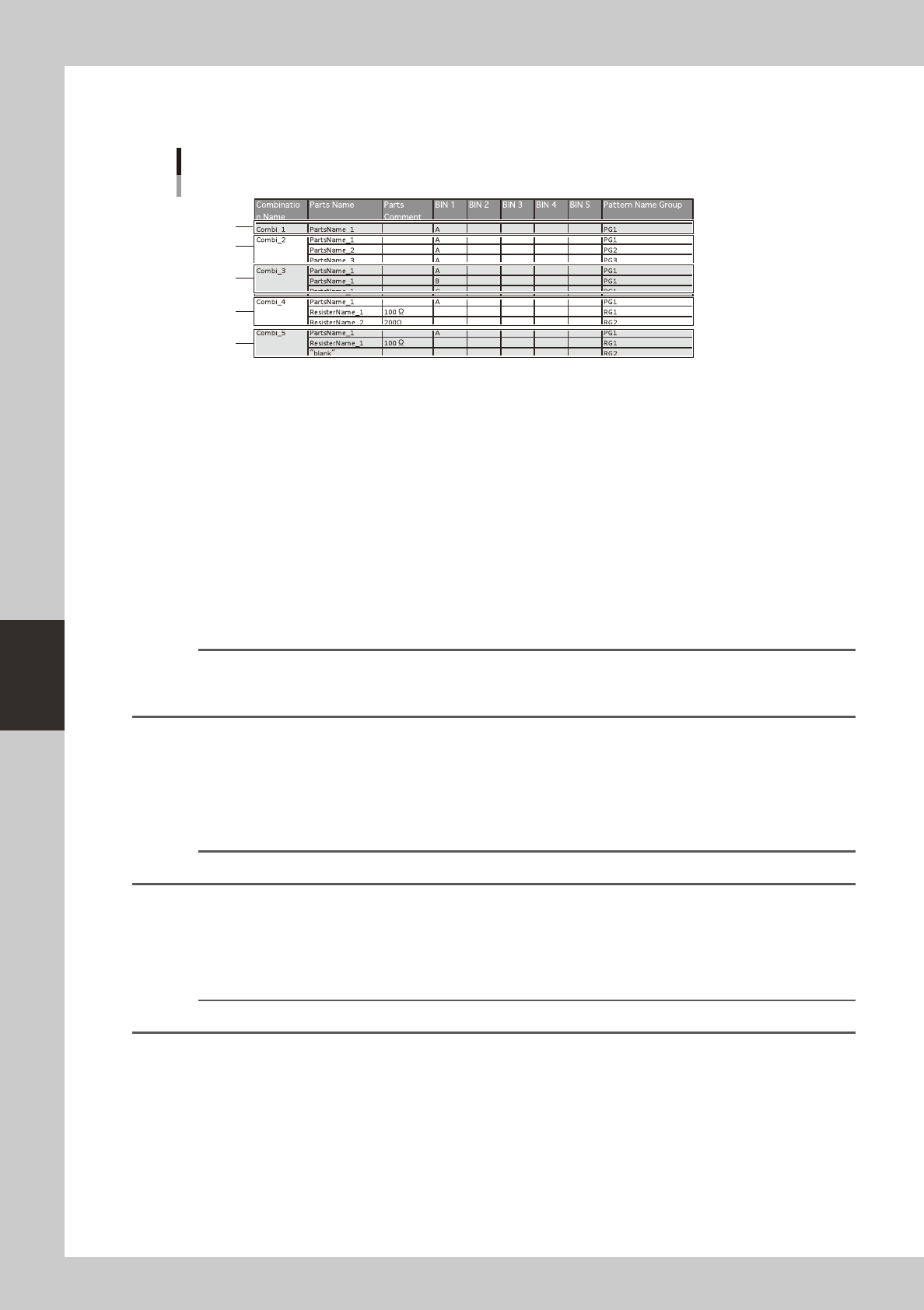
Example combinations
Here are some example combinations.
Example combinations
1
2
3
4
5
62764-T2-00
1 <Comb_1> Specifying an individual characteristic
Specify characteristic "A" for the part "Parts Name1" that will be mounted on "PG1."
2 <Comb_2> Specifying multiple simultaneous characteristics
Specify characteristic "A" for the part "Parts Name1" that will be mounted on "PG1," for the part "Parts Name2" that will
be mounted on "PG2," and for the part "Parts Name3" that will be mounted on "PG3."
3 <Comb_3> Specifying "OR" characteristics
Specify characteristic "A," "B," or "C" for the part "Parts Name1" that will be mounted on "PG1."
Reference
If you specify multiple characteristics for the same pattern name group within a combination, this produces an "OR"
condition. For example you can use this to group the characteristics (such as when a part with 24 gradations is
divided into the three ranges of 1 to 8, 9 to 16, and 17 to 24, and differences within each range are to be tolerated).
4 <Comb_4> Replacing with another part
Specify characteristic "A" for the part "Part Name1" that will be mounted on "PG1," and in addition, substitute
"ResistorName1"asthepartthatwillbemountedon"RG1,"andsubstitute"ResistorName2"asthepartthatwillbe
mountedon"RG2."
Reference
Use this to combine an LED part with adjustment resistors.
5 <Comb_5> Skip mounting of a part
Specify characteristic "A" for the part "Parts Name 1" that will be mounted on "PG1," and in addition, substitute
"ResistorName1"asthepartthatwillbemountedon"RG1,"andskipmountingofthepartthatwastobemountedon
"RG2."
Reference
Use this when an LED part does not require an adjustment resistor.
5-7
5
Rank Table Editor
2. Usage
Start"BINTableEditor"from"YAMAHAIT-System"intheStartmenu.
Reference
If you're using Y.FacT P-Tool, start "BIN Table Editor" from "YAMAHA Factory Tools P-Tool" in the Start menu.
2.1 Create New
Click[New(N)]onthemenubar.
2.2 Add Table
Onthemenubar,click[Edit(E)]andthenclick[AddTable(A)].
2.3 Production Type/Board Name Edit
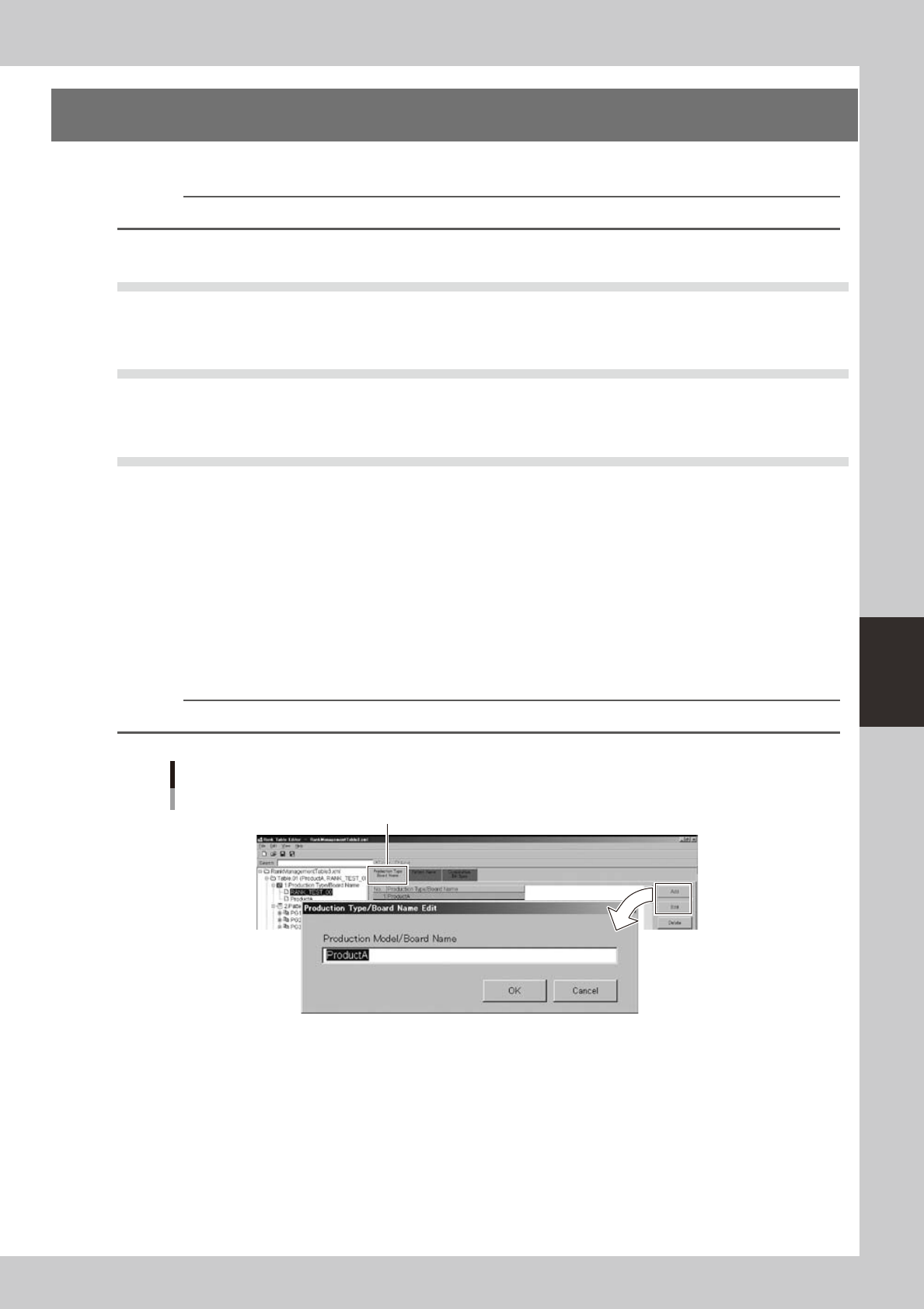
Selectthe"ProductionType/BoardName"tab,andclickthe[Add]buttonor[Edit]button.
The "Production Type/Board Name Edit" dialog box appears.
n
When using Plan mode
Enter the production type name. Enter the same name as the production type name (ASSY model number) of the program
list. This applies to the board data of the same name as the board data name that is associated with the production type
(ASSY) in the program list.
n
When using Machine mode
Enter the board name. At the time of production, the mounter refers to the BIN table file, and selects the BIN table with
the board name that matches the board data name selected on the mounter.
Reference
When selecting by board name, you can use an asterisk (*) as a wild card.
Production Type/Board Name
"Production Type Board Name" tab
64502-S0-00
5-8
5
Rank Table Editor
2.4 Pattern Name Group Edit
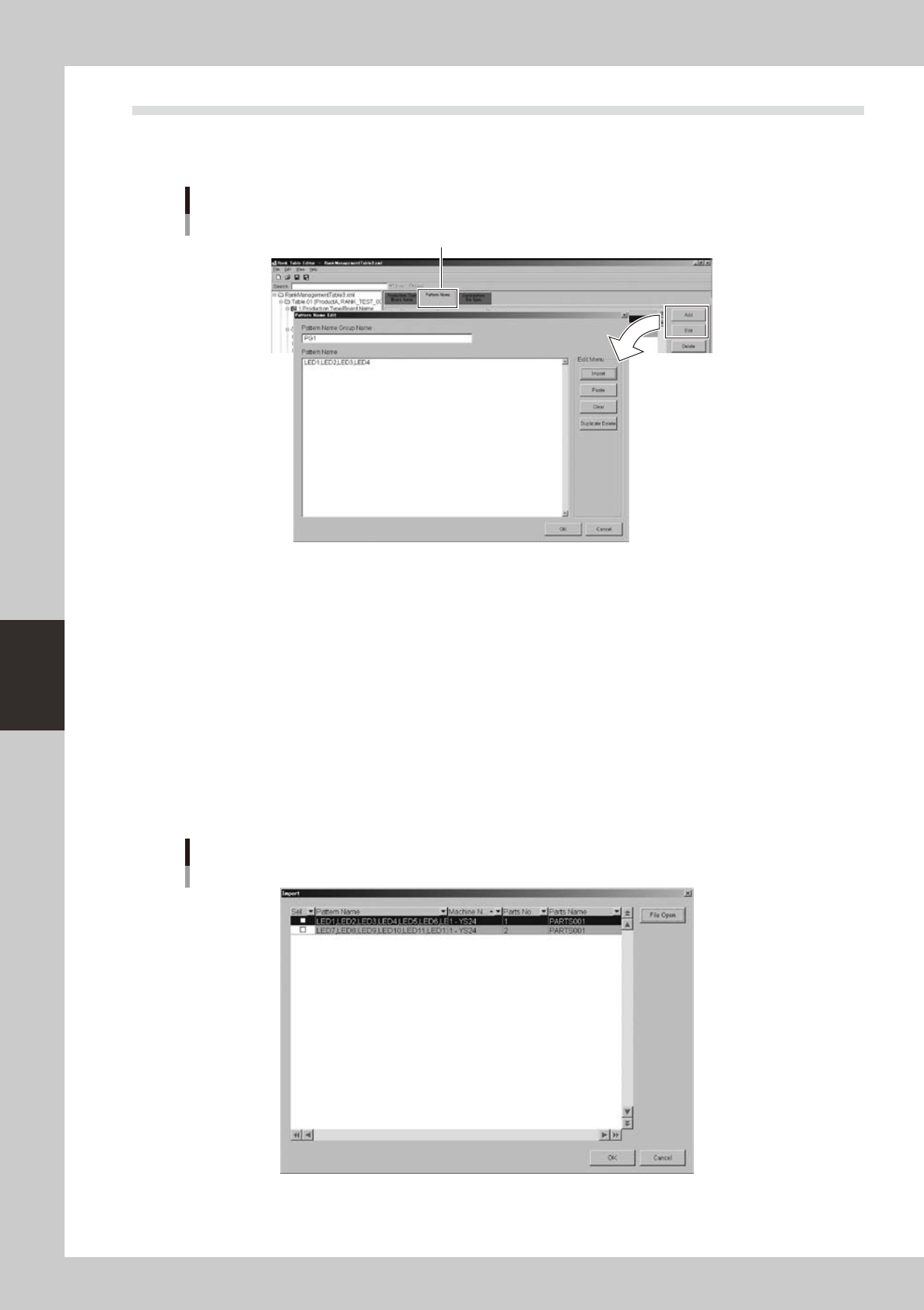
Selectthe"PatternName"tab,andclickthe[Add]buttonor[Edit]button.
The "Pattern Name Edit" dialog box appears.
Pattern Name Edit
"Pattern Name" tab
64503-S0-00
Pattern names to be associated are grouped according to the board data defined in the preceding section "2.3
Edit or Add Production Type/Pattern Name." Enter the pattern name group name (optional) and the pattern
name.
The pattern name can be input directly, or it can be imported from mount information that is exported by the
Board Editor, or it can be copied and pasted from the Board Editor.
n
Directly inputting the pattern name
Enter the pattern name that is in the mount information of the board data.
n
Importing from a mount information export file exported by the Board Editor
FromthemachineortheP-ToolBoardEditor,choose[File]-[ExportMountInformation],toexportthemountinformation
oftheboarddataasafile(csv).Whenyoureadthefileintothiseditor,thepatternnamesofthemountinformationare
displayed for each part number.
Import pattern name
64504-S0-00