EUS0153210_YFact_Standard_E.pdf - 第85页
2-51 2 Board Explorer 7. [Synch Right Side] button Synchronizes the selected folders based on the right folder. (Board data that exist only in the right folder will be copied into the left folder.) Reference The [Synch R…
2-50
2
Board Explorer
2. [Select Folder] button
Displays the “Select Folder” dialog box.
Selectthefolderandclickthe[OK]buttontomovetotheselectedfolder.
Reference
The [Select Folder] button has the same function as the "Left Side" (or "Right Side") - "Select Folder" command in the
File menu.
3. [Up Folder] button
Moves to the folder one level up from the current folder and open it.
Reference
The [Up Folder] button has the same function as the "Left Side" (or "Right Side") - "Up Folder" command in the File
menu.
3
Compare board data between the folders.
Using the toolbar buttons or menu commands, you can compare board data, and then copy or move
them as needed, or synchronize the contents in the two folders.
Toolbar
1 2 3 4 5 6 7 8 9 10 11 12 13
64250-S0-00
1. [New] button
Opens a new window for folder comparison.
Reference
The [New] button has the same function as the "New" command in the File menu.
2. [Move] button
Moves the selected board data from left to right or right to left.
Reference
The [Move] button has the same function as the "Move" command in the Edit menu.
3. [Copy] button
Copies the selected board data from left to right or right to left.
Reference
The [Copy] button has the same function as the "Copy" command in the Edit menu.
4. [Delete] button
Deleted the selected board data.
Reference
The [Delete] button has the same function as the "Delete" command in the Edit menu.
5. [Synch] button
Makes synchronization between the two selected folders. (All board data that are different will be copied into each folder
so that the contents of the two folders are identical.)
Reference
The [Synch] button has the same function as the "Synch" command in the Edit menu.
6. [Synch Left Side] button
Synchronizes the selected folders based on the left folder. (Board data that exist only in the left folder will be copied into
the right folder.)
Reference
The [Synch Left Side] button has the same function as the "Synch Left Side" command in the Edit menu.
2-51
2
Board Explorer
7. [Synch Right Side] button
Synchronizes the selected folders based on the right folder. (Board data that exist only in the right folder will be copied
into the left folder.)
Reference
The [Synch Right Side] button has the same function as the "Synch Right Side" command in the Edit menu.
8. [Renewal] button
Updates the list of board data.
Reference
The [Renewal] button has the same function as the "Renewal" command in the View menu.
9. [All View] button
Displays all board data stored in the two selected folders.
Reference
The [All View] button has the same function as the "All View" command in the View menu.
10. [Difference View] button
Compares board data between the two folders and displays the different points.
Reference
The [Difference View] button has the same function as the "Difference View" command in the View menu.
11. [Find] button
Searches board data.
The“SearchBoardList”dialogboxappears,soentertheboarddatanameyouwanttofindandclickthe[Search]button.
Reference
The [Find] button has the same function as the "Find" command in the Search menu.
12. [Find Prev] button
Searchesboarddatabackward(upward)inthelistfromtheboarddatafoundbythe[Find]button.
Reference
The [Find Prev] button has the same function as the "Find Prev" command in the Search menu.
13. [Find Next] button
Searchesboarddataforward(downward)inthelistfromtheboarddatafoundbythe[Find]button.
Reference
The [Find Next] button has the same function as the "Find Next" command in the Search menu.
4
Finish the comparison between the folders.
When finished with the operation, select "Exit" from the File menu or click the [Close] button in the top
right corner of the window.
2-52
2
Board Explorer
5.4 Database Utility
This function performs the following functions to a lot of board data by the batch.
‘Set from Database All’
‘Copy Back to Database All’
‘Database Matching’
‘Database Matching from board’
‘Database Matching by Shape’
‘Database Matching from board by Shape’
Whenyouoperatedthedatabase,youhadtoopentheBoardEditorforeachboarddatabefore.Youcandoit
by the batch.
Whenperformingoperationsbetweenboarddataanddatabase,severalboarddataoperationscanbe
combined for one database operation.
5.4.1 Detailed explanation of operation
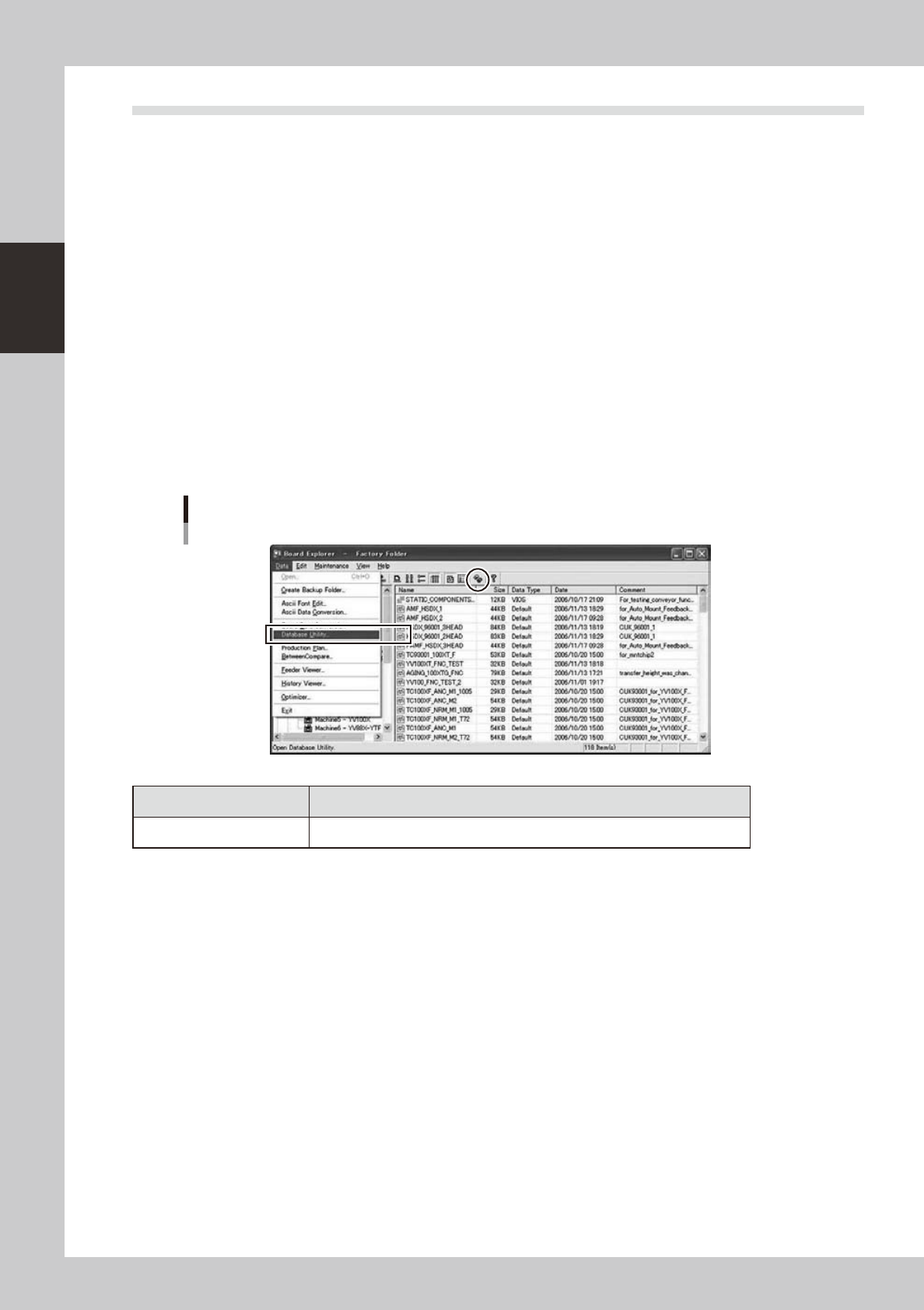
Theright-clickcontextmenuoftheBoardExplorermainviewallowsaccesstotheDatabaseUtilitymenu.The
toolbarfeaturesa[DatabaseUtility.]button.
If “Use Database” in the Option Setting is set to “Not Use”, the menu and buttons are not displayed.
Menu and Toolbar
64267-S0-00
Items Description
Database Utility Open Database Utility window. (Refer to “
n
Database Utility Window”)