KY8030 Programmers Manual - 第15页
Program mers Manual | 1 3 ※ Note: For a Gerber file format, it is recomm end ed to use RS-274X. W hen using the RS-274D format, you should also prov ide parameter and aperture data. 4) Click the OK button. The PCB draw i…
12 | KY-8030 Series(KYOS-2007001_rev0)
3DIn‐lineSolderPasteInspectionSystems
1.2. Usage Example (Creating a Pad File (*.pad))
The following example shows you how to open, work on, export and save a Gerber file.
More specifically, the following tasks are performed in this example:
z Open a Gerber file.
z Specify a work space and translate a PCB.
z Create a pattern.
z Enter and change the origin.
z Enter the board size (optional).
z Save a file and export.
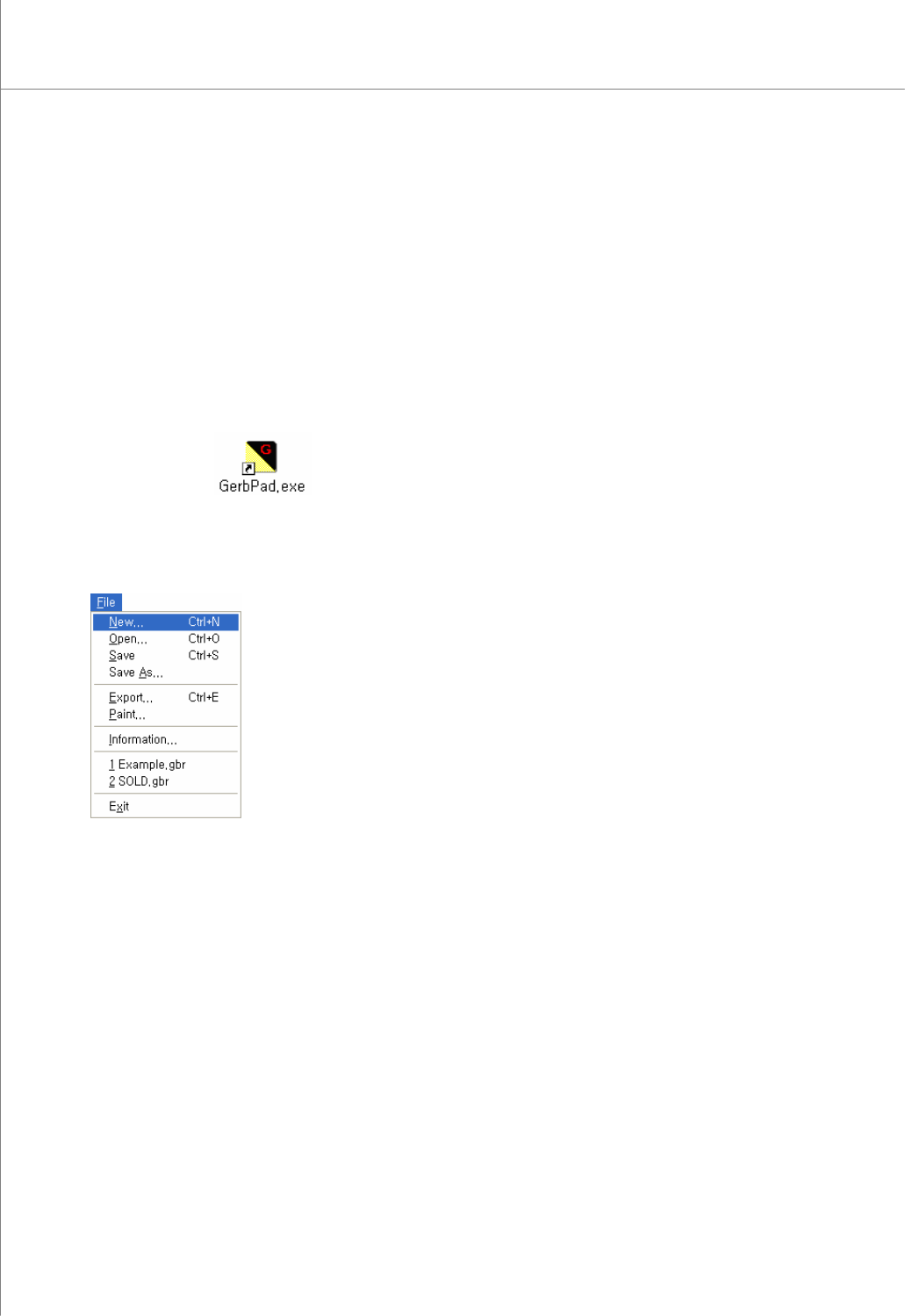
1) Double-click the icon on the Desktop.
to launch the GerbPad program.
2) Select "File New" from the menu bar. The "New" window will appear allowing you
to select a Gerber file.
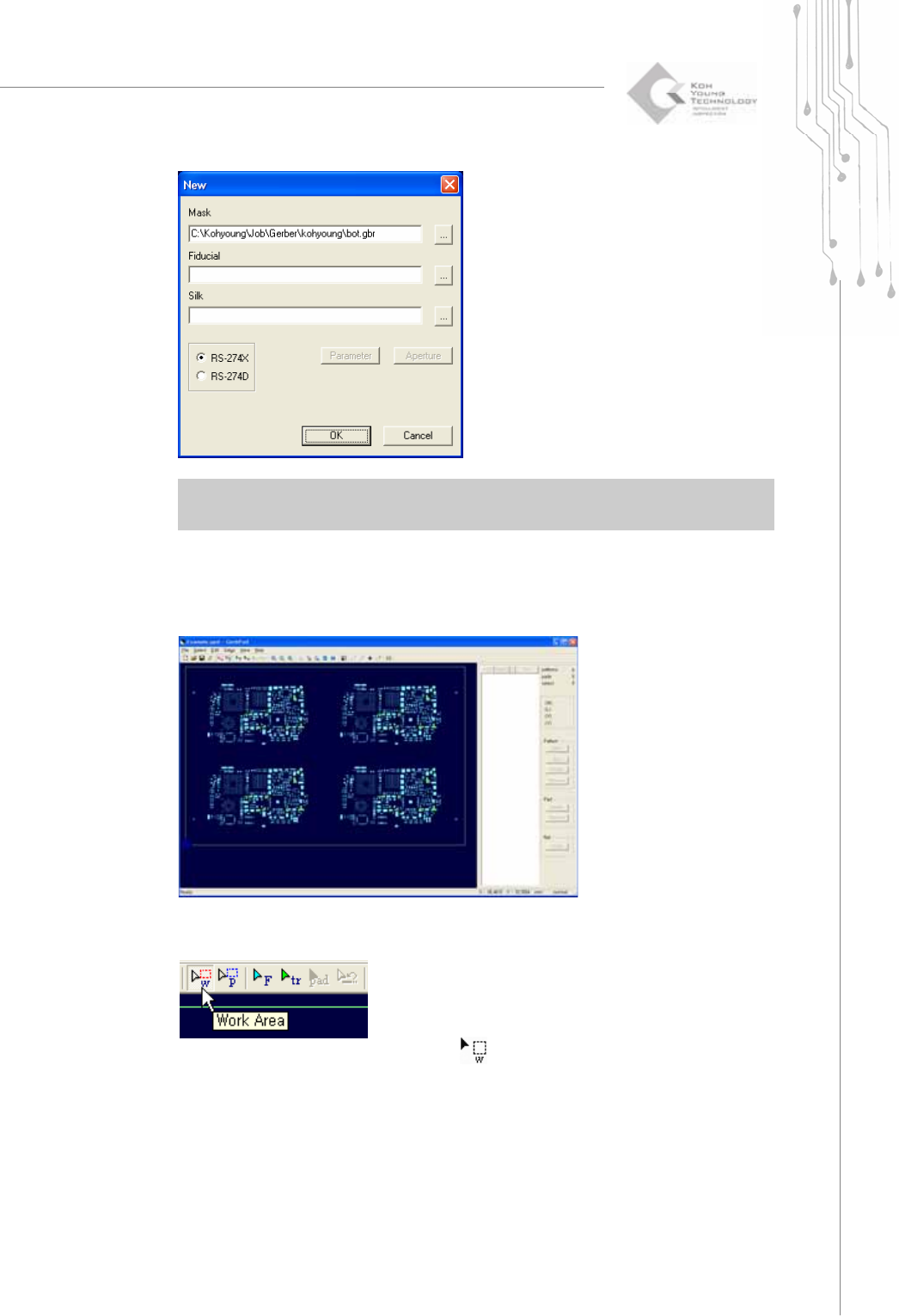
3) Select a Gerber file (*.gbr). A Gerber file must be a stencil mask Gerber file. A
fiducial or silk file can also be specified as needed.
Programmers Manual
| 13
※ Note: For a Gerber file format, it is recommended to use RS-274X. When using the RS-274D
format, you should also provide parameter and aperture data.
4) Click the OK button.
The PCB drawing for the selected Gerber file will be displayed on the screen as
follows:
5) Click the Work Area button.
The shape of the cursor will change to (
) allowing you to select a work area.
14 | KY-8030 Series(KYOS-2007001_rev0)
3DIn‐lineSolderPasteInspectionSystems
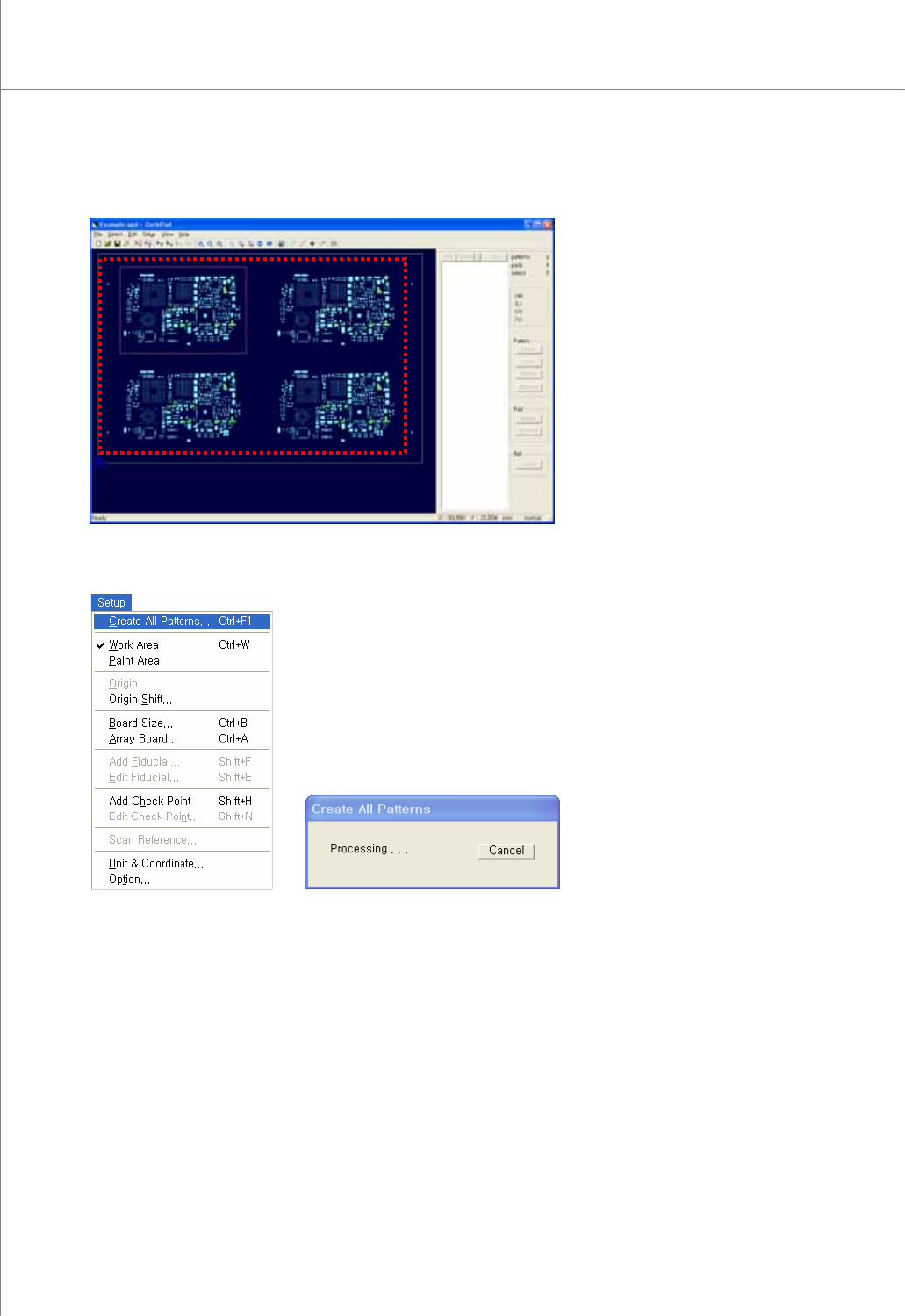
6) Select a desired work area by dragging your mouse.
7) Select “Setup ▶ Create All Patterns” from the menu bar.
The program will create patterns while showing you the progress via the "Create All
Patterns" window.