KY8030 Programmers Manual - 第24页
22 | KY-8030 Series (KYOS-2007001_rev0) 3D In ‐ line Solder Paste Inspection Systems The “Aperture” Dialog Box Code Aperture code number Shape Aperture shape code Width Aperture width Length Aperture length…
Programmers Manual
| 21
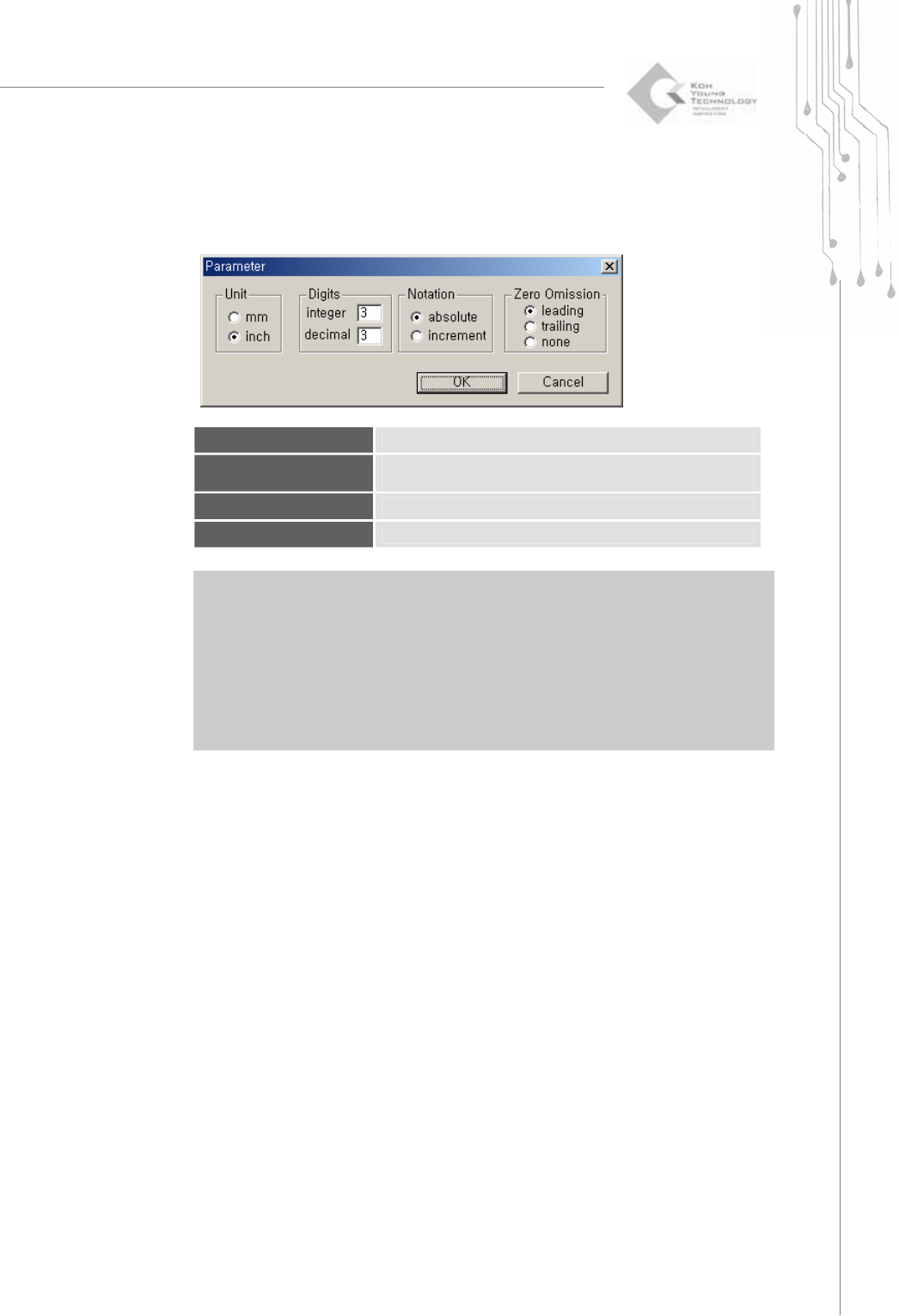
The “Parameter” Dialog Box
Unit
Select a unit.
Digits
Enter the number of digits allowed for the integer and decimal
parts, respectively.
Notation
Select a notation method.
Zero Omission
Specify how 0 (zero) will be treated.
※ Note:: When opening a Gerber file in the RS274D format, the user should set Gerber
parameters directly. Therefore, make sure to check the Gerber parameters first when
opening a Gerber file in RS274D.
※ Caution: If Gerber parameters are not set correctly, it may lead to incorrect board size or
position data, inhibiting normal PCB operation. When opening a Gerber file in the
RS274D format, make sure that the Gerber parameters entered match the actual
size of the PCB.
22 | KY-8030 Series(KYOS-2007001_rev0)
3DIn‐lineSolderPasteInspectionSystems
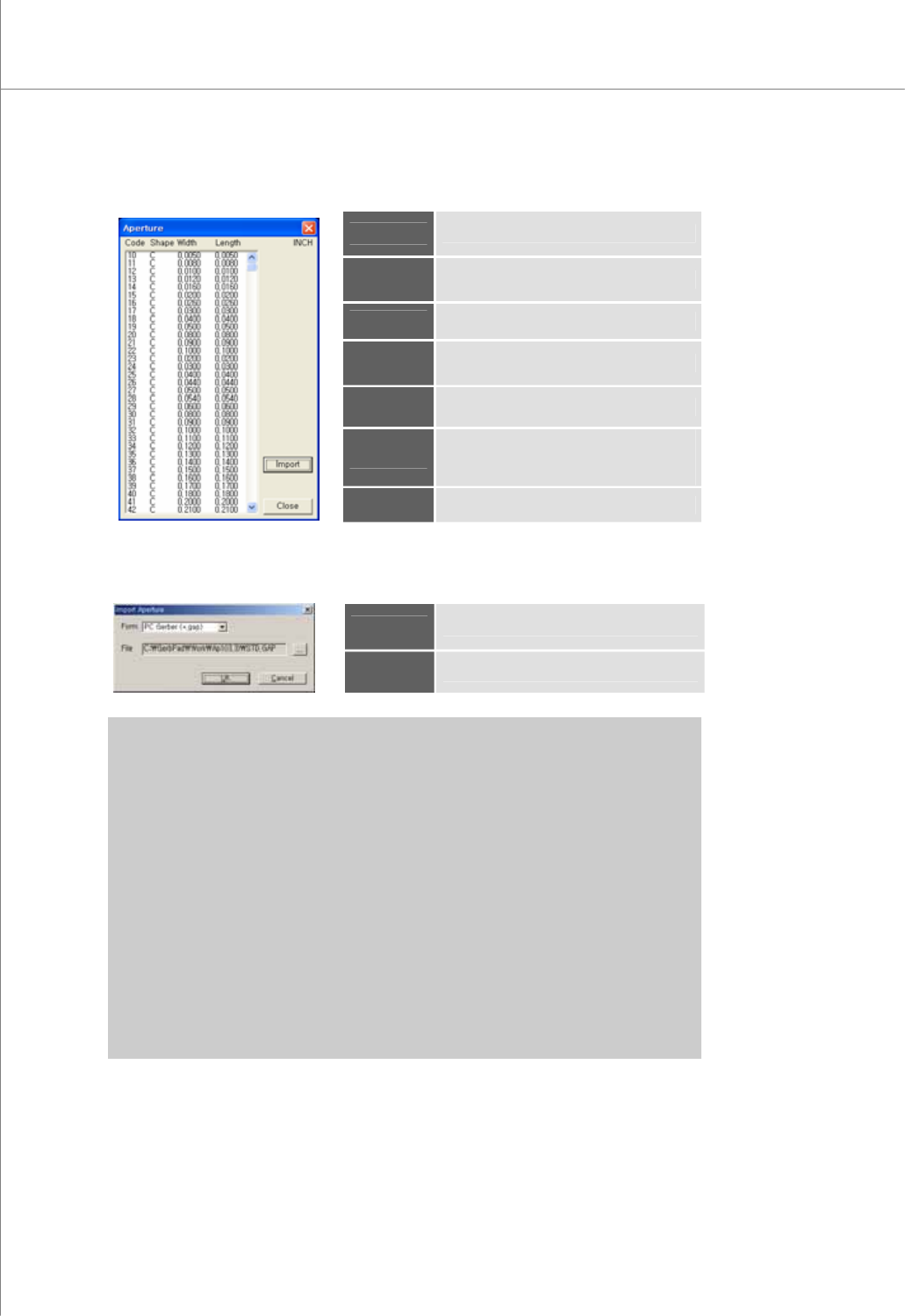
The “Aperture” Dialog Box
Code
Aperture code number
Shape
Aperture shape code
Width
Aperture width
Length
Aperture length
Unit
The unit for aperture width and length
Import
If the "Import Aperture" dialog box
appears,
load the aperture file.
Close
Close the "Aperture" dialog box.
The "Import Aperture" Dialog Box
Form
Select the aperture file format.
File
Specify a path for an aperture file.
※ Note: Aperture formats supported by GerbPad V3.0 are as follows:
y PC Gerber (*.gap)
y CAM350/ECAM V1(*.gap)
y CAM350/ECAM V3(*.gap)
y Report (*.rep;rpt)
y Allegro (*.rpt)
y GerbTool (*.map)
y CadStar (*.usr)
y Mentor (*.apt)
y Zuken (*.l)
y ViewMate (*.env)
y Genesis (*.apr)
y Pads (*.rep)
Programmers Manual
| 23
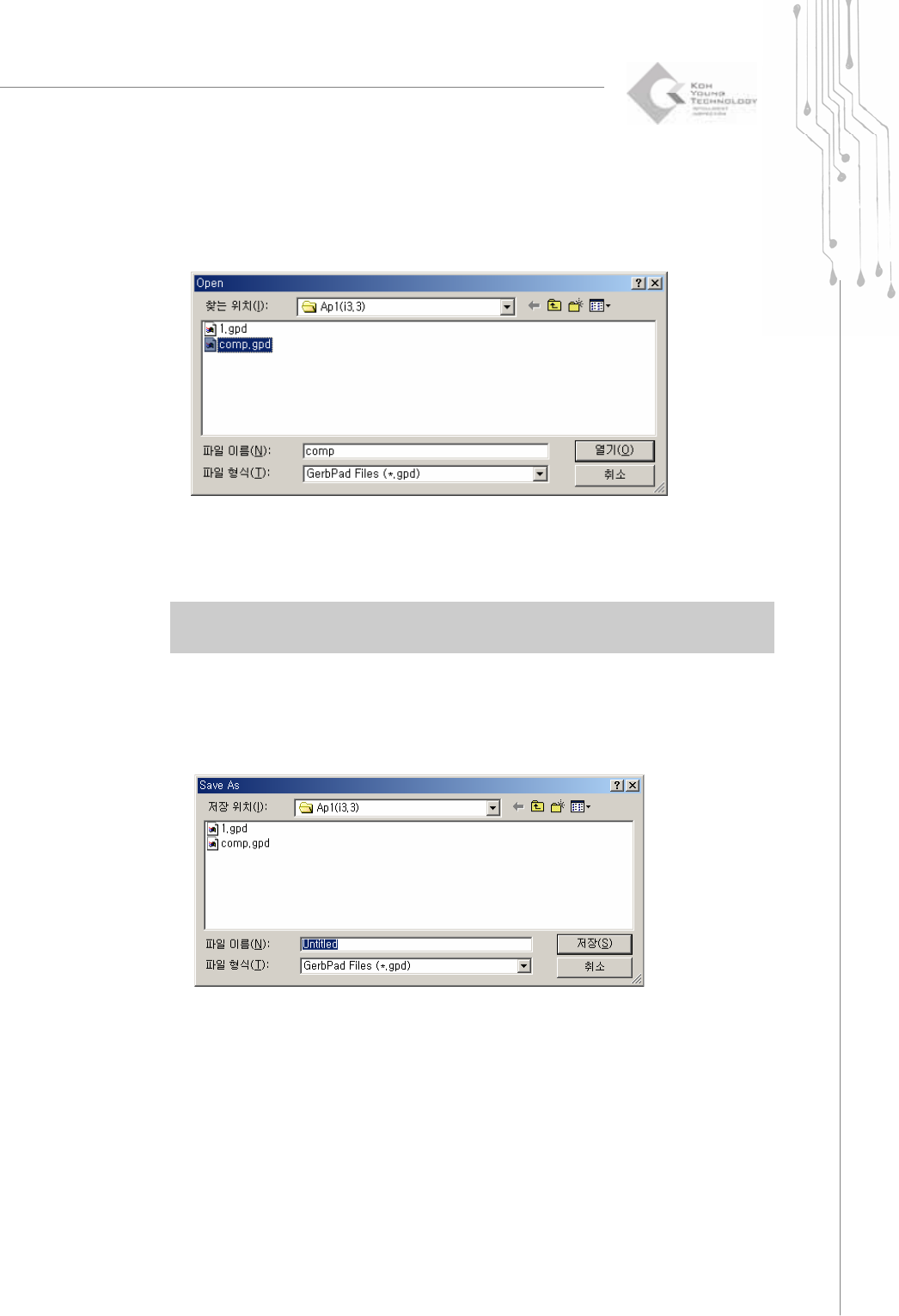
2) Open (Ctrl + O)
Open the "Open" dialog box to load a work file (.gpd file).
The "Open" Dialog Box
3) Save (Ctrl + S)
Save work data in a GerbPad file.
The extension for a work file is "gpd".
※ Note: When saving work data for the first time after working on a Gerber file, the "Save As"
dialog box will be displayed.
4) Save As
Open the "Save As" dialog box to save work data in a different file.
The "Save As" Dialog Box