KY8030 Programmers Manual - 第38页
36 | KY-8030 Series (KYOS-2007001_rev0) 3D In ‐ line Solder Paste Inspection Systems 5) Modify Pad Open the "Pad" dialog box to modify p ad data. The "Pad" Dialog Box Ref Part Reference …
Programmers Manual
| 35
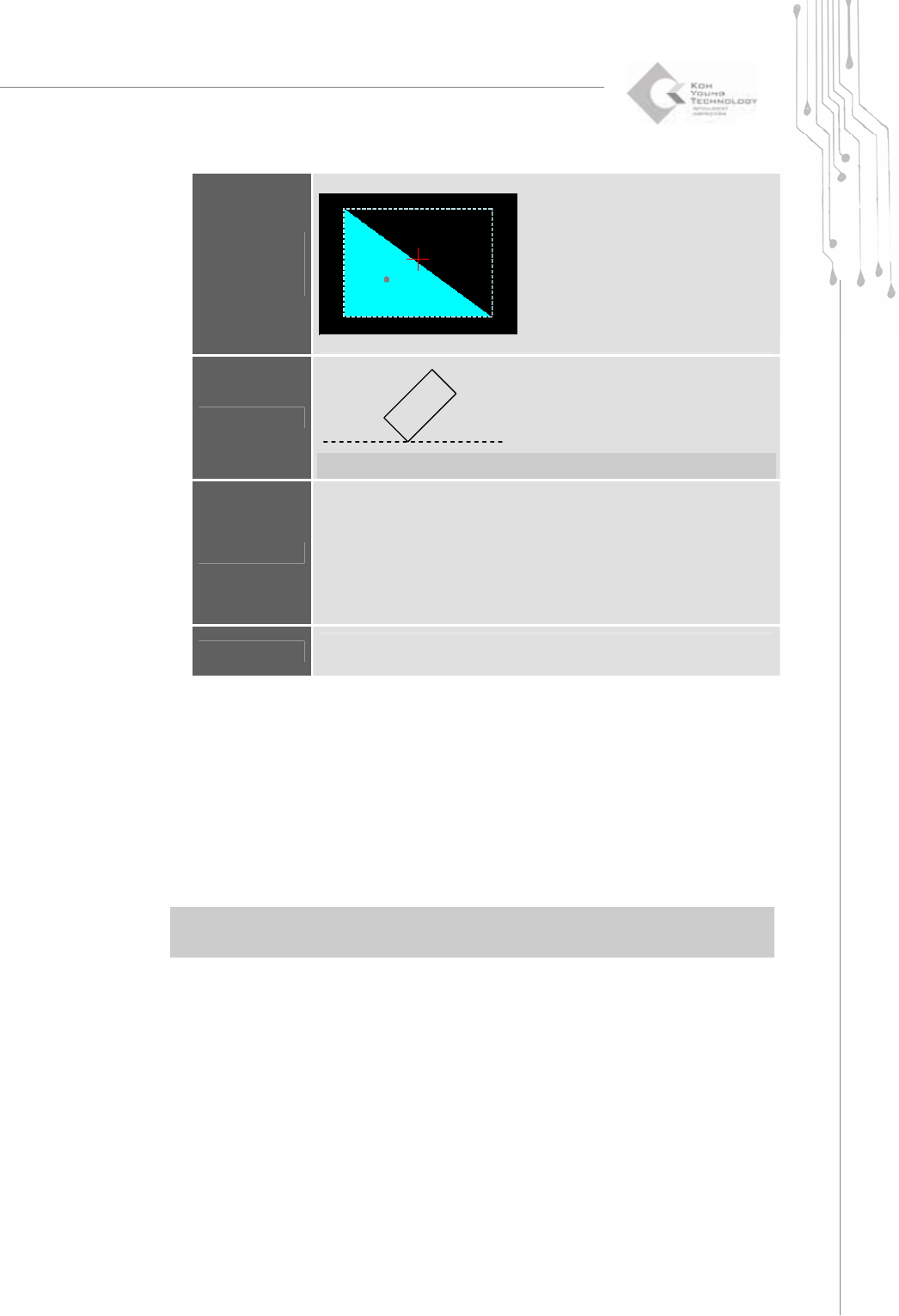
Offset Y
The Center of Gravity Y - The Center of Area Y
o : The Center of Gravity +: The Center of Area
Angle
P-Sloped Rect. : 1
θ
N-Sloped Rect. : 2
θ
−
Ú Note: This is used for the P-sloped or N-sloped rectangle shape only.
Calculate
Recalculate the area and offset values.
Depending on a shape, the area is calculated in different ways as follows:
E.g.) Rectangle = Width X Length
Circle = π X(0.5 * Width)
2
Others: Measured by video processing technique.
※ Caution: Make sure to select the correct shape. Otherwise, it may lead
to the wrong area value.
OK
All identical flashes and traces within a work area are found and registered
as pads automatically.
2) Modify Pattern
Modify pattern data for the selected pad.
The “Pattern” Dialog Box
For more information on how to modify a pattern, see the "Pattern" dialog box
under "4.1.7 Pad Bar" on page 41.
3) Remove Pattern (Shift + Del)
Remove all pads that are identical with the pattern for the selected pad.
※ Note: “Remove Pattern” lets you remove all pads that have the same pattern as the selected
pad while “Remove Pad” lets you remove only the selected pads.
4) Remove All Patterns
Remove all registered patterns.
1
θ
2
θ
36 | KY-8030 Series(KYOS-2007001_rev0)
3DIn‐lineSolderPasteInspectionSystems
5) Modify Pad
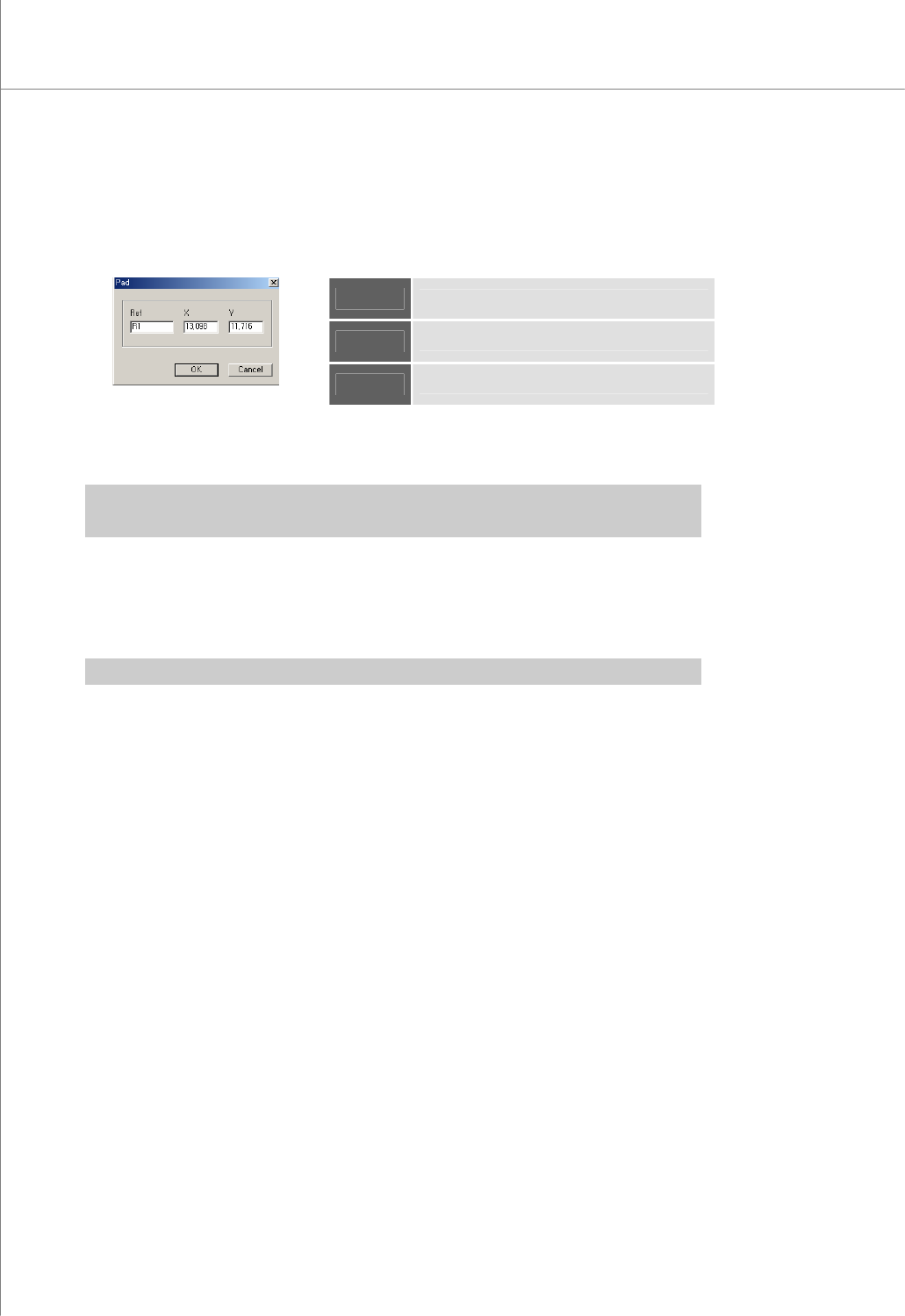
Open the "Pad" dialog box to modify pad data.
The "Pad" Dialog Box
Ref
Part Reference Code
X
The X-coordinate of the pad
Y
The Y-coordinate of the pad.
6) Remove Pad (Del)
Remove the selected pad.
Ú Caution: “Remove Pattern” lets you remove all pads that have the same pattern as the selected
pad while “Remove Pad” lets you remove only the selected pads.
7) Remove Trace (Ctrl+Del)
Remove the selected trace.
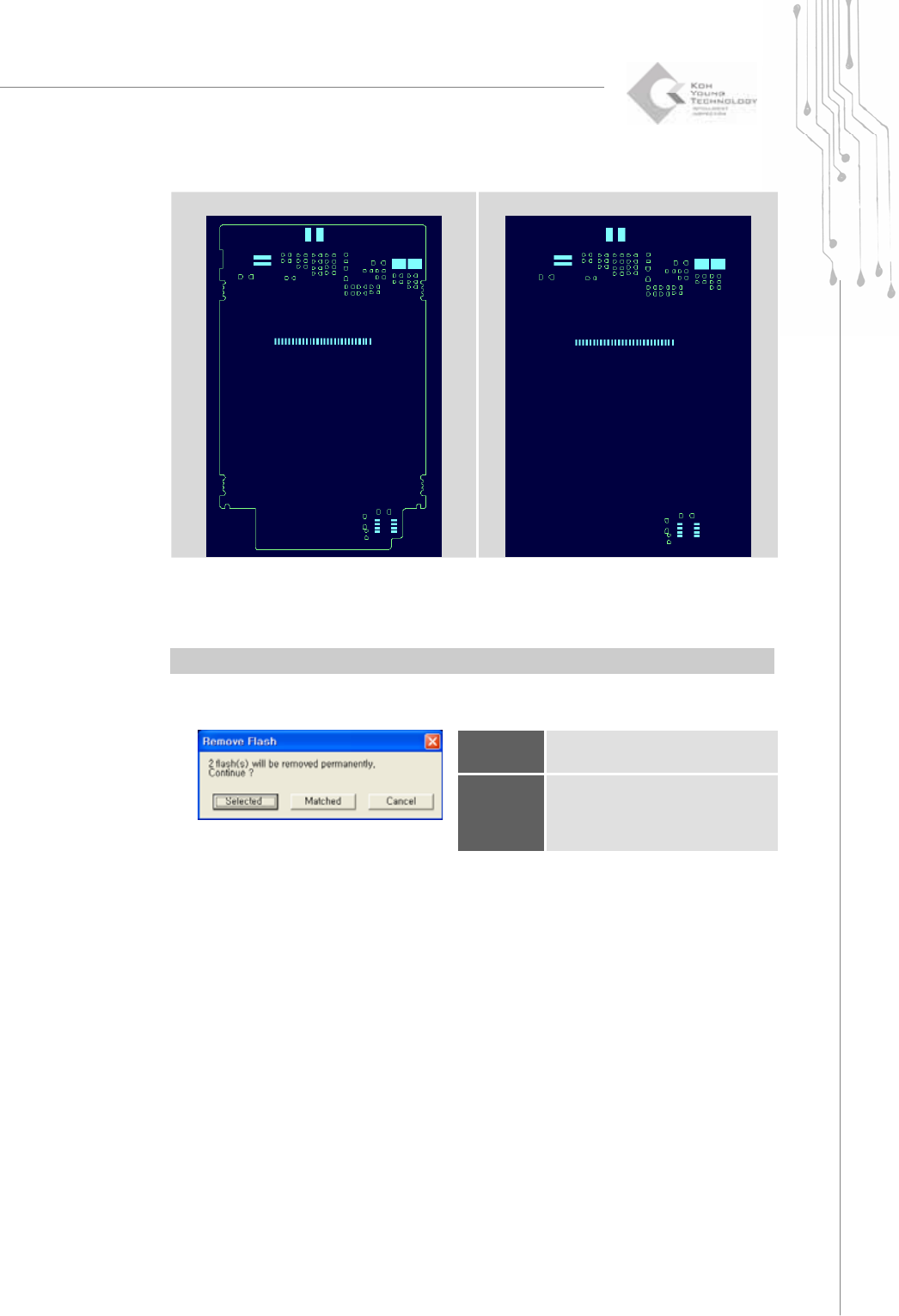
When performing "Create All Patterns", first perform "Remove Trace" to remove
elements (e.g. board contour lines, etc.) that interfere with automatic pattern retrieval.
Ú Caution: Once a trace is removed, it cannot be restored.
Programmers Manual
| 37
(Before "Remove Trace")
(After "Remove Trace")
8) Remove Flash (Ctrl+Del)
Remove the selected flash.
When performing "Create All Patterns", first perform "Remove Flash" to remove
elements (e.g. via hole, etc.) that interfere with automatic pattern retrieval.
Ú Caution: Once a flash is removed, it cannot be restored.
The "Remove Flash" Dialog Box
Selected
Remove only the selected
flash(es).
Matched
Remove all flashes that have
the same size and pattern as
the selected flash.