KY8030 Programmers Manual - 第73页
Programmers Manual | 71 4) Mouse mode Select a desired mouse mode from the following: * Pad: Select a pad. * Fiducial: Select a fiducial. * Unused: Select a pad which will not be inspected. * C A D M o v e : Move a CAD p…
70 | KY-8030 Series(KYOS-2007001_rev0)
3DIn‐lineSolderPasteInspectionSystems
2.1.4. Main View Popup Menu
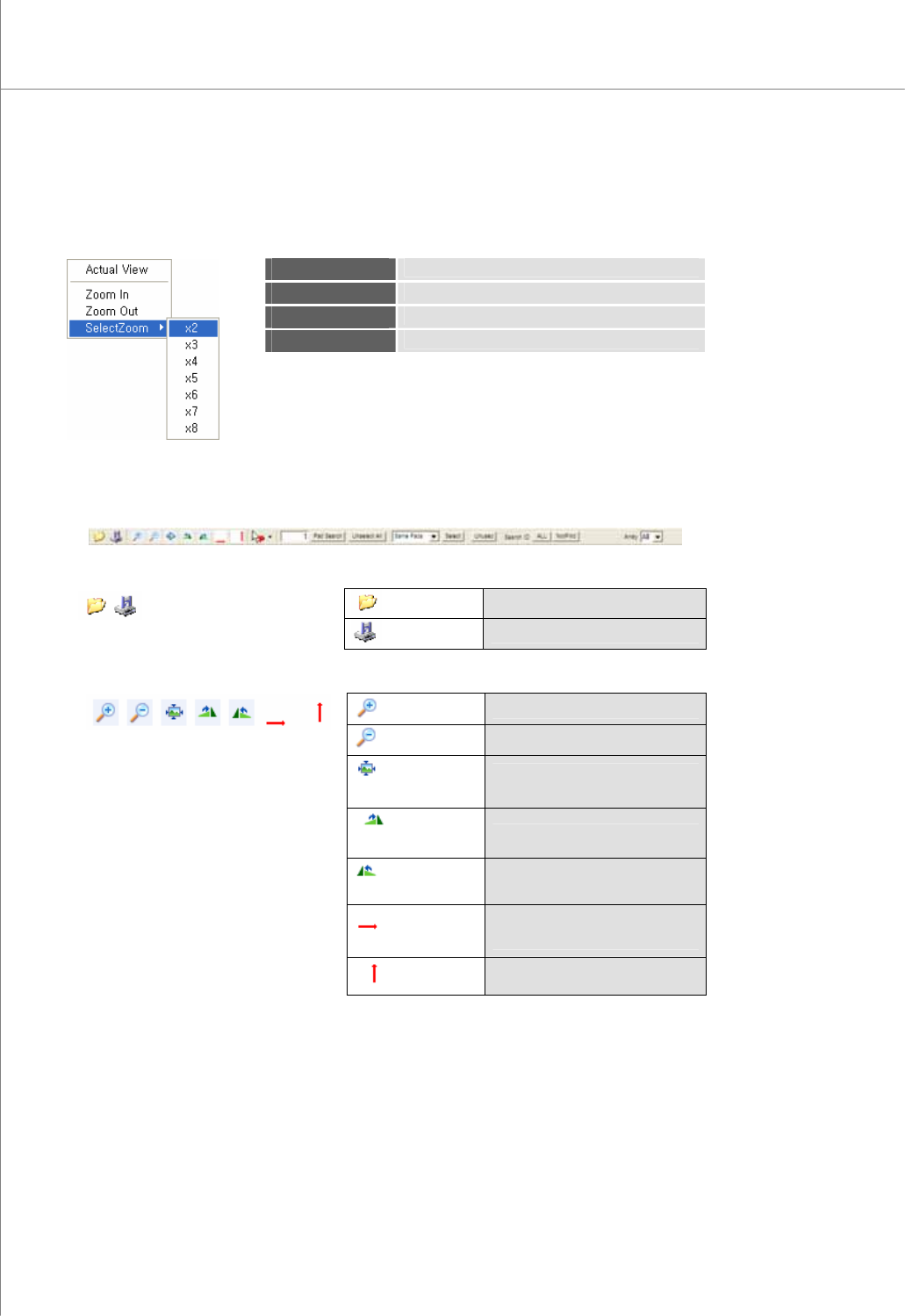
In the main view, right-click your mouse to display the pop-up menu shown below:
Actual View
Display a PCB pad image in full screen.
Zoom In
Zoom in the main view screen by one step.
Zoom Out
Zoom out the main view screen by one step.
Select Zoom
Select the zoom ratio (2x to 8x) that you want.
2.1.5. Tool bar.
1) Full Display of the Tool Bar
Load
Load a job file (*.mdb).
2)
Save
Save a job file (*.mdb).
Zoom In
Zoom in a work area.
Zoom Out
Zoom out a work area.
Fit to the
window
Zoom in/out the screen until it fits
to the window.
PCB
Rotation 90°
Rotate a PCB clockwise by 90°.
PCB
Rotation -90°
Rotate a PCB counter-clockwise
by 90°.
Flip
Horizontal
Move a PCB symmetrically along
the Y-axis.
3)
Flip Vertical
Move a PCB symmetrically along
the X-axis.
Programmers Manual
| 71
4)
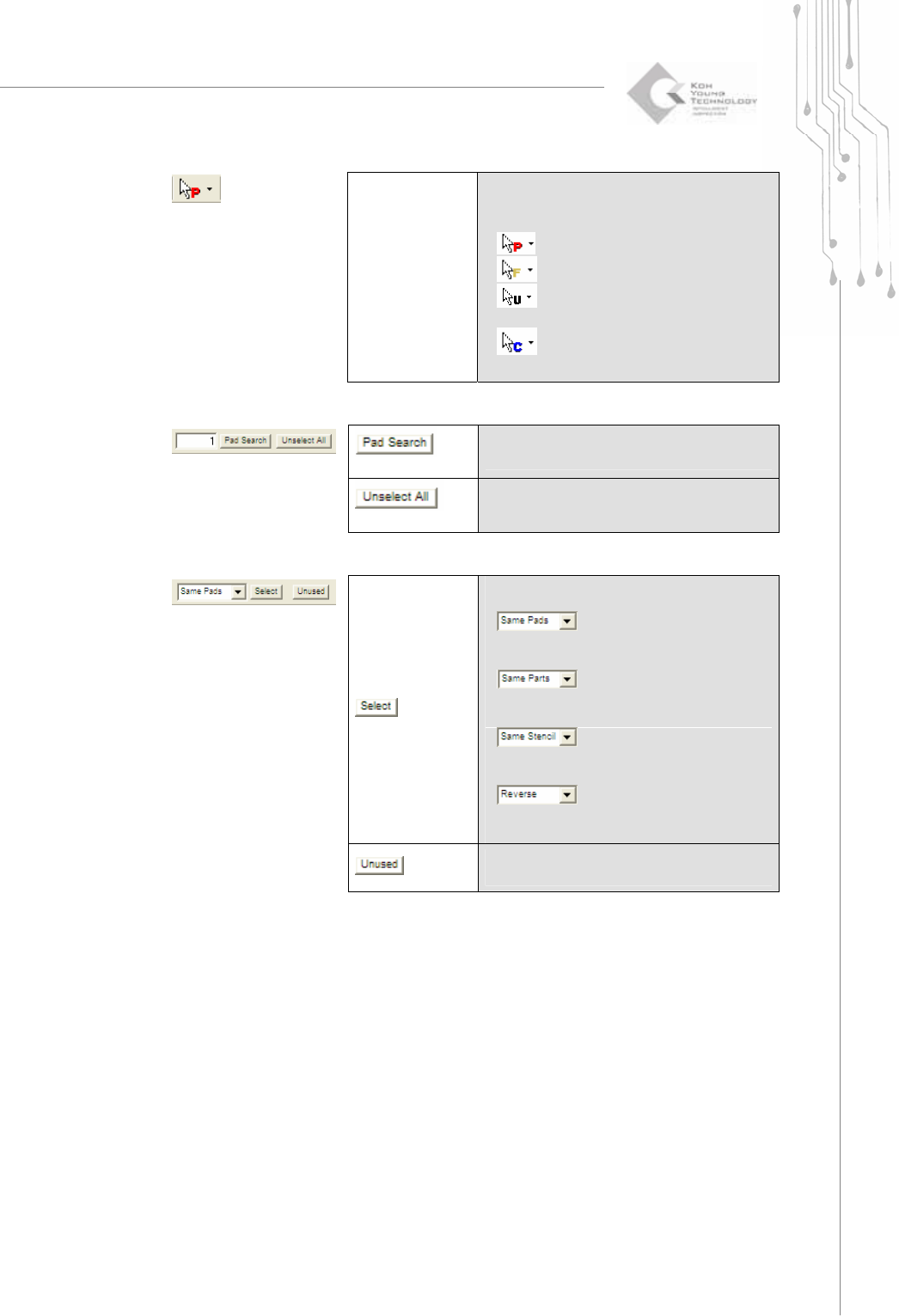
Mouse mode
Select a desired mouse mode from the
following:
* Pad: Select a pad.
* Fiducial: Select a fiducial.
* Unused: Select a pad which will not be
inspected.
* CAD Move: Move a CAD position.
Pad Search
Search for a pad with a pad ID or component
ID.
5)
Unselect All
Unselect all selected pads.
Select
Select a pad that meets a search condition as
follows:
* Same Pads:
Select all pads that have the same shape as
the selected pad.
* Same Parts:
Select all pads within the part to which the
selected pad belongs.
* Same Stencil:
Select all pads within the stencil to which the
selected pad belongs.
* Reverse:
Select the unselected pads and unselect the
selected pads.
6)
Unused
Set the state of a pad to “unused” or set the
"unused" pad state back to “normal”.
72 | KY-8030 Series(KYOS-2007001_rev0)
3DIn‐lineSolderPasteInspectionSystems
7)
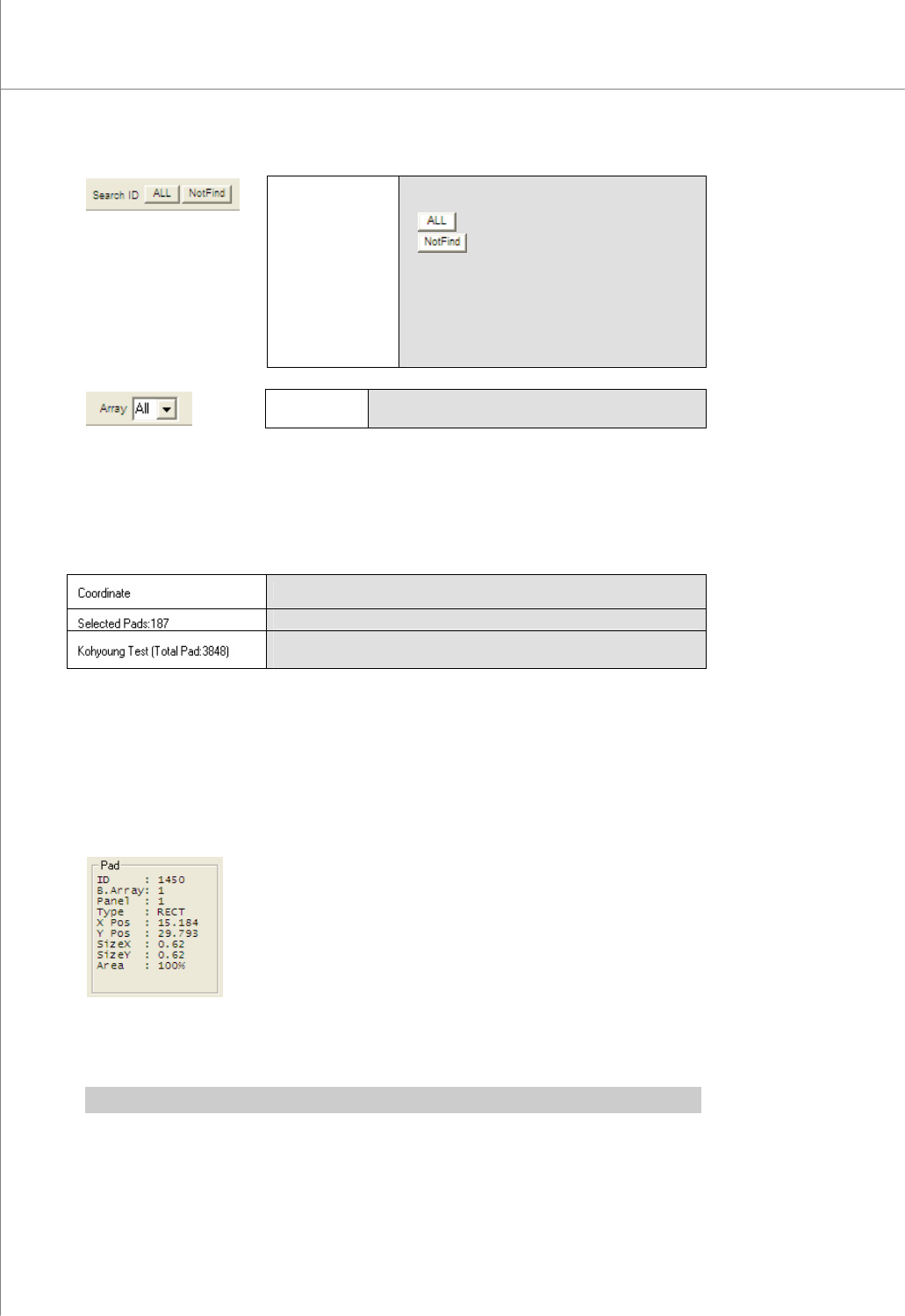
Search ID
Compare a pad file with a CAD file to find any
inconsistency.
* ALL: Check all pads.
* NotFind:
Check pads that do not match the CAD.
The All button works via the component ID
frame interface in 5.1.7 4). After modifying
the component ID, make sure to press the All
button to apply changes.
8)
Array
When using an array board, select all arrays or a
certain array number.
2.1.6. Status Bar
The status bar at the bottom of the screen shows the number of pads, positions of pads
and the file name.
Coordinate: Shows a variety of information on the selected pad.
Selected Pads: Shows the number of pads.
File Name & Total Pads : Shows a file name and the number of
pads.
2.1.7. Left Job Panel
1) Pad
Display information on the selected pad.
Pad Information: ID, board array, panel, Component ID, type, X-position, Y-position,
size X, size Y and area.
2) Inspection Conditions
Display inspection conditions for a pad.
You can edit these conditions by clicking the Edit button.
※ Note: For more information on specifying inspection conditions, see “6.3.3 6) Edit Job File”.