KY8030 Programmers Manual - 第79页
Programmers Manual | 77 11) Set th e proper inspection condition i n the window. 12) Set th e component ID and Pin n umber (Optional). - Import CAD file or Pin CAD File when available - If the file is not available, set …
76 | KY-8030 Series(KYOS-2007001_rev0)
3DIn‐lineSolderPasteInspectionSystems
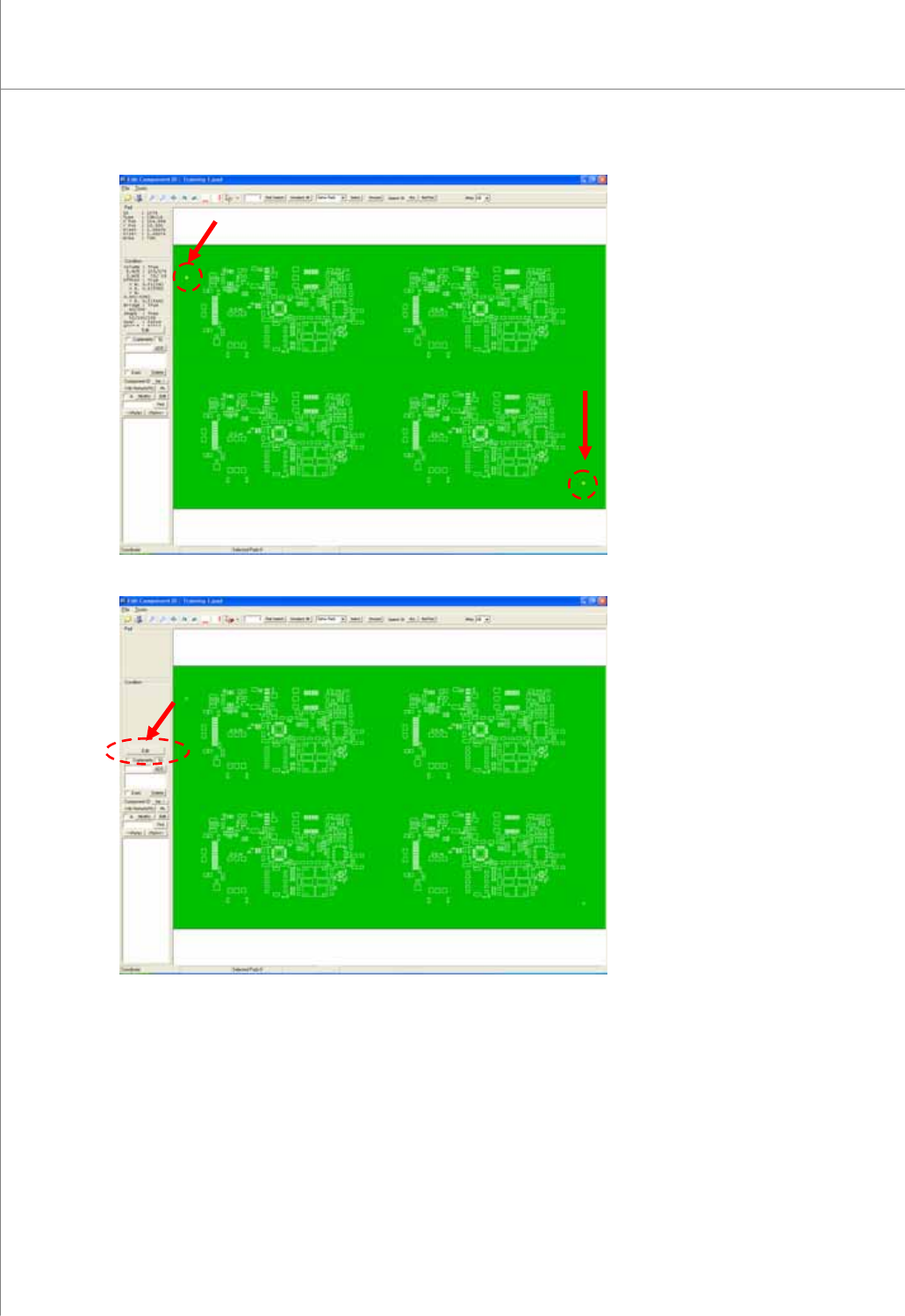
9) Select arbitrary pad and click Edit button.
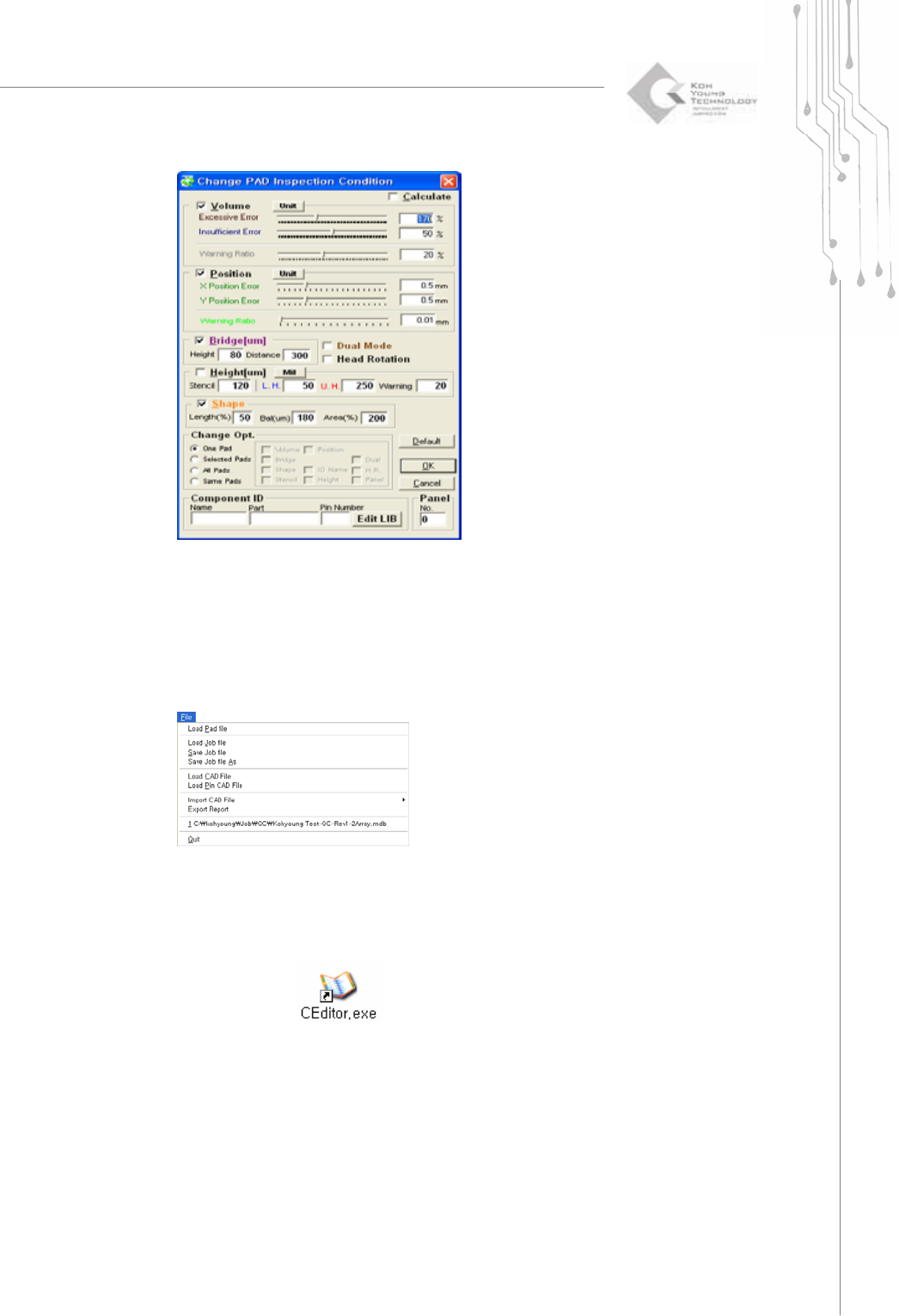
10) Change PAD Inspection Condition dialog box pops up.
Programmers Manual
| 77
11) Set the proper inspection condition in the window.
12) Set the component ID and Pin number (Optional).
- Import CAD file or Pin CAD File when available
- If the file is not available, set the component ID and Pin number manually.
13) Click “File ▶ Save Job file”.
14) Save it as “*.mdb file”.
2.2.1. Creating a Job File When Loading Single Board CAD
1) . Double-click the
icon. A window will appear allowing you to select a
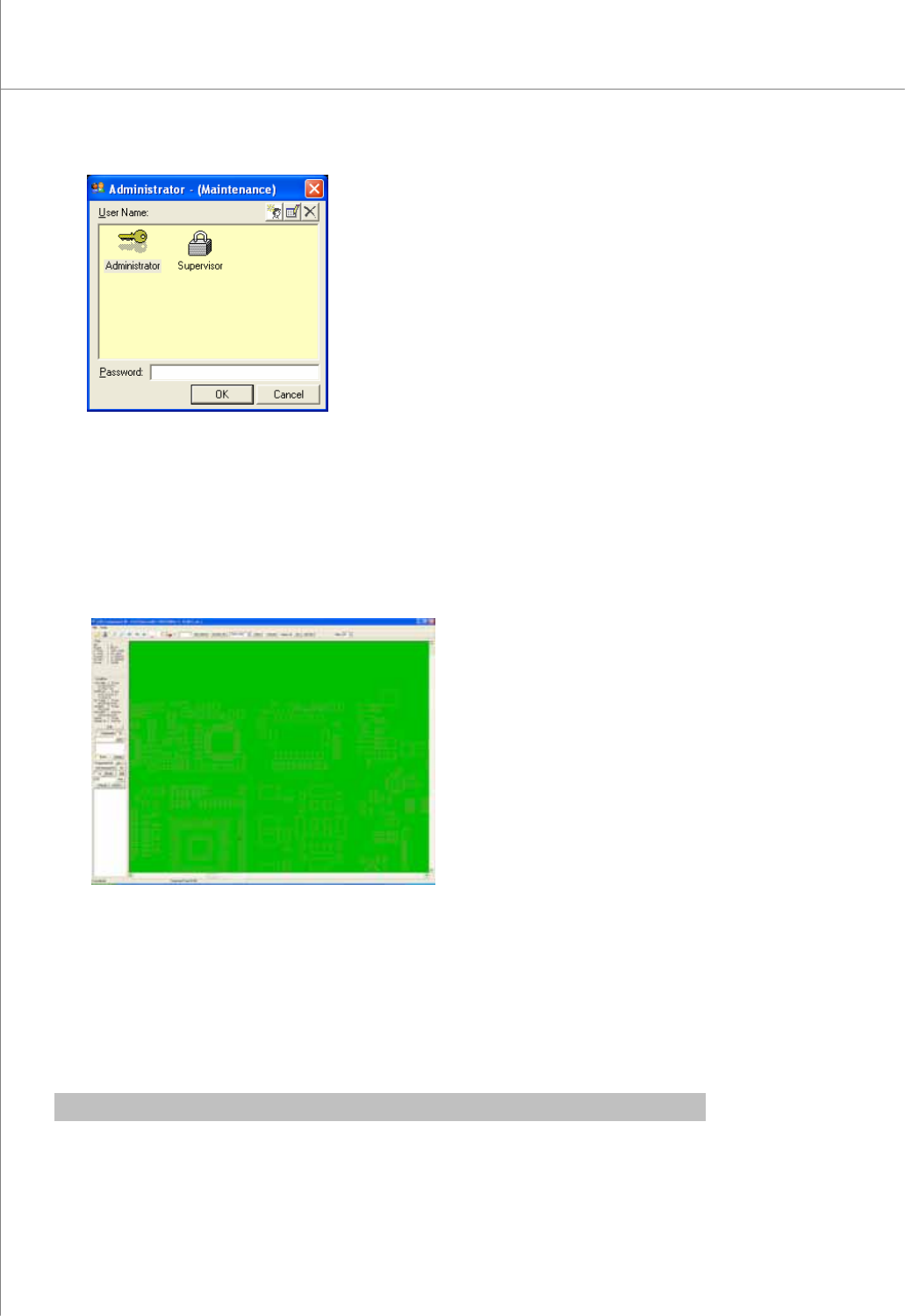
user account.
78 | KY-8030 Series(KYOS-2007001_rev0)
3DIn‐lineSolderPasteInspectionSystems
2) Select the desired user account, enter a password and click the OK button.
The CEditor program will be launched.
3) Click "File ▶ Load Pad file “or” File ▶ Load Job file” in the menu bar.
The file selection window will appear.
4) Select a pad file (*.pad) or a job file (*.mdb) and click the Open button. The selected
file will be opened.
5) In the menu bar;
Click “File ▶ Load CAD File” for component CAD, or
Click “File ▶ Load Pin CAD File” for pin CAD.
The file selection window will appear.
※ Note : When loading a CAD or pin CAD file format for the first time, you should