KY8030 Programmers Manual - 第8页
6 | KY-8030 Series (KYOS-2007001_rev0) 3D In ‐ line Solder Paste Inspection Systems 6) Help Menu Help About GerbPad: Show the v ersion and copyright information. 1.1.4. Main V iew Popup Menu Right-click your …
Programmers Manual
| 5
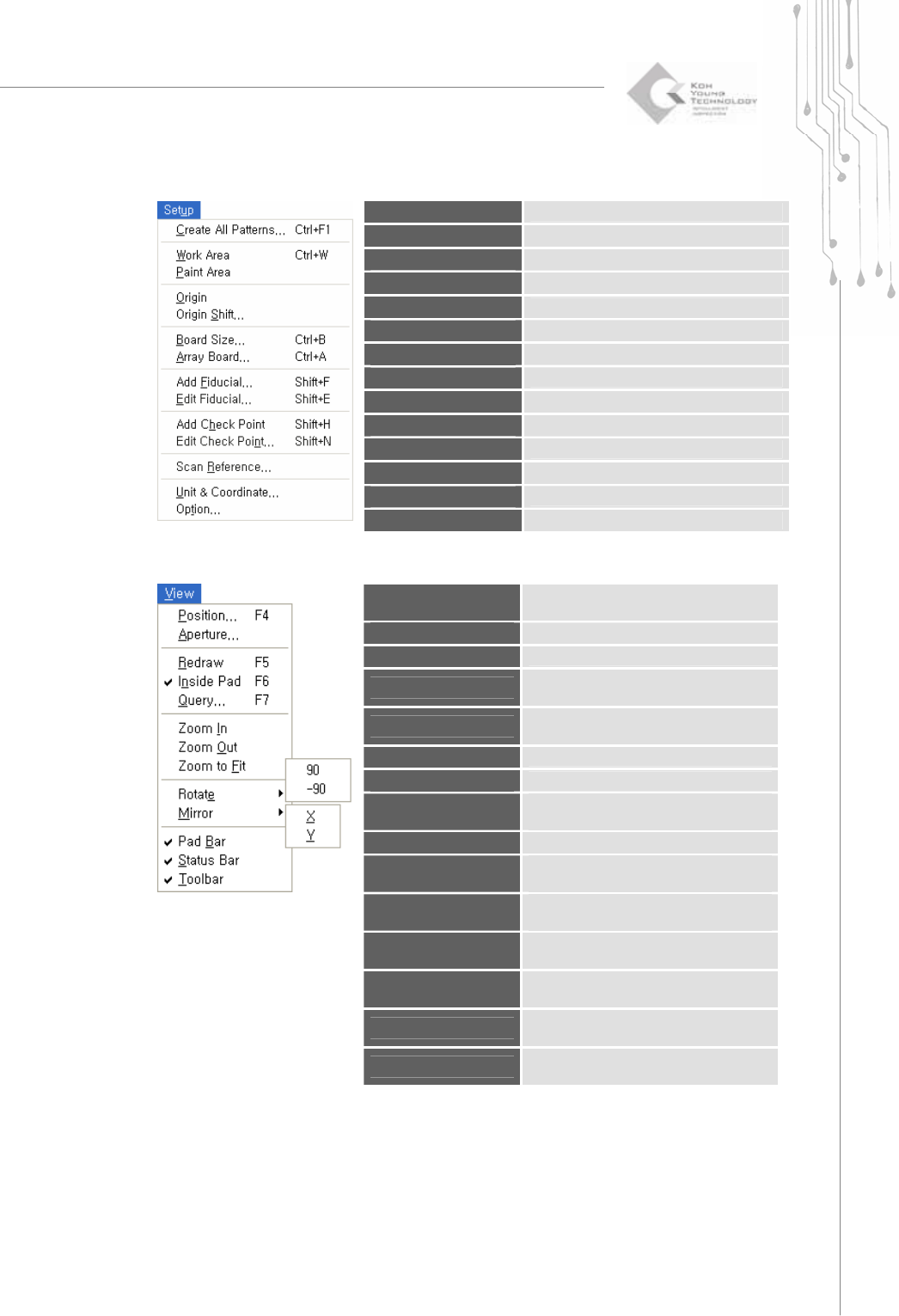
4) Setup Menu
Create All Patterns
Create all patterns automatically.
Work Area
Specify a work area.
Paint Area
Specify a paint area.
Origin
Specify the origin.
Origin Shift
Change the origin.
Board Size
Enter the board size.
Array Board
Enter or edit array board data.
Add Fiducial
Add new fiducial and Enter fiducial data .
Edit Fiducial
Edit fiducial data.
Add Check Point
Add a check point.
Edit Check Point
Edit a check point.
Scan Reference
Scan reference codes for a part.(not use)
Unit&Coordinate
Specify a unit and coordinate.
Option
Change default settings.
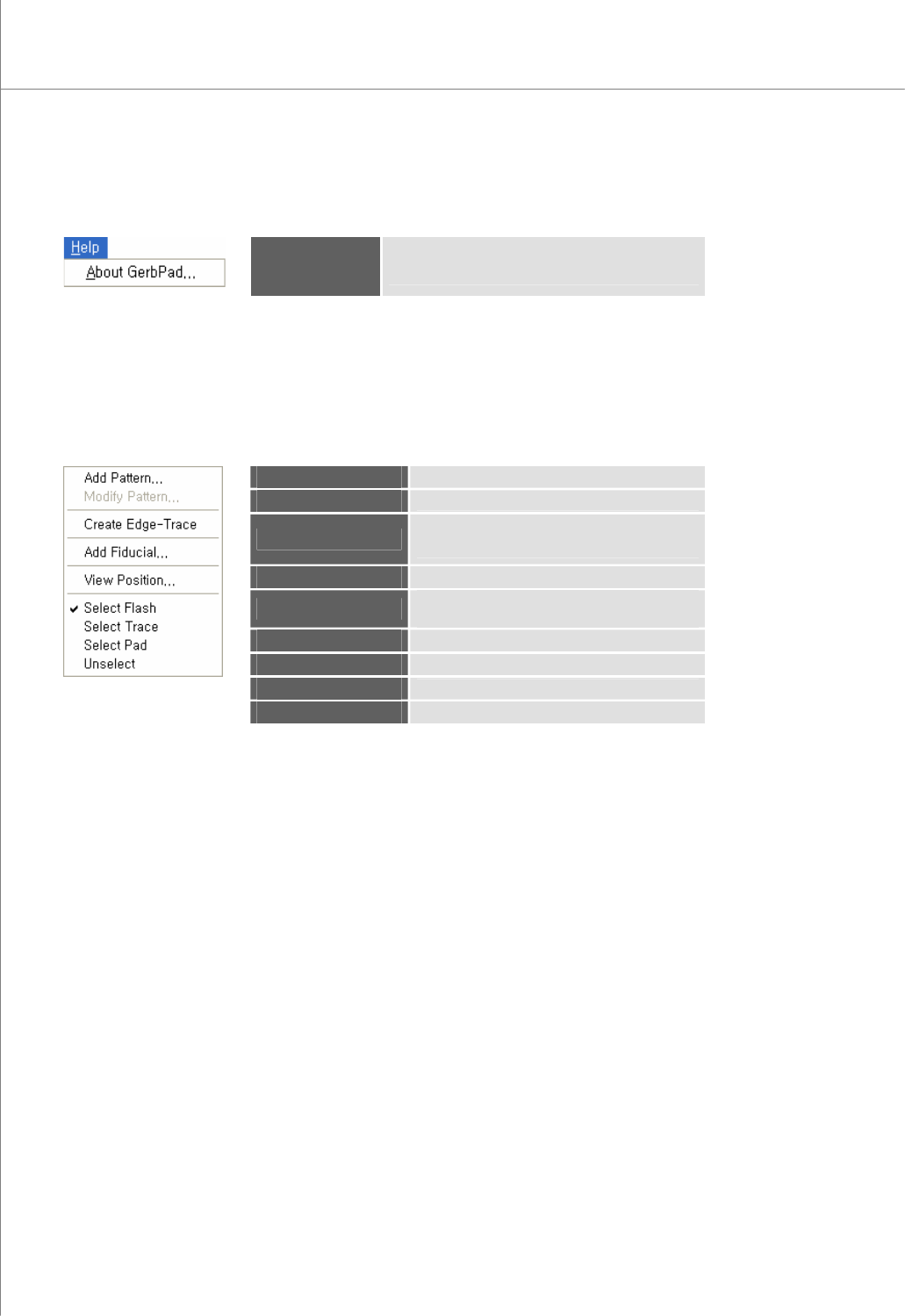
5) View Menu
Position
Select a pad or Flash or Trace for the
measuring a board size automatically.
Aperture
Open an aperture table.
Redraw
Redraw the main view screen.
Inside Pad
Specify whether flashes and traces will
be displayed inside a pad.
Query
Specify which items will be displayed in
the main view.
Zoom In
Zoom in the main view.
Zoom Out
Zoom out the main view.
Zoom to Fit
Set the zoom ratio for the main view to
100%.
Rotate
90: Rotate the main view clockwise by 90°.
Rotate
-90: Rotate the main view counter-
clockwise by 90°.
Mirror
X: Move the main view symmetrically
along the X-axis.
Mirror
Y: Move the main view symmetrically
along the Y-axis.
Pad Bar
Specify whether the pad bar will be
displayed.
Status Bar
Specify whether the status bar will be
displayed.
Toolbar
Specify whether the tool bar will be
displayed.
6 | KY-8030 Series(KYOS-2007001_rev0)
3DIn‐lineSolderPasteInspectionSystems
6) Help Menu
Help
About GerbPad: Show the version and copyright
information.
1.1.4. Main View Popup Menu
Right-click your mouse to display the pop-up menu below:
Add Pattern
Add a pattern.
Modify Pattern
Modify the selected pattern(s).
Create Edge-Trace
Retrieve only the contour lines of the selected
flash(es) and trace(s) to create a trace.
Add Fiducial
Add the fiducial.
View Position
Select a pad or Flash or Trace for the
measuring a board size automatically.
Select Flash
Select flash(es).
Select Trace
Select trace(s).
Select Pad
Select pad(s).
Unselect
Cancel a previous selection.
Programmers Manual
| 7
1.1.5. Tool Bar
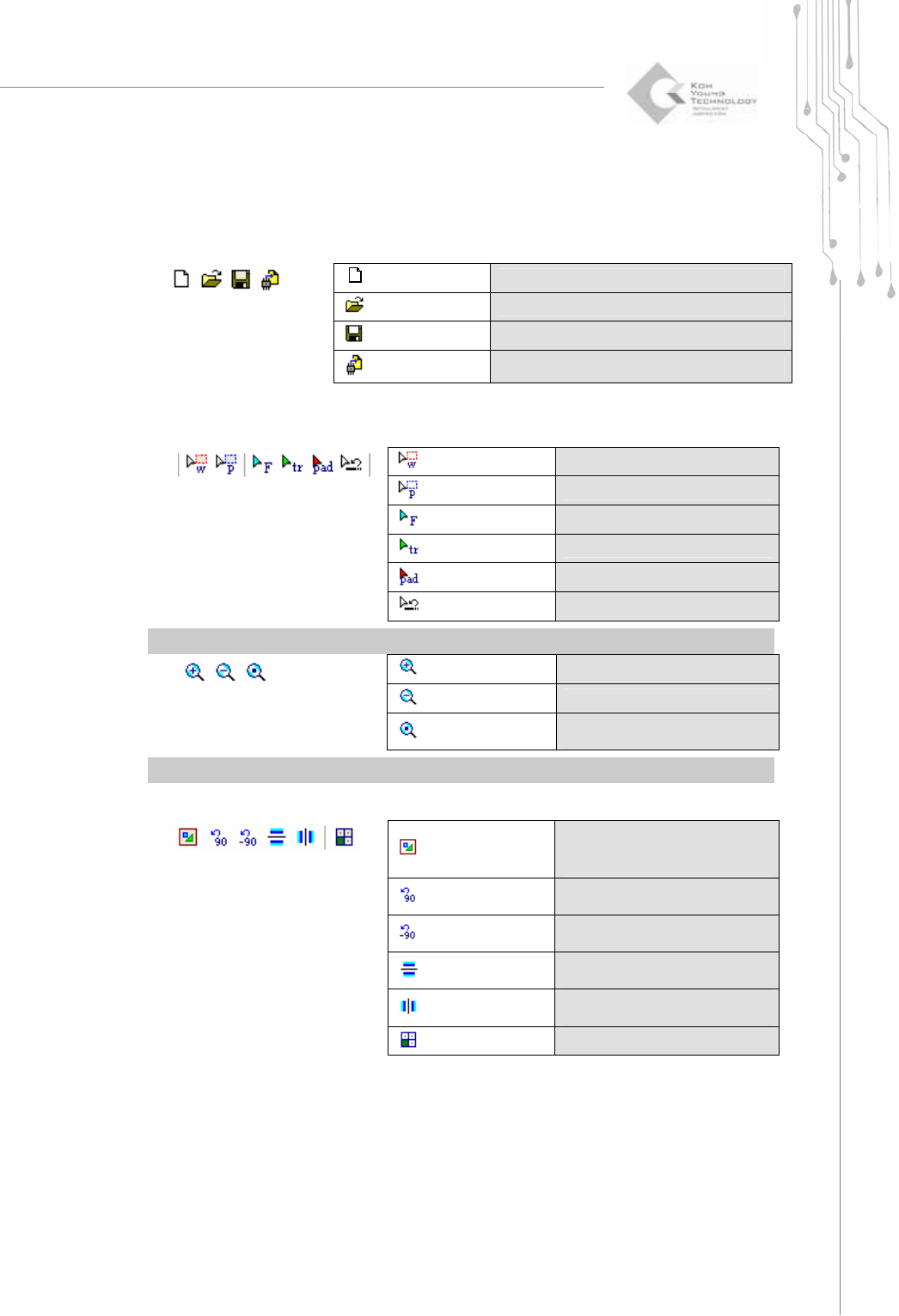
Work Area
Specify a work area.
Paint Area
Specify a paint area.
Flash
*Select flash(es).
Trace
*Select trace(s).
Pad
*Select pad(s).
2)
Unselect
Cancel a previous selection.
※ Note: You can select more than one item by dragging your mouse.
Zoom In
Zoom in the main view.
Zoom Out
Zoom out the main view.
3)
Zoom to Fit
Set the zoom ratio of the main
view to 100%.
※ Note: After selecting "Zoom In", specify a zoom area by dragging your mouse.
Inside Pad
Indicate whether flashes and
traces will be displayed inside a
pad.
Rotate
90: Rotate the main view
clockwise by 90°.
Rotate
-90: Rotate the main view counter-
clockwise by 90°.
Mirror
X: Move the main view
symmetrically along the X-axis.
Mirror
Y: Move the main view
symmetrically along the Y-axis.
4)
Array Board
Enter or edit array board data.
New
Load a Gerber file to create a new work file.
Open
Open a work file(*.gpd ).
Save
Save a work file(*.gpd ).
1)
Export
Create a pad file(*.pad ).