KY8030 Programmers Manual - 第80页
78 | KY-8030 Series (KYOS-2007001_rev0) 3D In ‐ line Solder Paste Inspection Systems 2) Select the desired user account, enter a passw ord and click the OK button. The CEditor program w ill be launched. 3) Cl…
Programmers Manual
| 77
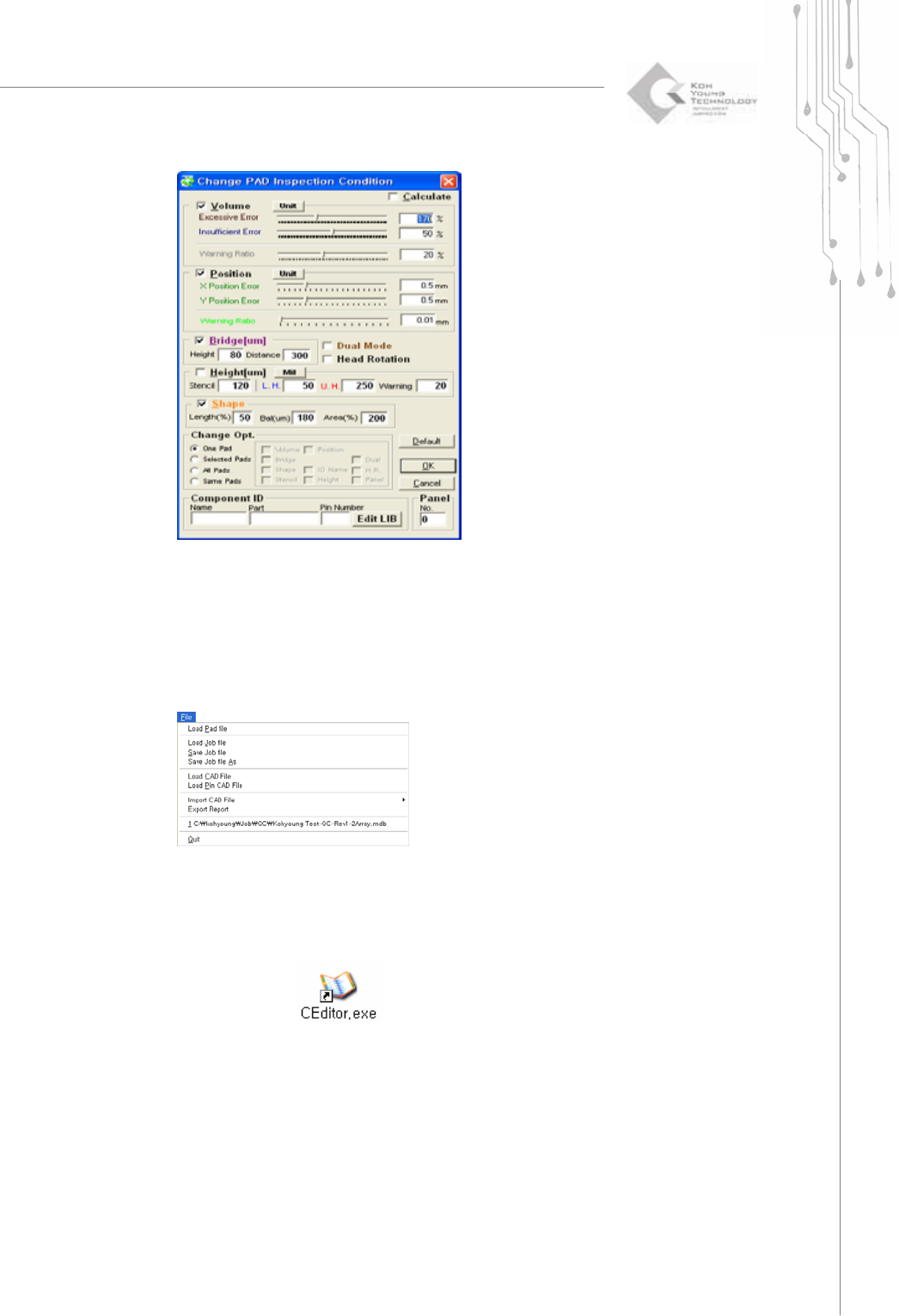
11) Set the proper inspection condition in the window.
12) Set the component ID and Pin number (Optional).
- Import CAD file or Pin CAD File when available
- If the file is not available, set the component ID and Pin number manually.
13) Click “File ▶ Save Job file”.
14) Save it as “*.mdb file”.
2.2.1. Creating a Job File When Loading Single Board CAD
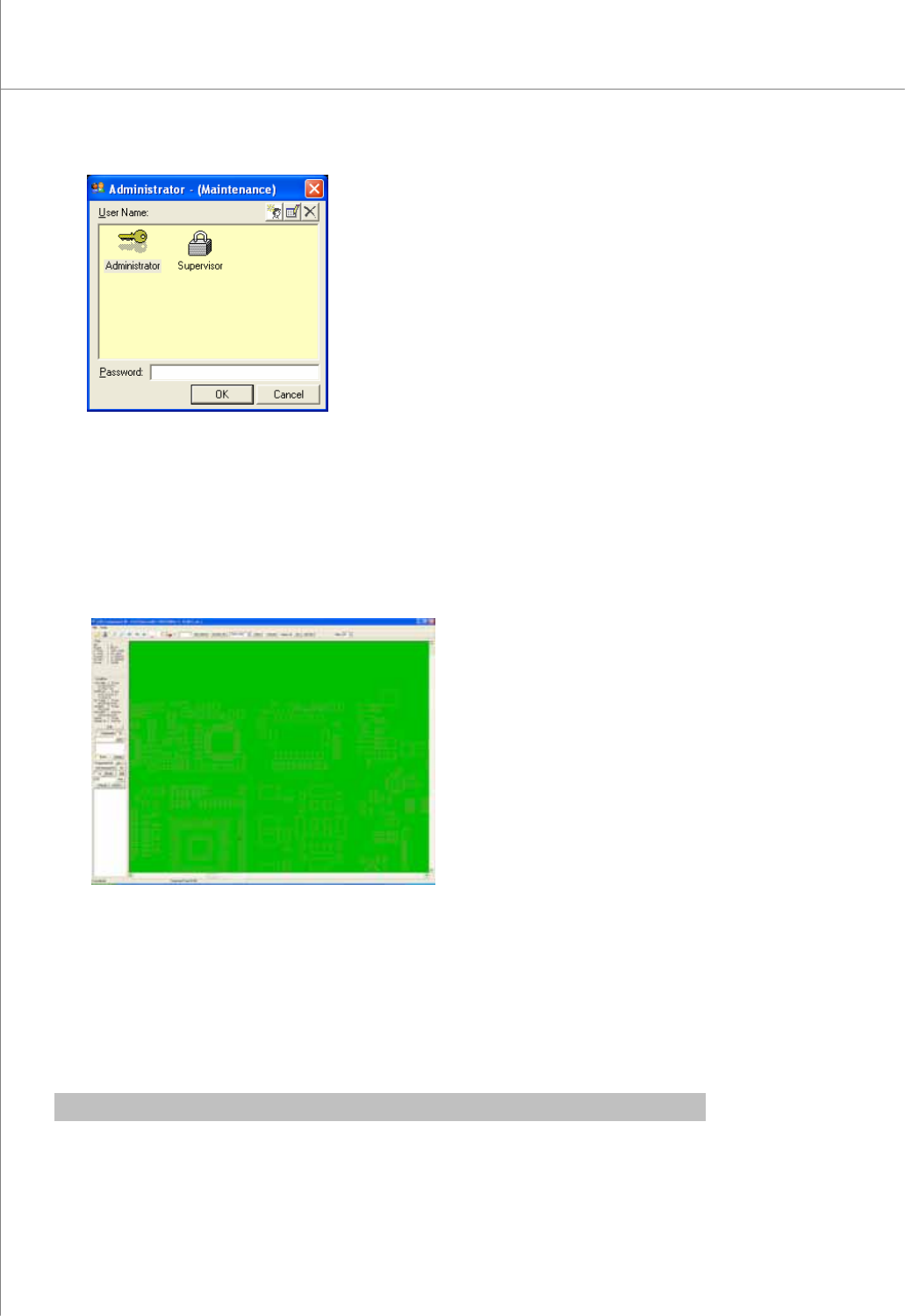
1) . Double-click the
icon. A window will appear allowing you to select a
user account.
78 | KY-8030 Series(KYOS-2007001_rev0)
3DIn‐lineSolderPasteInspectionSystems
2) Select the desired user account, enter a password and click the OK button.
The CEditor program will be launched.
3) Click "File ▶ Load Pad file “or” File ▶ Load Job file” in the menu bar.
The file selection window will appear.
4) Select a pad file (*.pad) or a job file (*.mdb) and click the Open button. The selected
file will be opened.
5) In the menu bar;
Click “File ▶ Load CAD File” for component CAD, or
Click “File ▶ Load Pin CAD File” for pin CAD.
The file selection window will appear.
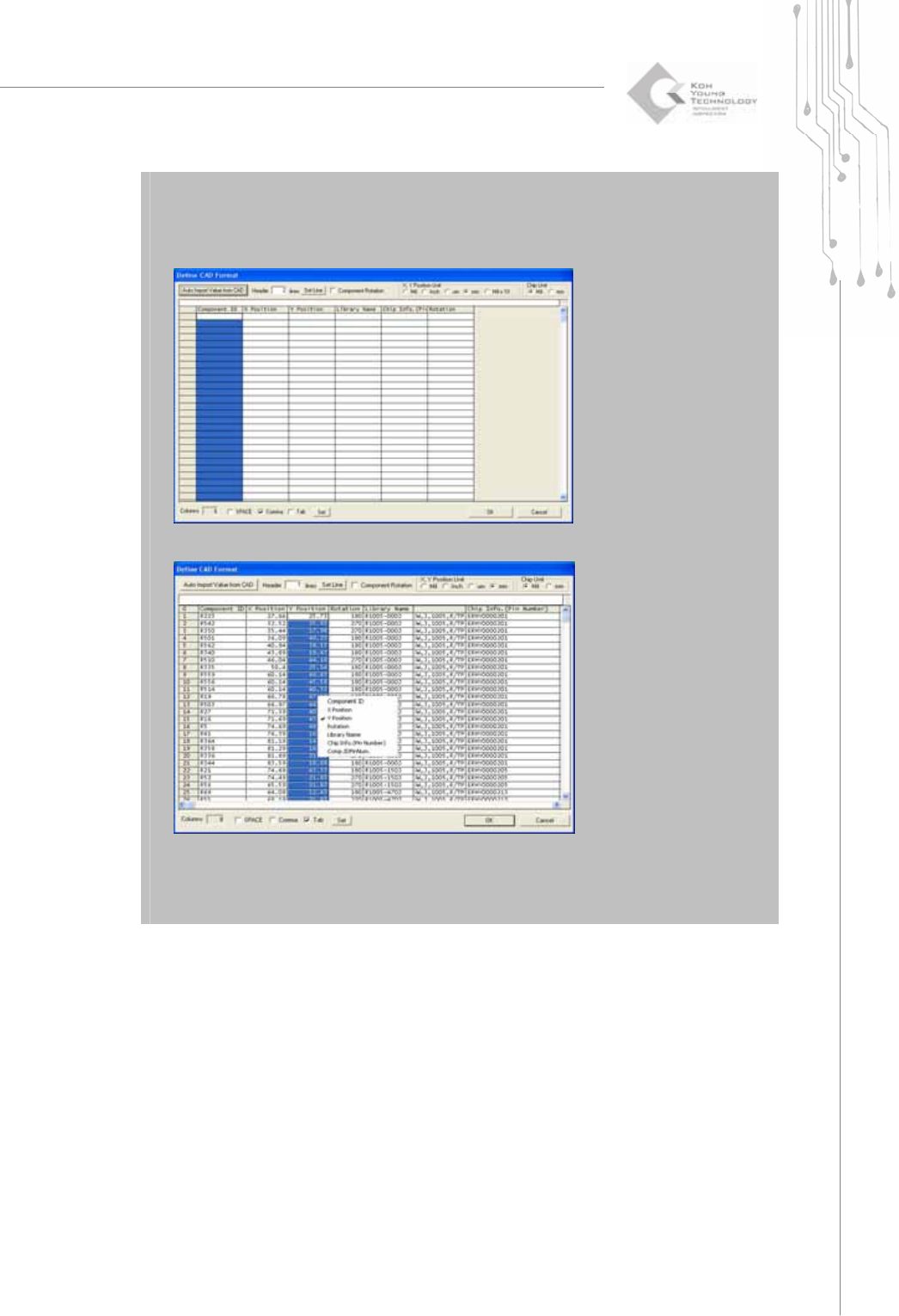
※ Note : When loading a CAD or pin CAD file format for the first time, you should
Programmers Manual
| 79
define it in the Set CAD Format menu.
a) Click “Tools ▶ SET CAD format”. Define CAD format dialog box will pop up.
b) Open the CAD File by clicking the “Auto Import Value from CAD” button.
c) Set each column to the corresponding item by left-clicking the mouse. Click OK
button.
6) Select a Pin CAD file and click the OK button.
The selected file will be opened.
( The screen below shows the CAD file example)