KY8030 Programmers Manual - 第83页
Programmers Manual | 81 3) Click the Set button under the “Comp onent ID”. Because the board has tw o columns and two rows, enter 2 for Cols and 2 for Rows. Pitch represents the spacing in the board. Enter 90 f or Cols P…
80 | KY-8030 Series(KYOS-2007001_rev0)
3DIn‐lineSolderPasteInspectionSystems
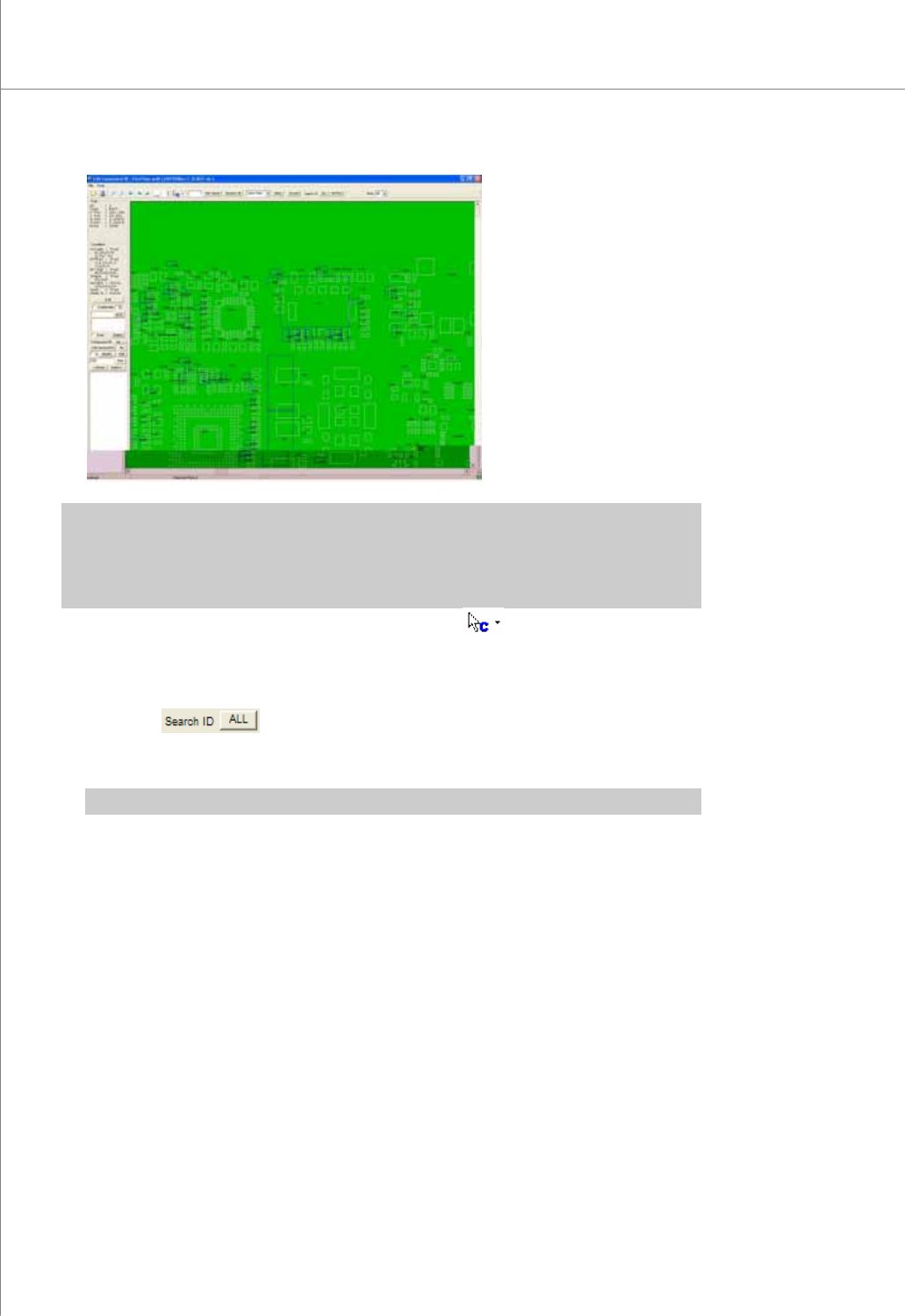
※ Note: If the orientations of Pin CAD and pad files do not match, make sure that they have the same
orientation by using functions such as CAD Rotation +90 Degree, CAD Rotation -90
Degree, CAD Mirror X and CAD Mirror Y. It is marked with a blue box if it is component
CAD and with a pink cross if it is pin CAD.
7) If the CAD is not perfectly aligned to the pad, Select .
8) Move the CAD file or Pin CAD file to match it with the corresponding pad.
9) Modify the component box which is not matched in order to match all.
10) Click the
button under the “Search ID”. Assign a pin number to the
matched pin CAD and pad data and register it. Save the registered pin number in a
job file.
※ Note: Click the Not Find button under the "Search ID" to display unmatched data.
11) Click the CAD Refresh button or press the F5 key in the keyboard to display all
component and pin numbers.
12) Click the Save button to save the job data in a job file.
2.2.2. Creating a Job File When Loading Array Board CAD
1) Follow steps 1) - 11) in the previous example under 5.2.1.
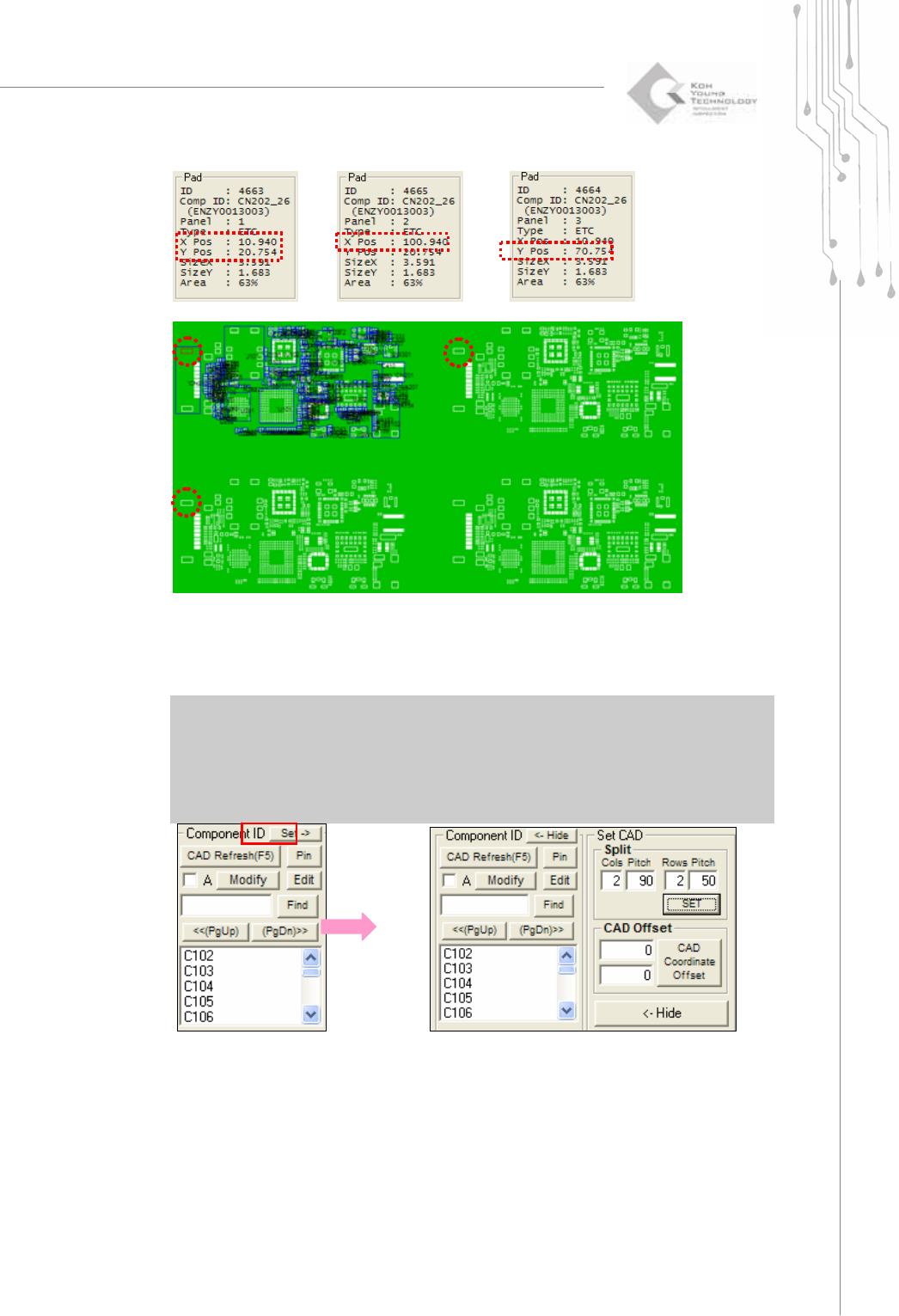
2) Locate the reference positions for Boards 1 and 2.
1 2 3
Programmers Manual
| 81
3) Click the Set button under the “Component ID”.
Because the board has two columns and two rows, enter 2 for Cols and 2 for Rows.
Pitch represents the spacing in the board. Enter 90 for Cols Pitch and 50 for Rows Pitch.
※ Note:
Cols Pitch = The X coordinate of the reference point for Board 2 - The X coordinate
of the reference point for Board 1.
Rows Pitch = The Y coordinate of the reference point for Board 3 - The Y coordinate
of the reference point for Board 1.
1
2
3
82 | KY-8030 Series(KYOS-2007001_rev0)
3DIn‐lineSolderPasteInspectionSystems
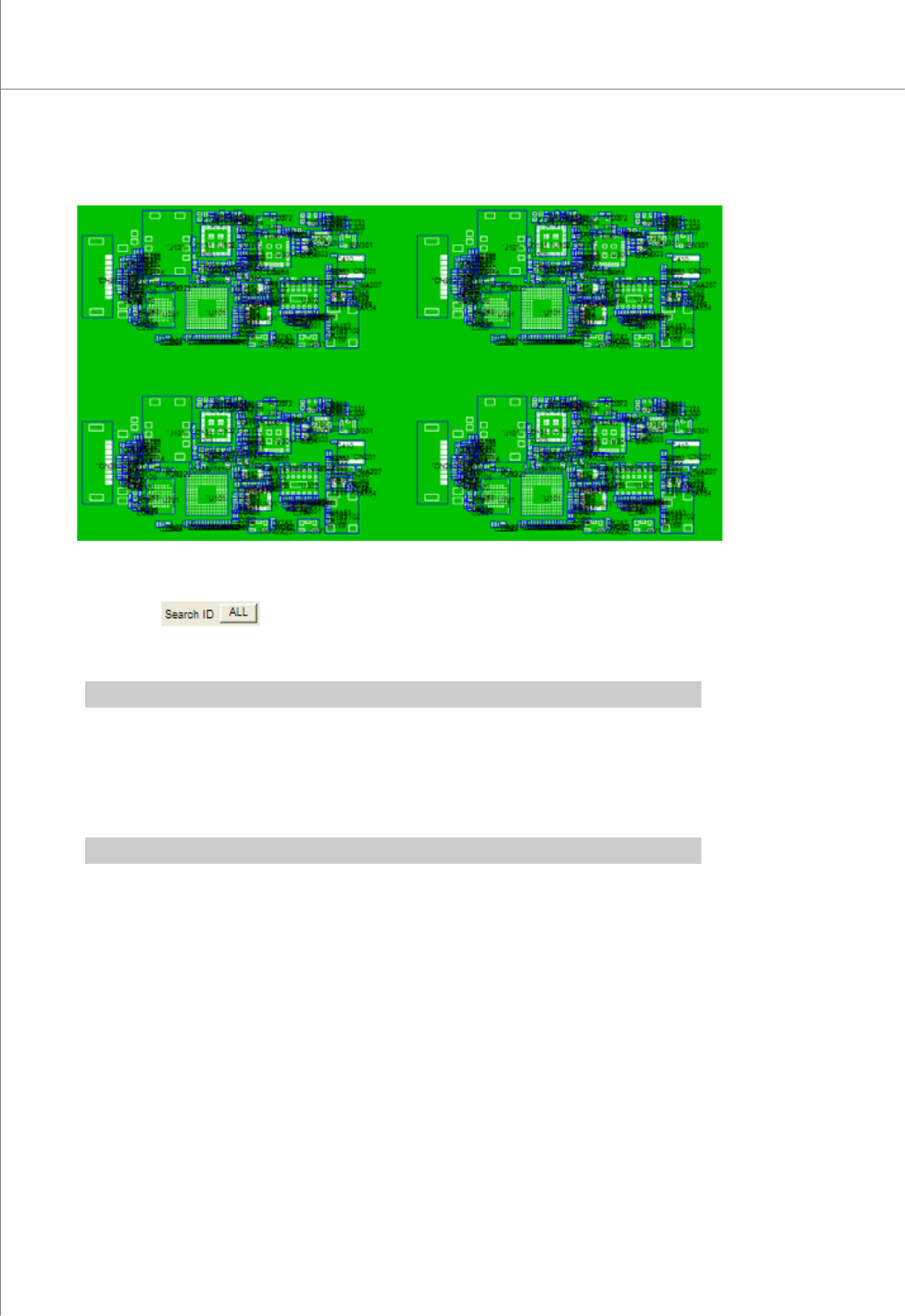
4) Click the Set button. The duplicated CAD file data will be displayed.
5) Click the CAD Refresh button or press the F5 key in the keyboard to display all
component and pin numbers.
6) Click the
button under the “Search ID”. Assign a pin number to the
matched pin CAD and pad data and register it. Save the registered pin number in a
job file.
※ Note: Click the Not Find button under the "Search ID" to display unmatched data.
7) Component ID for 2,3 and 4 array will be properly registered.
8) Click the Save button to save the job data in a job file.
2.2.3. Modifying a Component ID
※ Note: Not applicable when pin CAD file is used..
1) Follow steps 1) - 11) in the previous example under 5.2.1.