SI-F130 Manual(EN)_jpg_ Rev1.pdf - 第90页
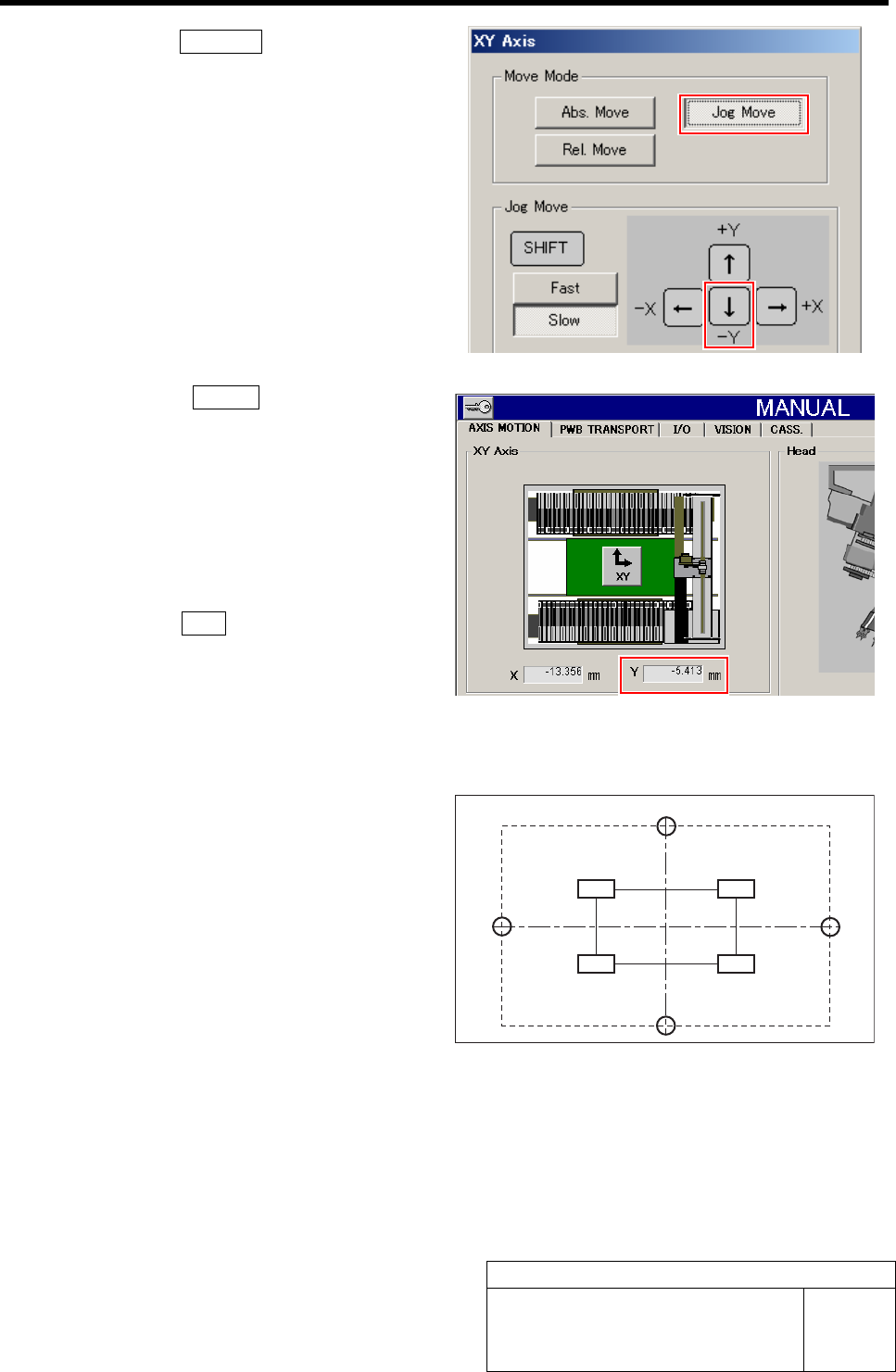
Software Limit Setup HLF-10315-01 Soft w are Limit Setup SHEET 5/7 7. Click the Jog Move button. 8. Press the left cursor key one t ime by one by slow Jog Move to move the Y axis in negative direction. When the Y axis is…
Software Limit Setup
HLF-10315-01
Software Limit Setup
SHEET
4/7
9. Press the RESET button on the op-
eration panel to cancel the alarm dis-
play.
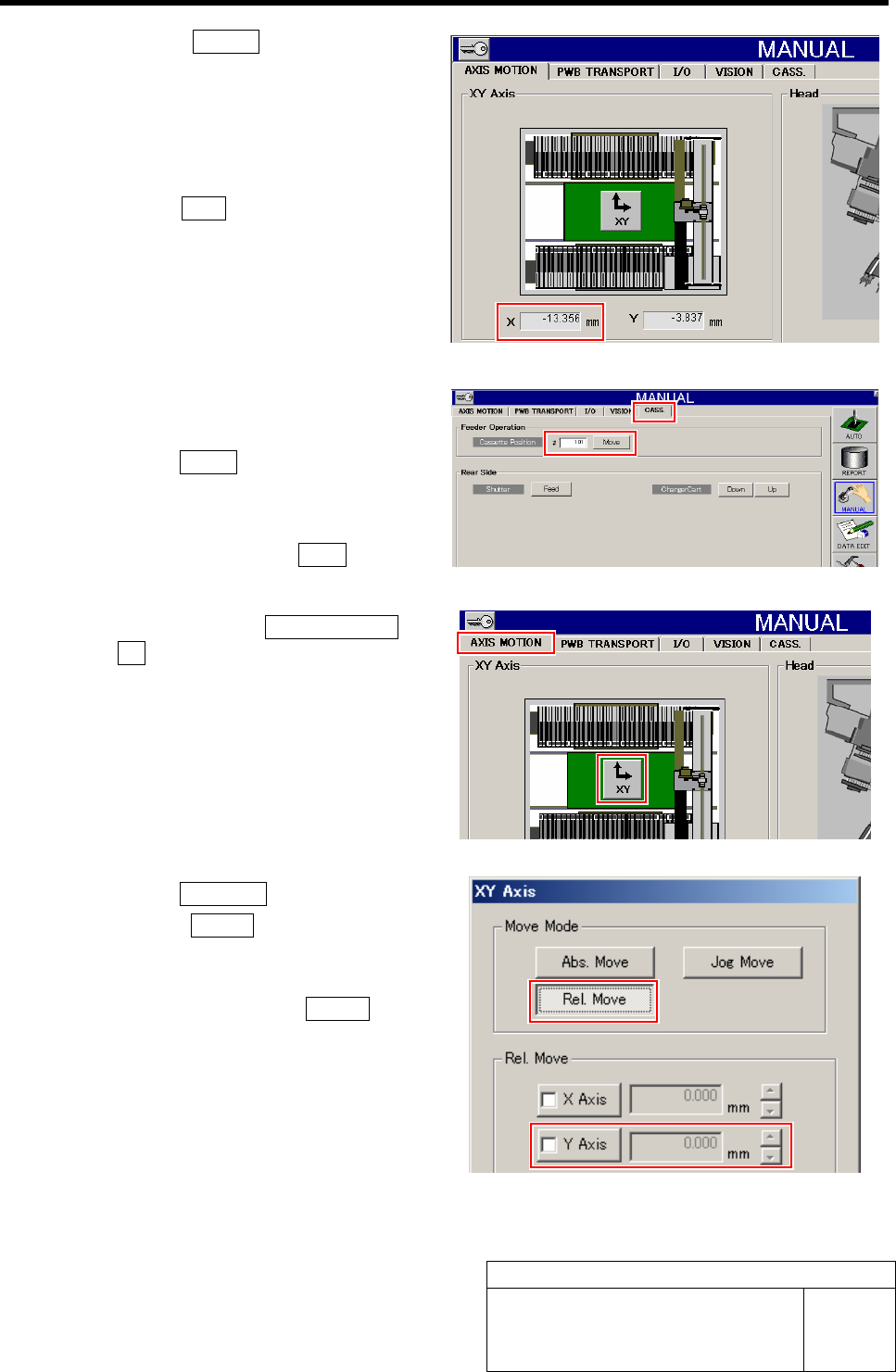
10. Make a memo of the X position data of
X-CCW displayed on the AXIS
MOTION screen.
11. Press the ORG button on the operation
panel to perform origin position re-
turn.
3 Check the Y position data of over-travel
sensor (OT) of Y-CW.
1. Click the CASS. tab.
Cassette operation screen is displayed.
2. Input “101” into the cassette position
input box and click the Move button.
The head moves to the cassette position “101”.
3. Click in an order of AXIS MOTION tab
ÎXY button.
XY Axis screen is displayed.
4. Click the Rel. Move button.
5. Click the Y Axis button in the Rel.
Move.
6. Input “-1.500” into number input box
for Y axis and press the START button
on the operation panel.
The Y axis relatively moves from the position of
cassette 101 by -1.5mm.
Software Limit Setup
HLF-10315-01
Software Limit Setup
SHEET
5/7
7. Click the Jog Move button.
8. Press the left cursor key one time by
one by slow Jog Move to move the Y
axis in negative direction.
When the Y axis is moved to the over-travel posi-
tion, alarm is displayed.
9. Press the RESET button on the op-
eration panel to cancel the alarm dis-
play.
The alarm disappears and the screen returns to
the AXIS MOTION screen.
10. Make a memo of the Y position data of
Y-CW displayed on the AXIS MOTION
screen.
11. Press the ORG button on the operation
panel to perform origin position re-
turn.
4 Check the XY position data of over-travel
sensors (X-CW, Y-CCW) in the same pro-
cedures as that of the procedures 2 to 3.
Nozzle moving area
OT boundary
Pickup position area
X axis
X-CW
Y axis
X-CCW
Y-CCW
Y-CW
Z240
Z201
Z101
Z140
Software Limit Setup
HLF-10315-01
Software Limit Setup
SHEET
6/7
5 Determine the coordinate of the software
limit (SL) sensor.
1. Calculate the coordinate of the soft-
ware limit sensor on the X axis side to
meet the following conditions.
<Coordinate conditions>
- There is clearance of 2 mm or more from the
cassette pickup position.
- There is clearance of 1 mm or more to OT sen-
sor.
2. Calculate the coordinate of the soft-
ware limit sensor on the Y axis side to
meet the following conditions.
<Coordinate conditions>
- There is clearance of 1 mm or more from the
cassette pickup position.
- There is clearance of 0.5 mm or more to OT
sensor.
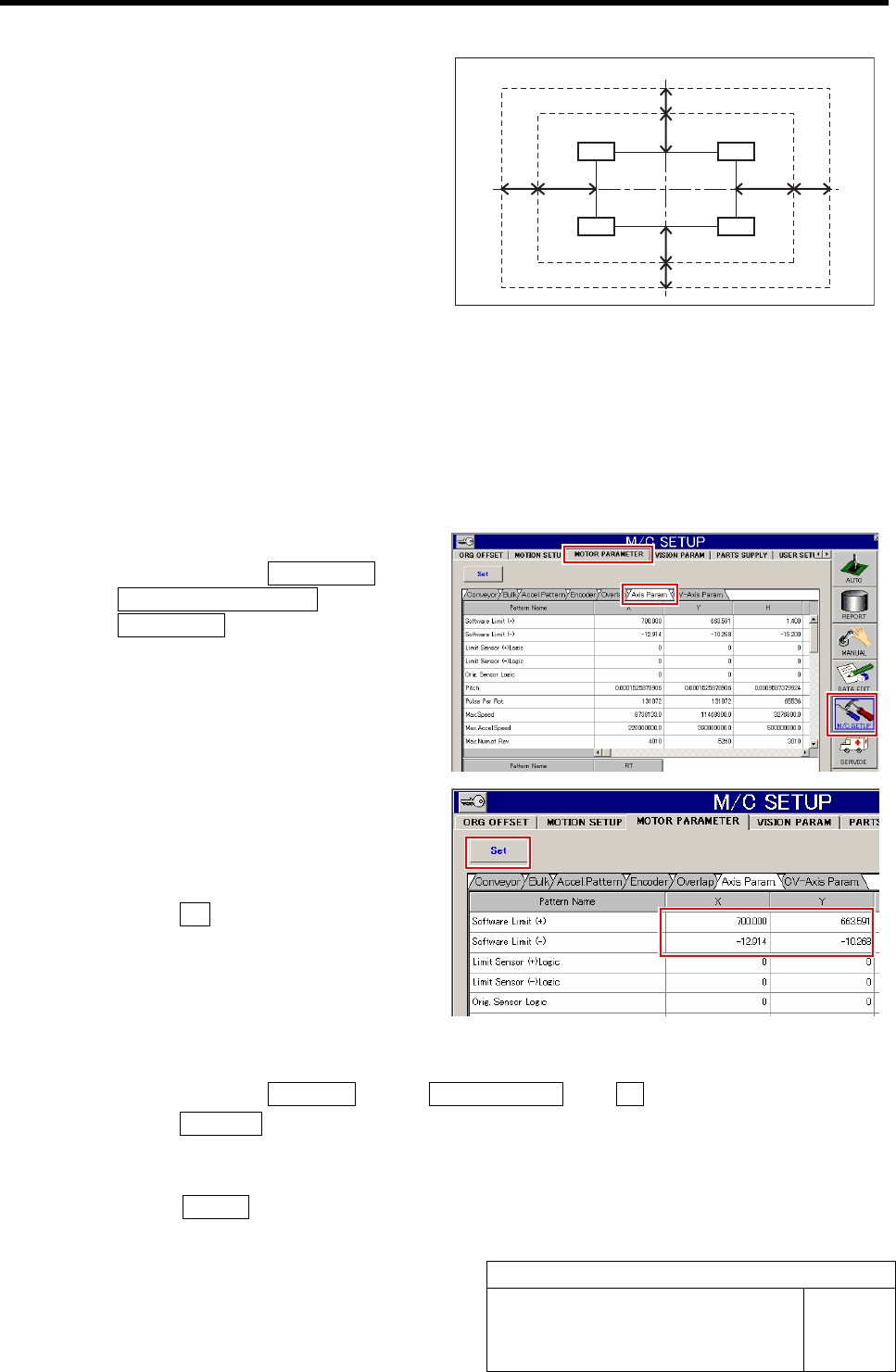
6 Set the software limit value.
1. Click in an order of M/C SETUP menu
ÎMOTOR PARAMETER tab
ÎAxis Param. tab.
Axis parameters screen is displayed.
2. Input the software limit coordinate
calculated in the procedure 5 into the
X, Y boxes on the software limit (+)
and (-) lines.
3. Click the Set button.
The set software limit values are saved.
7 Check the coordinates when the software limit is operating.
1. Click in an order of MANUAL menuÎAXIS MOTION tabÎXY button.
2. Click the Jog Move button on the XY Axis screen.
3. Press the cursor key to move the head in each direction of X-CW, X-CCW, Y-CW and Y-CCW
until software limit error is displayed.
4. Press the RESET button on the operation panel to cancel the alarm, and check that the XY
position displayed on the AXIS MOTION screen is within the standard in the next page.
Nozzle operating area
OT boundary
Pickup position area
X-axis
Y-ax is
Z240
Z201
Z101
Z140
SL boundary
0.5 mm and more
1 mm and more
1 mm and more
0.5 mm and more
2 mm
and more
1 mm
and more
1 mm
and more
2 mm
and more