MR8740T_user_manual_eng_20191016H.pdf - 第129页
124 Searching For Peak V alues 6.1 Searching For Peak V alues Y ou can choose any one of the maximum, minimum, maximal, and minimal values and search measured data for it. > 3 1 4 5 2 6 7 8 1 Click the [T arget channe…
123
6
Search Function
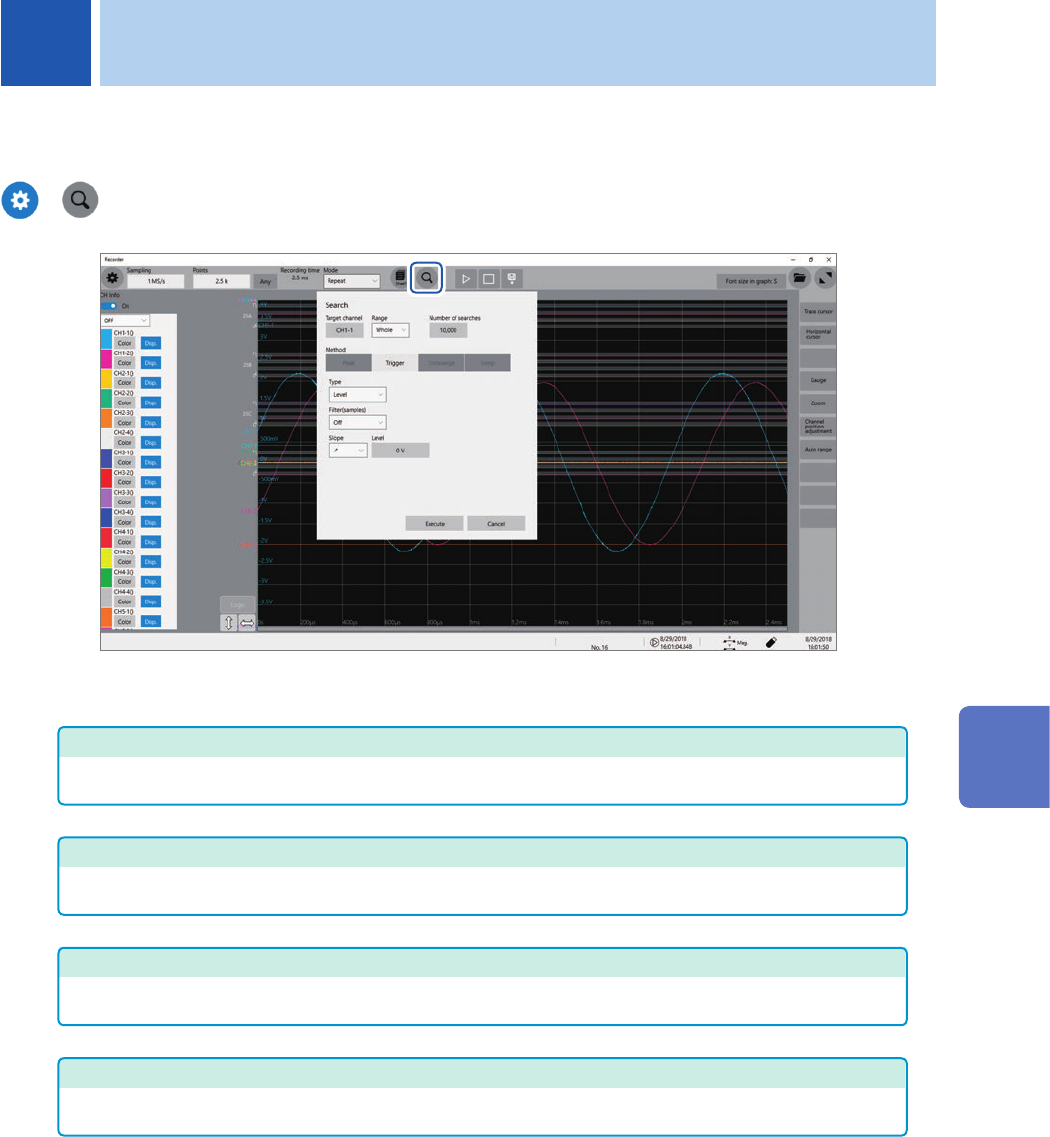
Using the search function allows you to search measured waveform data for positions where user-
dened search criteria have been satised.
>
Operation available on the search screen
Peak search
You can search for the maximum, minimum, local maximum (maximal), or local minimum (minimal)
value. Select one of them. (p. 124)
Trigger search
You can search for the position where the specied trigger condition is satised. Specify the trigger
condition. (p. 126)
Memory HiConcierge
You can automatically detect differences from the fundamental wave based on the histogram or
standard deviation. Specify the fundamental wave. (p. 130)
Jump
The display can jump to the specied time, trace cursor position, event number, trigger point, or search
mark. (p. 132)
6 Search Function
6
Search Function
124
Searching For Peak Values
6.1 Searching For Peak Values
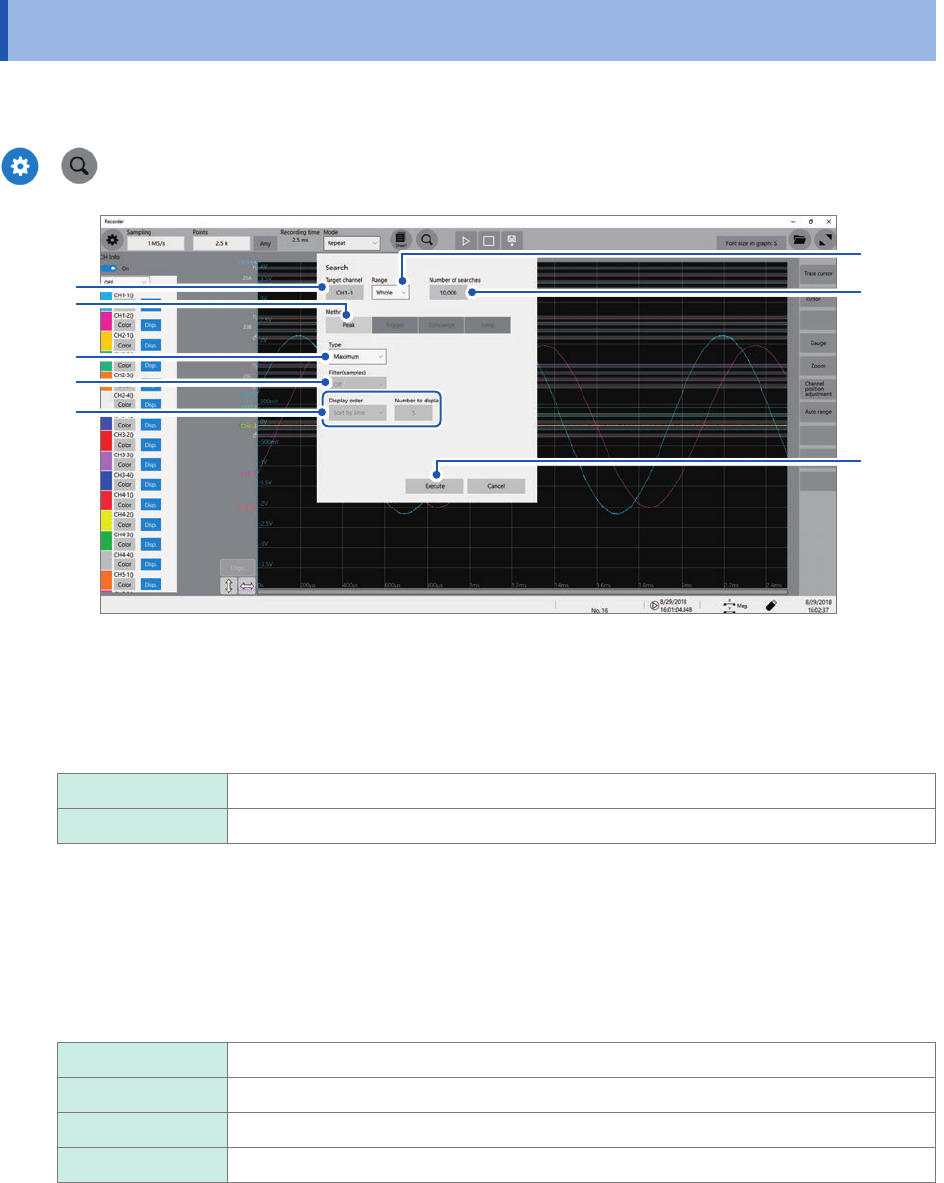
You can choose any one of the maximum, minimum, maximal, and minimal values and search
measured data for it.
>
3
1
4
5
2
6
7
8
1
Click the [Target channel] box, and then from the channel setting dialog box, choose a
channels to be searched for values.
2
Click the [Range] box, then choose an option for the search scope from the list.
Whole
Allows you to search whole waveform.
A_B, C_D Searches the scope specied with trace cursors A and B or trace cursors C and D.
3
Click the [Number of searches] box, and then enter the number of search results.
4
In the [Method] area, click [Peak] to choose a search method for searching for peak values.
5
Click the [Type] box, and then from the list, choose a value type to be searched for.
Maximum
Allows you to search for the maximum value.
Minimum Allows you to search for the minimum value.
Maximal Allows you to search for maximal values.
Minimal Allows you to search for minimal values.
• If search results have two or more maximum or minimum values, the instrument displays any one of them as
a representative value among the search results.
• Search results have multiple maximal or minimal values
125
Searching For Peak Values
6
(When you choose [Maximal] or [Minimal] in the [Type] box)
Click the [Filter(samples)] box, and then from the list, choose a decision criterion for
maximal or minimal values.
Off
Regards a value as a maximal value when it is larger than the values found one point
before and after, and a minimal value when it is smaller.
10 to 10,000 Regards a value as a maximal value when it is larger than all the values found the
specied number of points before and after, and a minimal value when it is smaller.
7
(When you choose [Maximal] or [Minimal] in the [Type] box)
Click the [Display order] box, and then from the list, choose a sort criterion for search
results.
Sort by time
Displays retrieved positions in chronological order. You cannot enter the number in the
[Number to display] box. The instrument handles up to 10,000 search results. The
instrument stops the search if it retrieves more than 10,000 results.
Sort by data With the [Maximal] setting, displays the number, which is specied by [Number
to display], of retrieved positions in descending order. With the [Minimal] setting,
displays them in ascending order.
(When you choose [Sort bya data] in the [Display order] box)
Click the [Number to display] box, and then enter the number of search results to be displayed.
8
Click [Execute].
The instrument puts search marks ( ) on positions where the search criteria are satised.
The [Search Pos.] switching panel appears on the waveform screen.
To stop the search
Click the stop icon.
9
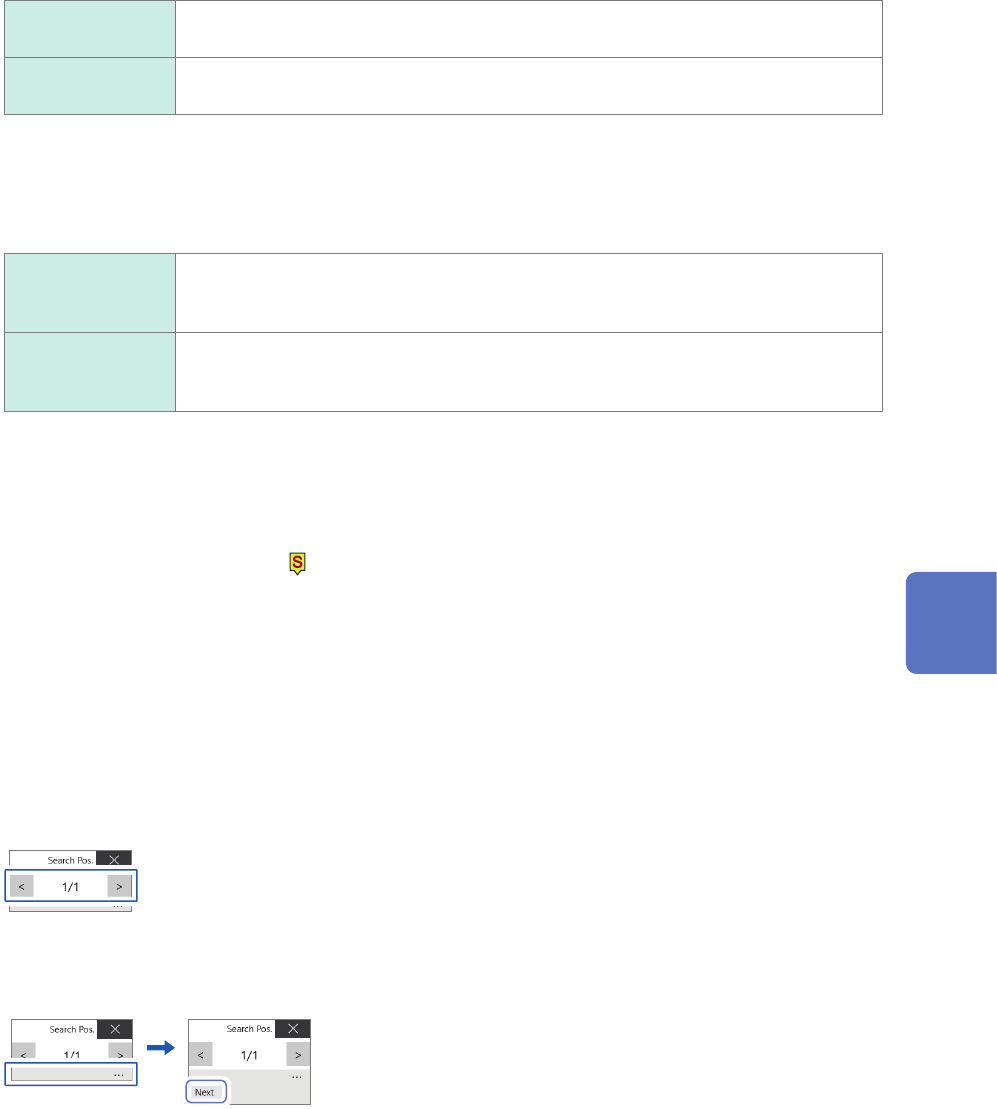
Switch retrieved positions using the [Search Pos.] switching panel and check the search
results.
You can switch the retrieved positions by clicking [<] or [>].
The display order follows the setting in the [Display order] box.
Clicking [Next] executes another search beginning from the next point of the retrieved position presently
displayed.
The instrument discards a previous search result.
To specify a retrieved position and jump there
As described in “6.4 Jump to the Specied Position” (p. 132), choose [Search number] in the [Type] box,
and then click [Execute].
6
Search Function