MR8740T_user_manual_eng_20191016H.pdf - 第137页
132 Jump to the Specied Position 6.4 Jump to the Specied Position The display can jump to the specied time, trace cursor position, event number , trigger point, or search mark. > 1 3 2 1 In the [Method] area, click…
131
Searching For Differences from a Fundamental Wave (Memory HiConcierge)
5
Use the [Period setting] toggle switch to choose a period setting used for searches.
The instrument searches for differences from the fundamental wave (or the previous waveform) in the
specied intervals.
Auto
The instrument automatically saves calculation results.
Any Allows you to click the [Sample] box to enter the number of samples, which species a
period.
With the [Auto] setting, the instrument may not be able to determine a period depending on measured
waveforms. If a fundamental wave have an unintended form, change this setting to [Any] and specify a period
in the number of samples in the [Sample] box.
6
Click [Refresh fundamental wave] to display the fundamental wave.
The instrument extracts a fundamental wave from the specied period and displays the wave on the screen.
7
Click the [Display order] box, and then from the list, choose a sort criterion for search
results.
Sort by time
Displays retrieved positions in chronological order.
Sort by data Displays retrieved positions in order of decreasing difference from a comparison target
(fundamental wave or previous waveform).
8
Click the [Number to display] box, and then enter the number of search results to be
displayed.
9
Click [Execute].
The instrument puts search marks ( ) on positions where the search criterion is satised.
The retrieved position switching panel appears on the waveform screen.
To stop the search
Click the stop icon.
10
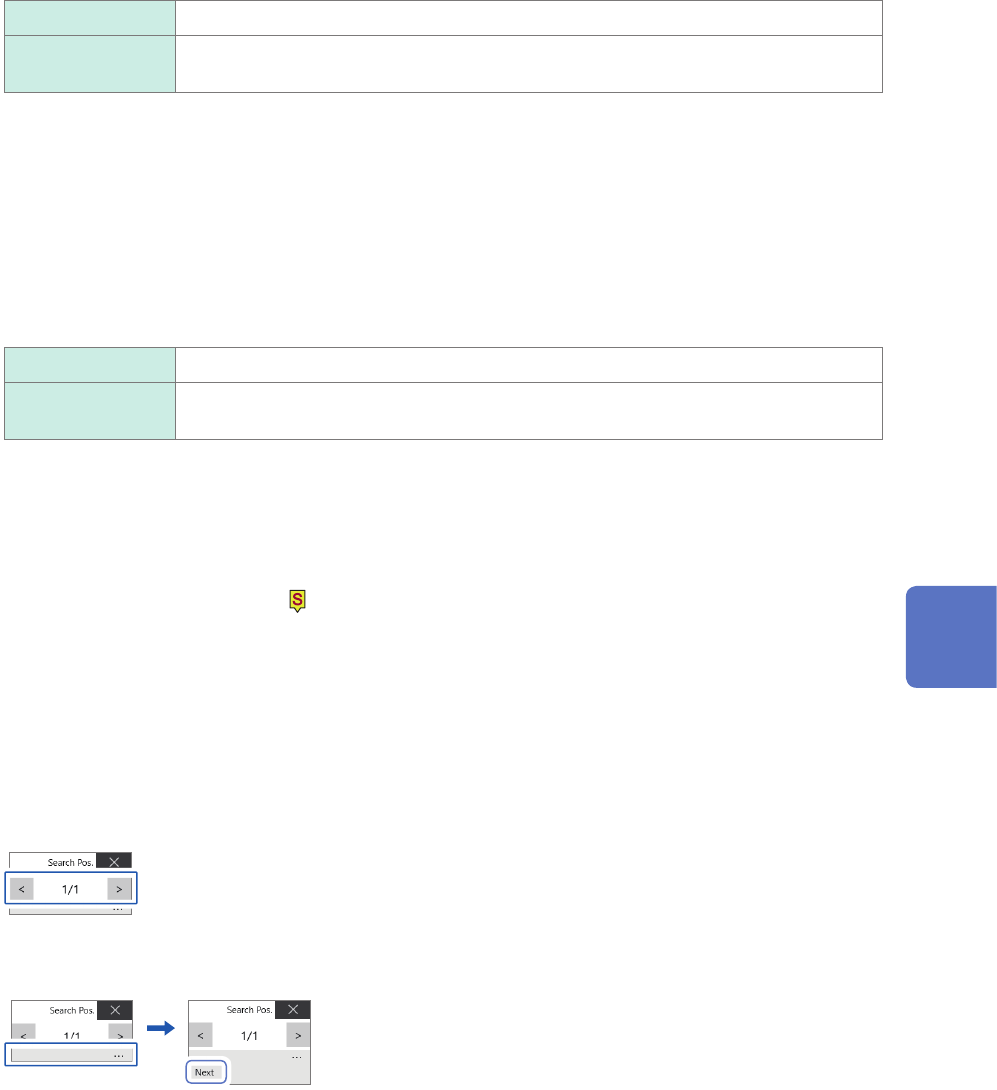
Switch retrieved positions using the [Search Pos.] switching panel and check the search
results.
You can switch the retrieved positions by clicking [<] or [>].
The display order follows the setting in [Display order].
Clicking [Next] executes another search beginning from the next point of the retrieved position presently
displayed. The instrument discards a previous search result.
To specify a retrieved position and jump there
As described in “6.4 Jump to the Specied Position” (p. 132), set [Type] to [Search number],and then click
[Execute].
6
Search Function
132
Jump to the Specied Position
6.4 Jump to the Specied Position
The display can jump to the specied time, trace cursor position, event number, trigger point, or
search mark.
>
1
3
2
1
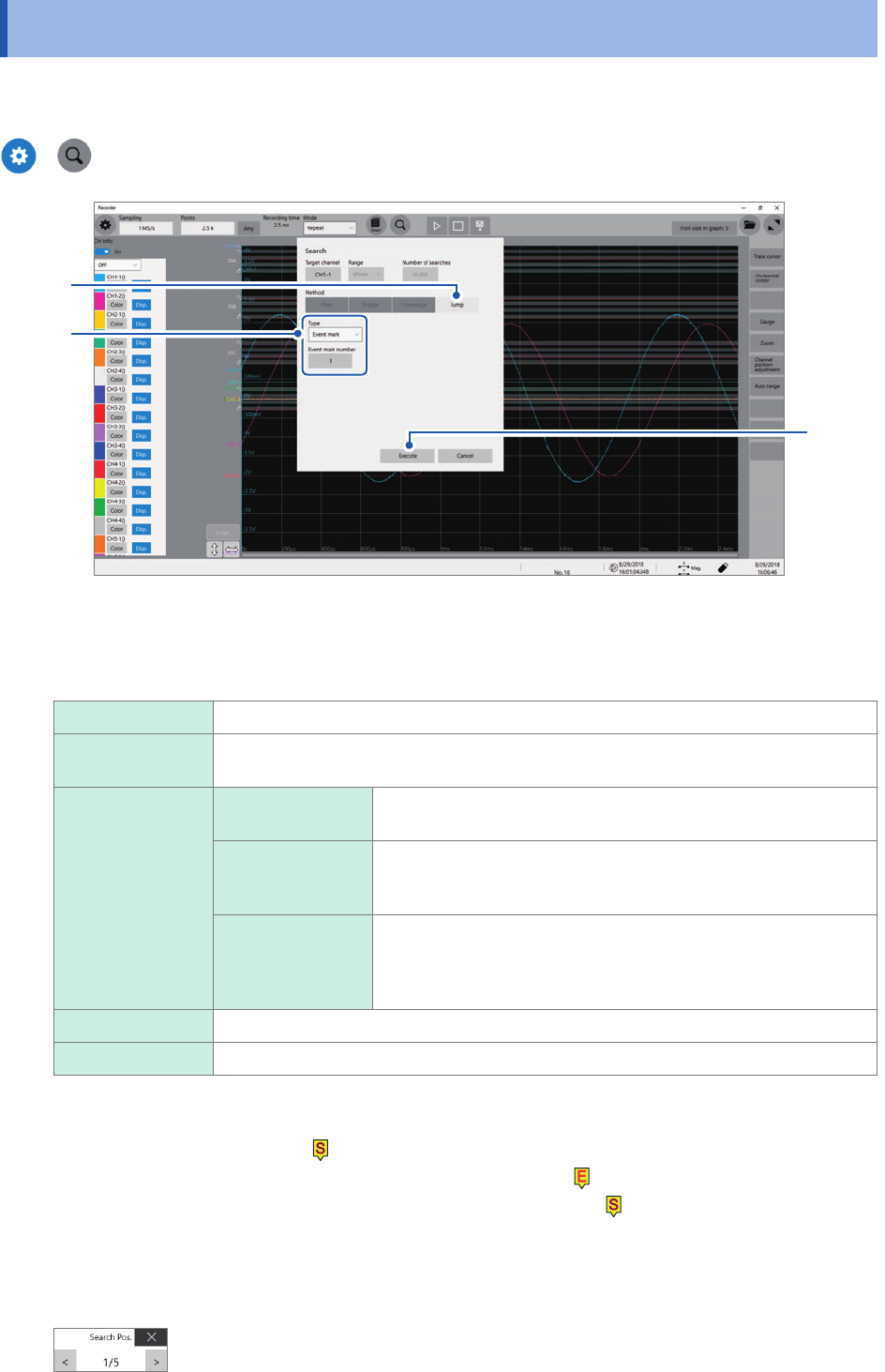
In the [Method] area, click [Jump] to set the search method to the jump method.
2
Click the [Type] box, and then from the list, choose a type to jump to.
Event mark
Allows you to enter an event number to jump to in the [Event mark number] box.
Cursor Allows you to select a position, at which a trace cursor is specied, the display is to
jump to.
Time Time Allows you to enter an absolute time to jump to when ([System]
> [Env.] >) [Time value display] is set to [Date].
Time from trigger
point
Allows you to enter a time relative to the trigger point to jump to
when ([System] > [Env.] >) [Time value display] is set to [Time]
or [Mod 60].
Points Allows you to enter the number of points to jump to in the [Points]
box when measurement is performed using the external sampling
or when ([System] > [Env.] >) [Time value display] is set to
[Samples].
Trigger The display jumps to the start trigger point.
Search number Allows you to enter a search number to jump to in the [Search number] box.
3
Click [Execute].
The instrument put search marks
( )
at positions where the search condition is satised.
When [Type] is set to [Event mark], you can jump to an event mark
( )
position.
When [Type] is set to [Search number], you can jump to a search mark
( )
position.
The jump-destination switching panel appears on the waveform screen.
4
Switch jump destinations using the [Search Pos.] switching panel to check jump results.
You can switch the retrieved positions by clicking [<] or [>].
133
7 Numerical Calculation Function
7
Numerical Calculation Function
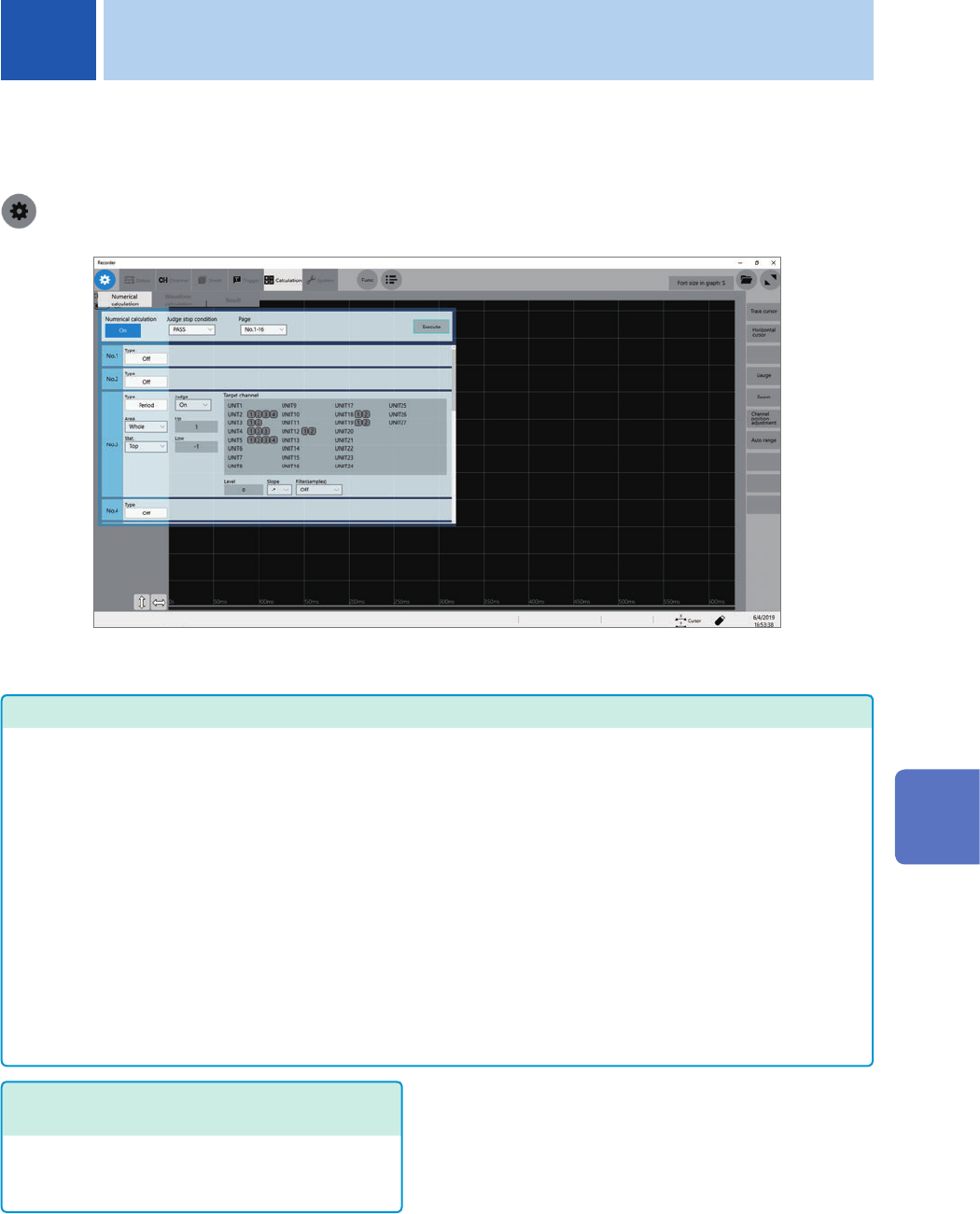
The instrument makes calculations using acquired waveform data to numerically displays
calculation results on the waveform screen. The instrument can evaluate these calculation results
on a pass/fail basis.
> [Calculation] > [Numerical calculation]
Operation available on the [Numerical calculation] screen
Numerical Calculation
• Average value
• RMS
• P-P
• Maximum
• Time to maximum
• Minimum
• Time to minimum
• Period
• Frequency
• Rise time
• Fall time
• Standard deviation
• Area
• X-Y area
• Time to level
• Level at time
• Pulse width
• Duty ratio
• Pulse count
• Arithmetic operations
• Time difference
• Phase contrast
• High level
• Low level
• Intermediate value
• Amplitude
• Overshoot
• Undershoot
• +Width
• −Width
• Burst width
• Accumulation
• Angle of XY waveform
(33 types in total)
• Calculation using the data
between the cursors
Numerical calculations can be
performed using data within the
range specied with the trace
cursors.
For details on arithmetic
expressions, refer to “Calculation
target channels and setting contents
of calculation conditions for each
calculation type” (p. 139).
Evaluating numerical calculation results
on a pass/fail basis (p. 148)
Evaluating numerical calculation results by
comparing them with specied reference ranges,
giving pass or fail judgments.
The instrument can simultaneously execute up to 108
types of numerical calculations. When the scaling
function is enabled, the instrument makes calculations
using scaled values.
7
Numerical Calculation Function