MR8740T_user_manual_eng_20191016H.pdf - 第168页
163 Conguring W aveform Calculation Settings 4 When a constant is used. Click [Constant] , and then specify constants to be used for calculation. The numerical entry dialog box appears. 5 Click a box that has an alphabe…
162
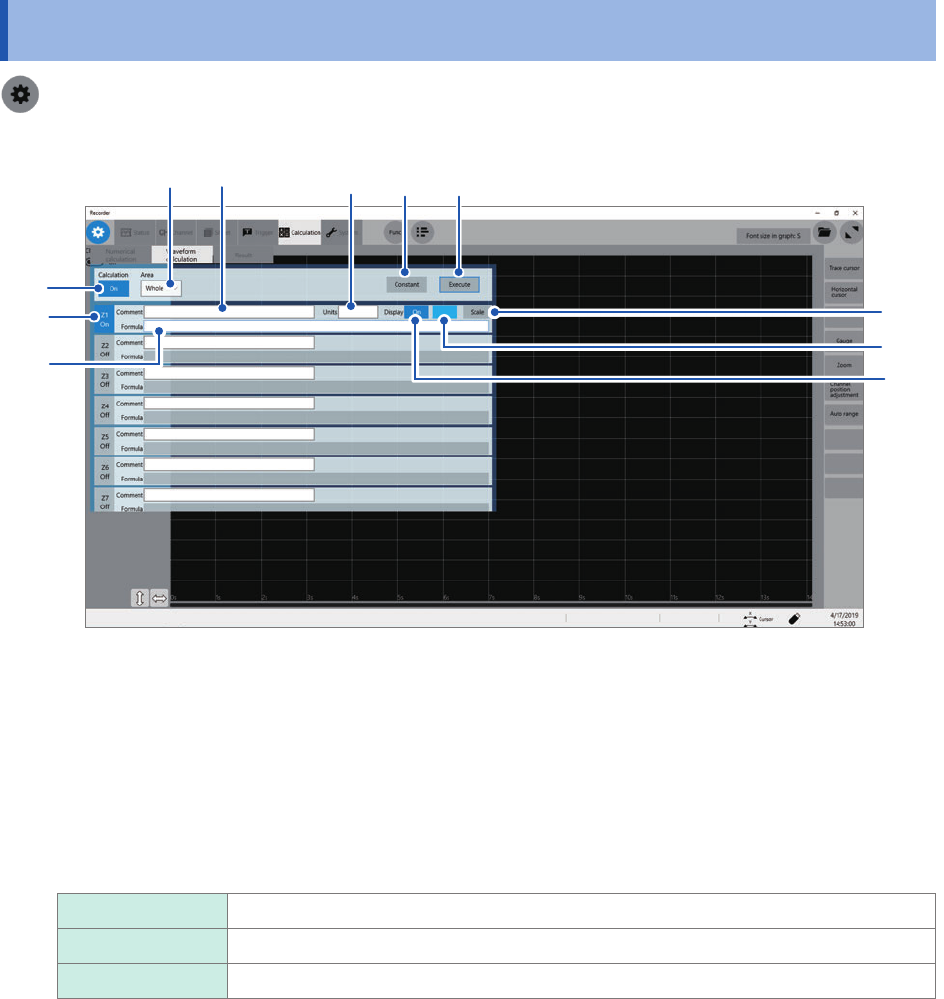
Conguring Waveform Calculation Settings
8.2 Conguring Waveform Calculation Settings
> [Calculation] > [Waveform calculation]
8
9 10
1
2
3
13
11
16
12
4
1
Click the [Waveform calculation] button to set it to [On].
2
Click any of the channels, [Z1] through [Z16], you want to specify a arithmetic calculation to
set it to [On].
3
Click the [Area] box, and then from the list, choose an option for a waveform calculation
range.
Whole
Calculates whole waveform data.
A_B Calculates waveform data between cursors A and B.
C_D Calculates waveform data between cursors C and D.
163
Conguring Waveform Calculation Settings
4
When a constant is used.
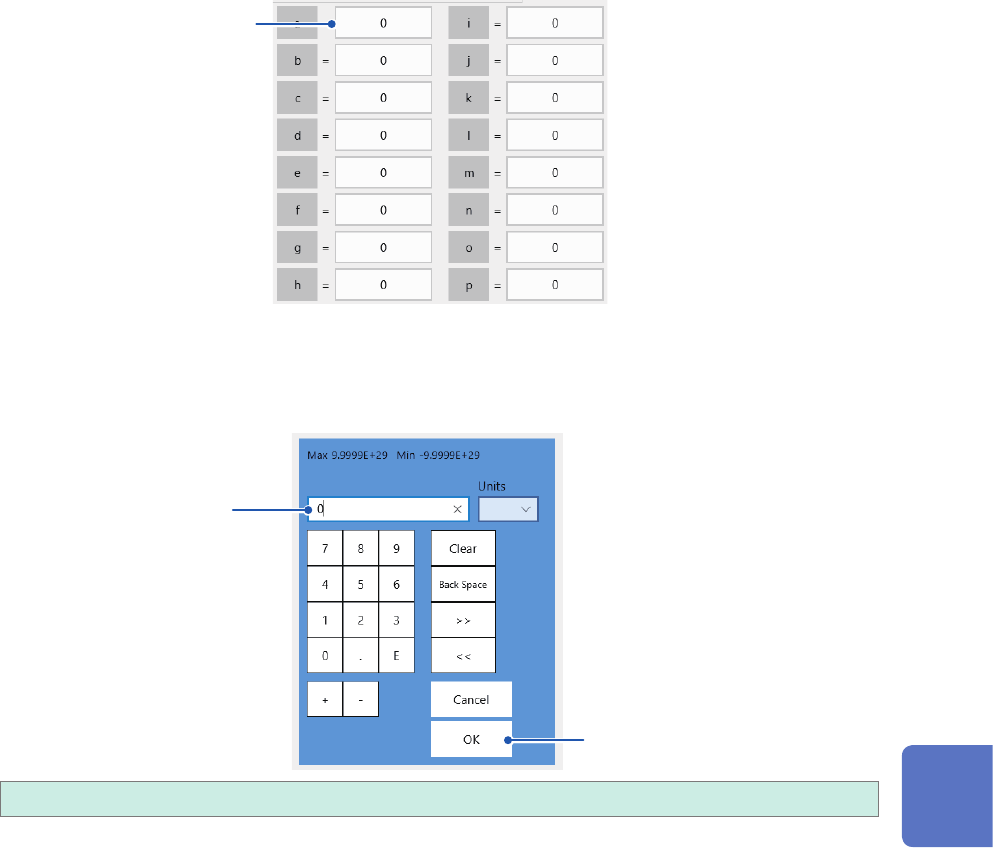
Click [Constant], and then specify constants to be used for calculation.
The numerical entry dialog box appears.
5
Click a box that has an alphabet you want to allocate a constant to.
5
The numerical entry dialog box appears.
6
Enter a constant.
6
7
−9.9999E+29 to −1.0000E29, 0, +1.0000E29 to +9.9999E−29
You can specify a number to ve or less signicant gures.
Use the numerical keypad, [+] button, and [−] button to enter.
The instrument feeds constants you have dened to the constant display on the arithmetic
expression setting dialog box.
7
Click [OK].
The numerical entry dialog box closes.
8
Waveform Calculation Function
164
Conguring Waveform Calculation Settings
8
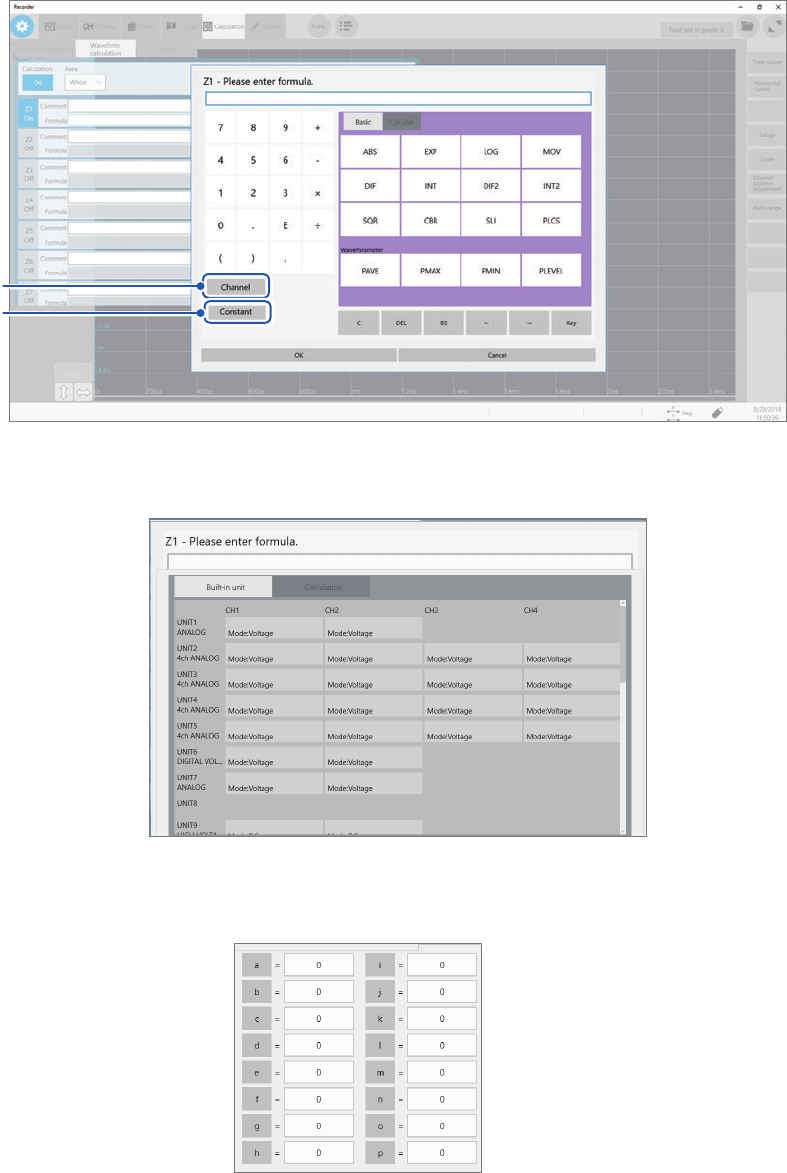
Click to the arithmetic expression eld and enter an arithmetic expression.
a
b
a
(When choosing a channel)
Click [Channel] and choose a channel you want to use for calculation.
b
(When entering a constant)
Click [Constant], and then enter a numerical value (p. 162).
9
Click the [Comment] box, and then enter a comment.
10
Click the [Units] box, and then enter a unit.