MR8740T_user_manual_eng_20191016H.pdf - 第170页
165 Conguring W aveform Calculation Settings 11 Click the [Display] button to set it to [On] or [Off] . Off Displays no calculated waveform. On Displays a calculated waveform. 12 Click the color button to the right of…
164
Conguring Waveform Calculation Settings
8
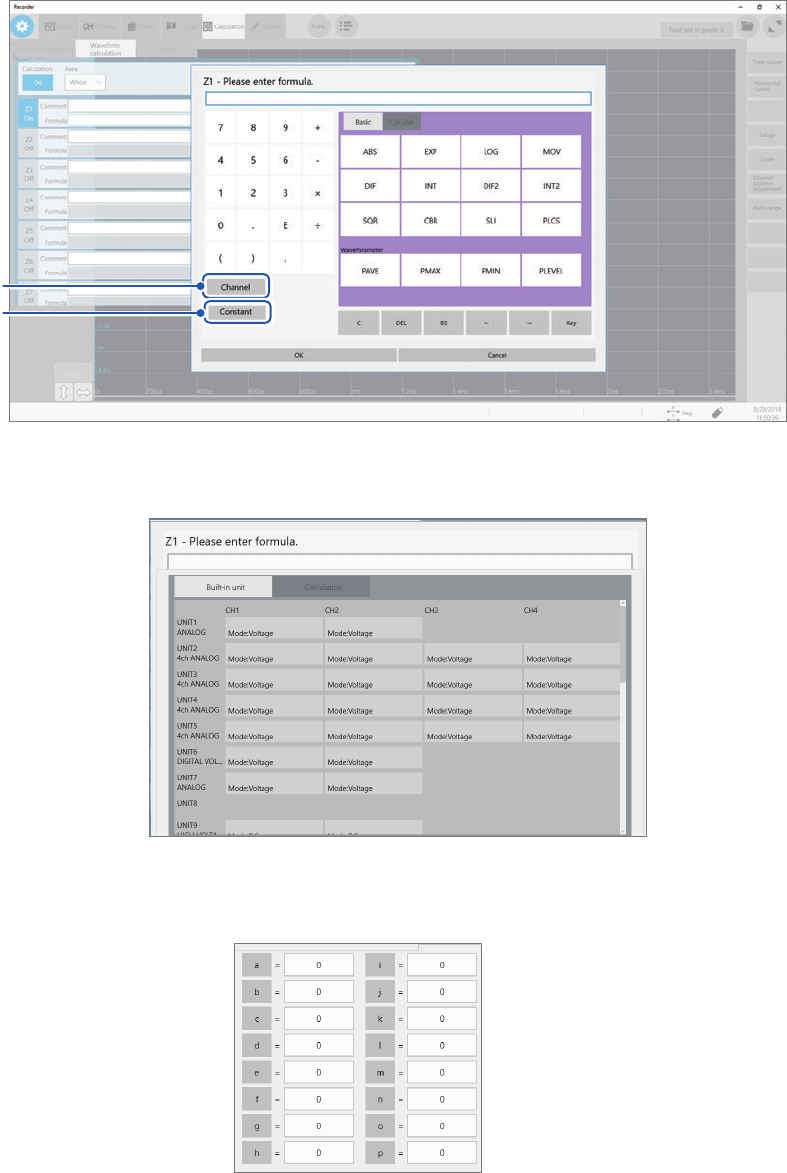
Click to the arithmetic expression eld and enter an arithmetic expression.
a
b
a
(When choosing a channel)
Click [Channel] and choose a channel you want to use for calculation.
b
(When entering a constant)
Click [Constant], and then enter a numerical value (p. 162).
9
Click the [Comment] box, and then enter a comment.
10
Click the [Units] box, and then enter a unit.
165
Conguring Waveform Calculation Settings
11
Click the [Display] button to set it to [On] or [Off].
Off
Displays no calculated waveform.
On Displays a calculated waveform.
12
Click the color button to the right of the [Display] button, and then choose a waveform
display color from the color pallet.
13
Click [Scale] to the right of the color button.
The scale setting dialog box appears.
14
15
14
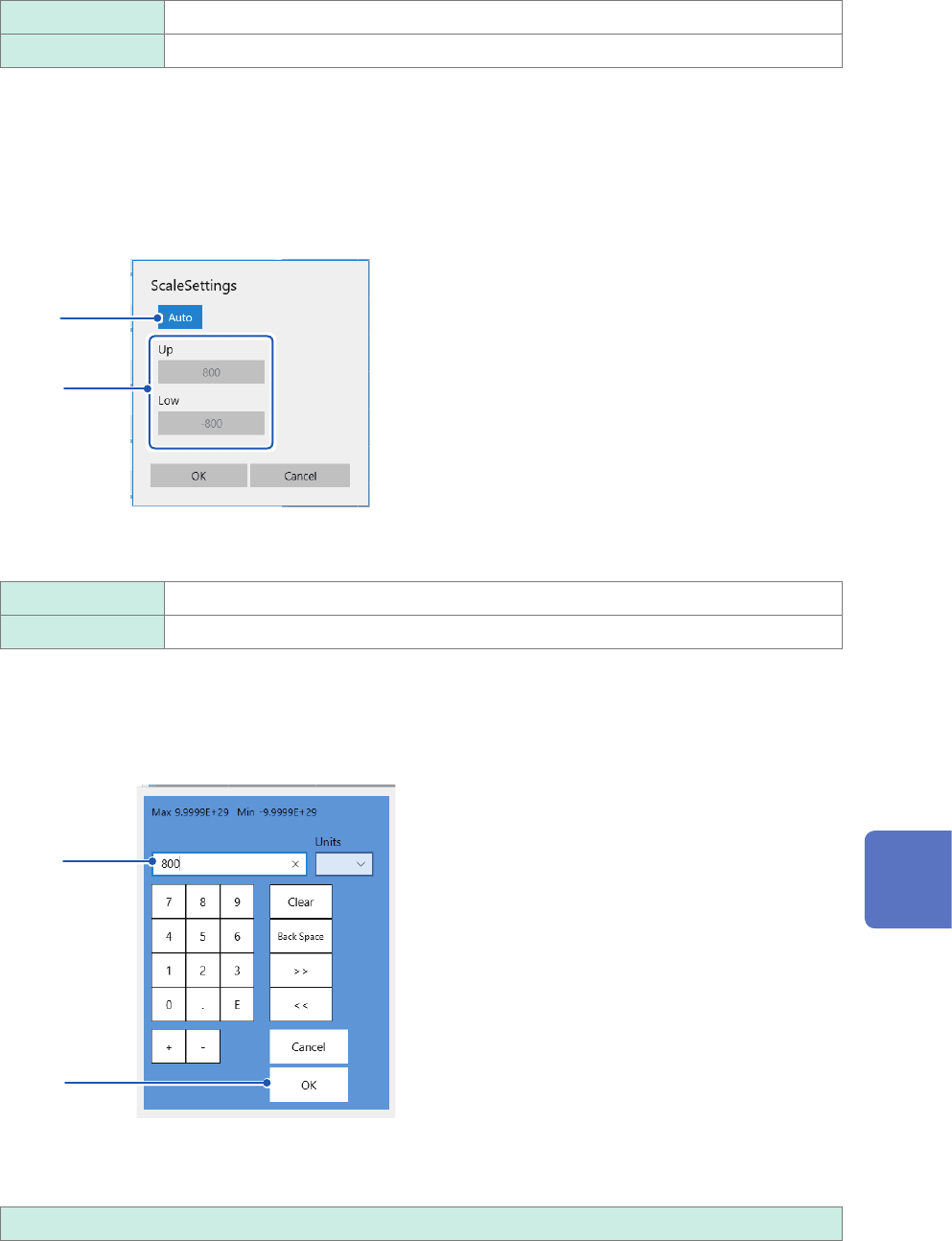
Click the [Scale] button to set it to [Auto] or [Manual].
Auto Automatically scales a calculation result.
Manual Allows you to change the scale settings.
15
(When you choose [Manual] in the [Scale Settings] box.)
Click the [Up] or [Low] box.
The numerical entry dialog box appears.
(1)
(2)
(1) Enter an upper and lower value in each box.
Use the numerical keypad, [+] button, and [−] button to enter.
−9.9999E+19 to 9.9999E+19
(2) Click [OK].
The numerical entry dialog box closes.
8
Waveform Calculation Function
166
Conguring Waveform Calculation Settings
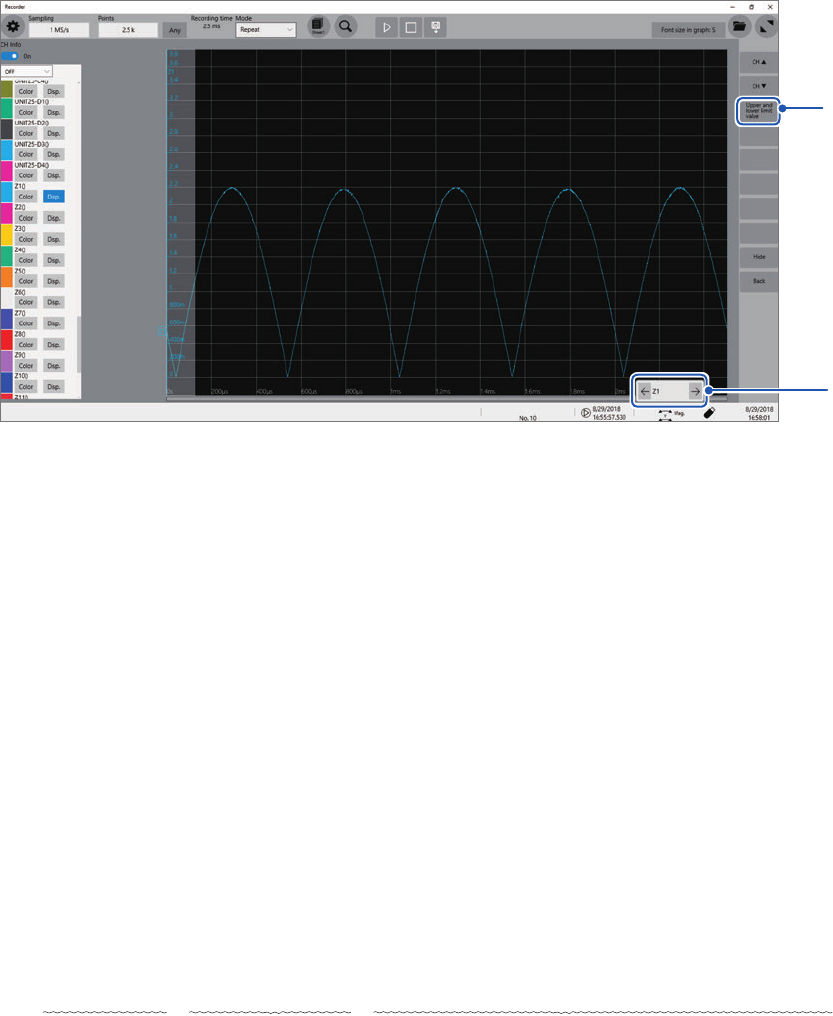
(To manually specify the scale setting for the calculation result)
(1)
(2)
(1) Click the arrow buttons to choose a calculation channel.
(2) Click [Upper and lower limit value] to specify the upper and lower limit values of the
calculation result.
16
(To making calculations using measured data)
Click [Execute].
(To make calculations during measurement)
Click the start icon.
Once the instrument has acquired waveforms, it displays waveforms calculated.
Entering arithmetic expressions
• The length of each arithmetic expression is limited to 80 characters.
• You can enter a 30-digit numbers or less in arithmetic expressions (for constants, 5-digit number
or less ).
• Use an asterisk (
*
) and slash (/) for multiplication and division, respectively.
• If an expression you enter includes an error (its frame is lled with red), all calculation results
become zero.
• Entering a complex, long arithmetic expression causes the frame of the entry box to become red.
Divide an expression into two or more.
ABS(CH(1,1)) + CH(1,2)
×
CH(1,3) − (CH(2,1) + CH(2,2))
×
ABS(CH(2,1))/DIF(CH(1,1),1)
1 2 3
• Making division by zero results in an output of an overowed value.
(for a positive divisor, +9.9999E+29; for a negative divisor, −99.9999E+29)
• You can use calculation result Zi in other calculations. Expression Zn, however, can include only
result Zn-1 or earlier.
Example: You can use results Z1, Z2, and Z3 for expression Z4)